If you’ve been around Linux long enough, you know tools come and go. This was assumed to be the case back around 2009 when the debian-devel mailing list announced plans on deprecating the net-tools package due to lack of maintenance. It is now 2015 and net-tools is still around. In fact, as of Ubuntu 14.10, you can still issue the ifconfig command to manage your network configuration.
However, in some instances (e.g., Ubuntu Docker container), the net-tools suite isn’t installed by default. This means the ifconfig command isn’t available. Although you can install net-tools with the command
sudo apt-get install net-tools
it is most often recommended to move forward with the command that has replaced ifconfig. That command is ip, and it does a great job of stepping in for the out-of-date ifconfig.
Thing is, ip is not a drop-in replacement for ifconfig. There are differences in the structure of the commands. Even with these differences, both commands are used for similar purposes. In fact, ip can do the following:
-
Discover which interfaces are configured on a system
-
Query the status of a network interface
-
Configure the network interfaces (including local loop-back, and Ethernet)
-
Bring an interface up or down
-
Manage both default and static routing
-
Configure tunnel over IP
-
Configure ARP or NDISC cache entry
With all of that said, let’s embark on replacing ifconfig with ip. I’ll offer a few examples of how the replacement command is used. Understand that this command does require admin privileges (so you’ll either have to su to root or make use of sudo — depending upon your distribution). Because these commands can make changes to your machine’s networking information, use them with caution.
NOTE: All addresses used in this how-to are examples. The addresses you will use will be dictated by your network and your hardware.
Now, on with the how-to.
Gathering Information
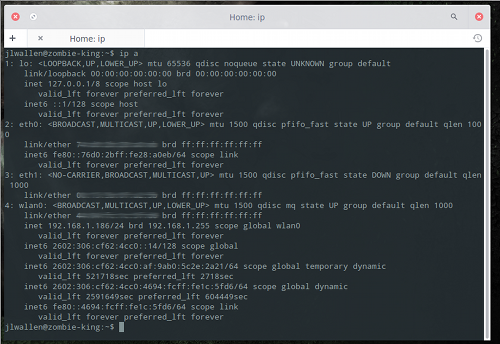
The first thing most people learn with the ifconfig command is how to find out what IP address has been assigned to an interface. This is usually done with the command ifconfig and no flags or arguments. To do the same with the ip command, it is run as such:
ip a
This command will list all interfaces with their associated information (Figure 1 above).
Let’s say you only want to see IPv4 information (for clarity). To do this, issue the command:
ip -4 a
Or, if you only want to see IPv6 information:
ip -6 a
What if you only want to see information regarding a specific interface? You can list information for a wireless connection with the command:
ip a show wlan0
You can even get more specific with this command. If you only want to view IPv4 on the wlan0 interface, issue the command:
ip -4 a show wlan0
You can even list only the running interface using:
ip link ls up
Modifying an Interface
Now we get into the heart of the command… using it to modify an interface. Suppose you wanted to assign a specific address to the first ethernet interface, eth0. With the ifconfig command, that would look like:
ifconfig eth0 192.168.1.101
With the ip command, this now looks like:
ip a add 192.168.1.101/255.255.255.0 dev eth0
You could shorten this a bit with:
ip a add 192.168.1.101/24 dev eth0
Clearly, you will need to know the subnet mask of the address you are assigning.
What about deleting an address from an interface? With the ip command, you can do that as well. For example, to delete the address just assigned to eth0, issue the following command:
ip a del 192.168.1.101/24 dev eth0
What if you want to simply flush all addresses from all interfaces? The ip command has you covered with this command:
ip -s -s a f to 192.168.1.0/24
Another crucial aspect of the ip command is the ability to bring up/down an interface. To bring eth0 down, issue:
ip link set dev eth0 down
To bring eth0 back up, use:
ip link set dev eth0 up
With the ip command, you can also add and delete default gateways. This is handled like so:
ip route add default via 192.168.1.254
If you want to get really detailed on your interfaces, you can edit the transmit queue. You can set the transmit queue to a low value for slower interfaces and a higher value for faster interfaces. To do this, the command would look like:
ip link set txqueuelen 10000 dev eth0
The above command would set a high transmit queue. You can play around with this value to find what works best for your hardware.
You can also set the Maximum Transmission Unit (MTU) of your network interface with the command:
ip link set mtu 9000 dev eth0
Once you’ve made the changes, use ip a list eth0 to verify the changes have gone into effect.
Managing the Routing Table
With the ip command you can also manage the system’s routing tables. This is a very powerful element of the ip command, and you should use it with caution.
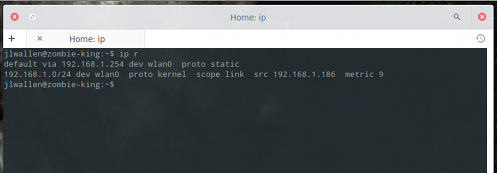
Suppose you want to view all routing tables. To do this, you would issue the command:
ip r
The output of this command will look like that shown in Figure 2.
Now, say you want to route all traffic via the 192.168.1.254 gateway connected via eth0 network interface: To do that, issue the command:
ip route add 192.168.1.0/24 dev eth0
To delete that same route, issue:
ip route del 192.168.1.0/24 dev eth0
This article should serve as merely an introduction to the ip command. This, of course, doesn’t mean you must immediately jump from ifconfig. Because the deprecation of ifconfig has been so slow, the command still exists on many a distribution. But, on the occasion of ifconfig finally vanishing from sight, you’ll be ready to make the transition with ease. For more detailed information on the ip command, take a look at the ip man page by issuing the command man ip from a terminal window.

 Valve is making some hard choice for SteamOS, and it looks like they are having some issues with the support for various components. In this case, it’s about the support for suspend, which is not all that good, forcing them to drop it from the operating system.
 FreeBSD, an operating system for x86, ARM, IA-64, PowerPC, PC-98, and UltraSPARC architectures, has been upgraded to version 10.2, which brings this development cycle to an end.