
Security professionals, programmers and developers, software engineers and project managers remained in the top five most difficult positions to fill.
Read more at eWeek
 Open source has always been about democracy, openness, and opportunity. In keeping with that spirit, at Linux Foundation Training we’re working to make high-quality professional Linux training available worldwide. As part of that, we’re excited to be able to offer Linux Foundation Training in India through a regional Linux Foundation Authorized Training Partner in the South Asia region.
India is second only to the United States in inquiries regarding Linux Foundation training and certification but ranks among the lowest in Linux certification exam enrollment. The feedback we have received is that this population of IT professionals sees the opportunities Linux training and certification present but hasn’t been able to pursue these programs due to cost barriers. This is why our Authorized Training Partners program exists.
In the coming months, additional regions will be considered for a similar program to help increase access to Linux learning materials to anyone who seeks to pursue a lucrative IT career. We’ll also continue to run events like our Summer Training Sale throughout the year to give people a chance to get a great deal on our training courses.
We truly are dedicated to making quality Linux training and certification available to as many people as possible. You may be familiar with some of our efforts:
We made our LFS101 Introduction to Linux course freely available on edX.org. More than 400,000 people are now enrolled and learning about Linux.
Every year we award Linux Foundation Training Scholarships to help deserving individuals get training that they would otherwise be unable to afford.
We released Linux Foundation Certification, which is the first performance-based Linux certification in the world. Now anyone with an Internet connection can get a top-quality Linux certification anytime, anywhere.
We developed LFS201 Essentials of System Administration as an e-learning course so that more people could learn the critical skills required to be a professional SysAdmin.
We’ve also translated the LFS201 course into Spanish (and soon, Portuguese as well) so that more people can learn Linux in their native language.
In the end, our goal is to promote the growth of Linux by ensuring that there are enough trained Linux professionals to meet the ever-growing need for Linux talent. That’s it! No tricks, no agendas, just really, really great Linux training and certification.
We’ll see you in class!
Media is king—it has been for a very long time. It helps inform, enlighten, inspire, and entertain. More and more, users aren’t content with sitting in front of a television or desktop to enjoy their media. Or, collections have become so large, transferring them from drive to drive has become cumbersome at best. So what do you do when you want to take advantage of that massive media collection from multiple locations and your target devices either don’t have space for it or you don’t want to take the time to transfer it?
You set up a media streaming server.
With this type of server you can enjoy your media from a desktop, laptop, smart phone, or tablet. Naturally, each media streaming server offers different features and there are plenty of available servers (from bare bones to full-featured solutions). I want to demonstrate the process of setting up a streaming server using Plex. Why Plex? Because it is one of the most feature-rich media servers available that also happens to be cross-platform, has a built-in media player (and transcoder), and also offers apps for both Android and iOS. With Plex, you can also sign into your account and stream outside of your local network (and enjoy other features). Do note: Some of the Plex features require a premium membership fee.
With all of that in mind, let’s begin the process of setting up the Plex server. I will be installing on the latest release of openSUSE, but the server can be installed on Fedora, Ubuntu, Debian, and more.
You will be surprised to find out that installation is the easiest piece of the Plex puzzle—even on a non-Ubuntu distribution. Let’s walk through the steps (with a reminder, I’m using the latest version of openSUSE):
Open up your web browser and download the installer that meets your needs.
Open up your file manager (in my case, on openSUSE, that’d be Files).
Change into the directory housing the downloaded installer.
Double-click on the downloaded installer.
Type your admin password and hit Enter.
Allow the installation to complete.
That’s it! The installation of the Plex media server is done.
Now you must start up the Plex server. This is done manually at this point (reboot should start the server automatically); so open up a terminal window and su to the root user. Once you have admin power at your fingertips, issue the following command:
/etc/init.d/plexmediaserver start
The Plex server will start running in the background and you can connect to the web-based interface to set up your server.
You might not be surprised to know that the setup of the Plex server will take the most time. It’s not terribly difficult, but can be time consuming. I’ll cut to the chase and illustrate the important pieces of this puzzle.
The first thing you should do is sign up for a Plex account (even the free account) so you are able to take advantage of some of the extra features. You can sign up here. Once you have your account created, you’re ready to go.
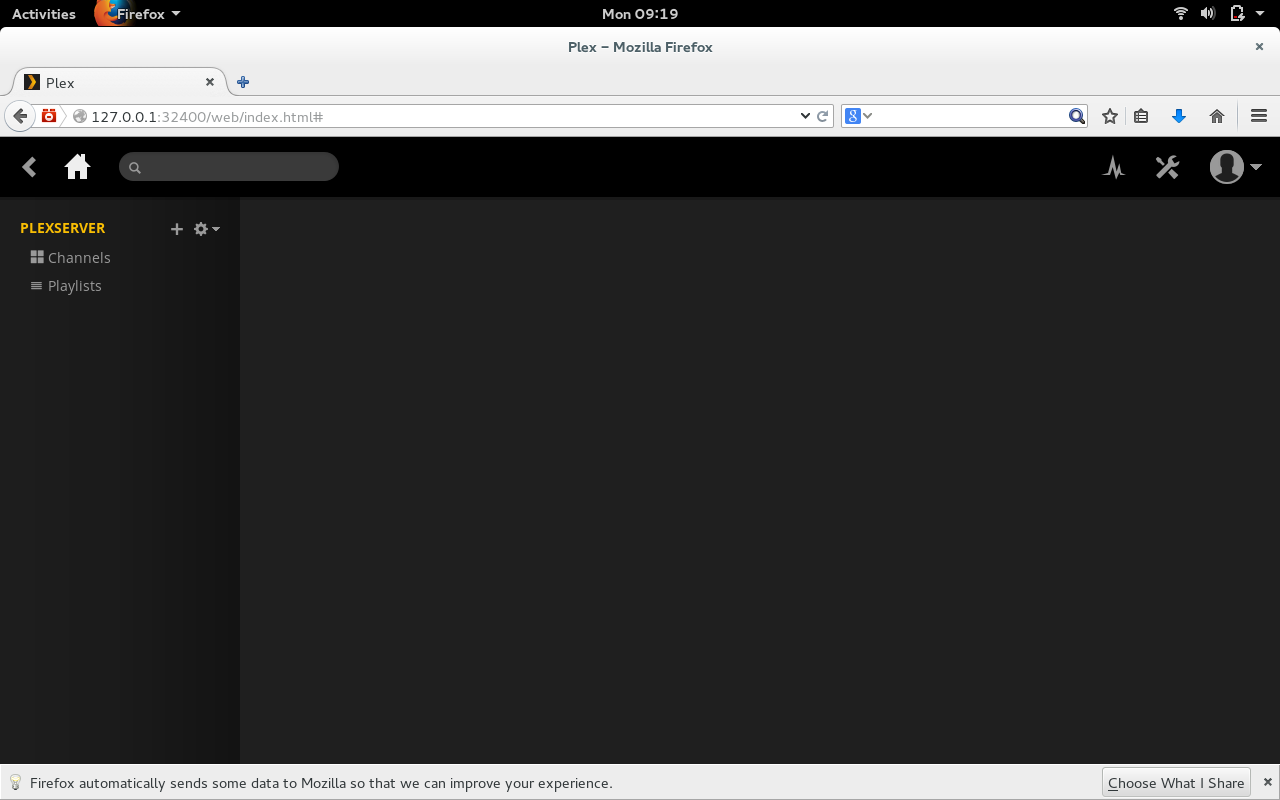
Open up your browser (on the PC housing the Plex server) and point it to http://localhost:32400/web. You will be presented with the Plex web-based administration tool (Figure 1, above).
NOTE: You can also configure the Plex server from a remote machine. To do this, you simply replace localhost with the IP address of the Plex server.
The first thing you want to do is click on the user drop-down and select Sign In. When prompted, enter your Plex credentials and then click on the Config icon (wrench to the left of the user drop-down). In the Setting page (Figure 2), click on the Server tab.
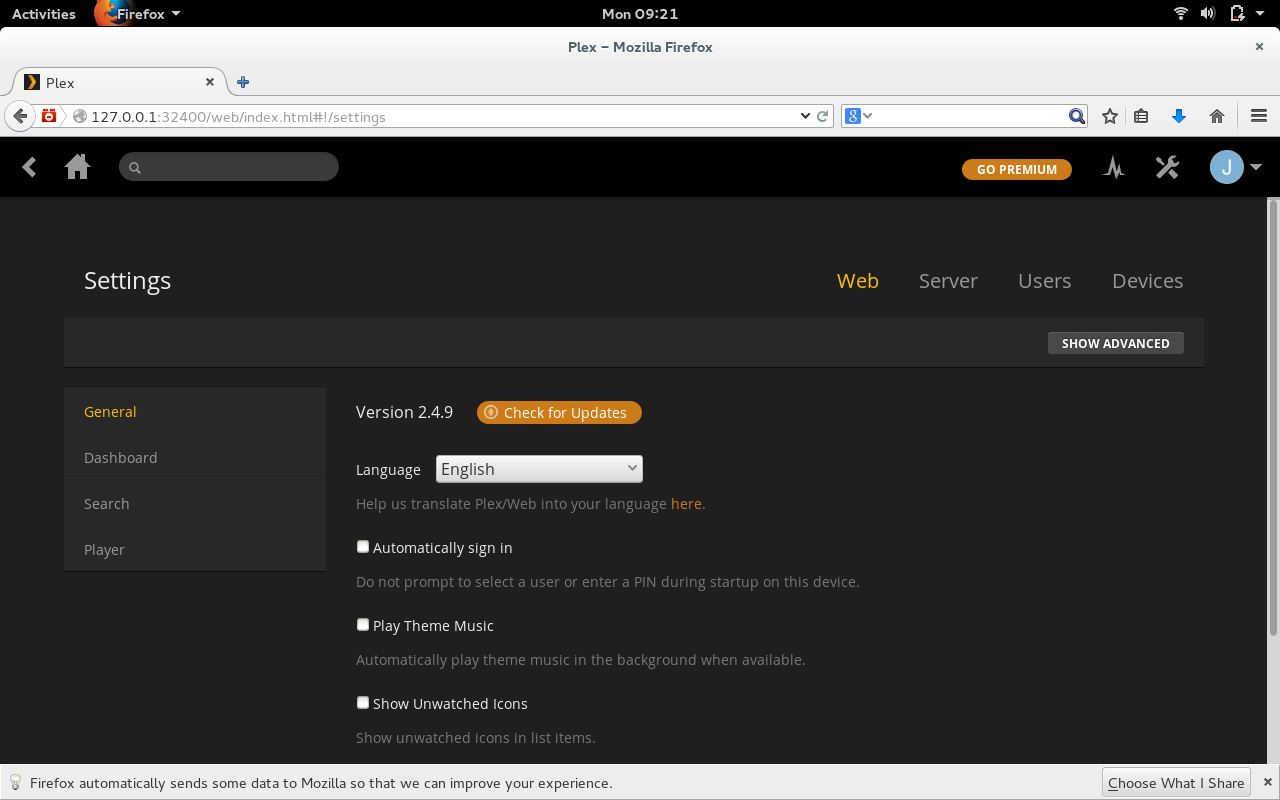
You will see a configuration option called Friendly name. Enter a name for your Plex server and then click SAVE CHANGES.
Now it’s time to configure the locations of your libraries. This is one issue that must warrant a tiny explanation. Yes, you can configure the root location of your Music and Video libraries; but there are guidelines for naming files and folders. Here are some tips:
Separate media into appropriate folders (Music, Movies, TV, etc)
Movies should be named as follows: [Movie_Name (Release_Year)].mp4
TV shows should include season and episode numbers in the name: [Show Name – sXXeYY].mp4
Each TV Show episode file should be stored in a set of folders as follows: ~/TV Shows/Show Name/Season/episodes (NOTE: For TV Shows, the folder structure is crucial.)
Music content should be stored as follows: ~/Music/Artist/Album/tracks
NOTE: Your root folder does not have to be housed under your home user directory.
In order to be able to stream, you have to create Libraries for each type of media. Here’s how:
Open up the Plex web admin tool
Click on the Home button
Click the + button associated with PLEXSERVER (or whatever friendly name you gave your Plex server) in the left navigation
Click the icon for the media type associated with the library to be added (We’ll add a music library for example)
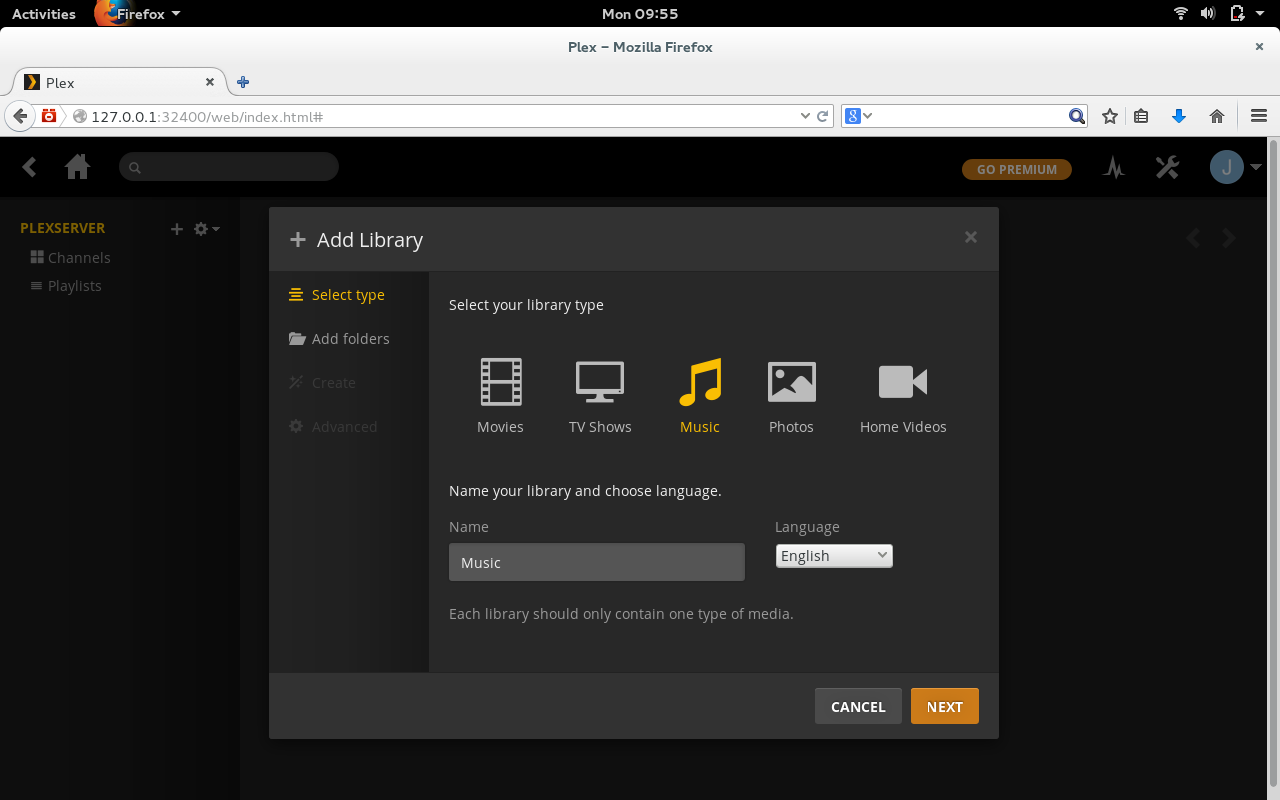
Give the library a name, select a language, and click NEXT (Figure 3)
Click BROWSE FOR MEDIA FOLDER
Locate the media folder and, once you’ve selected it, click NEXT
Select Create a basic music library and click NEXT
Scan through the presented options on the last page (the defaults work fine) and click ADD LIBRARY.
That’s it. After a refresh, your media should show up (depending on how large the folder is, this could take some time.)
Repeat this process for every type of media you want to add and your Plex streaming server is ready.
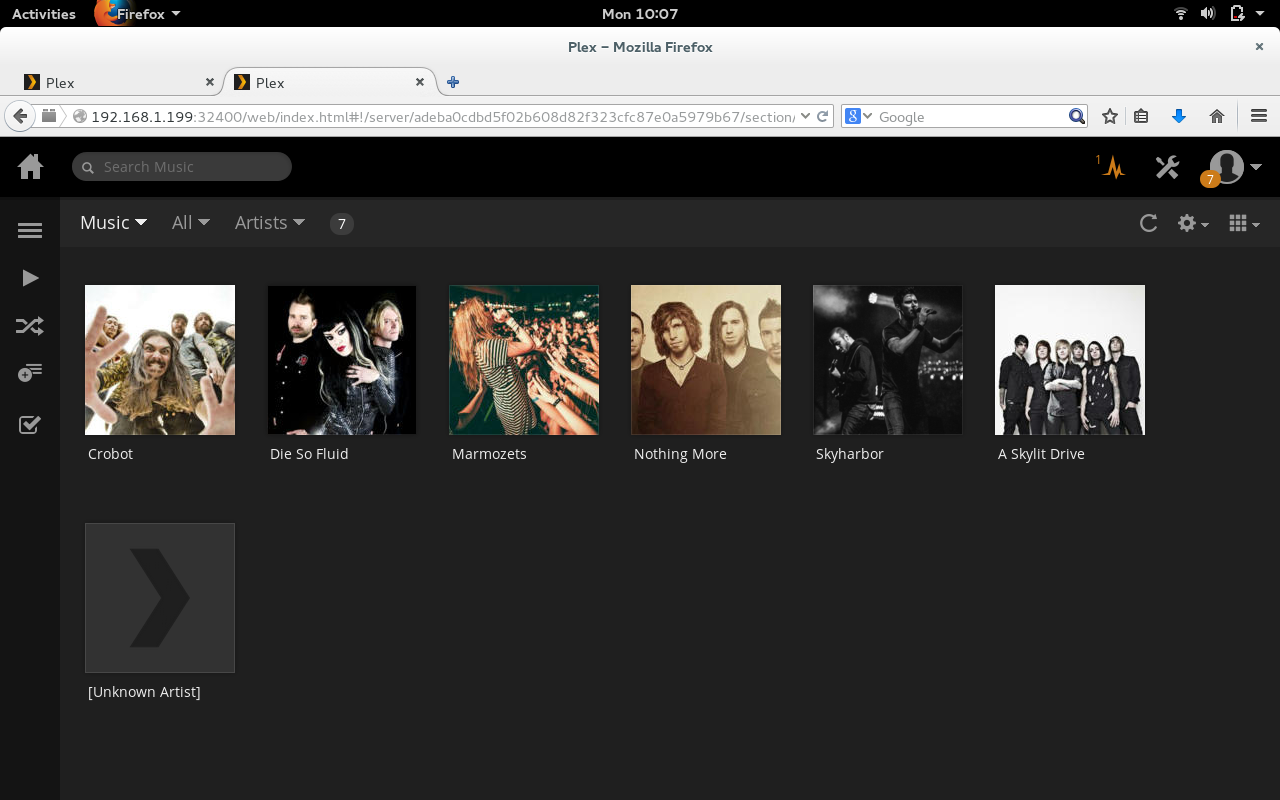
Out of the box, you can point any desktop or laptop device on your network to the IP of the Plex server (in the form http://IP_ADDRESS:32400/web) and Plex will appear, ready to stream media (Figure 4).
To connect to your Plex streaming server from the mobile app is incredibly simple—you open the app, select your server from the dropdown, and your stream-able media will appear (Figure 5).
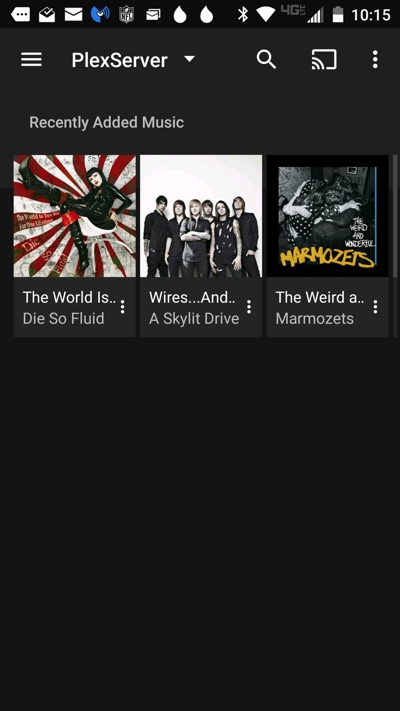
NOTE: Unless you pay the $4.99 license fee for the app, your media will be limited in playback (music will stop after 1 minute and all videos/images will be watermarked).
If you’re looking for one of the most feature-rich and well supported media streaming servers on the market, you can’t go wrong with Plex. Yes, there are plenty of other streaming servers available, but you’ll be hard-pressed to find one as robust and ready to serve.
 Canonical works on a few Ubuntu Touch branches at all times, besides the current stable one that everyone can get. From the looks of it, the development one is based on the new Wily Werewolf, and it’s receiving some interesting changes.
A new OTA update has been released for the Ubuntu Phones, and lots of improvements have landed, but… (read more)

On the third day of OSCON, I heard Facebook’s James Pierce deliver one of the convention’s many keynote presentations.