
Home Blog Page 1126

How – and Why – to Speak at Linux Foundation Events

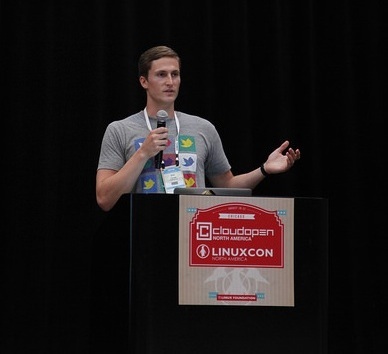
LinuxCon CloudOpen 2014 speaker The open source community lives and grows through collaboration. That collaboration is driven online but we’ve witnessed first hand how much can be done and quickened by face-to-face meetings. This is due, in part, to the session speakers at events like LinuxCon, CloudOpen, Embedded Linux Conference and more. Speakers at our events represent the leaders and subject matter experts across a diverse range of technology areas and lend so much more to the event experience than just speaking. They help grow the community through their contribution; they make the experience for attendees so much more rich; and they represent the passion and genius that Linux and open source are known for.

With the Call for Papers for LinuxCon, CloudOpen, the new ContainerCon and many more events approaching, please consider these benefits to you as a speaker and consider contributing to this year’s events.

Benefits of Attending

Grow your community

By speaking and sharing your knowledge with the larger Linux and open source community, you help bring more people into your project by showing them what’s so special and interesting about it.

Advance your mission or your work more effectively

A study by the Economist Intelligence Unit revealed that in-person interactions helps resolve problems more efficiently, generate longer-term relationships and resolve problems and creative opportunities more quickly. Online communication can be very efficient, but it lacks many key aspects of communication, including body language and facial cues. Additionally, when you work with someone face-to-face you are more likely to give them your full attention than online communication, which is usually accompanied by multitasking on other items.

Increase your credibility in the community

Most technology events get far more speaking proposals than they have room for, so only the best and most useful are selected. Being offered a speaking slot demonstrates that you have important knowledge to share and are qualified to share it. Conference speaking appearances can help create positive feelings about, and publicity for, you and your organization or project.

Expand your network

Any attendee at a conference can attend your session, so you are likely to see some new faces. Instead of communicating with your existing network online, events provide the opportunity to meet new contacts who will take the knowledge you impart and share it with their own networks, amplifying the impact. You also have the opportunity to learn from others through their sessions, or collaborate with them at networking events, hackathons and other activities. If you’re looking to recruit new people to your organization, or if you’re looking for a new job yourself, there’s no better way to get a foot in the door than meeting in person.

Tips for Submitting a Talk

Ok, ready to submit a talk? Here are a few tips as you consider your CPF submission. 

Tailor proposals to your audience

If you’re considering applying to speak at an event, make sure your topic fits into the focus of the event. You should review the call for proposals in detail, and if available look at session topics from prior years of the event. If you were attending this event, what would you want to hear about? 

Be forward thinking

When drafting a proposal, don’t focus on what has been done in the past but about what the future holds for this topic. What knowledge can you share that people in the audience can take away, expand upon and improve for the future?

Don’t make a sales pitch

If someone wants to hear about the features and capabilities of your latest product, they’ll contact the sales department. Speaking at a technology conference is about demonstrating the how and the why, not the who and the what of a topic. Be as neutral as possible and talk about what the community can do for you, as well as what you can do for them.

Show your passion, and inspire

The best presentations are the ones where the speaker strongly believes in the topic and can communicate the fervor of that belief in a way that inspires the listener.

Don’t give up

If your first proposal isn’t accepted, don’t be disheartened. As mentioned earlier, there are always more proposals than available slots. Ask for feedback and get input from others about how you can improve your pitch for next time, or think about alternative topics that might be more relevant. Consider applying for smaller events or ask to present at a local Meetup group to try your talk out and help perfect it. Many Linux Foundation events also include Birds of a Feather (BoF) talks, which are informal and open to anyone who wants to share their knowledge, making them a great opportunity to still speak if you aren’t selected for a formal session.

At The Linux Foundation, we are always looking for speakers for the dozens of events we organize each year. We especially want to invite new speakers and those from underrepresented groups to submit proposals. It’s well established that women and minorities can doubt themselves and discourage themselves from submitting talks for conferences. Don’t let this stop you! We want to hear from you and other new speakers.

Visit our Call for Proposals Dashboard to see all the upcoming opportunities, including LinuxCon + CloudOpen + ContainerCon North America (CFP deadline May 12). And if you want advice or to run something by me please email me at amanda at linuxfoundation dot org.
Video: 84-Year-Old Volunteer Rebuilds, Sends Linux Laptops to Africa

FreeGeek laptops kenya

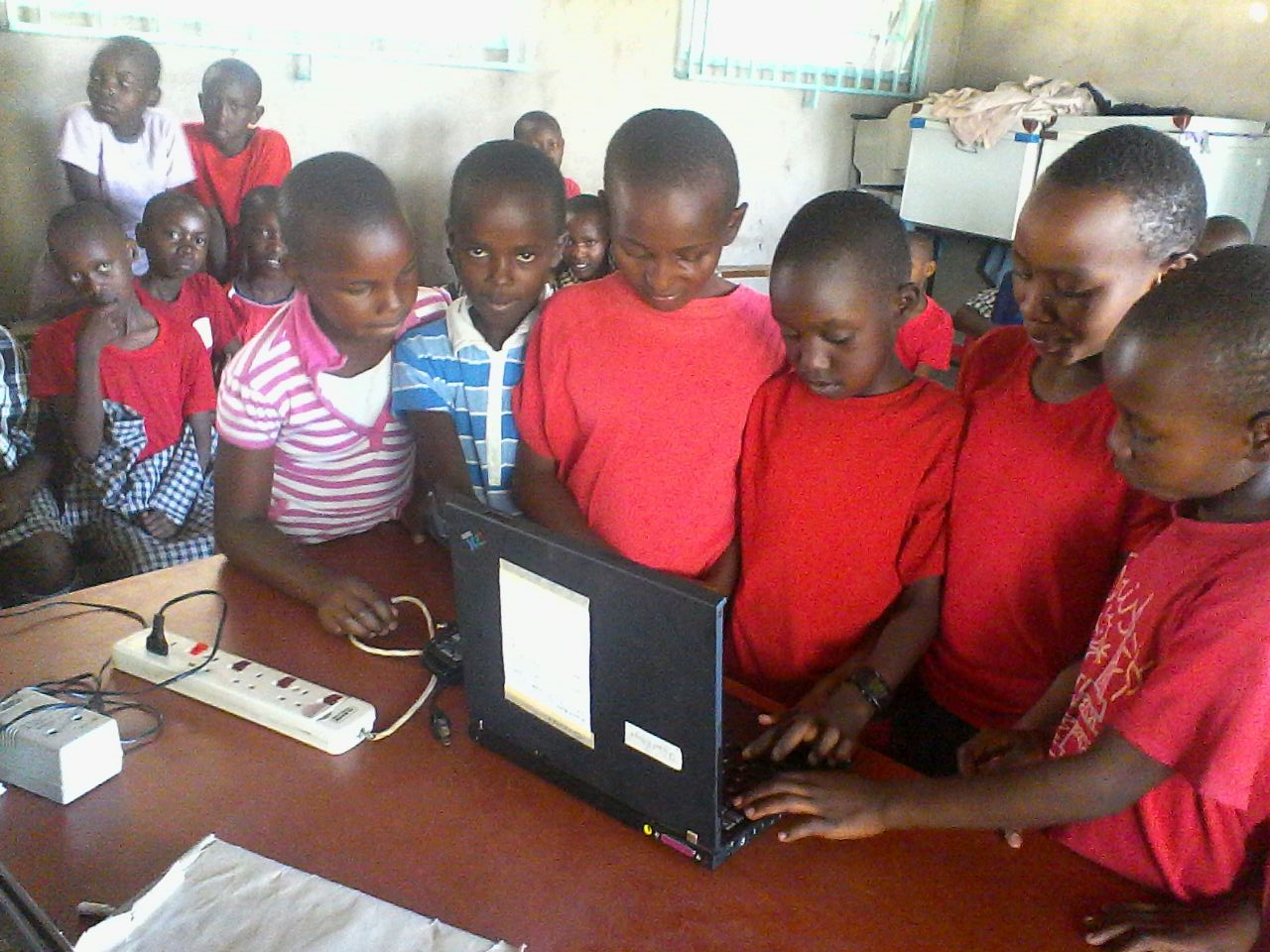
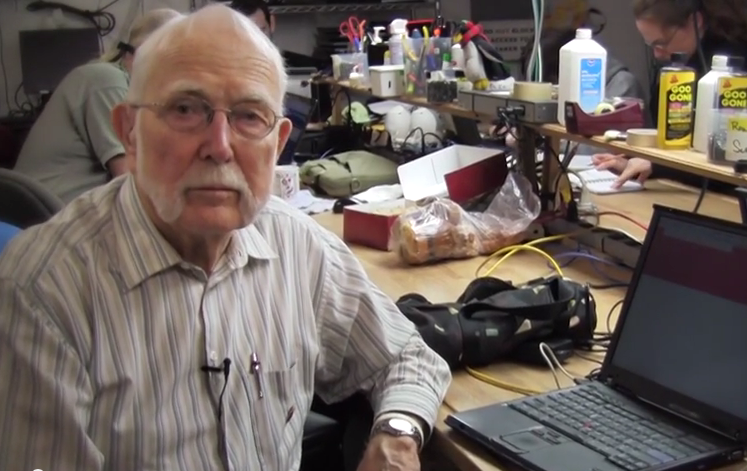
Retired pastor James Anderson, age 84, has never worked in IT or had any formal computer training, but over the past two years he has rebuilt more than a hundred IBM ThinkPad laptops and sent them to schools and nonprofits in Africa – all running Linux.

For the past nine years, Anderson has volunteered at FreeGeek, a Portland, Oregon-based nonprofit that recycles and rehabilitates old computers for donation. He spends four hours every Friday testing and rebuilding the ThinkPads, which he then loads with Linux Mint 17 and sends one or two at a time to Africa via personal couriers.

https://www.youtube.com/watch?v=66wxCOCYt5Q” frameborder=”0

It’s a passion project Anderson began in 2006, after he and his wife spent 13 weeks in Zimbabwe teaching math at a rural boarding school near the Mozambique border. When they returned, he began looking for a way to continue to help the kids he’d met there.

He has always been a tinkerer and loved computers; he’s owned one since the mid-1980’s when laptop precursors, known as “luggable” computers, weighed more than his wife’s sewing machine, he said. So when a neighbor told him about FreeGeek he saw the chance to help through technology.

“I realized the opportunity these students had to use computers even in the most simple way were almost nil,” he said. But, “I didn’t know what a memory stick was from a video card.”

Open Source is Rewarding Work

He learned how to rebuild old PCs at FreeGeek, which also offers classes and training, and has since racked up more than 1,500 volunteer hours there.

James AndersonHis early attempts to ship desktop machines back to Africa via container proved too difficult and expensive – the machines were too bulky, he said. So he volunteered on other projects for several years, slowly improving his hardware knowledge, until 2013 when a new opportunity to send the ThinkPad laptops arose.
The ThinkPads, which run on Intel Pentium M single core, 32-bit processors and hold less than 2 Gigabytes of RAM, were state-of-the-art 10 years ago but are far outdated by today’s standards. They arrive at FreeGeek entirely by donation and need a great deal of work. But once Anderson figures out what’s wrong, and fixes it, swapping out replacement parts, reformatting, and doing whatever else is necessary – they become fully working machines again.

“They’re not the fastest computers available now but they still have good use for teaching children who are learning how to type and manipulate a computer,” Anderson said.

He finds the work incredibly rewarding, not only for the knowledge that he’s helping increase computer literacy for impoverished children, but for the experience of volunteering at an organization that embraces open source technology and philosophy.

“Community here is extremely important,” he said. “I enjoy the tinkering but above all I simply enjoy the community. So as long as I’m able I think I will be here on Fridays, as long as they’ll let me, and I have no indication that they won’t.”

Valve’s Mods Blunder Prompts Reddit Community to Create Open Source Steam Replacement

Valve recently went through a major PR debacle after the company announced that it’s implementing paid mods for games and Skyrim in particular. Their decision was short-lived, and it was retracted, but they have managed to incur the rage of the community. Independent developers are now working on a new game that launcher that will make Steam obsolete.
Valve probably figured that there will be some resistance from the community when they announced paid mods, but they couldn’… (read more)

Read more at Softpedia News

Mark Shuttleworth Says Microsoft Didn’t Copy Convergence Idea, Ubuntu Will Be First

Mark Shuttleworth talked about Ubuntu convergence and he also happened to mention the fact that Microsoft is trying to do something similar to Windows, but he said that the companies just had the same idea, at the same time.
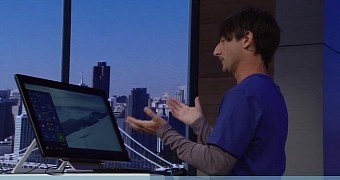
Microsoft’s Continuum concept was presented at BUILD 2015, one of the latest conferences, and showed how a Windows phone could be connected to a monitor, mouse, and keyboard, allowing users to use their devices as PC substitute. It’s unclear just how ad… (read more)

Read more at Softpedia News

How to Manage Your Files From the Command Line

file manage from the command line

This is the third article in the ‘Break the GUI’ series, and it’s all about managing files and directories without having to open the file manager.

One great advantage of using the command line interface (CLI) to perform such tasks is that you bypass the limitations of the file manager that comes with your distro. CLI is faster, less resource intensive, and as a result, more efficient. Learning CLI has its own perks: it also enables you to run your own headless servers.

I assume that you are familiar with the basics of command line, if not, then check out this article by Jack Wallen, “How to Move Files Using Linux Commands or File Managers.” In this article, we will learn how to do ‘almost’ everything with your files and directory without a file manager.

Without further ado, let’s get started.

To make it easier for users to understand, I am presenting a problem. I take a lot of photos and download them to my computer. Now all of those photos are piled up in the ‘Downloads’ directory and I want to organize my files.

How to create new directories with command line

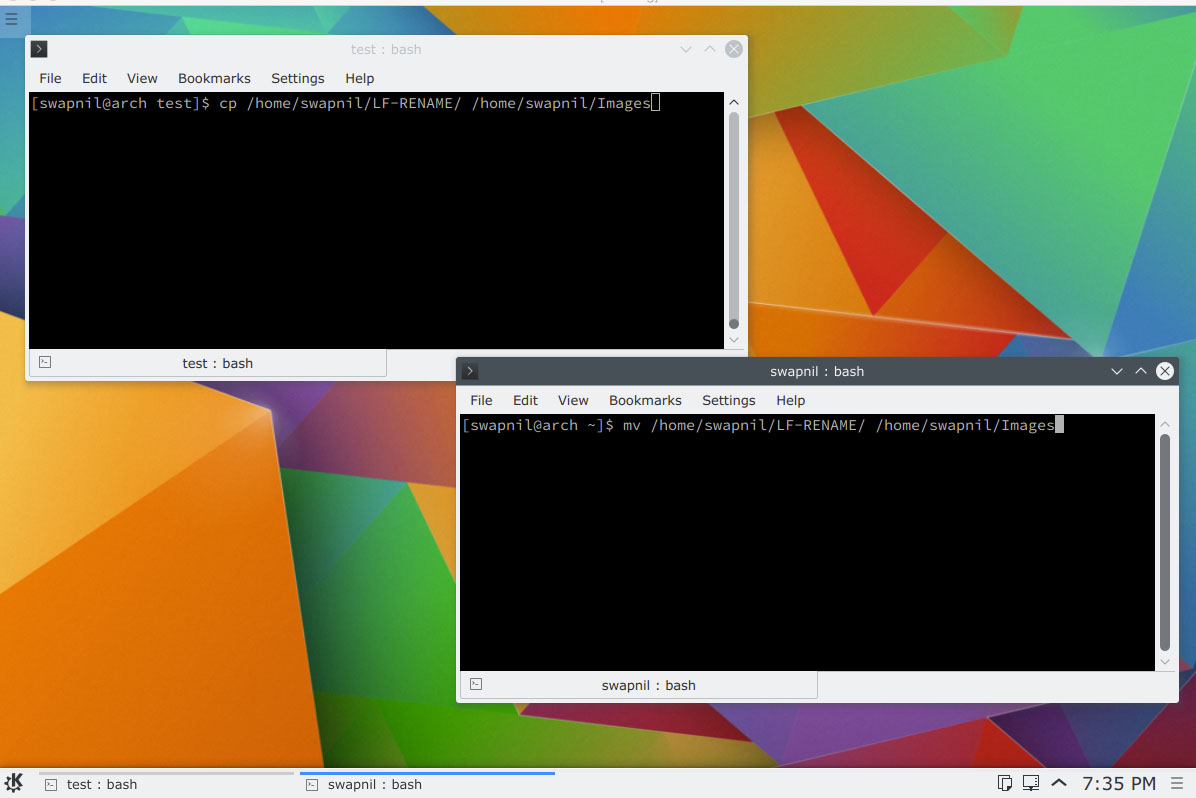
There are two ways to do this. Either _cd_ to the directory where you want to create a new folder or use the full path. Let’s assume I have pics from the previous LinuxCon and I want to save all those images to a directory called ‘Linux_Con’ inside another to-be-created directory ‘images’, inside one of my partitions mounted at ‘/media/4tb’.

Since the directory ‘images’ doesn’t exist yet, we will use the ‘-p’ option with the mkdir command:

mkdir  -p /media/4tb/images/linux_con

The ‘-p‘ option will create all the directories given in the command in the parent-child order. If we used the mkdir command without ‘-p‘ and since ‘images’ directory didn’t exit, it would throw an error.

The second method is cd to the parent directory, which in this case is ‘4tb’:

cd /media/4tb

Then create the directories:

mkdir -p images/linuxcon

The directory has been created and we can now populate it by either copying or moving files to it. It’s important to understand the difference between the two: while copy, as implied by the name, makes a copy of the file at the new location, the ‘move‘ command deletes the file from the original location and places it in the new one.

Copy files:

cp path_of_file /path_of_new_destination

If I am copying the image ‘linux_con_2012.jpg’ from ‘Downloads’ folder to the newly created folder here is the command:

cp /home/swapnil/Downloads/linux_con_2012.jpg /media/4tb/images/linuxcon/

What if there is more than one image in the ‘Downloads‘ folder? In that case we can use a wildcard to copy everything from the folder to the images directory:

cp /home/swapnil/Downloads/* /media/4tb/images/linuxcon

Houston there is a problem

There were other files and not just images in the download folder and I wanted only images to be copied. In that case we will specify which file types to be copied. Use the file ‘extension’ with the wildcard so the command will copy only those files types. In this case the images are in .jpg format.

cp /home/swapnil/Downloads/*.jpg /media/4tb/images/linuxcon

You can use the same pattern for copying other file types. For example, if you want to copy images or documents or music you can use appropriate extensions such as .jpg, .odt,.doc, .pdf or .mp3.

Copy only certain files of the same file type

What if I don’t want to copy all images from the download folder; and want to copy only those that I took during the conference? Let’s say that the images were named by the camera as IMG with numbers, so they looked something like: IMG_2200123.jpg.

Now the first 325 images are from Linux Con. Let’s make it a bit complicated and say say from image number 50 until 400 are from LinuxCon and these are the images that I want to copy. Images before and after these are from some other event. Our challenge is to move only these images.

So we are going to move all the images from IMG_220040.jpg till IMG_220400.jpg. Here is the command:

cp /home/swapnil/Downloads/DCIM/IMG_220{40..400}.jpg /media/4tb/images/linuxcon/

In this case the name outside the bracket is common and those inside are changing. You can use the same pattern to copy images on your computer.

If I want to copy the next batch just use the same pattern. Let’s say I want to copy the next 100 images to the Chicago folder. The command would be:

cp /home/swapnil/Downloads/DCIM/IMG_220{401...500}.jpg /media/4tb/images/chicago

Move over cp, here comes mv

If you don’t want two copies of the same file, as it will take up unnecessary space, you can simply delete the copied files from the source location to free up space. Alternatively, instead of copying you can move files. That becomes important when you are running out of space and ‘copying’ won’t work because there isn’t enough space to have two copies of the same file.

You can use the above commands for the purpose, just exchange ‘cp’ with ‘mv’. Here mv stands for ‘move’.

So the command will be:

mv /home/swapnil/Downloads/DCIM/IMG_220{401...500}.jpg /media/4tb/images/chicago

How to rename files

It’s quite easy to rename files using a file manager like Dolphin. Although Gnome’s default file manager Nautilus (Files) can’t handle multiple file renaming so you are stuck due to that limitation. That’s where CLI comes into play as it can batch rename files on a Gnome system.

The problem.

Why do I need batch file renaming? I visited a conference and took hundreds of pictures. Now two years later, it will be an impossible task for me to find the images from Eben Upton’s keynote, as all images are in the default naming format such as “IMG-20133.jpg”. If I re-named the images from different events, it would be extremely easy to find them later. My son was born in 2012 and if I want to see the video or images of his first laughter I can simply search “first laughter” on my computer and the image will be there…because I named them appropriately. No more muss and fuss with trying to find the folder where I saved images that year.

It’s very easy to rename single images but if you have more than one image, then it’s a waste of time to rename hundreds of images one by one.

To rename images using the command line, we use the ‘mmv‘ command (there are other commands like renamer, etc).

If mmv is not installed on your PC, you can install it from the official repos. Once installed, cd into the directory where the files are saved. There is one caveat though: The command will rename all the files in the current directory so use it carefully.

mmv *.jpg new-name_#1.jpg

All files will be renamed to new-name.

If you want to rename one image, then simply run this command:

mv /path_of_Image/old-image-name.jpg /path_of_Image/new-image-name.jpg

Keep two directories synced

You must always have back-up or copies of your files on different physical storage devices so that the chances of losing data are low. I have a mail home server and then a local backup server, where drives are hot plugged and I can grab and run in case of fire (yes, I will save my data before I save my cats!). In addition to that I have a copy of my critical data on a remote server and I sync it using a tunnel. And that’s where ‘rsync’ tool plays a critical role.

So how do I keep my data synced across these devices or how do I automate the back-up? Well that’s the focus of the next article. The focus of today’s article is to keep two directories synced with each other.

There are many advantages of rsync over cp or mv commands. And in some cases you can only use rsync and not the other two.

One of the advantages of using rsync over cp is that if you delete any files from the primary source, rsync will delete those files from the secondary source. In a nutshell it keeps both both directories synced.

Let’s say we want to make a copy of /media/4tb/images/linuxcon on another drive mounted at /media/2tb/

rsync -avz /media/4tb/images/linuxcon /media/2tb/

As you can see, the pattern is simple:

rsync -avz /source /destination

Here a stands for ‘archive mode’. This mode preserves devices, symbolic links, attributes, permissions, ownerships, etc. V stands for verbose and z compresses the files during transfer. More options can be used for different tasks.

By default it won’t remove any directories from the destination if you deleted them at source. You can enable it to do so by adding the ‘–delete’ option. So the command will become:

rsync -avz --delete /media/4tb/images/linuxcon /media/2tb/

That’s pretty much the basics of using CLI to manage files and directories without touch the GUI based tools.

Keep yourself rsynced with this series!

How to Use the Linux Command Line: Software Management

How to Use the Linux Command Line: Basics of CLI

An Ubuntu Phone Will Ship This Year With The Converged Unity Experience

During Mark Shuttleworth’s keynote this morning to kickoff the Ubuntu Online Summit for Ubuntu 15.10 (codenamed the Wily Werewolf) he also shed a few details about a new Ubuntu phone that is supposed to ship this year…

Read more at Phoronix

Ubuntu 15.10 Is Codenamed The Wily Werewolf

As expected, the Ubuntu 15.10 codename was announced today during Mark Shuttleworth’s virtual keynote for kicking off this week’s Ubuntu Online Summit…

Read more at Phoronix

Ubuntu Is Slowly Moving Towards the Rolling Release Model

Developers from Canonical explained last week that they intended to rebase the Ubuntu Next flavor (featuring Mir and Unity8) on Snappy, which means that they were also considering moving to a rolling release model, even if it was just for this branch.
Will Cooke from Canonical said last week that the curren… (read more)

Read more at Softpedia News

Open Source Krita App Wants to Be Faster than Photoshop, Hits Kickstarter Again

Krita, an open-source digital painting software that proved to be a very powerful and useful solution, is once more present on Kickstarter and this time it wants to become faster than Photoshop.

The Krita developers went on Kickstarter last year, and they promised to improve the application tremendously if the project was a success. They managed to raise enough money and to improve Krita tremendously. The product of the Kickstarter campaign was Krita 2.9, their best releas… (read more)

Read more at Softpedia News

Essential commands for text manipulation/filtering to be known a linux user

A useful list of unix commands every linux user should know which enables to do almost any kind of text filtering/manipulation.

http://www.techdarting.com/2015/05/linux-commands-for-text-manipulating.html