Raffaele Forte has announced the release of BackBox Linux 4.2, the latest stable build of the project’s Ubuntu-based distribution dedicated to penetration testing and forensic analysis: “The BackBox team is pleased to announce the updated release of BackBox Linux, version 4.2! This release includes features such as Linux….
8 Things To Do After Installing Ubuntu 15.04 Vivd Vervet

Read At LinuxAndUbuntu
What are good command line HTTP clients?
The whole is greater than the sum of its parts is a very famous quote from Aristotle, a Greek philosopher and scientist. This quote is particularly pertinent to Linux. In my view, one of Linux’s biggest strengths is its synergy. The usefulness of Linux doesn’t derive only from the huge raft of open source (command line) utilities. Instead, it’s the synergy generated by using them together, sometimes in conjunction with larger applications.
This article looks at 3 open source command line HTTP clients. These clients let you download files off the internet from a command line. But they can also be used for many more interesting purposes such as testing, debugging and interacting with HTTP servers and web applications. Working with HTTP from the command-line is a worthwhile skill for HTTP architects and API designers. If you need to play around with an API, HTTPie and cURL will be invaluable.
[url=http://www.linuxlinks.com/article/20150425174537249/HTTPclients.html]Read more[/url]
Kubuntu 15.04 With Plasma 5.3 – A Totally Different Kubuntu

The latest version of Kubuntu, 15.04, aka Vivid Vervet was released last week and it’s available for free download. With this release it has become the first major distro to ship Plasma 5 as the default desktop environment.
There are chances that some users may still have bad memories of Kubuntu. It’s true. Back in 2011 when Ubuntu made a switch to Unity, I started looking for alternatives as their desktop environment was not suited for me. I started trying KDE-based distros and Kubuntu was among the top choices. However my experience with the distro was mixed. It was buggy, bloated and GTK apps would look ugly in it. That’s when I found openSUSE and settled down with it.
This Kubuntu is different
Fast forward to 2014 and Kubuntu turned out to be a totally different OS. I have been running it on one of my production systems since 14.04. It’s extremely stable, polished and offers a great experience.
I don’t know the secret behind this surprising improvement in the distro. I think ever since the KDE community split the KDE software into the three components and Kubuntu started recieving funded by Blue Systems the distro is getting better with each release.
I asked Jonathan Riddell, the lead developer of Kubuntu, what contributed to this improvement. Displaying the typical KDE spirit, he attributed everything to the community.
Riddell said, “I think the main factor is the awesome KDE team giving us such great software. At Kubuntu we’re embedded in the KDE community so we like to think we give the best KDE experience and we always look to improve KDE upstream than make changes in the distro. I’m really pleased Kubuntu will be the first major distro with Plasma 5 and the feedback so far has been incredible. With any luck today’s announcement will see more uptake in the original and best Linux desktop project.”
The reason I started using Kubuntu on one of my systems is simple: it brings the best of two worlds together. While Ubuntu provides it with a very dynamic and stable foundation, KDE gives it one of the most advanced desktop environments. KDE’s Plasma desktop is known for being extremely feature rich, which enables a Kubuntu user to exploit the full potential of the computer while keeping things simple.
Let’s see what’s new in Kubuntu 15.04.
The first distro to ship Plasma 5
The latest release of Kubuntu is further improving that experience thanks to the work being done on Plasma 5. With this release Plasma 5 has become the default DE of Kubuntu, opening doors for the graceful exit of KDE Plasma 4 after serving us well for over 7 years, which makes Kubuntu the first major distro to ship Plasma 5 as the default desktop environment.
Kubuntu comes with Plasma 5.2 whereas the KDE community just released the beta of Plasma 5.3. Plasma users know that the DE is under heavy development. Developers are busy porting their packages to Frameworks 5 and newer Qt technologies. As a result with each version developers are adding new features or bringing back the old ones. Since I have been keeping up with the latest version of Plasma (even if it is beta) I wasted no time and installed it on my Kubuntu 15.04. So in this review I will essentially talk about Plasma 5.3 and not Plasma 5.2. Sorry!
Systemd is here
One of the biggest changes for Kubuntu users is the arrival of systemd. And it’s going to stay. Nothing could have been better. As an Arch Linux and openSUSE user I have been using systemd from the early days. I am quite used to it and preferred it over Upstart. I would often make a mistake and try to run systemctl on my Kubuntu box, only to be told by the grumpy Konsole that the command didn’t exist. Now all my systems use the same init system.
Goodbye KDM: Hello Simple Desktop Display Manager
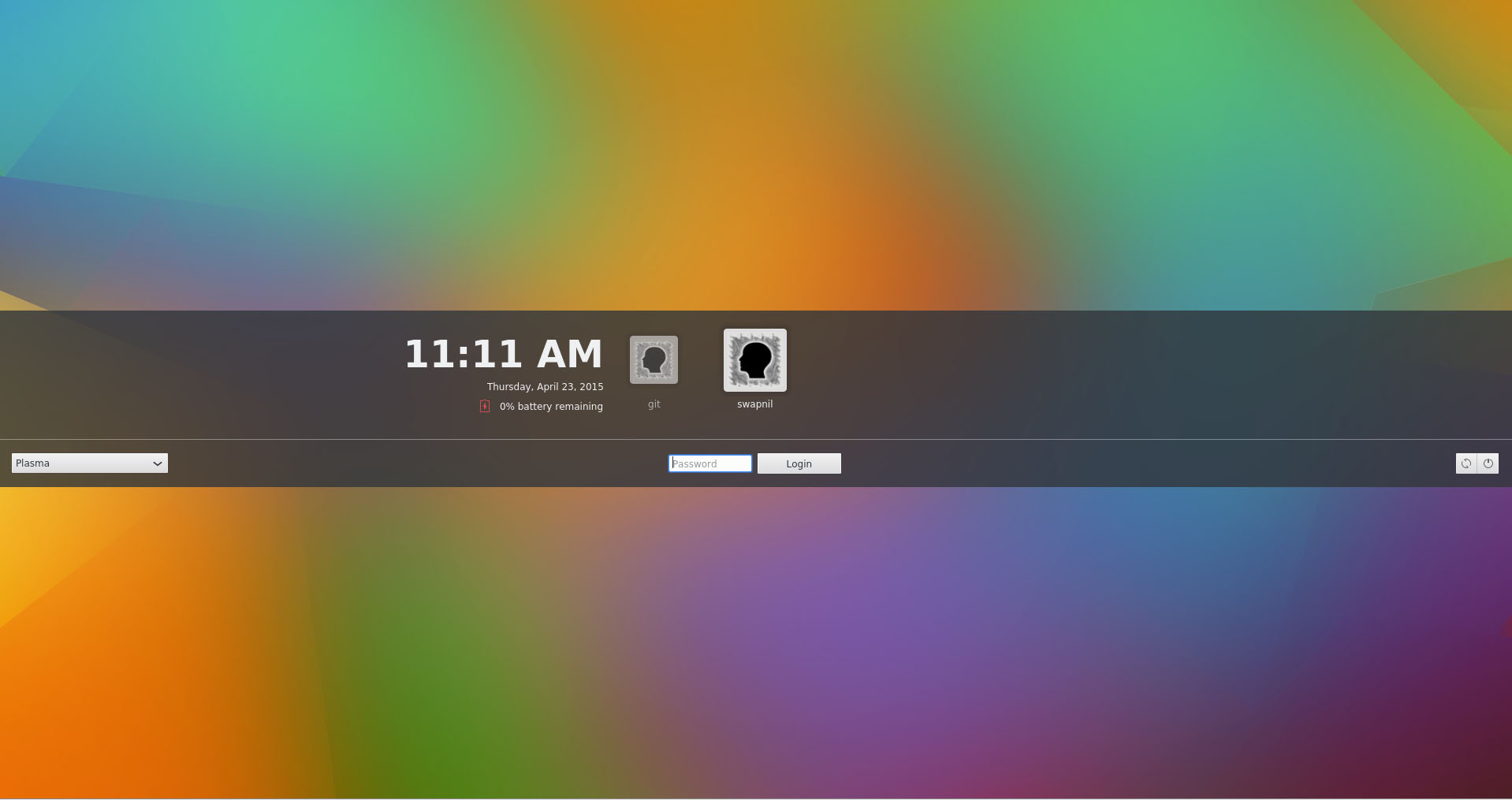
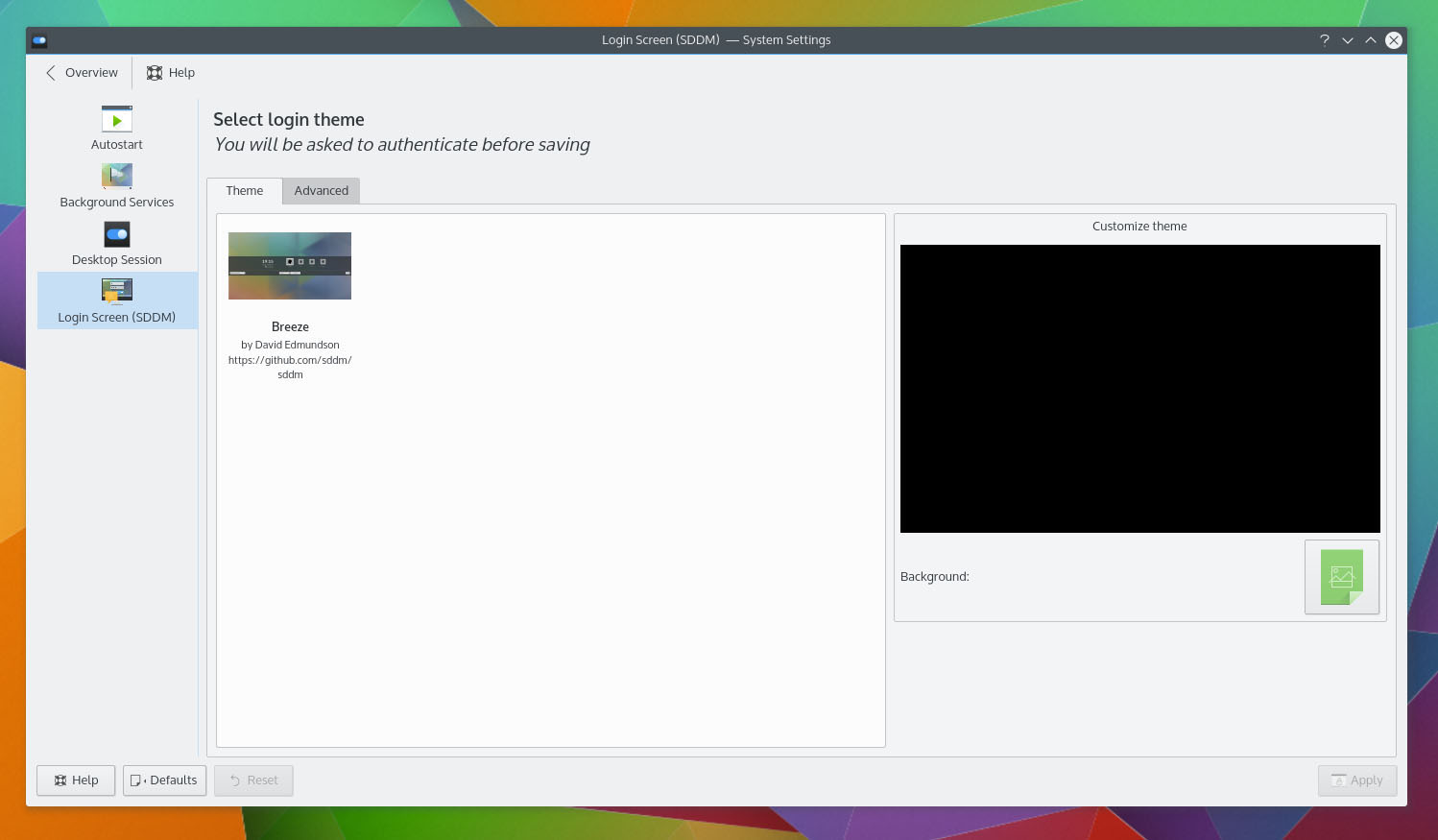
Say goodbye to KDM, the default display manager of KDE. Plasma 5 now uses Simple Desktop Display Manager (SDDM) instead of KDM and as a result, Kubuntu is also switching to SDDM from KDM. I have been using SDDM on my Arch system from the time before Plasma 5 came along. I liked it because it can be heavily customized. You can personalize your computer right from the login screen. It complements Plasma which is known for being the most customizable desktop environment.

While these two changes in Kubuntu have made my life easier, it might have been a totally different experience for Kubuntu developers. When I asked about the switch to systemd and SDDM, Riddell said, “Kubuntu of course is just a flavor of Ubuntu and there are other teams in Ubuntu who worry about the foundations like systemd. The transition has been mostly smooth for us although some integration of SDDM has been tricky and we still have an occasional bug where the livecd will send you to SDDM rather than just logging in for some hardware, so not perfect. But it’s nice to be using the same system as other distros and to know that it can be used in userspace as needed.”
The switch to systemd is trickier than SDDM because it also means a new set of commands for maintaining and managing your systems. Both Upstart and systemd use different commands to execute a task, so my obvious question for Riddell was if they were working on any documentation to assist users, especially the enterprise customers, when they encounter systemd instead of Upstart.
Riddell said,”I’m sure there’s lots of documentation out there for those who need it, the Kubuntu documentation usually focuses on home users. As Plasma releases dude, I have recently nudged a new contributor to bring in a Systemd KDE Control Module so I hope to see a nice GUI for administration in future releases of Plasma.”
What’s in the box
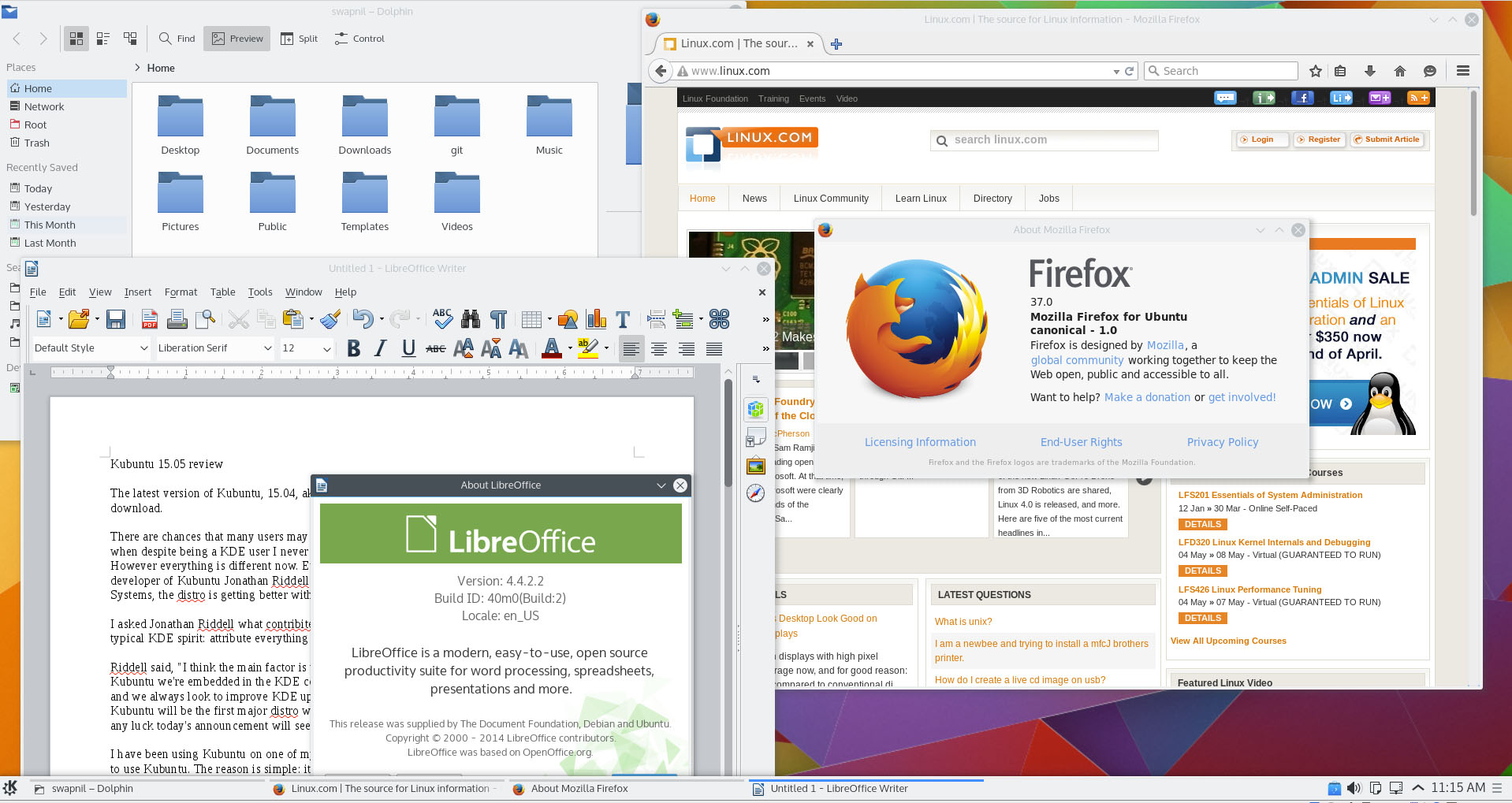
Kubuntu comes with a decent stack of applications pre-installed so a user can start working as soon as the installation is finished. In addition to the core KDE applications such as Kate, KWrite, Konsole, Gwenview, Kmail, K3B, Amarok, Dragon Movie Player, etc. Some of these applications, such as Gwenview or Konsole, are using the Frameworks 5, whereas many others like K3B are still based on 4.x series. Kubuntu is not a pure ‘KDE-only-apps’ distro. It comes with some popular non-KDE apps which include the latest version of LibreOffice and Firefox browser.

These pre-installed applications should be enough for a user to get started with their work, however one can always install the desired applications or packages from the official repositories. Third party apps like Chrome or Dropbox, which are not available through the official repos, can be downloaded and installed from the respective sites of the developer. That’s not all. There are PPAs, aka Personal Package Archives, which enable developers to offer their software to Ubuntu users with greater ease.
In my case, I am pretty satisfied with what comes pre-installed on Kubuntu. There are certain apps that I prefer over the KDE apps, so I always end up installing Thunderbird, Chrome, Transmission, GIMP, Krita, Liferea, DigiKam and Darktable.
Working with the 3rd party hardware
Gone are the days when Linux users had to struggle with new hardware. Thanks to the work done by developers like Greg KH, Linux has a great device driver support. Most of the devices work out of the box. The problem one may face with a device would be due to the limitation of that particular DE or the user-space.
I use Apple’s wireless Trackpad and keyboard. While setting up the keyboard was easy, doing the same with the ‘Magic’ Trackpad turned out to be tricky. For some reason, KDE’s Bluedevil Wizard wanted me to enter a PIN from the trackpad in order to connect the device. I have no idea how to enter numbers from a trackpad. After asking around on Google+, I was told that I must configure “0000” as the default pin in the wizard and then try to connect. It worked. But it also exposed the weaknesses of KDE Software: at times it could be way too complicated to perform a simple task. It’s much easier to connect such devices on the Gnome desktop.
I have not faced any issues with my hardware on Kubuntu 15.04. The driver manager automatically detected my Nvidia card and I installed the latest stable driver recommended by the driver manager.
Swimming with Dolphin
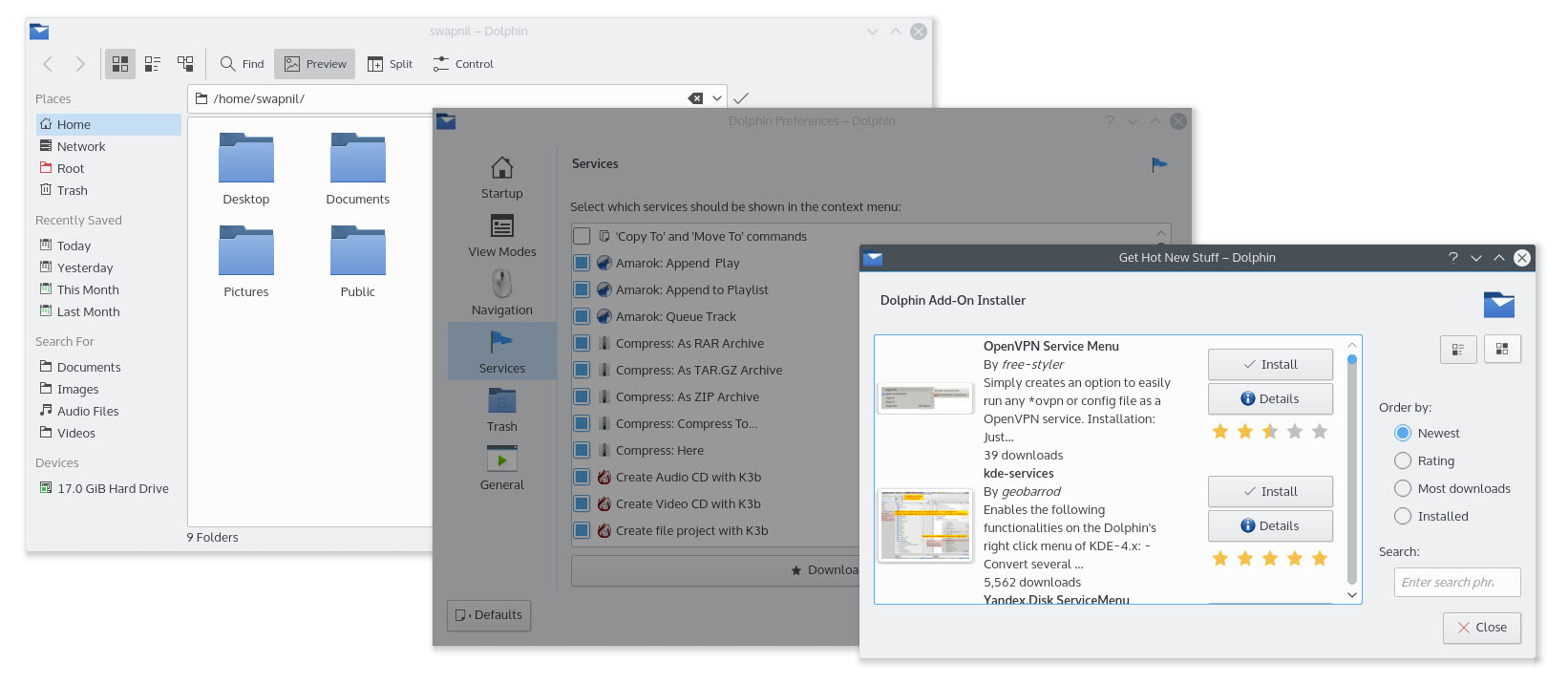
One of the gems of the KDE Software is its file manager Dolphin. In my opinion and experience, Dolphin is the best file manager across operating systems, not just among the Linux distros; it beats the file managers of Mac OS X and Windows. It’s extremely feature-rich and allows a user to perform tasks that even a Gnome user can’t do. The functionality of Dolphin can be expanded by installing new services.

Look and feel
Kubuntu 15.04 is undoubtedly the best Plasma 5 desktop so far, for the simple fact that this is the first distro to ship with it. Since Kubuntu offers a vanilla Plasma experience, you can enjoy what KDE developers originally developed without it being heavily patched or modified. Well, modification can be good in some cases where a particular may not gel very well with the distro.

Kubuntu is using the default Plasma 5 themes and icons which is being developed by Nitrux S.A.. The overall atmosphere on Plasma 5, thanks to the desktop theme and icons, is extremely elegant, minimalistic and modern.
However, I do feel that the default theme for windows decoration is a bit of a distraction due to the dark windows. I wish they used some light-colored theme.
Notifications
Plasma does a much better job at handling notifications compared to Unity or Gnome. In Plasma you can actually take an action on a notification or at least dismiss it. Gnome has started to improve it with version 3.16 where users can now act on such notifications. However I feel the notification system on Linux desktop is still behind the one seen on Mac OS X or Android. I wish I was able to open, delete it or reply to a mail right from the notification pop-up.
Dude where are my activities?
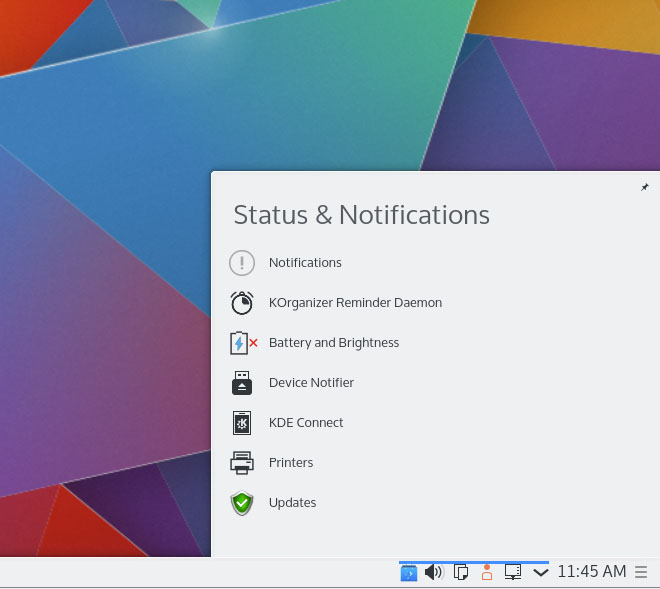
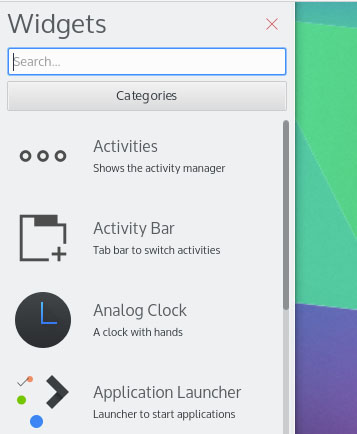
Activities have been a blessing and curse for Plasma users. It’s one of the most useful, yet the least used or understood, KDE technologies. I love Activities because they take the virtual desktop experience to the next level. We talked about ‘Activities’ in this article, but I doubt anyone uses it. It looks like KDE developers are burying them down with the latest release of Plasma. Earlier there used to be an Activities icon on the panel which also used to make users wonder ‘ what the hell is this?’. With this release there is no activity icon on the panel. However power users can enable ‘Activities’ from ‘Widgets’.

Performance
In general Plasma is extremely fast and responsive. Ever since they dropped Nepomuk and implemented Baloo for search it has become even faster. I am running Kubuntu on a modest (which means old) laptop and Plasma 5 with Kubuntu 15.04 is playing really nice with the hardware. The entire desktop feels much faster and responsive even on this hardware, which can’t handle Unity very well.
Should you upgrade?
It’s quite easy. If you are running Kubuntu 14.04 and want a long term support then you should stick to 14.04. However if you are running Kubuntu 14.10 then 15.04 is an obvious, natural evolution. Since Kubuntu 14.10 is supported only for 9 months you must upgrade to 15.04 without any doubt.
If you are tempted to test Plasma 5.3, since the beta is out there is a word of caution from Riddell. It’s still in the early stage of development and things might break. Riddell told me, “Plasma 5.3 isn’t well tested. Of course we’re the first major distro to release with Plasma 5.2 so that’s a whole new level of testing in itself. So stick with Plasma 5.2 if you want stability unless there’s some problem you know is fixed in 5.3 in which case go with that.”
But you won’t be locked out of 5.3 for the 15.04 release. Riddell said, “I made the tars available to packages this morning and once the Kubuntu release is done I’ll start packaging Plasma 5.3 for Kubuntu 15.04.” Plasma 5.3 will arrive to Kubuntu 15.04 sooner or later and it will be safer to upgrade to it when it’s pushed by the Kubuntu developers.
Conclusion
In a nutshell, I found Kubuntu 15.04 to move consistently on the path of improvement, getting better with each release. If you are hesitant about Kubuntu due to a previous release, let me tell you that a lot of water has flowed under the bridge since. It’s a totally different Kubuntu.
Try it out and you will be surprised with what you have been missing until now.
KVM and Xen to Hold Joint Hackathon for Open Source Virtualization
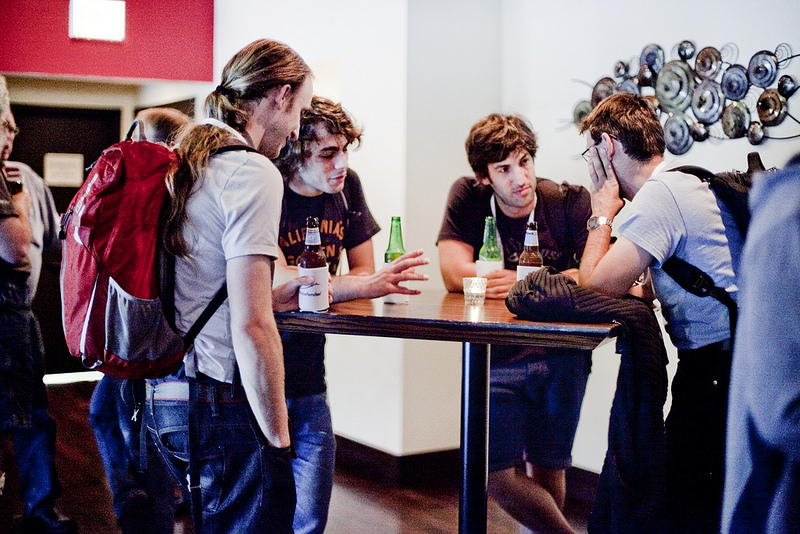
Born in the logic of ones and zeroes and forged in the heat of battle, two hypervisors — perceived by many as foes in the realm of virtualization–are about to unite in a way many never thought possible. Over beer and code.
That’s right. The teams behind Xen Project Developer Summit and KVM Forum recently announced plans to co-host a hackathon and social event on August 18, 2015, at the close of the Xen Project Developer Summit and on the eve of KVM Forum. Virtualization is one of the most important technologies in IT today, so it makes perfect sense for the two best hypervisor projects to collaborate and socialize at an event that celebrates their similarities and bridges that gap between all things KVM and Xen.
In this Q&A, members of the Xen Project and KVM communities share what developers can expect as well as what developers will gain by attending the joint events. To be a part of the collaboration and fun, Xen and KVM ecosystem developers, contributors and users are encouraged to submit a speaking proposal for KVM Forum and Xen Project Developer Summit by May 1.
Q: This is first time you’ve ever done a joint hackathon for Xen and KVM developers. Why are you collaborating like this? What should developers plan for and expect?
A: Brian Proffitt, oVirt Community Liaison
It was a happy happenstance that both the KVM Forum and the Xen Project Developer Summit were going to take place at the same venue right next to each other on the calendar.
We’ve actually wanted to do this for a while. Given how each project contributes heavily to libvirt and QEMU, it seemed logical to try to do a hackathon as well. While this is the first time we’re doing a joint event, this is not the first time we have worked together at a hackathon. When Rackspace hosted a Xen Project Hackathon in London last year, I know we had some KVM developers there working on libvirt with the Xen folks.
We expect old friends will be meeting again, people who have been working together only upstream will likely meet for the first time, and developers will discover common issues of both KVM and Xen. Expect lots of hacking, interesting discussions, and a newly discovered understanding of how both hypervisors work. Maybe some old disagreements will re-emerge… it could be exciting.
A: Lars Kurth, Xen Project Advisory Board Chairman
Both Xen and KVM share some components in Linux, QEMU and libvirt. In addition some developers who work on Xen, also work on KVM, and vice versa. In fact, there are a number of areas where members of each community have been collaborating for some time. Consequently there is a good amount of communication and coordination going on between both communities all the time.
At the end of the day, everyone believes that socializing with each other will improve personal relationships to enable deeper collaboration. Of course, there is also the possibility of doing code reviews, discuss design ideas, etc., by bringing people together.
A: Karen Noel, senior manager, software engineering, Red Hat
We have a lot more in common than differences. We are all experts in virtualization technology and believe strongly in open source. Open source is an interesting environment where we often collaborate and help our competition. In this case, we share common infrastructure and goals. With several other hypervisors in the market, our real competition is not each other – KVM vs. Xen – the real competitors are the proprietary virtualization technologies developed with a closed, non-community based model. Developers should plan to learn from each other, make plans that help both projects and share best practices to make both the Xen and KVM projects stronger.
Q: How are the projects similar and different today?
A: Lars:
On a low level, despite sharing components, both projects often use very different code paths with regards to what is used in Linux and QEMU. This is a consequence of both projects following a different architecture, and as a consequence following different philosophies when it comes to implementing features.
A: Karen:
The KVM and Xen hypervisors are technically very different. Each have a very different design. However, a hypervisor (just like the Linux kernel) does not live in a void, and there are some technologies that are supported by Xen and KVM—most notably OpenStack.
A: Brian:
Each project will assert that its way is best to accomplish a certain goal, but open source people are known for being willing to listen to new ideas. This is part of the culture of the open source, collaborative model. It will be important to focus on the similarities between KVM and Xen: strong ecosystems full of ridiculously talented programmers who are passionate about what they do.
Q: Do you expect joint activities to help each community innovate in any way?
A: Stefano Stabellini, senior principal software engineer at Citrix
Possibly, especially given that collaboration on actual features, while not common, is not unheard of. But the most important collaboration between Xen and KVM has always been sharing thoughts and ideas at conferences, challenging each other’s point of view, sharing experiences and giving each other suggestions. This is highly valuable to me and many in the community.
A: Karen:
It’s a certainty. Every open source event brings people together where they can communicate face-to-face and in real-time. Innovation always comes out, especially when the participants have common interests, like virtualization, and already hack on the same code in upstream projects–Linux kernel, QEMU, libvirt, open firmware, etc. Discussions on joint issues will foster new ideas that both groups can use to further their projects.
Q: What type of KVM/Xen collaboration is happening in the field today?
A: Lars:
One area of collaboration today is focused on Intel graphics support, or Intel GVT-g (also known as XenGT for Xen, and KVMGT for KVM). From what I can see, Intel aims to share the maximum amount of code between Xen and KVM in both Linux and QEMU. In the ARM world, we are also collaborating on ARM server standards. And, another area where we could potentially work together is hot patching, which was recently added to Linux 4.0. Some of this was actually started at last year’s Linux Plumbers Conference.
A: Stefano:
We already work together on bug fixes to security vulnerabilities where members of each community review each other’s patches to help one another. We are also working together on defining open virtualization standards, such as the VM System Specification for ARM Processors.
We also often have similar requirements in the Linux kernel, thus we work toward making virtualization- friendly changes in Linux. In fact, both projects are GPLv2, so sometimes actual code is shared. For example, the gic-v3 driver in Xen was contributed by a member of the community based on existing Linux code written for KVM. Marc Zyngier, the original author and KVM ARM maintainer, helped us review the code.
KVM on x86 uses a pv clock interface originally written for Xen. The KVM shadow out-of-sync code was based on the previous work by Gianluca Guida for Xen. And PV spin locks were originally written by Jeremy Fitzhardinge for Xen, but then they were completed and upstreamed in Linux by KVM engineers.
Q: Is there enough room in the market for KVM and Xen? Why or why not?
A: Lars:
Of course, both communities have been able to dramatically grow their developer and user bases in the last few years. This is a clear indicator that there is enough room for both projects.
A: Brian:
Absolutely. Look, we’re going to have our technical differences, but at the end of the day, we are both open source hypervisors and that should be the most important thing in the market. If you use KVM- or Xen-based products, then you are gaining the advantage of cutting-edge innovation at a lower cost, while not paying for proprietary software products. The marketplace has to have the choice of using open source software and not being locked in with proprietary technology. So KVM, Xen and products which use them–like oVirt, OpenStack, XenServer, and CloudStack–are a crucial part of the marketplace.
Q: How do you see KVM/Xen evolving into the future?
A: Lars:
We are actively focusing on a number of areas to further differentiate and advance Xen in cloud and data center environments. Additionally, we’re focused on advancing Xen for new opportunities in mobile, embedded, automotive, Network Functions Virtualization (NFV) and graphics virtualization. This naturally happens as our contributors and users build on our current capabilities, while identifying new features that would be beneficial in the field. For example, the capability to plug in different schedulers that have different trade-offs to give Xen users more freedom and choice is an extremely popular new feature in Xen 4.5. This trend is continuing in our current development cycle, while at the same time, there is also a strong focus on common standards and interfaces. The same is true when it comes to security related subsystems, such as vTPM 2.0 support, Xen Security Modules and Xen integration with LibVMI for VM introspection.
A: Karen:
Both KVM and Xen are mature projects. A lot of the evolution occurs in the projects that use them, such as OpenStack. Demand for new features, new configurations and optimizations puts pressure on the hypervisors, QEMU, libvirt and the management stack to collaborate more tightly to deliver quickly.
Right now there is a lot of buzz around Network Functions Virtualization (NFV) using real-time virtualized guests. This is an area where hypervisor performance can make a big difference. KVM developers are actively looking at this with the real-time kernel and networking communities.
A: Brian:
Another challenge, I think, will be keeping up with where the Linux kernel is going. Linux is everywhere–cloud, servers, mobile–and virtualization has to follow. And as we move toward a hardware-oriented world like that described in the Internet of Things, KVM will need to adapt to that sector as well.
How to Configure Your Dev Machine to Work From Anywhere (Part 3)
In the previous articles, I talked about my mobile setup and how I’m able to continue working on the go. In this final installment, I’ll talk about how to install and configure the software I’m using. Most of what I’m talking about here is on the server side, because the Android and iPhone apps are pretty straightforward to configure.
Before we begin, however, I want to mention that this setup I’ve been describing really isn’t for production machines. This should only be limited to development and test machines. Also, there are many different ways to work remotely, and this is only one possibility. In general, you really can’t beat a good command-line tool and SSH access. But in some cases, that didn’t really work for me. I needed more; I needed a full Chrome JavaScript debugger, and I needed better word processing than was available on my Android tablets.
Here, then, is how I configured the software. Note, however, that I’m not writing this as a complete tutorial, simply because that would take too much space. Instead, I’m providing overviews, and assuming you know the basics and can google to find the details. We’ll take this step by step.
Spin up your server
First, we spin up the server on a host. There are several hosting companies; I’ve used Amazon Web Services, Rackspace, and DigitalOcean. My own personal preference for the operating system is Ubuntu Linux with LXDE. LXDE is a full desktop environment that includes the OpenBox window manager. I personally like OpenBox because of its simplicity while maintaining visual appeal. And LXDE is nice because, as its name suggests (Lightweight X11 Desktop Environment), it’s lightweight. However, many different environments and window managers will work. (I tried a couple tiling window managers such as i3, and those worked pretty well too.)
The usual order of installation goes like this: You use the hosting company’s website to spin up the server, and you provide a key file that will be used for logging into the server. You can usually use your own key that you generate, or have the service generate a key for you, in which case you download the key and save it. Typically when you provide a key, the server will automatically be configured to log in only using SSH with the key file. However, if not, you’ll want to follow disable password logins.
Connect to the server
The next step is to actually log into the server through an SSH command line and first set up a user for yourself that isn’t root, and then set up the desktop environment. You can log in from your desktop Linux, but if you like, this is a good chance to try out logging in from an Android or iOS tablet. I use JuiceSSH; a lot of people like ConnectBot. And there are others. But whichever you get, make sure it allows you to log in using a key file. (Key files can be created with or without a password. Also make sure the app you use allows you to use whichever key file type you created–password or no password.)
Copy your key file to your tablet. The best way is to connect the tablet to your computer, and transfer the file. However, if you want a quick and easy way to do it, you can email it. But be aware that you’re sending the private key file through an email system that other people could potentially access. It’s your call whether you want to do that. Either way, get the file installed on the tablet, and then configure the SSH app to log in using the key file, using the app’s instructions.
Then using the app, connect to your server. You’ll need the username, even though you’re using a key file (the server needs to know who you’re logging in as with the key file, after all); AWS typically uses “ubuntu” for the username for Ubuntu installations; others simply give you the root user. For AWS, to do the installation you’ll need to type sudo before each command since you’re not logged in as root, but won’t be asked for a password when running sudo. On other cloud hosts you can run the commands without sudo since you’re logged in as root.
Oh and by the way, because we don’t yet have a desktop environment, you’ll be typing commands to install the software. If you’re not familiar with the package installation tools, now is a chance to learn about them. For Debian-based systems (including Ubuntu), you’ll use apt-get. Other systems use yum, which is a command-line interface to the RPM package manager.
Install LXDE
From the command-line, it’s time to set up LXDE, or whichever desktop you prefer. One thing to bear in mind is that while you can run something big like Cinnamon, ask yourself if you really need it. Cinnamon is big and cumbersome. I use it on my desktop, but not on my hosted servers, opting instead for more lightweight desktops like LXDE. And if you’re familiar with desktops such as Cinnamon, LXDE will feel very similar.
There are lots of instructions online for installing LXDE or other desktops, and so I won’t reiterate the details here. DigitalOcean has a fantastic blog with instructions for installing a similar desktop, XFCE.
Install a VNC server
Then you need to install a VNC server. Instead of using TightVNC, which a lot of people suggest, I recommend vnc4server because it allows for easy resolution changes, as I’ll describe shortly.
While setting up the VNC server, you’ll create a VNC username. You can just use a username and password for VNC, and from there you’re able to connect from a VNC client app to the system. However, the connection won’t be secure. Instead, you’ll want to connect through what’s called an SSH tunnel. The SSH tunnel is basically an SSH session into the server that is used for passing connections that would otherwise go directly over the internet.
When you connect to a server over the Internet, you use a protocol and a port. VNC usually uses 5900 or 5901 for the port. But with an SSH tunnel, the SSH app listens on a port on the same local device, such as 5900 or 5901. Then the VNC app, instead of connecting to the remote server, connects locally to the SSH app. The SSH app, in turn, passes all the data on to the remote system. So the SSH serves as a go-between. But because it’s SSH, all the data is secure.
So the key is setting up a tunnel on your tablet. Some VNC apps can create the tunnel; others can’t and you need to use a separate app. JuiceSSH can create a tunnel, which you can use from other apps. My preferred VNC app, Remotix, on the other hand, can do the tunnel itself for you. It’s your choice how you do it, but you’ll want to set it up.
The app will have instructions for the tunnel. In the case of JuiceSSH, you specify the server you’re connecting to and the port, such as 5900 or 5901. Then you also specify the local port number the tunnel will be listening on. You can use any available port, but I’ll usually use the same port as the remote one. If I’m connecting to 5901 on the remote, I’ll have JuiceSSH also listen on 5901. That makes it easier to keep straight. Then you’ll open up your VNC app, and instead of connecting to a remote server, you connect to the port on the same tablet. For the server you just use 127.0.0.1, which is the IP address of the device itself. So to re-iterate:
- JuiceSSH connects, for example, to 5901 on the remote host. Meanwhile, it opens up 5901 on the local device.
- The VNC app connects to 5901 on the local device. It doesn’t need to know anything about what remote server it’s connecting to.
But some VNC apps don’t need another app to do the tunneling, and instead provide the tunnel themselves. Remotix can do this; if you set up your app to do so, make sure you understand that you’re still tunneling. You provide the information needed for the SSH tunnel, including the key file and username. Then Remotix does the rest for you.
Once you get the VNC app going, you’ll be in. You should see a desktop open with the LXDE logo in the background. Next, you’ll want to go ahead and configure the VNC client to your liking; I prefer to control the mouse using drags that simulate a trackpad; other people like to control the mouse by tapping exactly where you want to click. Remotix and several other apps let you choose either configuration.
Configuring the Desktop
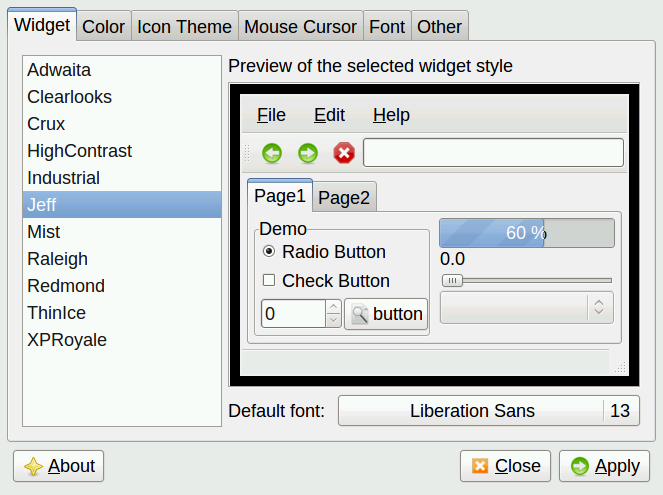
Now let’s configure the desktop. One issue I had was getting the desktop to look good on my 10-inch tablet. This involved configuring the look and feel by clicking the taskbar menu < Preferences < Customize Look and Feel (or run from the command line lxappearance).
I also used OpenBox’s own configuration tool by clicking the taskbar menu < Preferences < OpenBox Configuration Manager (or runobconf).
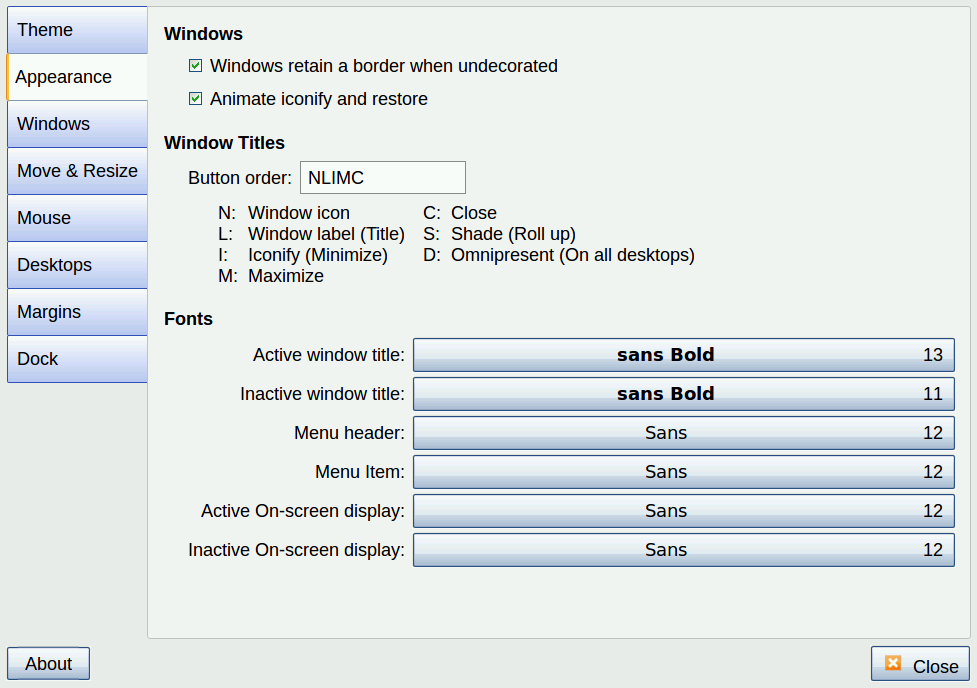
My larger tablet’s screen isn’t huge at 10 inches, so I configured the menu bars and buttons and such to be somewhat large for a comfortable view. One issue is the tablet has such a high resolution that if I used the maximum resolution, everything was tiny. As such, I needed to be able to change resolutions based on the work I was doing, as well as based on which tablet I was using. This involved configuring the VNC server, though, not LXDE and OpenBox. So let’s look at that.
In order to change resolution on the fly, you need a program that can manage the RandR extensions, such as xrandr. But the TightVNC server that seems popular doesn’t work with RandR. Instead, I found the vvnc4server program works with xrandr, which is why I recommend using it instead. When you configure vnc4server, you’ll want to provide the different resolutions in the command’s -geometry option. Here’s an init.d service configuration file that does just that. (I modified this based on one I found on DigitalOcean’s blog.)
#!/bin/bash
PATH="$PATH:/usr/bin/"
export USER="jeff"
OPTIONS="-depth 16 -geometry 1920x1125 -geometry 1240x1920 -geometry 2560x1500 -geometry 1920x1080 -geometry 1774x1040 -geometry 1440x843 -geometry 1280x1120 -geometry 1280x1024 -geometry 1280x750 -geometry 1200x1100 -geometry 1024x768 -geometry 800x600 :1"
. /lib/lsb/init-functions
case "$1" in
start)
log_action_begin_msg "Starting vncserver for user '${USER}' on localhost:${DISPLAY}"
su ${USER} -c "/usr/bin/vnc4server ${OPTIONS}"
;;
stop)
log_action_begin_msg "Stoping vncserver for user '${USER}' on localhost:${DISPLAY}"
su ${USER} -c "/usr/bin/vnc4server -kill :1"
;;
restart)
$0 stop
$0 start
;;
esac
exit 0
The key here is the OPTIONS line with all the -geometry options. These will show up when you run xrandr from the command line:
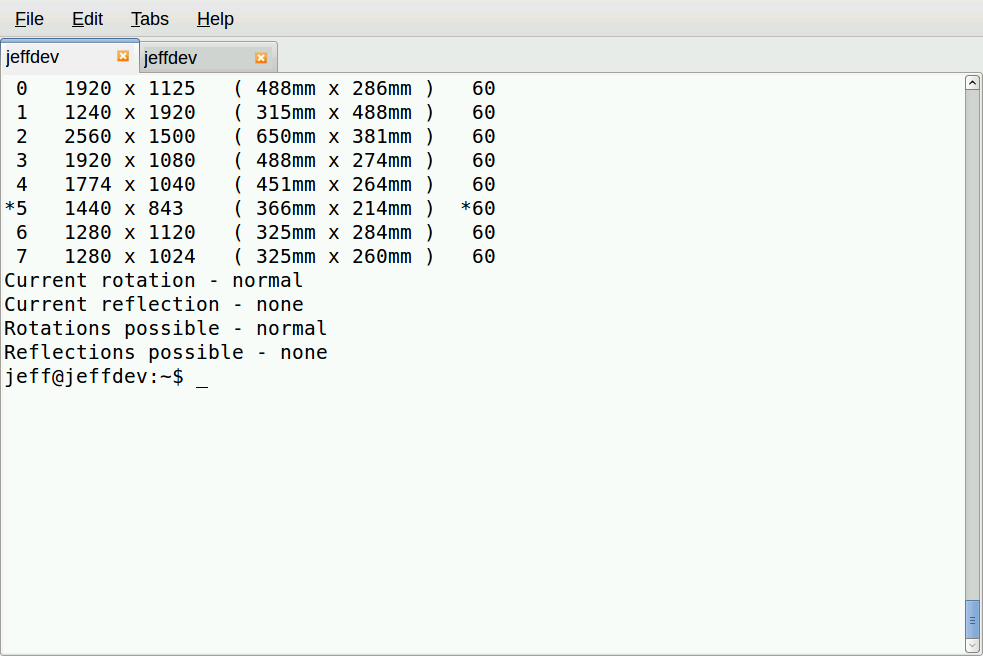
You can use your VNC login to modify the file in the init.d directory (and indeed I did, using the editor called scite). But then after making these changes, you’ll need to restart the VNC service just this one time, since you’re changing its service settings. Doing so will end your current VNC session, and it might not restart correctly. So you might need to log in through JuiceSSH to restart the VNC server. Then you can log back in with the VNC server. (You also might need to restart the SSH tunnel.) After you do, you’ll be able to configure the resolution. And from then on, you can change the resolution on the fly without restarting the VNC server.
To change resolutions without having to restart the VNC server, just type:
xrandr -s 1
Replace 1 with the number for the resolution you want. This way you can change the resolution without restarting the VNC server.
Server Concerns
After everything is configured, you’re free to use the software you’re familiar with. The only catch is that hosts charge a good bit for servers that have plenty of RAM and disk space. As such, you might be limited on what you can run based on the amount of RAM and cores. Still, I’ve found that with just 2GB of RAM and 2 cores, with Ubuntu and LXDE, I’m able to have open Chrome with a few pages, LibreOffice with a couple documents open, Geany for my code editing, and my own server software running under node.js for testing, and mysql server. Occasionally if I get too many Chrome tabs open, the system will suddenly slow way down and I have to shut down tabs to free up more memory. Sometimes I run MySQL Workbench and it can bog things down a bit too, but it isn’t bad if I close up LibreOffice and leave only one or two Chrome tabs open. But in general, for most of my work, I have no problems at all.
And on top of that, if I do need more horsepower, I can spin up a bigger server with 4GB or 8GB and four cores or eight cores. But that gets costly and so I don’t do it for too many hours.
Multiple Screens
For fun, I did manage to get two screens going on a single desktop, one on my bigger 10-inch ASUS transformer tablet, and one on my smaller Nexus 7 all from my Linux server running on a public cloud host, complete with a single mouse moving between the two screens. To accomplish this, I started two VNC sessions, one from each tablet, and then from the one with the mouse and keyboard, I ran:
x2x -east -to :1
This basically connected the single mouse and keyboard to both displays. It was a fun experiment, but in my case, provided little practical value because it wasn’t like a true dual-display on a desktop computer. I couldn’t move slide windows between the displays, and the Chrome browser won’t open under more than one X display. In my case, for web development, I wanted to be able to open up the Chrome browser on one tablet, and then the Chrome JavaScript debug window on the other, but that didn’t work out.
Instead, what I found more useful was to have an SSH command-line shell on the smaller tablet, and that’s where I would run my node.js server code, which was printing out debug information. Then on the other I would have the browser running. That way I can glance back and forth without switching between windows on the single VNC login on the bigger tablet.
Back to Security
I can’t understate the importance of making sure you have your security set up and that you understand how the security works and what the ramifications are. I highly recommend using SSH with a keyfile login only, and no password logins allowed. And treat this as a development or test machine; don’t put customer data on the machine that could open you up to lawsuits in the event the machine gets compromised.
Instead, for production machines, allocate your production servers using all the best practices laid out by your own IT department security rules, and the host’s own rules. One issue I hit is my development machine needs to log into git, which requires a private key. My development machine is hosted, which means that private key is stored on a hosted server. That may or may not be a good idea in your case; you and your team will need to decide whether to do it. In my case, I decided I could afford the risk because the code I’m accessing is mostly open-source and there’s little private intellectual property involved. So if somebody broke into my development machine, they would have access to the source code for a small but non-vital project I’m working on, and drafts of these articles–no private or intellectual data.
Web Developers and A Pesky Thing Called Windows
Before I wrap this up, I want to present a topic for discussion. Over the past few years I’ve noticed that a lot of individual web developers use a setup quite similar to what I’m describing. In a lot of cases they use Windows instead of Linux, but the idea is the same regardless of operating system. But where they differ from what I’m describing is they host their entire customer websites and customer data on that one machine, and there is no tunneling; instead, they just type in a password. That is not what I’m advocating here. If you are doing this, please reconsider. (I personally know at least three private web developers who do this.)
Regardless of operating systems, take some time to understand the ramifications here. First, by logging in with a full desktop environment, you’re possibly slowing down your machine for your dev work. And if you mess something up and have to reboot, during that time your clients’ websites aren’t available during that time. Are you using replication? Are you using private networking? Are you running MySQL or some other database on the same machine instead of using virtual private networking? Entire books could (and have been) written on such topics and what the best practices are. Learn about replication; learn about virtual private networking and how to shield your database servers from outside traffic; and so on. And most importantly consider the security issues. Are you hosting customer data in a site that could easily be compromised? That could spell L-A-W-S-U-I-T. And that brings me to my conclusion for this series.
Concluding Remarks
Some commenters on the previous articles have brought up some valid points; one even used the phrase “playing.” While I really am doing development work, I’m definitely not doing this on production machines. If I were, that would indeed be playing and not be a legitimate use for a production machine. Use SSH for the production machines, and pick an editor to use and learn it. (I like vim, personally.) And keep the customer data on a server that is accessible only from a virtual private network. Read this to learn more.
Learn how to set up and configure SSH. And if you don’t understand all this, then please, practice and learn it. There are a million web sites out there to teach this stuff, including linux.com. But if you do understand and can minimize the risk, then, you really can get some work done from nearly anywhere. My work has become far more productive. If I want to run to a coffee shop and do some work, I can, without having to take a laptop along. Times are good! Learn the rules, follow the best practices, and be productive.
See the previous tutorials:
How to Set Up Your Linux Dev Station to Work From Anywhere
Choosing Software to Work Remotely from Your Linux Dev Station

No Linux, No Docker, No Cloud OS? Think Again
CoreOS and Joyent’s SmartOS/Triton have worked to redefine, in radically different ways, what an OS needs to be to run applications at scale in the cloud.
Now another candidate is set to join the ranks of maverick cloud OSes: OSv, open source, hypervisor-optimized, and “designed to run an application stack without getting in the way.”
Read more at InfoWorld.
Build Your Own Linux Distro
There are hundreds of actively maintained Linux distributions. They come in all shapes, sizes and configurations. Yet there’s none like the one you’re currently running on your computer. That’s because you’ve probably customised it to the hilt – you’ve spent numerous hours adding and removing apps and tweaking aspects of the distro to suit your workflow.
Wouldn’t it be great if you could convert your perfectly set up system into a live distro? You could carry it with you on a flash drive or even install it on other computers you use.
Read more at LinuxVoice.
First Development Builds for GNOME 3.18 to Arrive Next Week
GNOME 3.18 is already in the works and developers need to push their first development versions of this new branch soon. This mean that we’ll be able to test some very new packages next week.
Some very exciting new features have been announced for GNOME 3.18, soon after the launch of the 3.16 branch, which… (read more)
Deep Engine Brings Enterprise-Level Performance to MySQL Databases
Deep Information Sciences’ plug-and-play storage engine brings HTAP capabilities to MySQL, making it suitable for big data and other data-intensive projects.