Quick quiz: How do you know which version of Linux you are using? Which kernel? Which distribution? Which release of your distribution?
Believe it or not, there are situations where this information could be of great importance. Say, for example, a new threat has been released (such as a rather serious OpenSSL-related security issue) which only affects specific releases. If the flaw only affects specific distributions, distribution releases, kernels, or packages you need to be able to quickly gather information about the distro you’re running, and act.
Outside of that very crucial example, there are other reasons why you will want to know about Linux releases—even release types—in order to better navigate the world of Linux and all the power that comes with the platform.
Before we get into how to discern the various bits of information on your desktops and servers, I want to discuss the two major types of Linux releases.
Rolling versus fixed release
There are, effectively, two types of releases in the world of Linux:
The two different releases are quite different, so it is important to understand how they work. The easiest way to know the difference between a Rolling and Fixed released distribution is this:
A Rolling release is constantly being updated and works with one code branch.
There are two ways of dealing with this constant state of updating. The first, and most popular, is to release a steady stream of very small updates. With this release model, the distribution is in a perpetual state of having the most up-to-date software. The second method (one which Ubuntu Core is adopting) is to replace the full image of the operating system with a new one as it is made available. Clearly, the latter option is only viable for cloud deployments (as replacing a full image is really just a distribution upgrade or reinstallation).
The Fixed release is fairly standard. You install a release and, as long as said release is supported, security and patch updates to packages will be available to you as they are seeded to the distribution repositories. You may not see updates daily (or even weekly), but they will eventually appear as available to your desktop or server. The upside of the Fixed release is stability. For many, the major downfall of the Fixed release is the need to completely reinstall (or trust that a major upgrade will not have issues on a production machine) based on a distribution’s release schedule (such as Ubuntu’s six-month schedule).
Each release type has its pros and cons. For example, the Rolling release offers you a platform that almost always has the most up-to-date version of the software you use, but due to that bleeding edge nature, may suffer instability at times. The Fixed release most often will include software that is less than bleeding edge, but it may often enjoy a bit more stability.
For a full list of Rolling release Linux distributions, check out this Wiki page.
With that information out of the way, how do you “uncover” the necessary information about your particular Linux distribution? There are a few tools at your fingertips. Let’s use them.
It is also important to make mention of a particular release structure given to Ubuntu and its supported flavors (Kubuntu, Xubuntu, Ubuntu GNOME, etc). Every two major releases (i.e. 12.04, 14.04, 16.04, etc.) an Ubuntu release is considered Long Term Support. This means support for the release will extend for five years (on both desktops and servers). On standard, non-LTS releases, support is only valid for six months. An LTS release is Enterprise-focused, compatible with new hardware, and more thoroughly tested than non-LTS releases. With that said, if you want a more cutting-edge Ubuntu distribution, go with the non-LTS release. If you want stability and support, install only the LTS releases.
Finding your kernel release
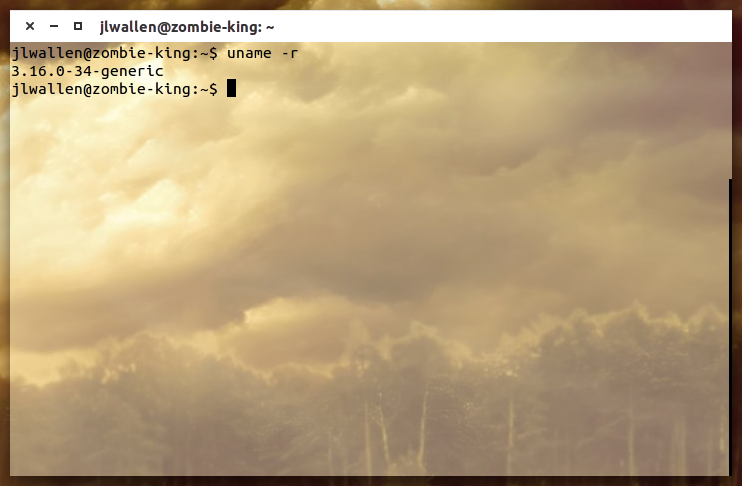
There will be times when you must know your kernel release number. Fortunately, the developers saw fit to include a handy tool that will quickly display your kernel release number. Here’s what you need to do:
-
Open up a terminal window
-
Issue the command
uname -r
-
Take note of the information displayed (Figure 1).
Finding your distribution release
There may be times when you need to know the release number you currently use. Again, there’s a handy command to find that information. Do the following:
-
Open a terminal window
-
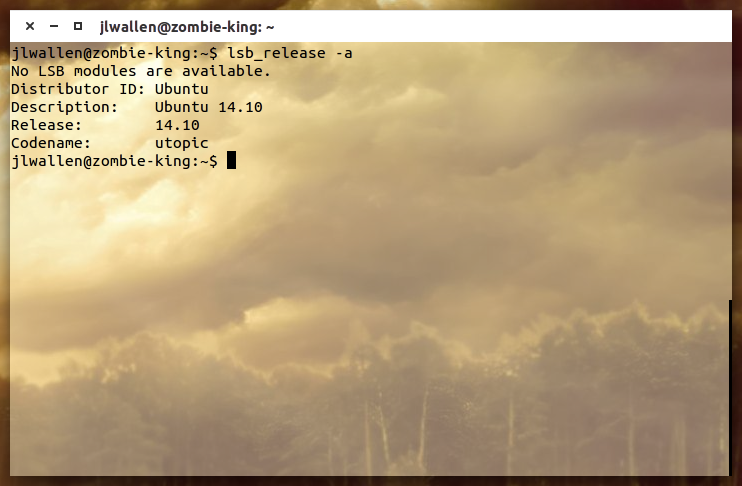
Issue the command
lsb_release -a
-
Take note of the information displayed (Figure 2).
If your command fu isn’t what it should be, most distributions display their release numbers in Settings > Details > Overview (Figure 3).
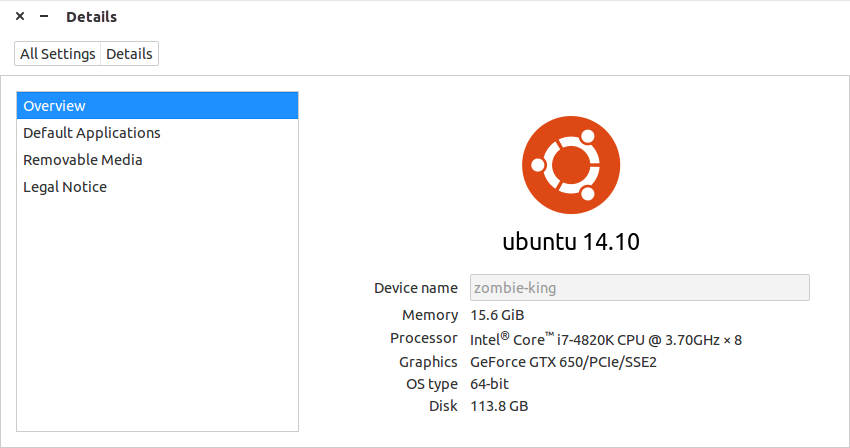
This method of discerning your distribution release information has the added bonus of handing you some details about your system hardware (memory, CPU, graphics, OS type, and disk size).
Finding a specific package release number
Let’s dig a bit deeper. Say you’ve read that OpenSSL has a security flaw that affects only specific releases. How do you find out which version of OpenSSL is on your system? This will depend upon your distribution.
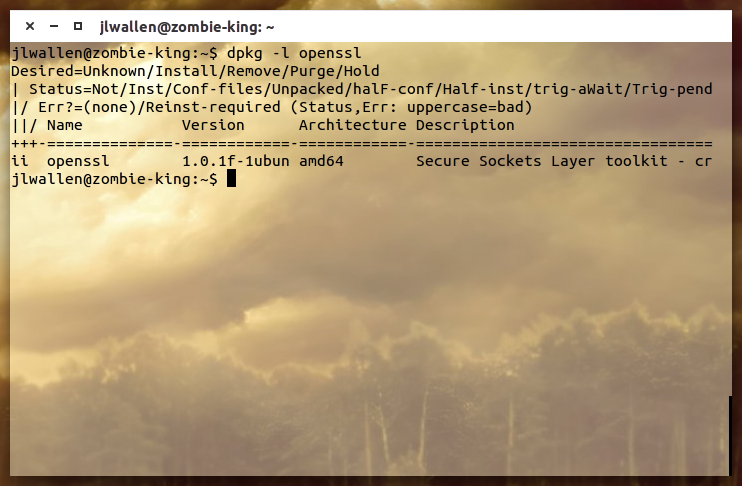
For a Debian-based distribution (such as Ubuntu), you would issue the command:
dpkg -l openssl
Which would report all the information you needed for the package installed on your system. (Figure 4).
If you’re using an rpm-based distribution (such as Fedora), the command to locate information about OpenSSL would be:
rpm -qa | grep openssl
The above command will return information on all installed openssl packages.
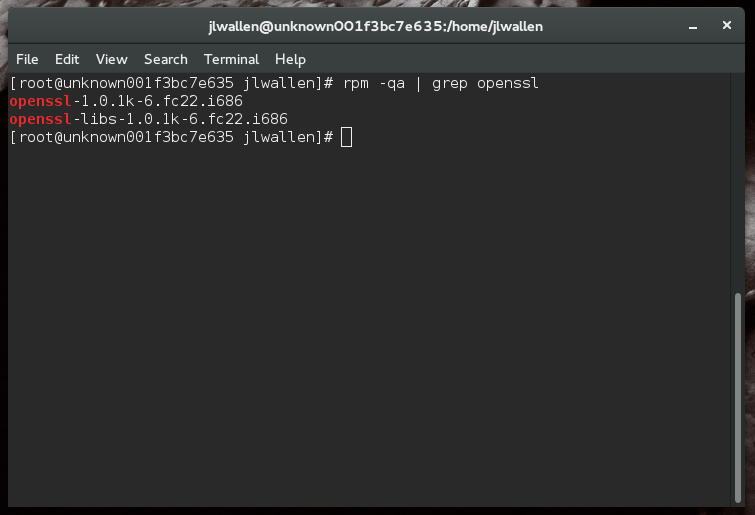
You now have the knowledge and tools to find your release information. You may never need to know any of this data … but on the occasion that you do, you’ll be glad it’s at your fingertips. It is of the utmost importance that, when you hear of critical issues surrounding packages like OpenSSL, SSH, PHP, etc. you check the versions installed on your machine against the affected packages and take action. Luckily, you now have the ability to do just that.

 Tomahawk is a music player capable of using both local and cloud libraries. A new update has been released for this application and it comes with a few interesting changes.
 VMware has turned a significant corner, and is adopting open source in a big way. The company has
  A fresh Ubuntu Touch update
  Google’s wearable-friendly Android Wear OS is bound to get a new important update in the upcoming weeks. It’s high time Google revamped its platform, since the previous major update rolled out back in October.
 Kdenlive is one of the few free multi-track video editors for Linux that supports DV, AVCHD and HDV editing. The developers have reminded the community once more that a new major version has been released, 15.04.0, and that the project is now part of the KDE Applications suite.