
After lengthy delays it looks almost certain that OnePlus One devices owners will get their Lollipop update this week. The update comes as Micromax announces its new Yuphoria smartphone.
Read more at ZDNet News
After lengthy delays it looks almost certain that OnePlus One devices owners will get their Lollipop update this week. The update comes as Micromax announces its new Yuphoria smartphone.

According to Avi Cavale, Docker not only is ready, his company already runs thousands of Docker containers in production per week. Cavale is the co-founder and CEO ofShippable, a containerized continuous integration (CI) platform, and he says that Docker provides opportunities to radically accelerate how DevOps is “re-engineering the corporation” for IT.
In this interview in our ApacheCon North America series, Cavale looks at how Docker fits into DevOps. He also explains how continuous integration and continuous development are changing the way developers work, and why Docker is a particularly good fit for CI/CD applications.
Ubuntu Unity. Never before has there been a user interface to bring about such polar opinions. Users either love it or hate it—there’s very little middle ground. One of the reasons so many lay claim to their dislike of Unity is the lack of configuration options.
If you compare Unity to the likes of Xfce, you will certainly find that Unity does, in fact, lack a certain amount of available options. However, that does not mean the shell is locked down such that it cannot be configured. In fact, you’ll be surprised at just how much you can do with Unity. That is my goal here, to introduce you to some Unity tweaks you can easily manage in order to make the default Ubuntu desktop work perfectly for you.
One issue that Ubuntu gets hit hard on is privacy. There are certain elements of Unity that make the interface incredibly efficient. One element is Scopes. With Scopes you can, from within the Dash, search anywhere—both locally and online—for anything. Problem is, some users see this as an invasion of their privacy. Thankfully, the developers of Unity foresaw this and ensured that users can easily configure Scopes to best suit their privacy needs.
First, let’s see how you can fine-tune Scopes to include (or exclude) locations from the web. Say, for example, you aren’t overly concerned about the privacy of your search results, but don’t want include all sources or categories in your results. Let me show you how.
Open the Unity Dash (either clicking the Ubuntu logo on the Launcher or by clicking the Super key on your keyboard).
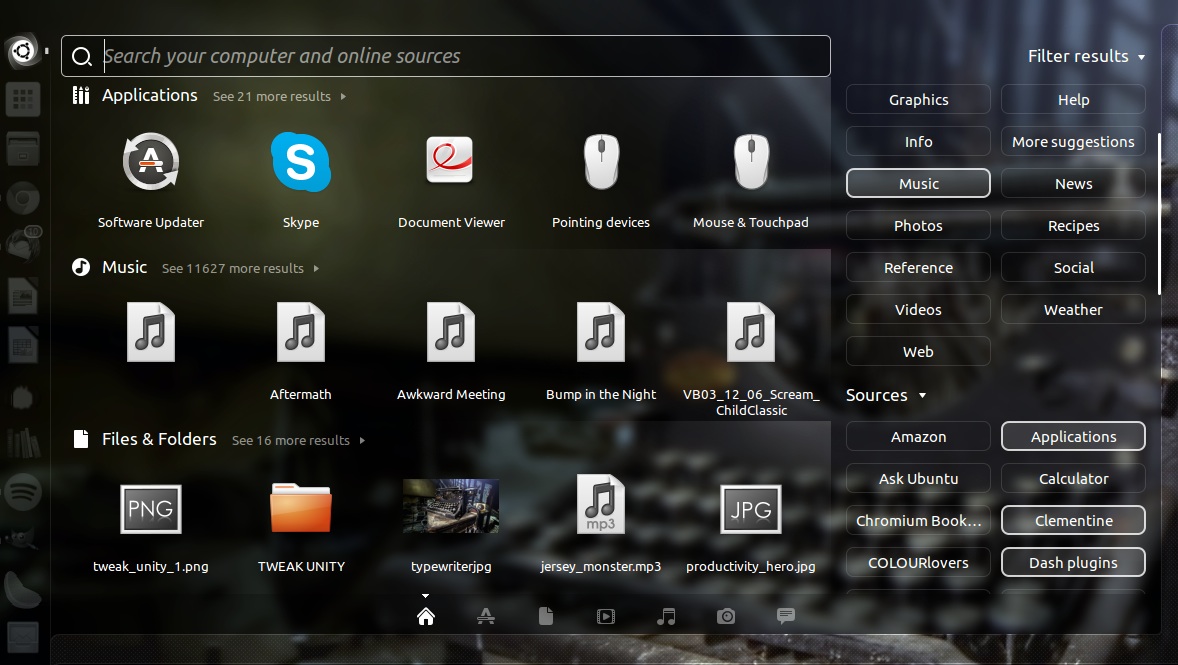
When the Dash opens, click on Filter results.
From the listing, enable and disable the sources and/or categories to fit your needs. (Figure 1)
When you set a filter, it should stick—so the next time you go to search using the Dash, the same categories and sources should remain.
For those that take their privacy seriously, you can completely disable online search results. To do this, follow these steps:
Open the Dash.
Type settings and, when it appears in the results, click to open the Settings tool.
Click on Security & Privacy.
Click on the When searching in the Dash ON/OFF slider (Figure 2) until it is set to OFF.
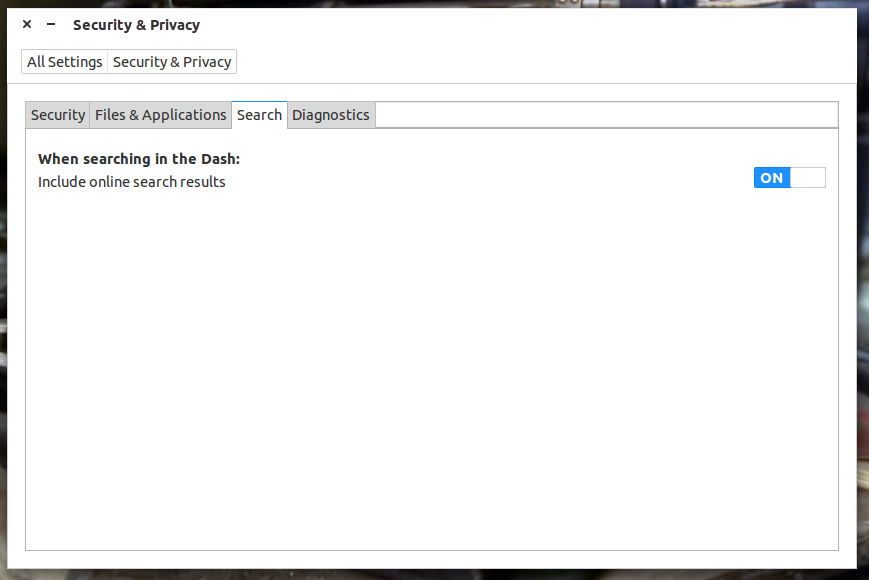
NOTE: Once you’ve disabled online search results, you will still see all local search results (which will include all locally attached drives).
The Unity Tweak Tool is a must have for those who want to tweak Ubuntu Unity. With it you can not only tweak options (that aren’t available in the standards Settings tool) for Unity, but for the Window Manager, Appearance, and System. Configuration categories within the Unity Tweak Tool include:
Launcher
Search
Panel
Switcher
Web Apps.
Within each category you will find plenty of options to tweak.
To install the Unity Tweak Tool, simply open up the Ubuntu Software Center, search for “tweak”, and click to install. Once installed, you will find this tool as easy to use as the standard Settings tool.
One particular feature you might want to pay close attention to is the Web Apps category. Unity Web Apps brings desktop integration for particular websites and services (such as Amazon, Google Drive, or Facebook). By default Web Apps is enabled and Amazon and (the now defunct) Ubuntu One are installed. If you open the Ubuntu Software Center and do a search for “webapps”, you’ll find a number of additional apps to be integrated into Unity. The only caveat to adding Web Apps is that many of them simply offer little more than a shortcut to the website and no other features. To this end, many users opt to disable this Unity feature. The easiest way to do so is through Unity Tweak Tool. From within the Web Apps tab, switch the Integration prompts to OFF (Figure 3) and Unity will no longer prompt you to integrate sites.
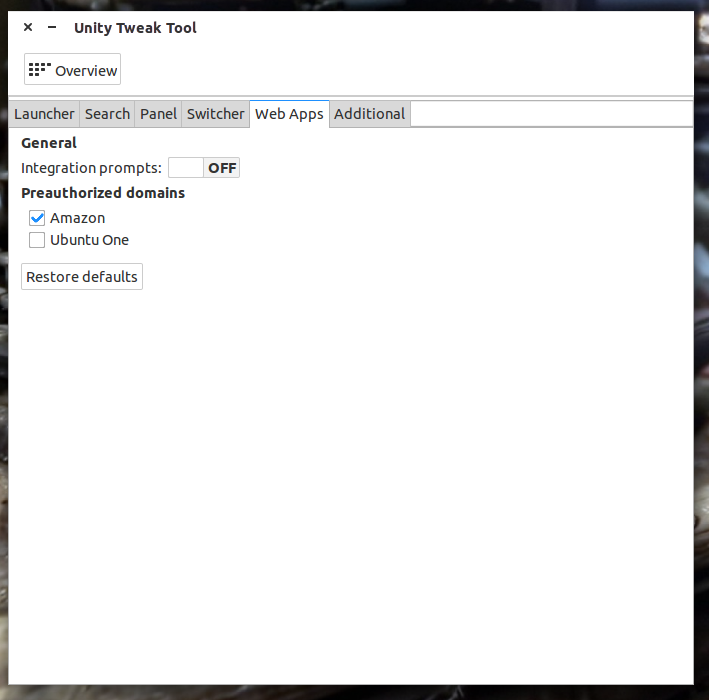
You should also uncheck any authorized domains already associated with Web Apps. This doesn’t actually remove Webapps integration, but you will not be prompted to include services and sites that happen to be available.
Oddly enough workspaces, a feature that has been a part of the Linux landscape for over a decade, defaults to off on the latest iterations of Linux. For many users, workspaces was one of the most efficient means of managing a busy Linux desktop.
Fortunately, workspaces can be enabled without having to install any third-party software. However, the setting is a bit hidden. Here’s how to enable workspaces:
Open the Dash and type “settings” (no quotes)
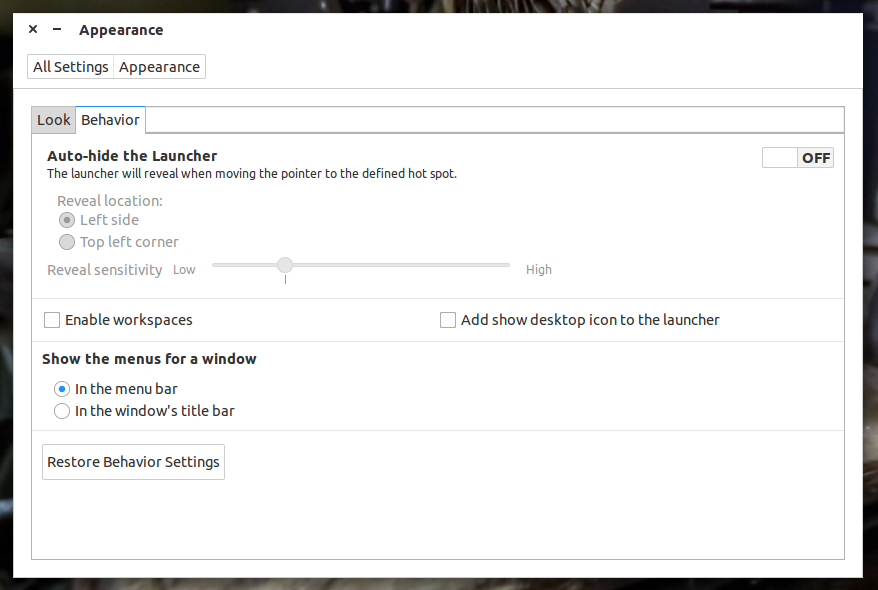
From the Settings window, click Appearance
Click on the Behavior tab
Click to enable workspaces (Figure 4).
To switch between workspaces, either click on the Workspace icon in the Launcher or tap and hold Ctrl+Alt and then tap either the right or left arrow key. You can also tap the Super+s key and then tap the arrow key to move to the workspace you want to use and hit the Enter key to give that workspace focus.
NOTE: You can also configure workspaces within the Unity Tweak Tool (where you can also configure the number of both vertical and horizontal workspaces).
One oft-forgotten feature of Unity is hotcorners. What this feature does is set each corner of your desktop to a certain behavior. The available behaviors are:
Toggle desktop
Show workspace
Toggle windows spread
Spread all windows.
There are actually eight hotcorners that can be configured through the Unity Tweak Tool. From the Tweak Tool main window, click Hotcorners and then make sure the feature is set to ON (Figure 5).
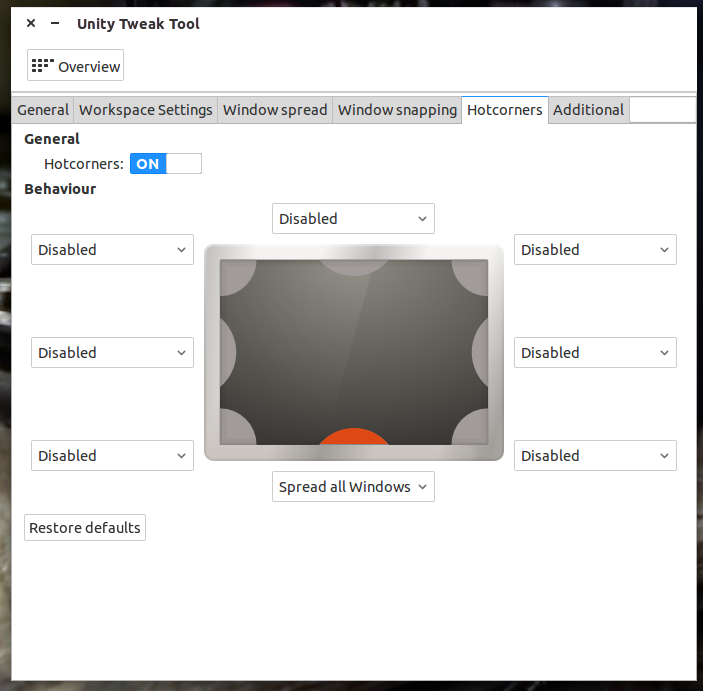
For each available hotcorner, click the drop-down and select the behavior you want to associate with that location.
There is one caveat to using this feature. If you have multiple monitors, setting the corners and edges can get tricky because hotcorners treats both monitors as one—so the right corners and edge of the left monitor and the left corners and edge of the right monitor will not function as hotcorners. Personally, I set the bottom hotcorner with the Spread all Windows and it works on both monitors.
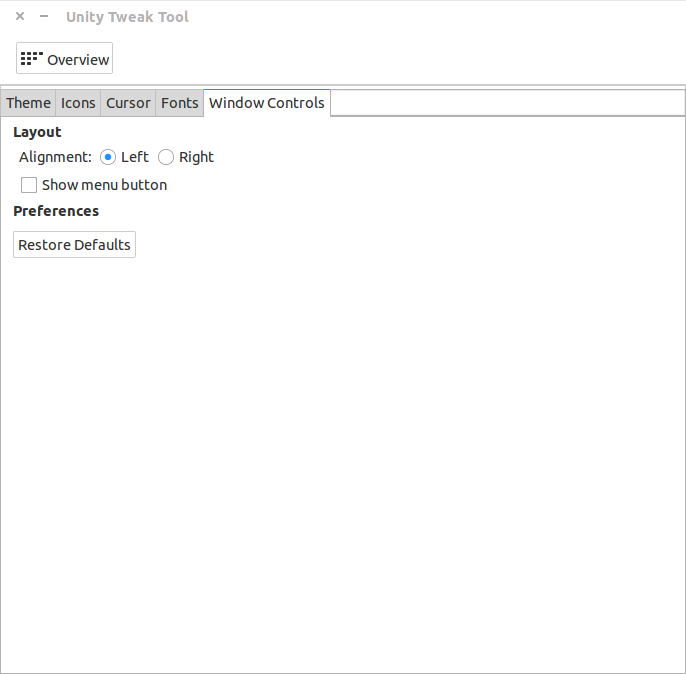
Finally, if you’re one of those that cannot stand the Close, Minimize, and Maximize buttons on the upper left corner of the windows, you can change that with the help of the Unity Tweak Tool. From the Overview, click on Window Controls and then select between the Left or Right layout (Figure 7).
You do not have to be constrained within the default look and feel of Unity. With the addition of a single tool and a bit of poking around, you can find plenty of tweaks to help make Unity best fit your needs and work more efficiently.
Have you found a tweak for Unity that would help make users’ experiences even more productive? If so, feel free to share in the comments.
 Wine Maintainer Alexandre Julliard decided to try out the Git revision control system just a few months after creator Linux Torvalds released the first version – that was 10 years ago. Now, he says, “I can no longer imagine doing software development without it.”
Wine, the open source software used to run Windows applications on Linux, still mostly uses email to exchange and review patches. But Git is the project’s version control system (VCS.) Here, Julliard discusses why they use Git, their Git success stories, and pro tips for using the open source tool.
Alexandre Julliard: It was mainly my decision, though at the time we were all tired of the limitations of CVS. I had been searching for a replacement for a long time, and I had written a script to extract the changesets from our CVS history and apply them to some other VCS; but every system I tried it against had problems of one kind or another.
Then when git came out, within maybe 2 months of the initial announcement, I gave it a try. Not only was it the only system that managed to convert our full history flawlessly, but it was faster than anything else I had tried by at least an order of magnitude. At that point it was clear to me that we had a winner.
It’s distributed, which is of course a huge improvement over CVS. It allows working off-line, creating meaningful commit series, revising things before publishing them, etc. As maintainer I love that I can
review changes as series of small commits instead of one big patch. I’m constantly asking developers to split their changes even more…
It’s extremely fast, even on a large project like Wine with 20 years of history. That’s important for me as maintainer since I have to merge a lot of changes; if I had to wait even a couple of seconds for a commit it would be painful.
I love that the data storage model is so simple, basically text files and SHA1 hashes pointing to them. That makes it very easy to grasp what’s going on, and to make sense of the more complicated commands.
At any given time we have maybe between 50 and 100 contributors. We still mostly use email (with the help of git-send-email) to exchange and review patches.
I use it pretty much constantly. Between my work as Wine maintainer, my day job at CodeWeavers (where we use git for everything), and a number of private repositories, I probably run git hundreds of times every day.
We are using the centralized “integration manager” workflow, so the official repo on winehq.org is the most active. Most developers work on their private repo, though there are also a number of active forks on github.
It’s not for everybody, but for Emacs users, I strongly recommend Magit.
I wrote the original git.el Emacs front-end, and used that for a few years, but it was never very good. I’m glad that people smarter than me have now tackled the problem, and Magit does a great job of making the full power of git accessible from Emacs.
git-bisect is one of the best things that happened to Wine.
Since Windows applications have never been tested against another implementation, they depend on many undocumented side-effects of the Microsoft code; so any change we make can potentially break an application for seemingly unrelated reasons. This used to be a major problem for us, particularly since there are many applications that we don’t have access to.
Now with a few simple commands, users who notice a regression can bisect exactly which commit caused it, which enables us to fix it in many cases without having access to the app.
It’s so valuable to us that we built a web page around it (https://source.winehq.org/regressions) to shame people into fixing the regressions they have caused…
Since the very first days, I felt that git had a lot of potential, even though it was initially very clunky to use. I’m very happy that in 10 years it has more than fulfilled this potential, and become even bigger
and better than I expected. I can no longer imagine doing software development without it.
Read more Git Week profiles:
Git Success Stories and Tips from Puppet Labs’ Michael Stahnke
Git Success Stories and Tips from Tor Chief Architect Nick Mathewson
Git Success Stories and Tips from Drupal Core Committer Angie Byron
Git Success Stories and Tips from Qt Maintainer Thiago Macieira
Git Success Stories and Tips from KVM Maintainer Paolo Bonzini
10 Years of Git: An Interview with Git Creator Linus Torvalds