In the previous article of this series we learned some of the basics of the CLI (command line interface). In this article, we will learn how to manage software on your distro using only the command line, without touching the GUI at all.
I see great benefits when using the command line in any Ubuntu-based system. Each *buntu comes with its own ‘custom’ software management tool which not only creates inconsistent experiences across different flavors, even if they use the same repositories or resources to manage software. The life of a user becomes easier with CLI because the same command works across flavors and derivatives. So if you are a Kubuntu user you won’t have a problem supporting a Linux Mint user because CLI will remove all the confusing wrappers. In this tutorial I am targeting all major distros: Debian/Ubuntu, openSUSE and Fedora.
Debian/Ubuntu: How to update repositories and install packages
There are two command line tools for the Debian family: ‘apt-get’ and ‘aptitude’. Aptitude is considered a superior tool as it does a better job at dependencies and better management of packages. If Ubuntu doesn’t come with ‘aptitude’ pre-installed, I suggest you install the tool.
Before we install any package we must always update the repositories so that they can pull the latest information about the packages. This is not limited to Ubuntu. Irrespective of the distro you use, you must always update the repositories before installing packages or running system updates.The command to update packages is:
sudo apt-get update
Once the repositories are updated you can install ‘aptitude’. The pattern is simple sudo apt-get install
sudo apt-get install aptitude
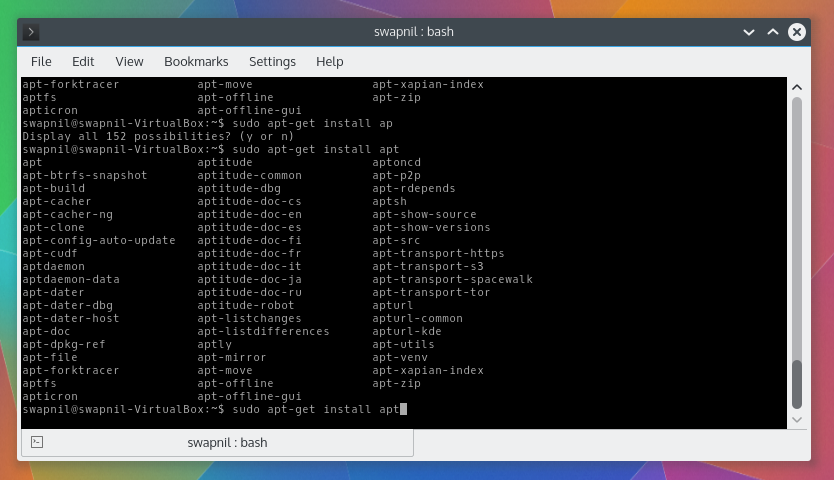
Ubuntu comes pre-installed with a bash-completion tool which makes life even easier with apt-get and aptitude. You don’t have to remember the complete name of the package, just type the first three letters and hit ‘Tab’ key. Bash will offer you all the packages starting with those three letters. So if I type ‘sudo apt-get install apt’ and then hit ‘Tab’ it will show me a long list of such packages.
Once aptitude is installed, you should start using it instead of apt-get. The usage is same, just replace apt-get with aptitude.
Run system update/upgrades
Running a system upgrade is quite easy on Ubuntu and its derivatives. The command is simple:
sudo aptitude update
sudo aptitude upgrade
There is another command for system upgrades called ‘dist-upgrade’. This command is a bit more advanced than the simple ‘upgrade’ command because it performs some extra tasks. While the ‘upgrade’ command only upgrades the installed packages to its newest version, it doesn’t remove any older packages. ‘Dist-upgrade’ on the other hand also handles dependency changes and may remove packages not needed anymore. Also if you want to upgrade the Linux kernel to the latest version then you need the ‘dist-upgrade’ command. You can run the following command:
sudo aptitude update
sudo aptitude dist-upgrade
Upgrade to latest version of Ubuntu
It’s extremely easy to upgrade the official flavors of Ubuntu (such as Ubuntu, Kubuntu, Xubuntu, etc.) from one major version to another. Just keep in mind that it should be from one release to the next release, for example from 14.04 to 14.10 and not from 13.04 to 14.04. The only exception are the LTS releases as you can jump from one LTS to another. In order to run an upgrade you may have to install an additional package:
sudo aptitude install update-manager-core
Now run the following command to do the release upgrade:
sudo aptitude do-release-upgrade
While upgrading from one release to another keep in mind that while almost all official Ubuntu-flavors support such upgrades, it may not work on unofficial flavors or derivatives like Linux Mint or elementary OS. You much check the official forums of those distros before attempting an upgrade.
Another important point to keep in mind is that you must always back-up data before running a distribution upgrade and also run a repository update, then dist-upgrade.
How to remove packages
It’s very easy to remove packages via the command line. Just use the ‘remove’ option instead of ‘install’. So if you want to remove ‘firefox’, the command would be:
sudo aptitude remove firefox
If you want to also remove the configuration files related to that package, for a fresh restart or to trim down your system then you can use the ‘purge’ option:
sudo aptitude purge firefox
To further clean your system and get rid of packages no longer needed, you must run ‘auto remove’ command from time to time:
sudo apt-get autoremove
Installing binary packages
At times, many developers and companies offer their software as executable binaries or .deb files. To install such packages you need a different command tool called dpkg.
sudo dpkg -i /path-of-downloaded.deb
At times you may come across broken package error in *buntus. You can check any broken packages by running this command:
sudo apt-get check
If there are any broken packages then you can run this command to fix them:
sudo apt-get -f install
How to add or remove repositories or PPAs
All repositories are saved at this location: ‘/etc/apt/source.list’. You can simply edit this file using ‘nano’ or your preferred editor and add the new repositories there. In order to add new PPAs (personal package archives) to the system use the following pattern:
sudo add-apt-repository ppa:
For example if you want to add LibreOffice PPA this would be the pattern:
sudo add-apt-repository ppa:libreoffice/ppa
openSUSE Software management
Once you understand how basic Linux commands work, it really won’t matter which distro you are using. And that also makes it easier to hop distros so that you can become distro agnostic, refrain from tribalism and use the distro that works the best for you. If you are using openSUSE then ‘apt-get’ or ‘aptitude’ is replaced by ‘zypper’.
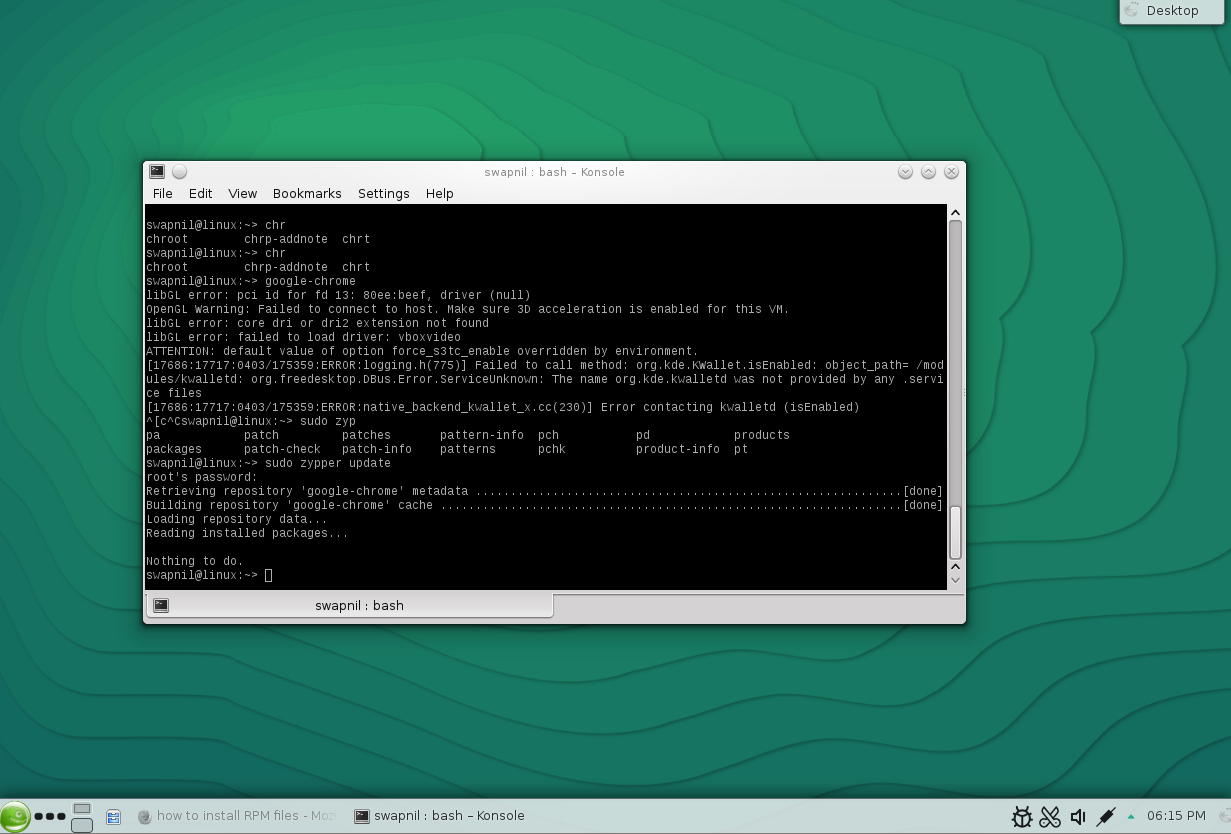
Let’s run a system update. First you need to refresh the repository information:
sudo zypper refresh
Then run a system update:
sudo zypper up
Alternatively you can also use:
sudo zypper update
This command will upgrade all packages to their latest version. To install any package the command is:
sudo zypper in [package-name]
However you must, as usual, refresh the repositories before installing any package:
sudo zypper refresh
To uninstall any package run:
sudo zypper remove
However, unlike Ubuntu or Arch Linux the default shell of openSUSE doesn’t do a great job at auto-completion when it comes to managing packages. That’s where another shell ‘zsh’ comes into play. You can easily install zsh for openSUSE (chances are that it’s already installed.)
sudo zypper in zsh
To use zsh just type zsh in the terminal and follow instructions to configure it. You can also change the default shell from ‘bash’ to ‘zsh’ by editing the ‘/etc/passwd’ file.
sudo nano /etc/passwd
Then replace ‘bash’ with ‘zsh’ for the user and root. Once it’s all set it will be much more pleasant to use the command line in openSUSE.
How to add new repositories in openSUSE
It’s very easy to add a repo to openSUSE. The pattern is easy:zypper ar -f
So if I want to add a Gnome this would be the command:
zypper ar -f obs://GNOME:STABLE:3.8/openSUSE_12.3 GS38
[It’s only an example, using an older Gnome repo, don’t try it on your system.]
How to install binaries in openSUSE
In openSUSE you can use the same ‘zypper install’ command to install binaries. So if you want to install Google Chrome, you can download the .rpm file from the site and then run this command:
sudo zypper install
How to install packages in fedora
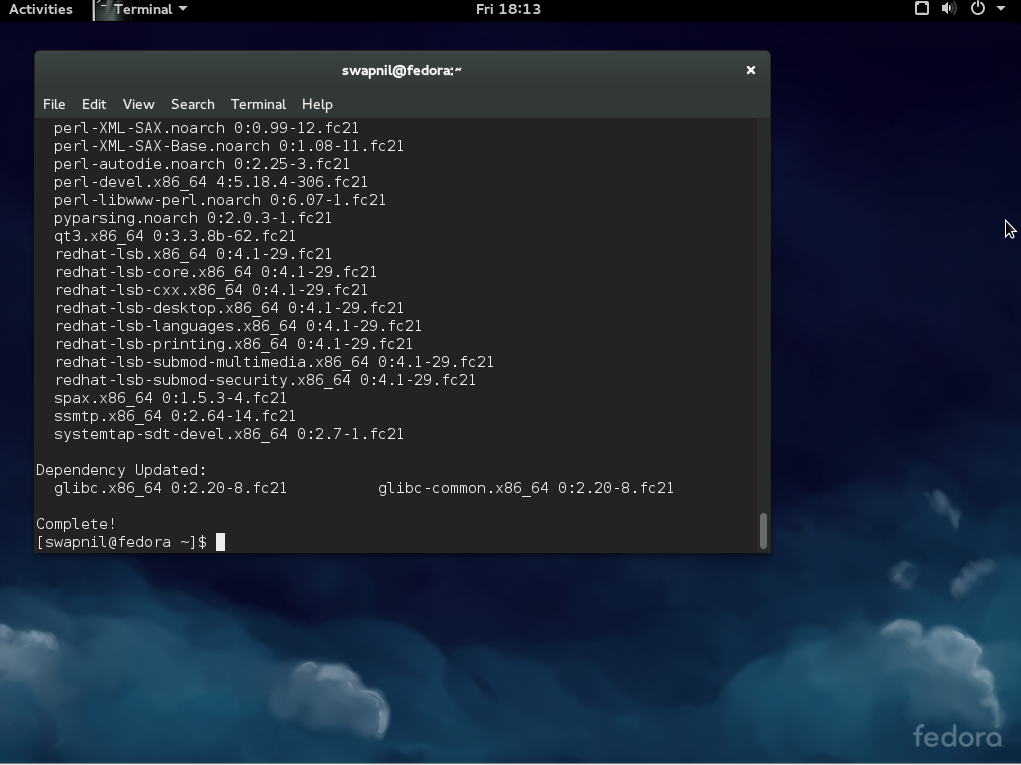 Fedora uses ‘yum’ which is the counterpart of ‘apt-get’ and ‘zypper’. To find updates and install them in Fedora run
sudo yum update
To install any package simply run:
sudo yum install
To remove any package run:
sudo yum remove
To install binaries use:
sudo yum install
So, that’s pretty much all that you need to get started using command line for software management in these distros.

 Every once in a while Ubuntu developers made improvements to the Unity desktop environment, but that usually happens for new Ubuntu releases, like 15.04 for example. That doesn’t stop them from porting those improvements to older releases, such as Ubuntu 14.04 LTS.
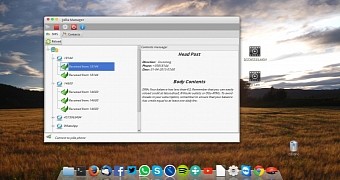 The Jolla community has put together an application called Jolla Communicator that allows users to send and receive messages on Ubuntu, which connected to a Sailfish OS-powered smartphone.