What do you find when you test the security of today’s IoT devices? Vulnerabilities which could allow for robbery, theft or even stalking.
Read more at ZDNet News
 The Jolla community has put together an application called Jolla Communicator that allows users to send and receive messages on Ubuntu, which connected to a Sailfish OS-powered smartphone.
Jolla is doing the same thing that Canonical is trying, and that is to penetrate the mobile market dominated by Google, Apple, and Microsoft (just a little bit). It’s difficult work, and both companies are just making their mark, but it’s happening. They both use the Linux kernel (for the… (read more)

This week NCSA celebrated two years of Blue Waters supercomputing in an event convened by U.S. Senator Mark Kirk. The powerful Cray supercomputer is used by scientists and engineers across the country to tackle challenging research for the benefit of science and society.
The post Celebrating Two Years of Blue Waters Supercomputing at NCSA appeared first on insideHPC.
In the previous article of this series we learned some of the basics of the CLI (command line interface). In this article, we will learn how to manage software on your distro using only the command line, without touching the GUI at all.
I see great benefits when using the command line in any Ubuntu-based system. Each *buntu comes with its own ‘custom’ software management tool which not only creates inconsistent experiences across different flavors, even if they use the same repositories or resources to manage software. The life of a user becomes easier with CLI because the same command works across flavors and derivatives. So if you are a Kubuntu user you won’t have a problem supporting a Linux Mint user because CLI will remove all the confusing wrappers. In this tutorial I am targeting all major distros: Debian/Ubuntu, openSUSE and Fedora.
There are two command line tools for the Debian family: ‘apt-get’ and ‘aptitude’. Aptitude is considered a superior tool as it does a better job at dependencies and better management of packages. If Ubuntu doesn’t come with ‘aptitude’ pre-installed, I suggest you install the tool.
Before we install any package we must always update the repositories so that they can pull the latest information about the packages. This is not limited to Ubuntu. Irrespective of the distro you use, you must always update the repositories before installing packages or running system updates.The command to update packages is:
sudo apt-get update
Once the repositories are updated you can install ‘aptitude’. The pattern is simple sudo apt-get install
sudo apt-get install aptitude
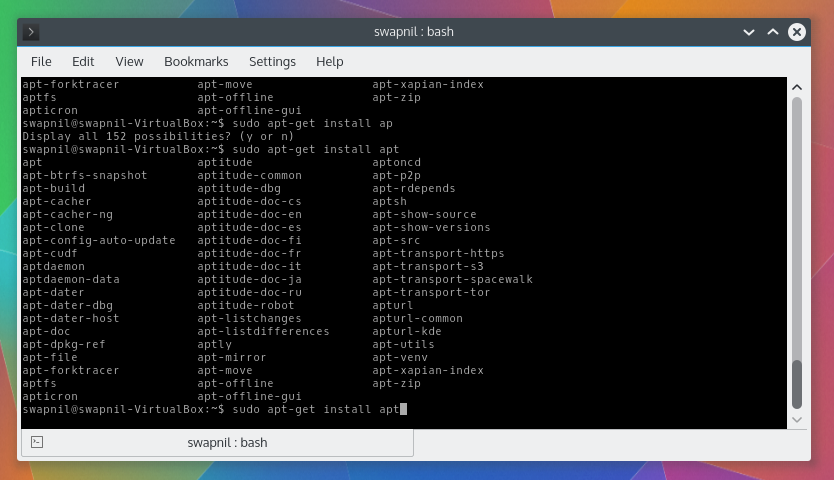
Ubuntu comes pre-installed with a bash-completion tool which makes life even easier with apt-get and aptitude. You don’t have to remember the complete name of the package, just type the first three letters and hit ‘Tab’ key. Bash will offer you all the packages starting with those three letters. So if I type ‘sudo apt-get install apt’ and then hit ‘Tab’ it will show me a long list of such packages.
Once aptitude is installed, you should start using it instead of apt-get. The usage is same, just replace apt-get with aptitude.
Running a system upgrade is quite easy on Ubuntu and its derivatives. The command is simple:
sudo aptitude update
sudo aptitude upgrade
There is another command for system upgrades called ‘dist-upgrade’. This command is a bit more advanced than the simple ‘upgrade’ command because it performs some extra tasks. While the ‘upgrade’ command only upgrades the installed packages to its newest version, it doesn’t remove any older packages. ‘Dist-upgrade’ on the other hand also handles dependency changes and may remove packages not needed anymore. Also if you want to upgrade the Linux kernel to the latest version then you need the ‘dist-upgrade’ command. You can run the following command:
sudo aptitude update
sudo aptitude dist-upgrade
It’s extremely easy to upgrade the official flavors of Ubuntu (such as Ubuntu, Kubuntu, Xubuntu, etc.) from one major version to another. Just keep in mind that it should be from one release to the next release, for example from 14.04 to 14.10 and not from 13.04 to 14.04. The only exception are the LTS releases as you can jump from one LTS to another. In order to run an upgrade you may have to install an additional package:
sudo aptitude install update-manager-core
Now run the following command to do the release upgrade:
sudo aptitude do-release-upgrade
While upgrading from one release to another keep in mind that while almost all official Ubuntu-flavors support such upgrades, it may not work on unofficial flavors or derivatives like Linux Mint or elementary OS. You much check the official forums of those distros before attempting an upgrade.
Another important point to keep in mind is that you must always back-up data before running a distribution upgrade and also run a repository update, then dist-upgrade.
It’s very easy to remove packages via the command line. Just use the ‘remove’ option instead of ‘install’. So if you want to remove ‘firefox’, the command would be:
sudo aptitude remove firefox
If you want to also remove the configuration files related to that package, for a fresh restart or to trim down your system then you can use the ‘purge’ option:
sudo aptitude purge firefox
To further clean your system and get rid of packages no longer needed, you must run ‘auto remove’ command from time to time:
sudo apt-get autoremove
At times, many developers and companies offer their software as executable binaries or .deb files. To install such packages you need a different command tool called dpkg.
sudo dpkg -i /path-of-downloaded.deb
At times you may come across broken package error in *buntus. You can check any broken packages by running this command:
sudo apt-get check
If there are any broken packages then you can run this command to fix them:
sudo apt-get -f install
All repositories are saved at this location: ‘/etc/apt/source.list’. You can simply edit this file using ‘nano’ or your preferred editor and add the new repositories there. In order to add new PPAs (personal package archives) to the system use the following pattern:
sudo add-apt-repository ppa:
For example if you want to add LibreOffice PPA this would be the pattern:
sudo add-apt-repository ppa:libreoffice/ppa
Once you understand how basic Linux commands work, it really won’t matter which distro you are using. And that also makes it easier to hop distros so that you can become distro agnostic, refrain from tribalism and use the distro that works the best for you. If you are using openSUSE then ‘apt-get’ or ‘aptitude’ is replaced by ‘zypper’.
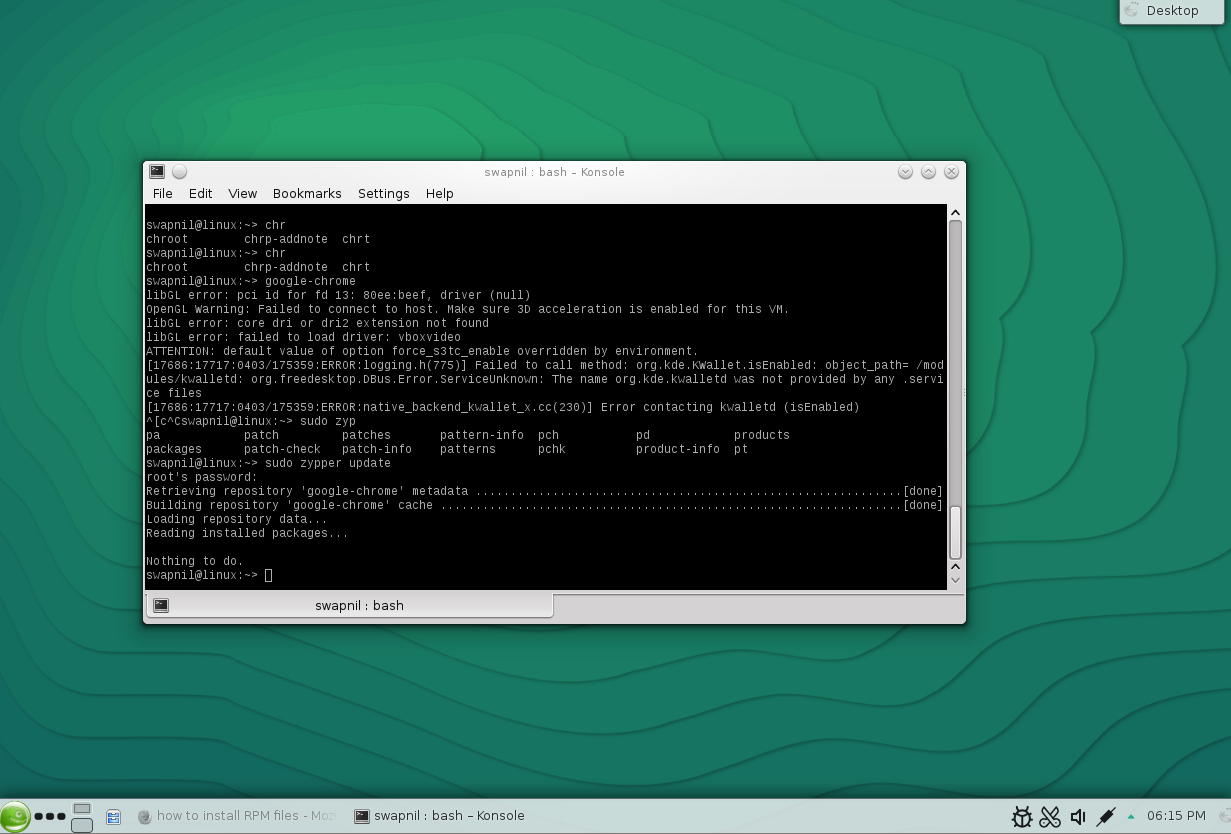
Let’s run a system update. First you need to refresh the repository information:
sudo zypper refresh
Then run a system update:
sudo zypper up
Alternatively you can also use:
sudo zypper update
This command will upgrade all packages to their latest version. To install any package the command is:
sudo zypper in [package-name]
However you must, as usual, refresh the repositories before installing any package:
sudo zypper refresh
To uninstall any package run:
sudo zypper remove
However, unlike Ubuntu or Arch Linux the default shell of openSUSE doesn’t do a great job at auto-completion when it comes to managing packages. That’s where another shell ‘zsh’ comes into play. You can easily install zsh for openSUSE (chances are that it’s already installed.)
sudo zypper in zsh
To use zsh just type zsh in the terminal and follow instructions to configure it. You can also change the default shell from ‘bash’ to ‘zsh’ by editing the ‘/etc/passwd’ file.
sudo nano /etc/passwd
Then replace ‘bash’ with ‘zsh’ for the user and root. Once it’s all set it will be much more pleasant to use the command line in openSUSE.
It’s very easy to add a repo to openSUSE. The pattern is easy:zypper ar -f
So if I want to add a Gnome this would be the command:
zypper ar -f obs://GNOME:STABLE:3.8/openSUSE_12.3 GS38
[It’s only an example, using an older Gnome repo, don’t try it on your system.]
In openSUSE you can use the same ‘zypper install’ command to install binaries. So if you want to install Google Chrome, you can download the .rpm file from the site and then run this command:
sudo zypper install
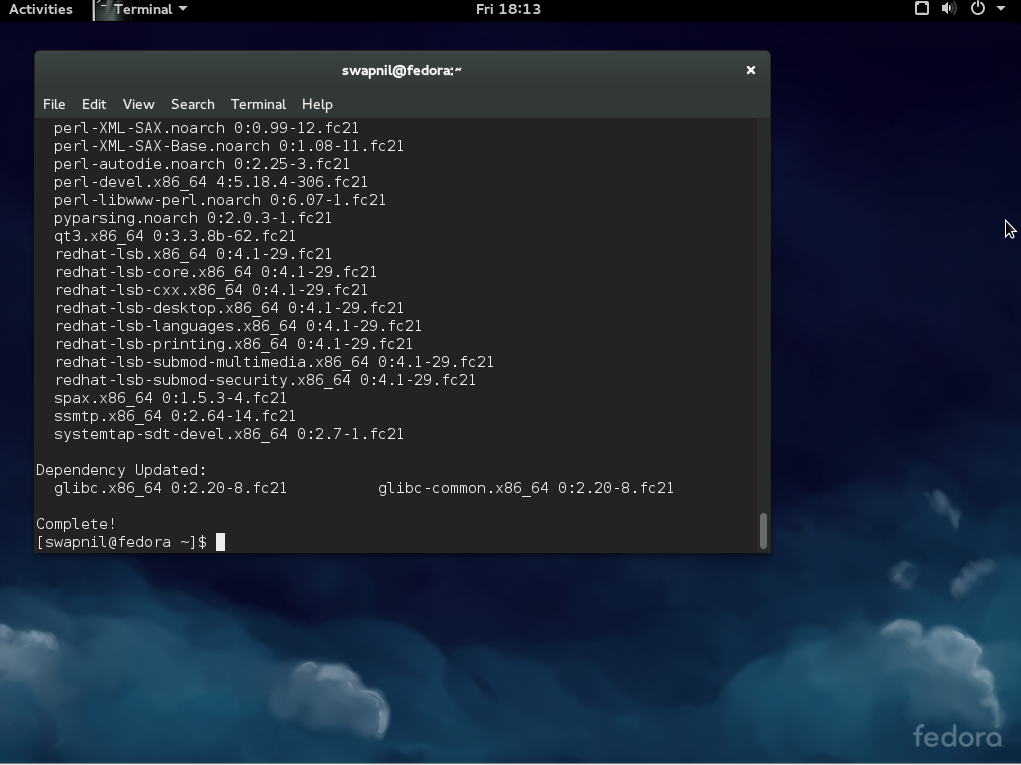 Fedora uses ‘yum’ which is the counterpart of ‘apt-get’ and ‘zypper’. To find updates and install them in Fedora run
sudo yum update
To install any package simply run:
sudo yum install
To remove any package run:
sudo yum remove
To install binaries use:
sudo yum install
So, that’s pretty much all that you need to get started using command line for software management in these distros.

 Git has come a long way in the 10 years since Linux creator Linus Torvalds released the first version of the now-popular distributed revision control system. For example, the addition of pull requests came three years after the original release, according to Atlassian. And over time it has added more collaboration tools, code review tools, integration to continuous integration systems, and more, recalls Qt Project core maintainer and software architect at Intel, Thiago Macieira.
“At the time we chose (Git), it was for raw performance and for the fact it was distributed,” Macieira said. “Since then, it has gained other benefits… And since it’s now so popular, it’s not a barrier of entry for new contributors.”
Here Macieira shares more about how and why the Qt Project – an open source application development framework – uses Git, its success stories using the tool, and his favorite tip for pro users.
Thiago Macieira: Because Git is the best tool for the job. Qt had progressed through several different version control systems and by 2008 we had clearly come to the conclusion that we needed something distributed, to facilitate collaboration as the team grew. Several of our key contributors were already using git-p4 to keep local trees and share things. In addition, we also wanted to make our repository public but read-only, something we could never have done with our previous centralized system.
Before we settled on Git, we did compare it to other distributed version control systems at the time and found that Git had the best performance overall and best long-term chances of succeeding. We did identify some performance issues on non-Linux systems, but those were quickly fixed once identified.
At the time we chose it, it was for raw performance and for the fact it was distributed. Since then, it has gained other benefits, like collaboration tools, code review tools, integration to continuous integration systems, etc. And since it’s now so popular, it’s not a barrier of entry for new contributors.
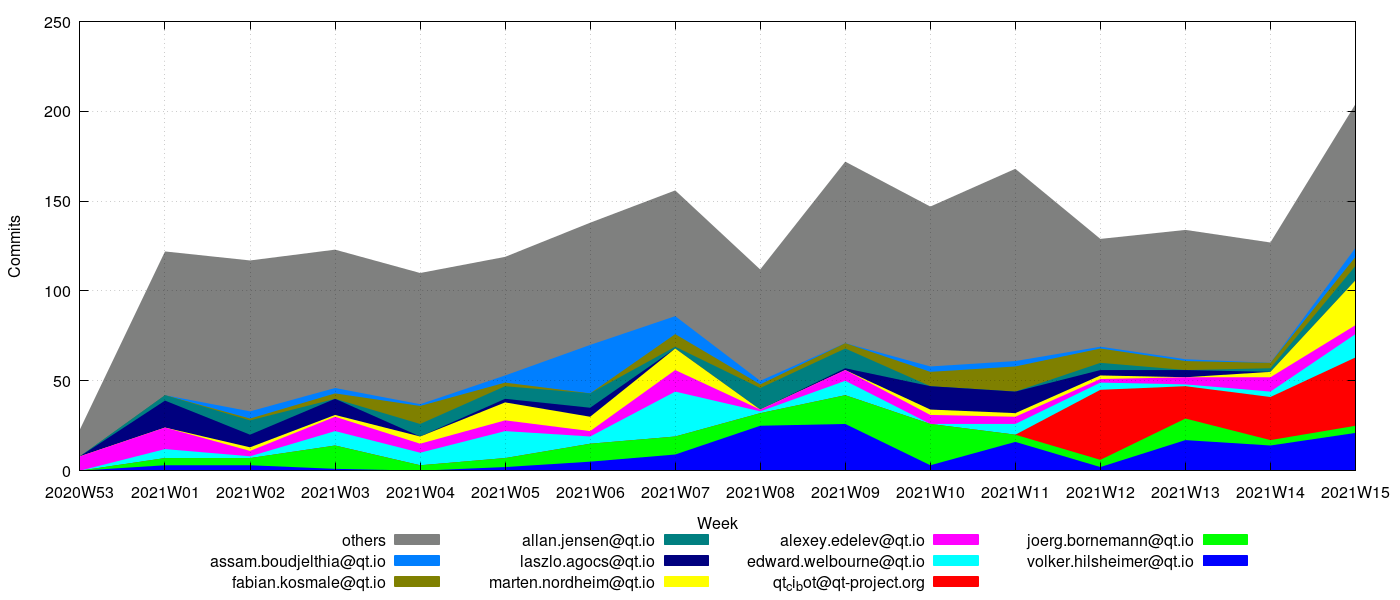
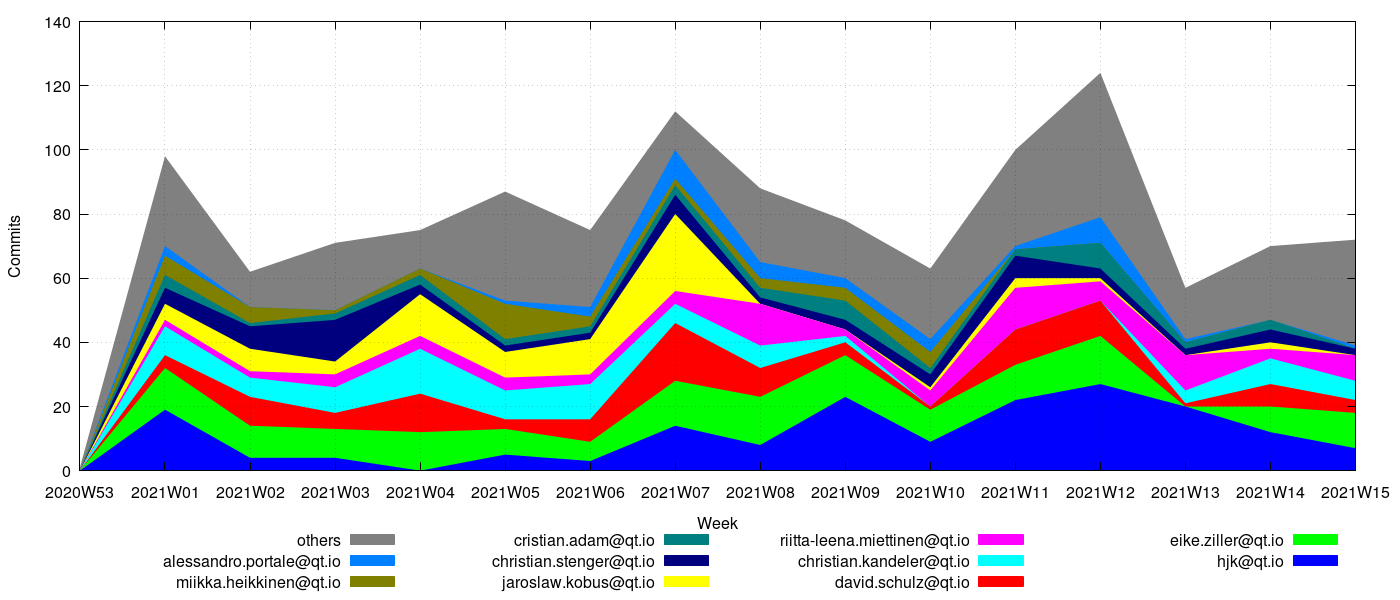
Between 80 to 100 different people, on a weekly basis [see http://www.macieira.org/~thiago/qt-stats/current/qt-all.author.unique.png]
Over the last year, a script of mine is showing 288 people.
All the time. I use it for every project I participate in, as well as for projects I don’t contribute to. I use it even for projects that don’t officially host on Git, like GCC, LLVM and Clang.
I also engage in some UGFWIINI (Use of Git For What It Is Not Intended) by using it to back up my home directory.
It’s qtbase.git, followed by qt-creator.git. See these two graphs for the numbers:
http://www.macieira.org/~thiago/qt-stats/current/qtbase.author.absolute.png
http://www.macieira.org/~thiago/qt-stats/current/creator.author.absolute.png
They are our largest repositories with critical pieces of our infrastructure. qtbase.git contains the base Qt libraries, which are also the oldest, whereas qt-creator.git contains the IDE and it’s a large and complex application.
The –patch options to git add, git checkout and git reset.
I think the conversion from KDE’s Subversion server to Git. At the time I started on that project, the KDE Subversion server was already the largest in the world at 800k commits. By the time we began the conversion, it had 1.1 million commits and required the distributed effort of lots of people writing rules for importing branches and tags the proper way.
Read more:
Git Success Stories and Tips from Wine Maintainer Alexandre Julliard
Git Success Stories and Tips from Puppet Labs’ Michael Stahnke
Git Success Stories and Tips from Tor Chief Architect Nick Mathewson
Git Success Stories and Tips from Drupal Core Committer Angie Byron
Git Success Stories and Tips from KVM Maintainer Paolo Bonzini
10 Years of Git: An Interview with Git Creator Linus Torvalds