Home Blog Page 1168

This Week in Linux News: 5 Key Linux Skills for Job-Seekers, Concern Over Windows 10 Shutout, and More

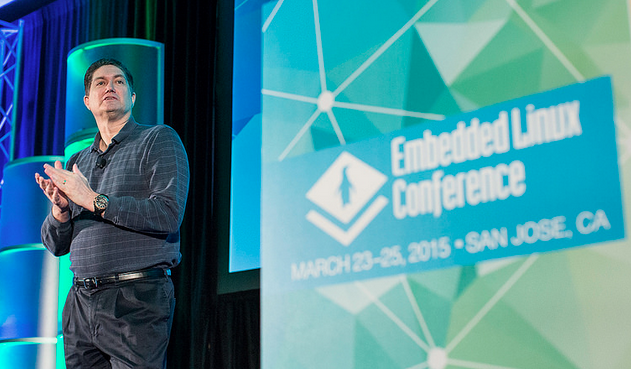
Tim Bird of Sony Mobile, Moderator at Embedded Linux Conference 2015This Week in Linux News, 5 key Linux skills for job-seekers, concern over Windows 10 shutout, and more. Here are five Linux and open source must-reads from this week’s news.

1) Linux users are concerned they will be shut out of Windows 10 machines due to a change in UEFI Secure Boot. 

http://www.networkworld.com/article/2900502/microsoft-subnet/linux-users-alarmed-over-windows-10-lockout.html


2) Embedded Linux takes the lead in an Internet of Things (IoT)-age market.

http://linuxgizmos.com/linux-takes-leading-role-in-iot-obsessed-market/

3) Five important skills for any hopeful Linux pro.

http://sdtimes.com/five-key-skills-for-linux-job-seekers/

4) Panasonic will provide royalty-free access to software and patents related to the IoT ecosystem, announced at this week’s Embedded Linux Conference.

http://www.zdnet.com/article/panasonic-opens-royalty-free-portfolio-to-boost-iot-development/

5) How to run Windows software in your favorite Linux distro.

http://www.itworld.com/article/2901041/three-ways-to-run-windows-software-in-linux.html

Open-Source Driver Fans Will Love NVIDIA’s New OpenGL Demo

Those with a bit of humor will love the demo NVIDIA recently used for showing off their Nouveau-based open-source graphics driver stack on the Tegra K1 SoC…

Read more at Phoronix

[Video] FOSDEM2015: Porting Tizen Common to Open Source Hardware Devices

  The following is a video recorded at FOSDEM 2015, entitled Porting Tizen Common to open source hardware devices, presented by Philippe Coval and Leon Anavi, in which it Introduces you to the Tizen platform development and provides you the technical details with regards to the Tizen: Common porting efforts to Allwinner A10/A20, Rockchip RK3188/RK3288 ARM SoC and MinnowBoard MAX with Intel Atom CPU.

The Tizen Project will be discussed and information provided about U-Boot, Yocto project, the Linux-Sunxi and Linux-Rockchip, Minnowboard communities. You will be shown the process of porting Tizen:Common to open source hardware developer boards with SoC boards manufactured by Allwinner, Rockchip or Intel such as OLinuXino, Radxa Rock, Minnowboard.   Video The video is licensed under the creative commons attribution 2.0 belgium license (CC BY 2.0 BE)   You can also download the slides for the presentation here.

The post [Video] FOSDEM2015: Porting Tizen Common to Open Source Hardware Devices appeared first on Tizen Experts.

Read more at Tizen Experts

Facebook’s Oculus Rift Release Is Coming Soon

In case you have not heard of Oculus Rift until now, you should know that it is a virtual reality display designed by Oculus VR, the company acquired by Facebook in March last year.

Not much has been revealed ever since, nor has Facebook provided any details on what they intended to do next regarding the much-anticipated headset.

However, during the F8 2015 conference, Oculus Chief Scientist Michael Abrash announced that they were still working on developing the device i… (read more)

Read more at Softpedia News

GNOME Builder Makes It Easier for Developers to Create Apps for GNOME 3.16

On March 26, we announced the release of the GNOME 3.16 desktop environment, and we unveiled its awesome features, including updated and new applications. However, we completely missed one app: GNOME Builder, a powerful IDE (Integrated Development Environment) for GNOME.

Softpedia reviewed the read more)

Read more at Softpedia News

Are Cyanogen and Microsoft Ready to Stick it to Google?

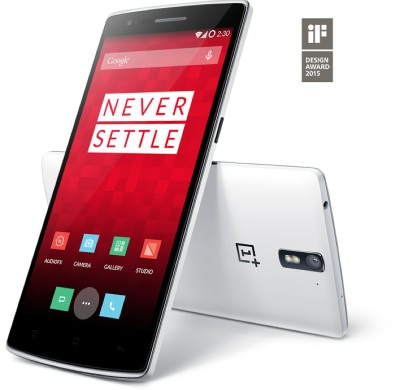
Oneplus one phoneLater this year, upstart vendor BLU will release a smartphone that pre-installs a version of Cyanogen’s alternative Android build, but with a twist. The stack will eschew Google Apps in favor of third-party alternatives. Miami-based BLU, which is big in Latin America, sells unlocked Android phones in the U.S. at Wal-Mart and Best Buy.

The Forbes report revealing the BLU partnership goes on to quote unnamed sources stating that Cyanogen and Microsoft are “close to finalizing a wide-ranging partnership” to integrate Microsoft’s mobile services, including Bing, Skype, Outlook, OneDrive, and the voice-powered Cortana into future commercial Cyanogen OS installations.

The unlocked BLU phone due later this year will likely include Microsoft Bing, Cortana, and OneDrive, as well as the Opera browser, Nokia Here navigation, Dropbox, and Spotify, says the story. Another unnamed phone vendor tapping Cyanogen is said to be considering even more Microsoft apps. These may include the Android-optimized version of Office that Samsung, Dell, and other vendors will load on selected Android tablets as per this week’s announcement (see farther below).

The rumor of a Cyanogen partnership with Microsoft emerged in January in a Wall Street Journal report that Microsoft would be a minority investor in the fast growing software firm. The Forbes story reports that the rumored $80 million funding round has just been completed, but did not include Microsoft. An investment may well be part of the bundling deal expected later this year, however.

The $80 million funding round, which adds to a $30 million joint investment last year to spin off the commercial Cyanogen firm from the open source CyanogenMod project, is led by India-based PremjiInvest. It also includes investors like Twitter, Qualcomm, Telefónica, and Rupert Murdoch. The funding round values Cyanogen at close to $1 billion, says the story. Qualcomm is said to be prepping a reference phone that integrates Cyanogen with its Snapdragon processors.

Last year, Cyanogen released a commercial version of CyanogenMod called Cyanogen OS on the Chinese-made OnePlus One phone, as well as the Micromax Yu (Yureka), both of which were top sellers, according to Forbes. Alcatel recently announced it will bring a version of its 6-inch Hero 2+ Android phone to the U.S. loaded with Cyanogen OS. Other vendors looking to free themselves from Google’s shackles — or simply ship a better alternative to their existing Android clones — are likely to jump on, especially since Cyanogen is handling all the expensive software development for them.

BLU Ditches Google Apps

Like most mainstream Android phones sold in major markets, the first three Cyanogen OS phones ship with Google Play and other Google Apps. The BLU phone, however, would be the first Cyanogen-based phone to instead pre-install third-party apps. Other, primarily Chinese, Android vendors such as Xiaomi, have also avoided Google involvement with their forked versions of Android.

Consumers tend to prefer Android phones that pre-install Google Apps, which include Google Maps, Gmail, Google Drive, and Google Play. Open source and privacy advocates often opt for lesser-powered open source apps that promise not to track your every move, and others seek out some of the increasingly capable commercial options. However, the proprietary Google Apps continue to thrive, thanks in part to a widespread reputation for quality. You could argue that Android wouldn’t enjoy the mobile domination it does today without them.

That’s why many of CyanogenMod’s 50 million users purchase Google Apps, even if they’ve just flashed it from their Android phone in order to load CyanogenMod. The open source Android clone has gained its huge following, including some 9,000 open source developer volunteers, due to its up-to-date, open source, bloatware-free Android code. Also popular are its extensive customization opportunities, better battery life, and often faster performance. The project was launched in 2009 by hacker extraordinaire Steve Kondik, who continues on as Cyanogen’s CTO.

Mobile device vendors who pay big money to Google to pre-install the popular Google Apps have long chafed at the relationship. Google has reportedly used the apps as leverage to ensure greater control over Android or sell other Google services. Samsung’s backing of the Linux-based Tizen platform was seen as a response to Google’s app domination, although the company now appears to have slowed its push for Tizen on phones even as it continues to deploy it elsewhere.

Microsoft pushes Office onto Android tablets

Like Microsoft, software and services companies ranging from Spotify to Twitter also seek new opportunities to showcase their alternatives apps via mobile pre-installation deals. Yet, for Microsoft, Cyanogen is only one path for pushing its software on mobile devices beyond the roughly 3 percent of smartphones that run Windows Phone.

A month after Microsoft and Samsung settled a longstanding royalties lawsuit, the companies expanded a partnership this week that was announced at Mobile World Congress. In addition to pre-installing Microsoft OneNote, OneDrive, and Skype on Samsung’s new Galaxy 6 phones, Samsung says it will soon bundle those apps, along with Android-optimized Office apps (Microsoft Word, Excel, and PowerPoint), on selected Samsung Android tablets. Microsoft also announced it has signed similar deals with Dell, as well as 10 other lesser known hardware partners.

Office doesn’t go head to head with Google’s most important apps, as it competes mostly with the free Google Docs. The combination of OneDrive and Office, however, does go up against the Google Drive cloud storage product, which includes Google Docs, and is available in free and paid versions. A Cyanogen bundle that also included Bing and Cortana would hit even closer to home for Google.

Cyanogen CEO Kirt McMaster has been tapping into industry frustration with Google — and perhaps taking a page from the playbook of outspoken T-Mobile CEO John Legere — by calling Google tyrannical, and boasting to the Wall Street Journal that “We’re going to take Android away from Google.” Ramping up the trash talk, McMaster told Forbes “We’re putting a bullet through Google’s head.”

It’s unclear whether that bullet may someday ride in on a deal with Microsoft that goes beyond apps to include a version of Windows Phone based on Cyanogen OS. An acquisition also remains a possibility. Like Microsoft, most of Cyanogen’s employees are based in Seattle.

The ironies are thick here, considering that for many years Microsoft strong-armed PC vendors into pre-installing Office, or pressured them into loading Windows on netbooks instead of Linux. Now, after Google ruined its plans to establish Windows Phone as the rival mobile platform to Apple’s iOS, Microsoft is playing the underdog game while increasingly cozying up to open source projects, including the Raspberry Pi Foundation and perhaps Cyanogen.

CyanogenMod and Cyanogen OS already appear to have been deployed on more mobile devices than the leading mobile Linux contender, Mozilla’s Firefox OS, which is aiming at a lower end market. Cyanogen competes more directly with Tizen (Samsung) and Ubuntu Touch (Canonical), which have only recently begun shipping on phones.

The only mobile Linux project that has demonstrated any meaningful Android app compatibility is Jolla’s Sailfish OS, but it’s far from extensive and optimized compatibility of CyanogenMod. Some unnamed analysts told Forbes they expected Cyanogen could appear on as many as 1 billion handsets, or more than all the iPhones sold to date.

A New Stable Kernel Release

Greg Kroah-Hartman has announced the release of the 3.19.3 kernel. A variety of important fixes and updates are included.

Read more at LWN


Get the Most Out of Google Drive and Other Apps on the Linux Desktop

Google Apps are an incredibly powerful means to a very productive end. With this ecosystem you get all the tools you need to get the job done. And since most of these tools work within a web browser, it couldn’t be more cross-platform friendly. No longer do open source users have to hear “Linux need not apply”, because Google Apps is very Linux friendly.

But when using Linux, how do you get the most out of your experience? There are certain elements of Google Apps that come up a bit short on Linux ─ such as the Google Drive desktop client. Worry no longer, because I have a few tips that will help you extend and get the most out of Google Apps on the Linux platform.

All about the browser

One of the first pieces of advice I will offer up is this: Although Google Apps work fantastic in nearly every browser, I highly recommend using Google Chrome. This isn’t because you’ll find Apps work more efficiently or reliably with Google’s own browser, but because of two simple reasons:

  • Additional functionality.

With the Google Web Store you will find plenty of apps that help extend the functionality of some of the tools offered by Google. Apps like Google Doc Quick Create (quick access to creating any document within Google Apps), or Google Docs To WordPress (export your Google Doc to WordPress) add functionality to your Google Apps you won’t find in other browsers.

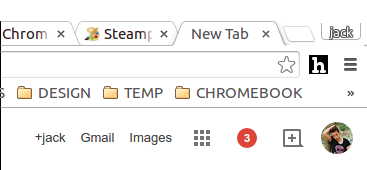
  • Faster access with quick links (also called Chrome Notifications Bar.)

Quick links are those tiny buttons that appear in the upper right corner of every blank tab you open in Chrome (Figure 1). Unfortunately, you cannot configure the Chrome Notifications Bar.

google apps

Let’s get beyond the simplicity of the browser and see other methods to get the most out of Google Apps.

Google Calendar Indicator

I want to highlight a tool that I use on a daily basis. On many desktops (such as Ubuntu Unity), you can add Indicator apps that allow you to get quick access to various sorts of information. One such indicator that I rely on is the Calendar-indicator. This particular indicator not only will list out upcoming events on your Google Calendar, it also allows you to add new calendars, add events, show your calendar, sync with your calendar, and enable/disable the syncing of your Google Calendars to the indicator (in case you have multiple calendars and do not want to show them all). Of course, the mileage you get out of this will depend upon which desktop you use and how much you depend upon the Google Calendar.

To install this indicator (I’ll demonstrate on Ubuntu 14.10), do the following:

  1. Press Ctrl+Alt+t to open a terminal window

  2. Add the PPA with the command sudo add-apt-repository ppa:atareao/atareao and hit Enter

  3. Type your sudo password and hit Enter (and a second time when prompted)

  4. Type the command sudo apt-get update and hit Enter

  5. Type the command sudo apt-get install calendar-indicator and hit Enter

  6. Allow the installation to complete

  7. Log out of your desktop and log back in.

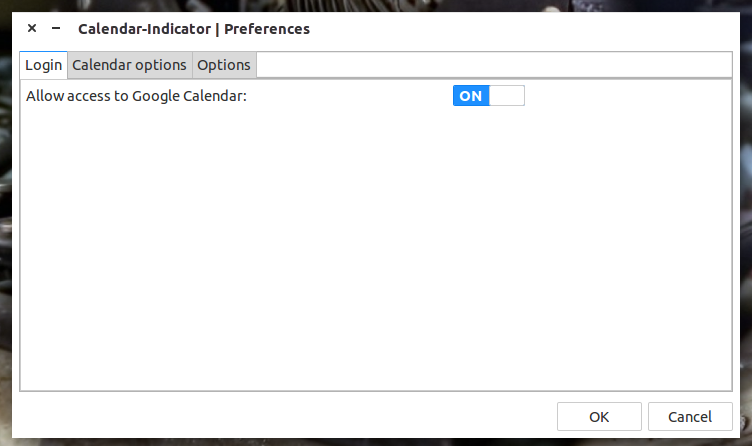
The next step is to enable the indicator. Open the Unity Dash (or however you get to your apps) and type calendar-indicator in the search field. When you see the launcher for the indicator, click on it to open the Calendar-indicator Preferences window (Figure 2).

The Calendar-indicator preferences window.

The first thing you must do is enable access to Google Calendar by switching the ON/OFF slider to ON. When you do that, an authentication window will appear where you can enter your credentials for your Google account. If you have two-step authentication set up for your Google account (which you should), you will prompted to enter a two-step 6-digit code. Finally you will have to grant the indicator permission to access your Google account by clicking Accept (when prompted).

Click OK and the Calendar-indicator icon will appear in your panel (Figure 3).

The Calendar-indicator icon ready to serve (sixth from the left).

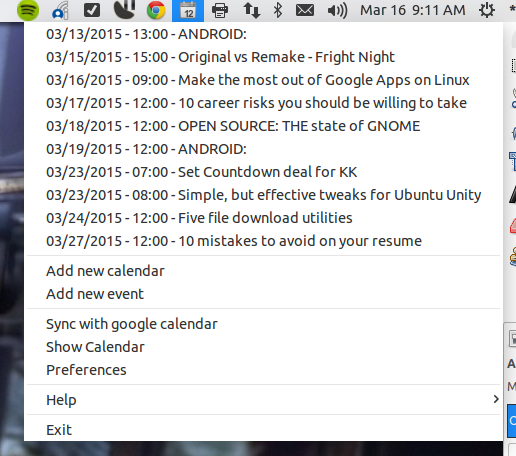
Click on the Calendar-indicator to reveal the drop-down that lists your upcoming events and more (Figure 4).

See all of your upcoming appointments with a single click.

Backing up your Google Drive

If there’s one area where Google seems to be slighting Linux, it’s on the Drive desktop client arena. This is sort of a shock, considering how supportive Google is of the Linux platform (and open source as a whole). But that doesn’t mean we Linux users are out of luck. There are third party tools that allow the syncing of your Google Drive to your desktop.

Of the third-party tools, only one tool really can be trusted to handle the syncing of your documents ─ Insync. This is the tool I depend upon for the real-time syncing of my Google Drive and desktop. Of course, some will have issue with Insync because it is neither open nor free.

However, if you want to look at open source solutions you’ll find the options limited. There’s:

  • grive: which hasn’t been updated for two years

  • drive: an “official” Google drive client that simply doesn’t work (and, even if it did work, it doesn’t actually do background syncing)

There used to be a very handy Nautilus extension (called nautilus-gdoc), which added a right-click option to the Nautilus file manager, that would upload files/folders to your Google Drive cloud storage. Sadly, that extension no longer works.

In the end, the only logical choice for backing up your Google Drive account is Insync. With this tool, you can even save files/folders within your sync’d folder (you get to define the location of this folder) and they will be automatically uploaded to your Drive cloud storage.

Enable the Google Apps Launcher

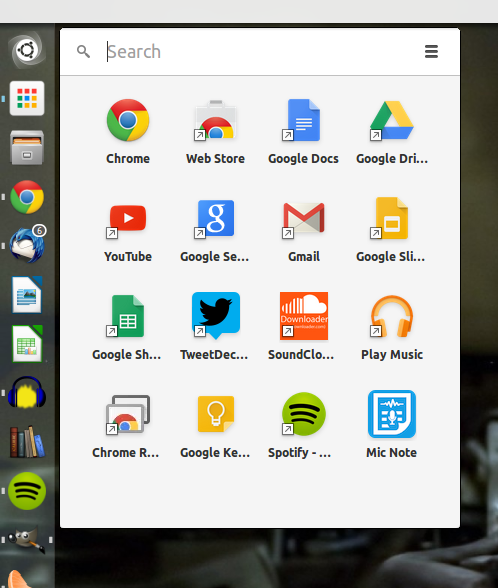
The Google Apps Launcher on the Ubuntu Unity launcher.

If you want the fastest possible access to your Google Apps, you can add the Google Apps Launcher to your desktop launcher. This Apps Launcher is very similar to the ChromeOS menu button and enables you to launch any of the Google Apps with a single click. To add this feature, do the following:

  1. Open up Google Chrome

  2. Enter the following the address bar chrome://flags/#enable-app-list

  3. In the resulting page, click the Enable link under Enable the app launcher

  4. Relaunch Chrome.

You should now be able to find the App Launcher in your desktop menu and add it to your Launcher, Dash, Panel, etc (Figure 5). If you use Ubuntu, open the Dash, type calendar-indicator, click on the resultant launcher, and then (when the app is open), right-click the launcher and select Lock to Launcher.

When you add new apps from the Google Web Store, they will automatically appear in the Google App Launcher.

You don’t have to relegate your Google Apps work within the web browser alone. With just a few tools and tweaks, you and your Linux desktop can get the most out of your Google Apps account.

Have you found other tools that help make your Google Apps experience more efficient and powerful? If so, share with your fellow Linux.com readers in the comments.

Red Hat Beats Fourth Quarter Estimates, is on a Cloud Roll

Red Hat delivered its fourth quarter and year-end financial results after the bell on Wednesday, and the news gets ever rosier. The company is in the midst of a major shift in its strategy toward OpenStack-based cloud computing, and it looks like service revenues from that effort are starting to arrive.

The company posted net income of $48 million, or 26 cents per share (see results). Non-GAAP earnings were 43 cents per share on revenue of $464 million, up 16 percent year-over-year, marking the 12th consecutive quarter of revenue growth in the mid-teens. Analysts were looking for earnings of 41 cents per share on revenue of $456.50 million. For all of 2014, Red Hat earned $1.79 billion in revenue, up 17 percent year-over-year.


Read more at Ostatic

Why I Code: How to Think About Side Projects

Side projects help you open new doors, explore new vistas, and keep you sharp in your career. In this article, David Gewirtz shows how side projects can pay out in completely unexpected and wonderful ways.

Read more at ZDNet News