
Many people within the Linux and open source community shun Google entirely. But for those that do not, Google Apps (including Gmail) is a necessity for business. For those users, there are a few choices for getting to that Google-branded email:
-
Google-friendly email clients.
It is the last option that I want to focus on. Although a surprising majority of people now use their mobile devices to access the internet and read email, there are still a large cross-section of users that prefer a solid desktop client for communication. But what do you do when your email of choice is Gmail and your desktop of choice is Linux?
You turn to an outstanding email client. If you’re unsure which Linux email clients support Gmail, read on and maybe you’ll find one that perfectly suits your needs and taste.
NOTE: In order to use any of these clients with Gmail, you must have IMAP enabled from within the Forwarding and POP/IMAP tab of your Gmail account Settings.
Thunderbird
Thunderbird is most often the default email client on Linux distributions. There’s a reason for that ─ Thunderbird is feature-rich, easy to use, offers plenty of plugins (including an outstanding Calendar plugin ─ which supports Google Calendar out of the box), and it offers some of the best Gmail support of any open source client. Thunderbird’s Gmail support extends to Gmail Labels ─ even allowing you to create Gmail labels (though in Thunderbird, they are still called Folders).
Thunderbird also supports Google two-step authentication (which I highly recommend employing). One thing you will notice with Thunderbird and Gmail is that Thunderbird does not archive Gmail as it does with a standard account. Instead, Thunderbird archives email in the All Mail folder. In fact, the Archive Options button is disabled for Gmail (so you cannot define the frequency of archiving).
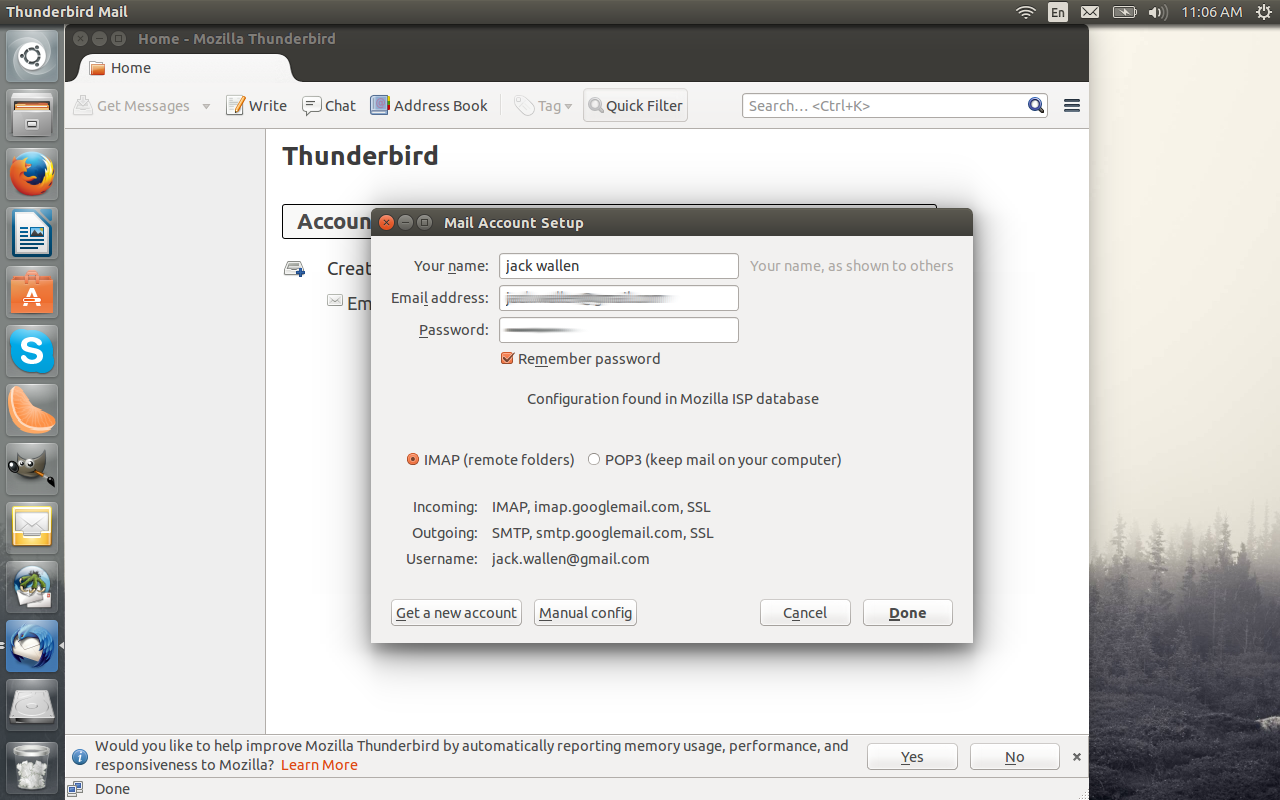
To add a Gmail account to Thunderbird, do the following:
-
Open Thunderbird
-
Click Edit > Account Settings
-
From the Account Actions drop-down (bottom left corner), select Add Mail Account
-
Enter your GMail account information (Figure 1, above.)
-
Click Continue
-
Select IMAP
-
Click DONE.
If you have two-step authentication setup for Gmail, you must visit your Google Account and set up an app password for Thunderbird. Once you’ve generated that 16 character password, use it for your Gmail password in Thunderbird.
Geary
Geary is a great little email client developed by Yorba for the GNOME desktop. Geary removes much of the bells and whistles to create a very simple and elegant desktop email client that offers built-in Gmail support. Of all the clients available, Geary makes working with GMail as close to the web-browser experience as you’ll find.
Although Geary isn’t as feature rich as Thunderbird, with it you’ll enjoy: email in conversational layout, full-featured HTML composer, keyword search, desktop notifications, and conversation labels. Geary can be found in most default Linux repositories (it is not installed by default).
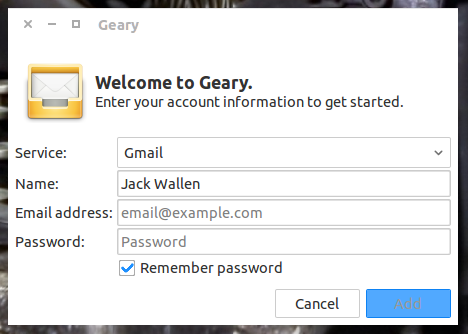
Once installed, account setup for Geary is incredibly quick. On first run (Figure 2), you will be prompted to select the service (choose Gmail from the Service drop-down), enter your name, email address, and password (If you use two-step authentication, you will have to create an app password as you would with Thunderbird), and finally click Add. The Geary main window will finally appear and your Gmail Inbox will instantly populate. The best thing about Geary is its simplicity, speed, and user-friendly interface.
Claws Mail
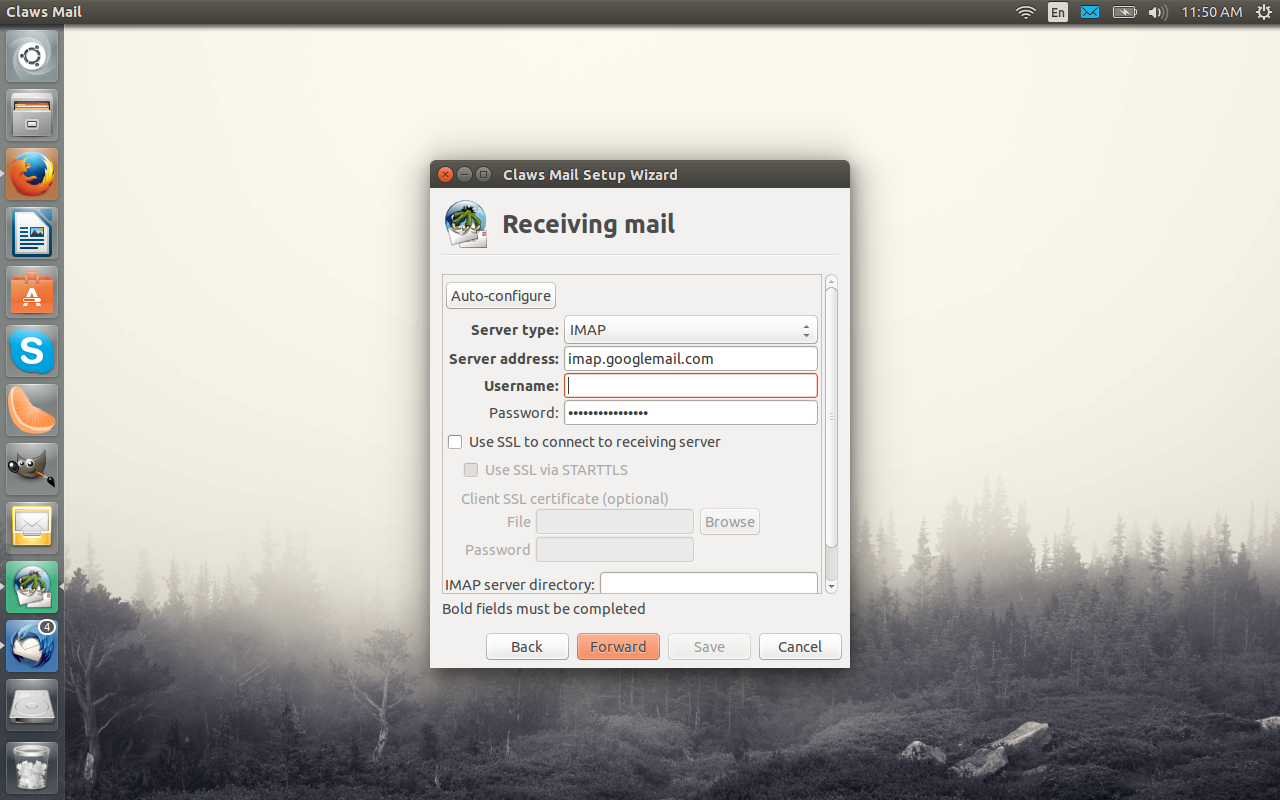
Claws Mail is the email client for power users. With this particular take on email you can do just about anything you want (it’s almost astounding in its configurability). Along with that power comes a bit more of a learning curve. In fact, even the setup of your Gmail account isn’t nearly as user-friendly as with the other clients. You will have to manually enter the IMAP server address (imap.gmail.com ─ Figure 3) as well as the SMTP address (smtp.gmail.com). Select Use SSL to connect to receiving server and enable SMTP authentication.
NOTE: Claws Mail also requires an app password if you have two-step authentication enabled.
Once you’ve set up the account through the simple setup wizard, if you find Claws Mail cannot connect to the Gmail server, open up the account settings (Configuration > Edit accounts select the Gmail account and click Edit) and then check your configuration against these settings:
Basic section
Personal information: Fill this out as you need it.
Server section
-
Server for receiving: imap.gmail.com
-
SMTP Server: smtp.gmail.com
-
User ID: Your gmail address
-
Password: Your gmail password
Receive section
Authentication method: LOGIN
Send section
-
SMTP Authentication: Enable this
-
User ID: Your gmail address
-
Password: Your gmail password
SSL section
-
Use SSL for IMAP4 connection: Enable this
-
Don’t use SSL (under SMTP section): Enable this
Advanced section
-
SMTP Port: 465
-
IMAP Port: 993
Surprisingly enough, Claws Mail still manages to be incredibly lightweight and fast ─ even with the vast amount of configuration options available.
Evolution
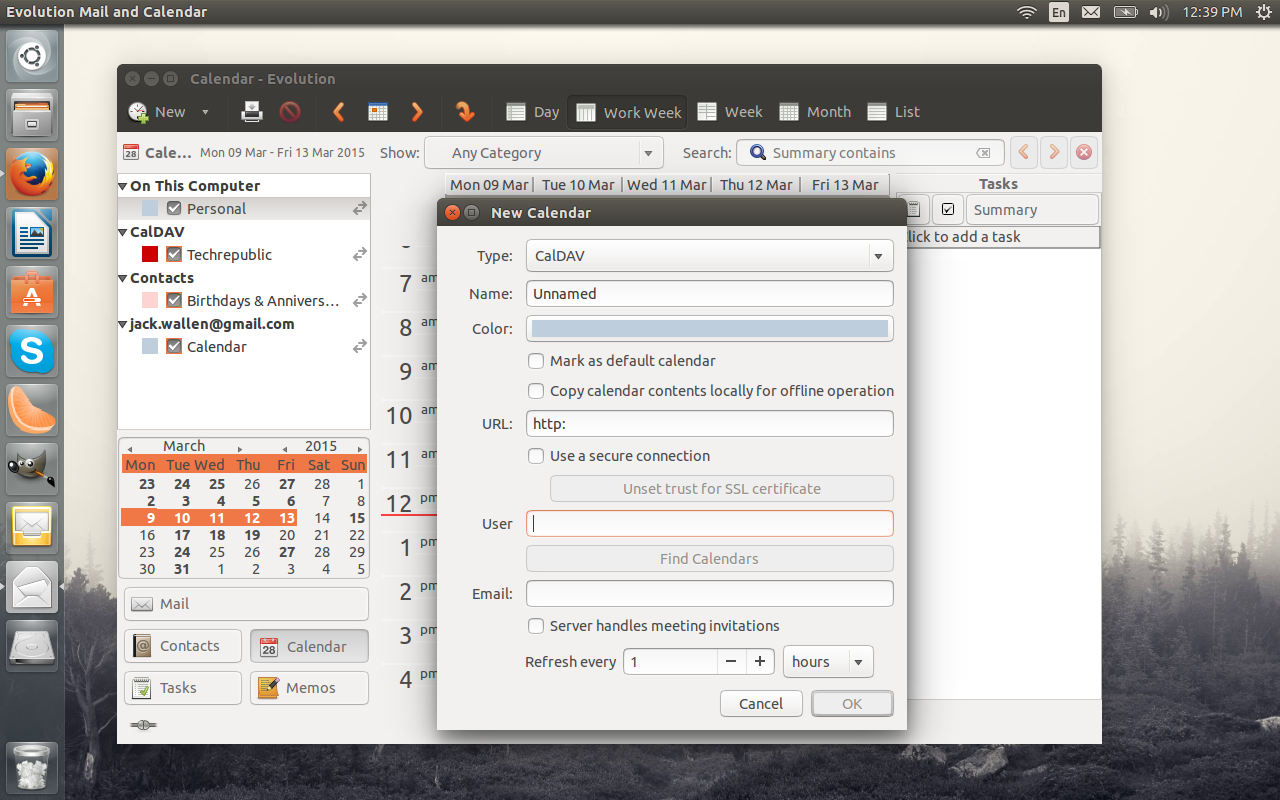
Evolution is a much-maligned, but still very powerful and useful email/calendar/groupware client. Evolution has probably the most extensive Gmail support of all the Linux desktop email clients (including contacts and multiple calendar support). Evolution offers a very simple setup and includes email, calendar, contacts, tasks, and memos. Once you’ve synced your Gmail account, you can begin adding your Google calendars (these have to be manually added). There is one caveat with adding your Google calendars to Evolution. You might assume the calendar type would need to be Gmail. Because of a bug, this will not work. Instead, you must select the CalDAV and then use a URL in the form of:
//www.google.com/calendar/dav/
This e-mail address is being protected from spambots. You need JavaScript enabled to view it
/events”>https://www.google.com/calendar/dav/
This e-mail address is being protected from spambots. You need JavaScript enabled to view it
/events
Where YOURUSERNAME is your gmail user name.
Once you enter that, fill out the rest of the information and then click Find Calendars (Figure 4). You will then be prompted for your Gmail credentials (remember, if you use two-step authentication, you’ll have to use an app password).
If you’re looking for a more business-friendly groupware client, one that can easily connect to Gmail, Evolution is your tool.
There is no reason you have to be relegated to only a web browser when using Linux and Gmail. Each of these clients has plenty to offer ─ whether you are a novice or a power user. Give one of them a try and see if it can wean you from the web browser.
 Greg Kroah-Hartman has just
  The Apache Software Foundation is putting together what looks like it will be one of the better open source events of the year:
  The convergence of OpenStack-based cloud computing and the telecom industry is continuing apace. We’ve reported on