KDE is, in my opinion, the most advanced desktop environment around; and I am going to uncover why in this article. There are so many features hidden behind the plain sight which can expand the functionality of the KDE manifold. Let’s get started.
Customize the KDE desktop layout
Change begins at home, they say, and KDE lives that philosophy. The first thing that we see is the default desktop, and in Plasma you have complete control over it. You can change the entire layout of the desktop instead of being stuck with the default one.
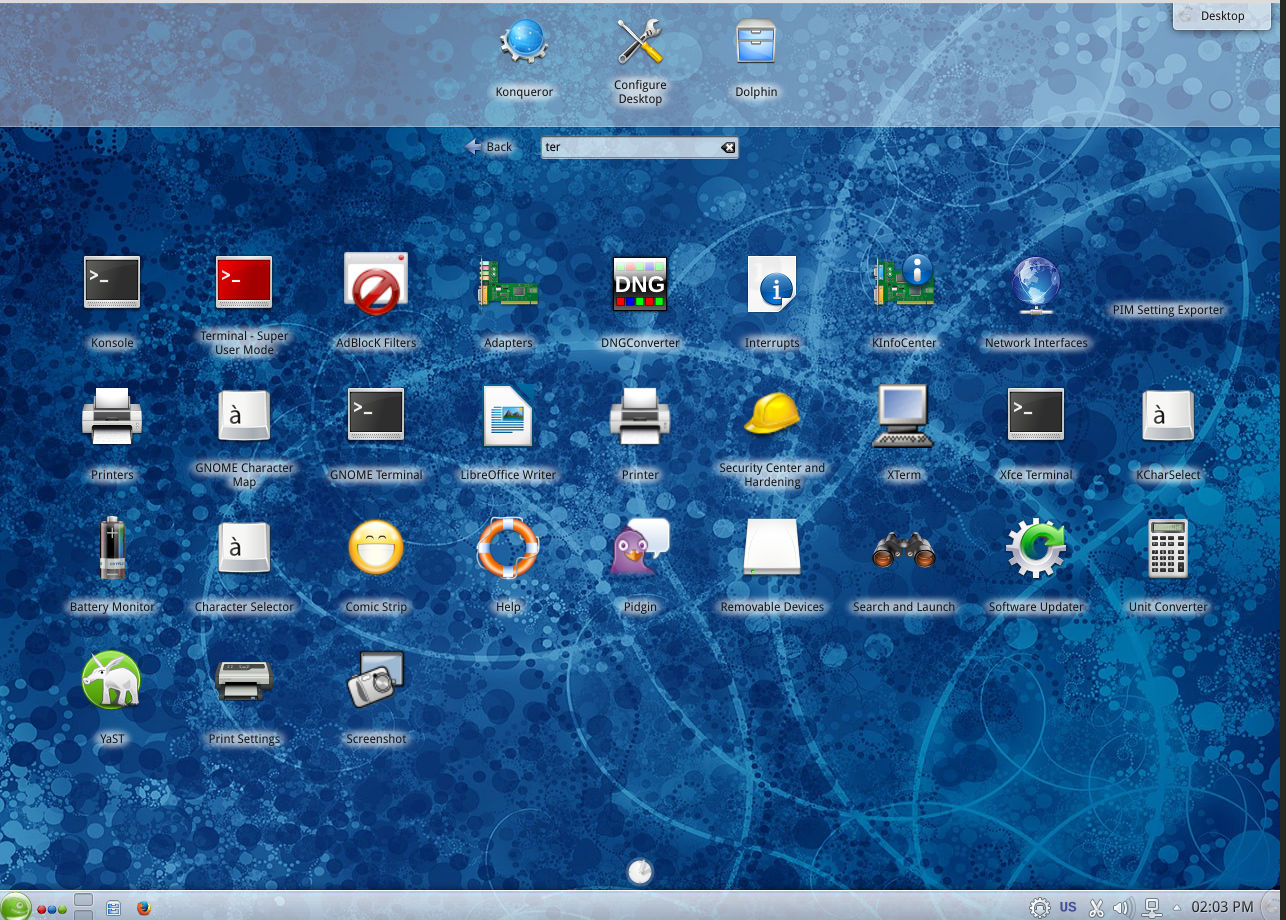
Right-click anywhere on the desktop and choose the last option ‘Default desktop ‘ from the context menu. It will open the ‘desktop settings’ option; you can play with each. I like the ‘Search and Launch’ option. It provides a neat interface with quick access to apps or documents right from the desktop – similar to the home screen of Android or iOS.
You can pin your frequently-used applications or locations for quick access. The most exciting tool there is the ‘search’ box.
When you enter any term in the search box it works more or less like the Dash of Gnome or Unity and offers apps, files, locations related to that term in an overlay – it’s fast, responsive and very neat.
Add a dash search feature
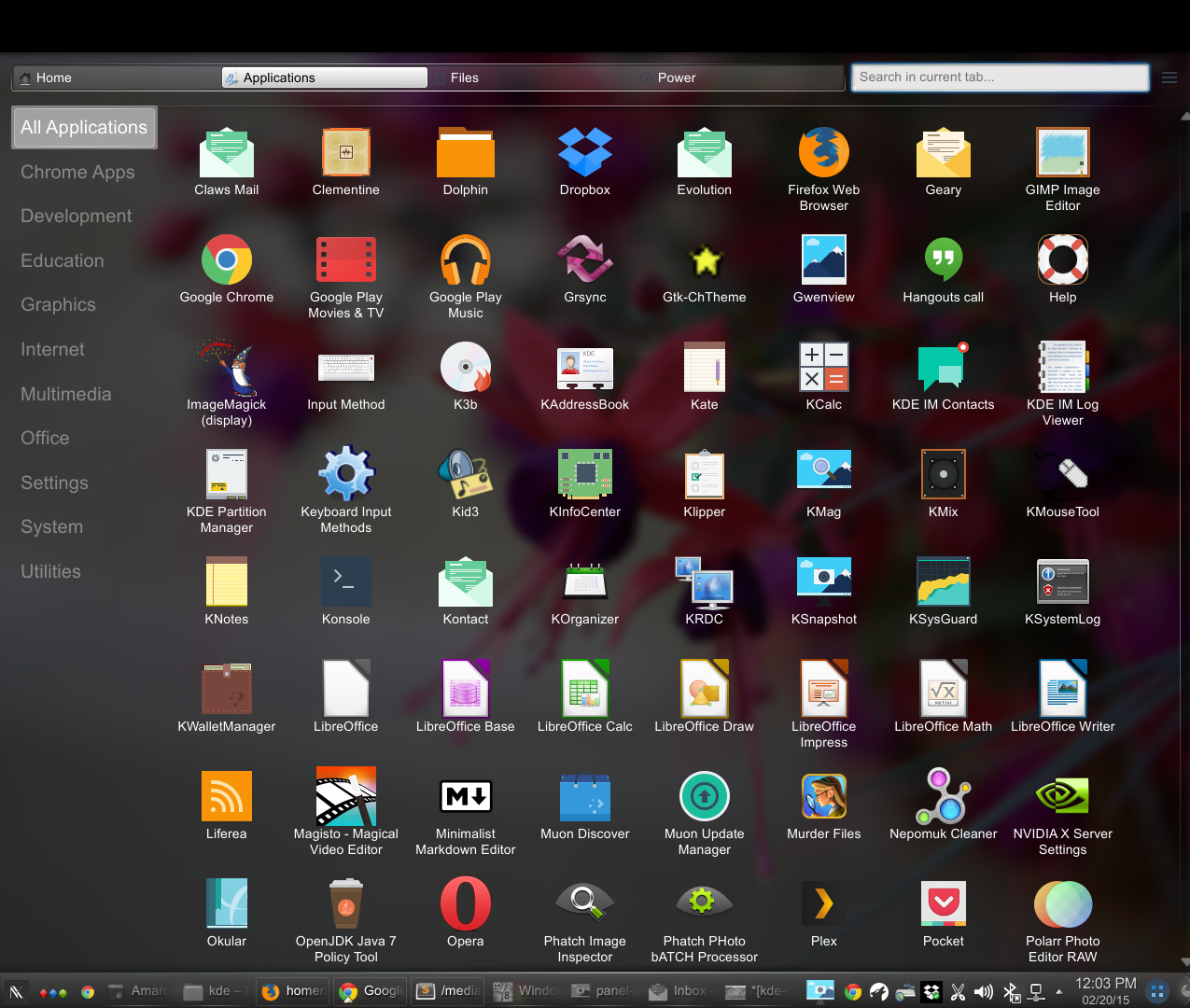
If you don’t want to change the entire desktop layout and yet want a ‘dash search’ feature then Homerun is what you are looking for. You can install it for your distro and then add it to the panel. Click on the ‘cashew’ > add widget and search for ‘ Homerun’. Click on the one with full screen overlay. If you want you can replace the default Menu Launcher with Homerun, you can go ahead and move the panel to the left edge of your monitor to get a Unity-like experience.

Change the default application launcher
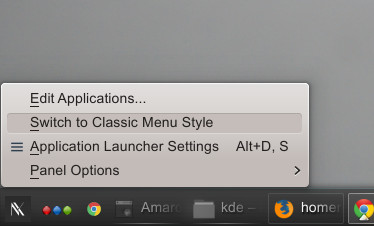
You can customize the default application launcher without having to use Homerun or by changing the default desktop layout. Right click on the launcher icon and change it to ‘classic menu style’ if you want a simpler menu which resembles the one from lightweight desktop environments like LXDE or the good old Gnome 2.
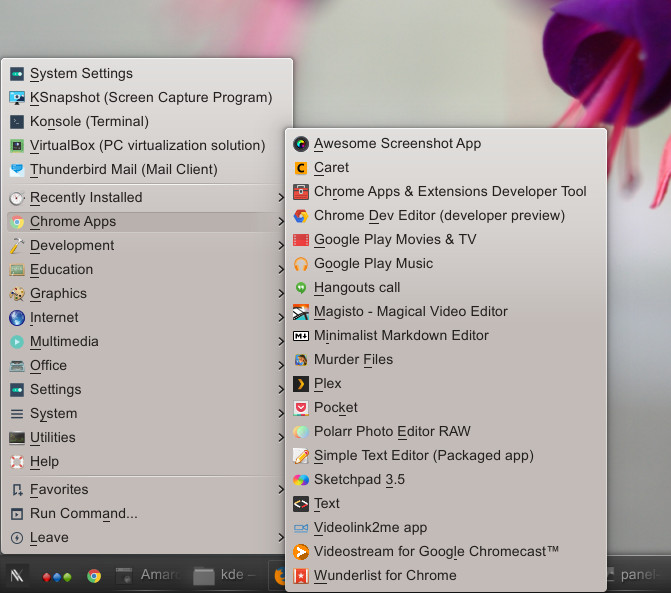
I don’t much like the default launcher and always replace it with Lancelot menu. I found Lancelot to be faster and more responsive than the default menu. The menu doesn’t come pre-installed with the Lancelot menu so, depending on the distro, you may have to install it. Try it out and you won’t regret it.
Krunner
What if there were a way where you didn’t have to open the launcher/menu to open applications or documents? Plasma has something up its sleeve. It’s called Krunner. It can be triggered by hitting the Alt+F2 key.
It works as a ‘jack of all trades’ tool. You can open apps, by typing their names there; you can also ‘kill’ any app with it, too. Just type ‘kill’ followed by the name of the app.
When I said ‘jack of all trades’, I meant it. There are so many things that can be done with it. There is a wrench icon on krunner and when you click on it you will see a long list of plugins that add more features to krunner.
You can uncheck to disable any plugin; as you can see all the additional ‘features’ come through these plugins.
Krunner can do more than just open apps or files and folders, you can perform many tasks from it such as calculation and conversion. Let’s say, for example, you want to calculate 483 times 8. Use Krunner as a calculator and type ‘483×3=’ and that would give you the answer.
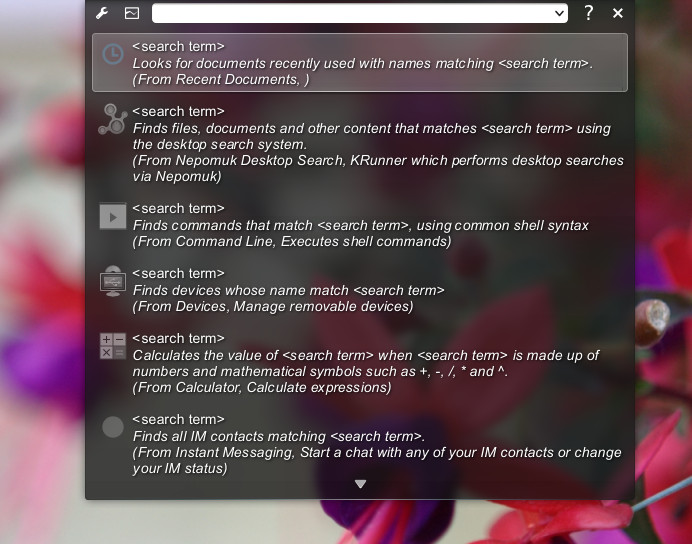
How about converting temperature, distance from one system to another? Type 100 cm and it will show you the converted numbers; try the same with any currency and it will show the converted rates in different currencies.
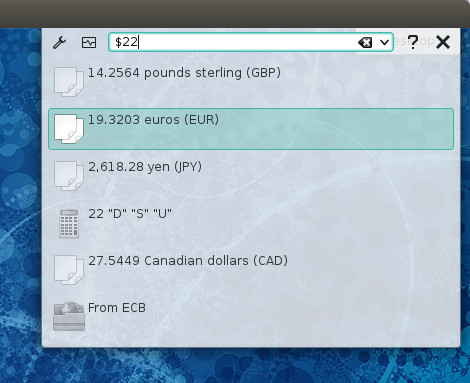
You can open websites, bookmarks, and also search your Kmail. Just keep one point in mind that krunner doesn’t autocomplete, so you have to provide the full command. You can play movies, music, directly from the krunner – just enter the complete path of the file. You can open any directory just by entering in the entire path of that directory.
If you think that’s all, I have a surprise for you; you can ssh into your server through krunner; or you can open the samba server, just use the appropriate protocol. Krunner will open the file, directory or location using the default applications.
Krunner has so much to offer that it can’t be covered in one article, so go ahead and start playing and exploring.
Getting started
It often happens when I have to shut down or restart my system and there is so much running on my system; dozens of applications, windows, websites opened and I don’t want to lose what I am working on. What will I do? In Plasma you can very easily save the entire session and when you boot into your system again all of that work will open as it was before.
It can be accessed through System Settings > Startup and Shutdown. The option called ‘Session Management’ at the bottom allows you to save the current session or change it to ‘start with an empty session’.
The Autostart option on the same window makes it easier for users to manage which applications or scripts start at boot or login. If you notice some programs configured to start at system boot are slowing down your system, you can disable them. At the same time, if there are applications that you want to start at the boot time, just add them – one such program is Transmission which I use to download torrents for Linux distros.
Ksnapshot
As a writer who extensively writes about Linux, I need screenshots for my stories. I am not the only user who needs screenshots, and Plasma once again beats everything out there. KDE’s screen-capture tool, called ksnapshot, is one of the best screenshot tools out there.
Ksnapshot offers the flexibility of choosing the capture mode including ‘full screen’, window under the cursor, a rectangular region, freehand region and a section of the windows. The last option is interesting as you can capture the screenshot of a particular section of the window.
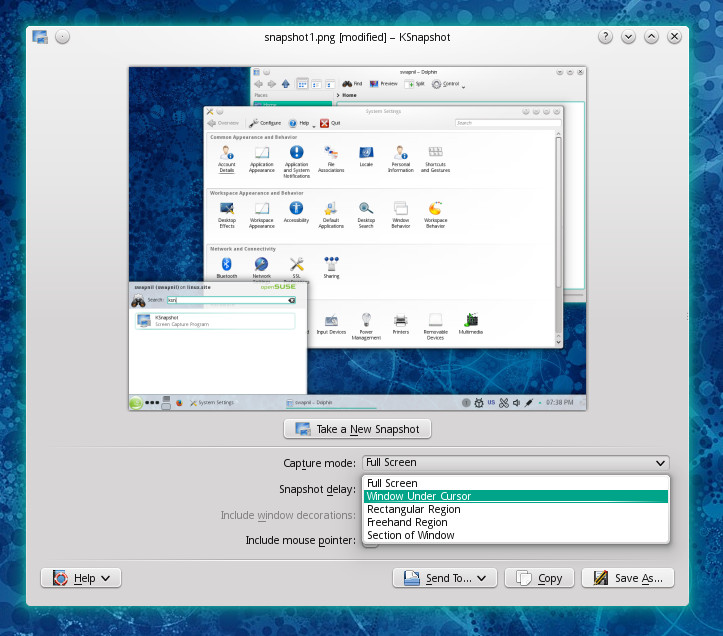
Unlike Gnome’s screenshot tool, Ksnapshot remembers the mode you chose last time, whereas Gnome keeps forgetting and going back to the default one. Ksnap also allows a user to give a name to screenshots and if you are recording a series of screenshots – to show some steps of an application – it saves them with your chosen game in sequence. With Gnome it defaults to the same ‘ScreenShot ….’ name. Plasma, once again, gives complete control to the user.
A multi-monitor bliss
Plasma is bliss for those with multiple monitor setups. Plasma gives each monitor a personality of its own – which is quite limited on other DEs. You can give each monitor a different wallpaper (you can actually set different wallpapers for virtual desktops and activities as well.) Each monitor can have its own desktop layout and panels. The widgets on these panels and desktops can be configured differently which means, if you work with clients who are in different time zones, you can change the time of each desktop to that particular time-zone.
No other DE, in my knowledge, is capable of doing that.
Panels and widgets
Two core components of the Plasma desktop experience are panels and widgets which enhance the user experience.
On a Plasma desktop you can move the panel wherever you want – bottom, top, left or side. You can have more than one panel. I often slap the panel on the left corner of the screen – which makes better use of the wide screen monitors. Then add Homerun widget to get an Ubuntu Unity-like experience.
To access the extra features of the panel, click on the cashew icon on the right hand side of each panel and then configure it. I don’t really know why they use ‘cashew’, a gear icon may be more appropriate so a user gets a hint of what it does.
If you want to add more panels, just right-click on the empty desktop and choose ‘add panel’ from the context menu.
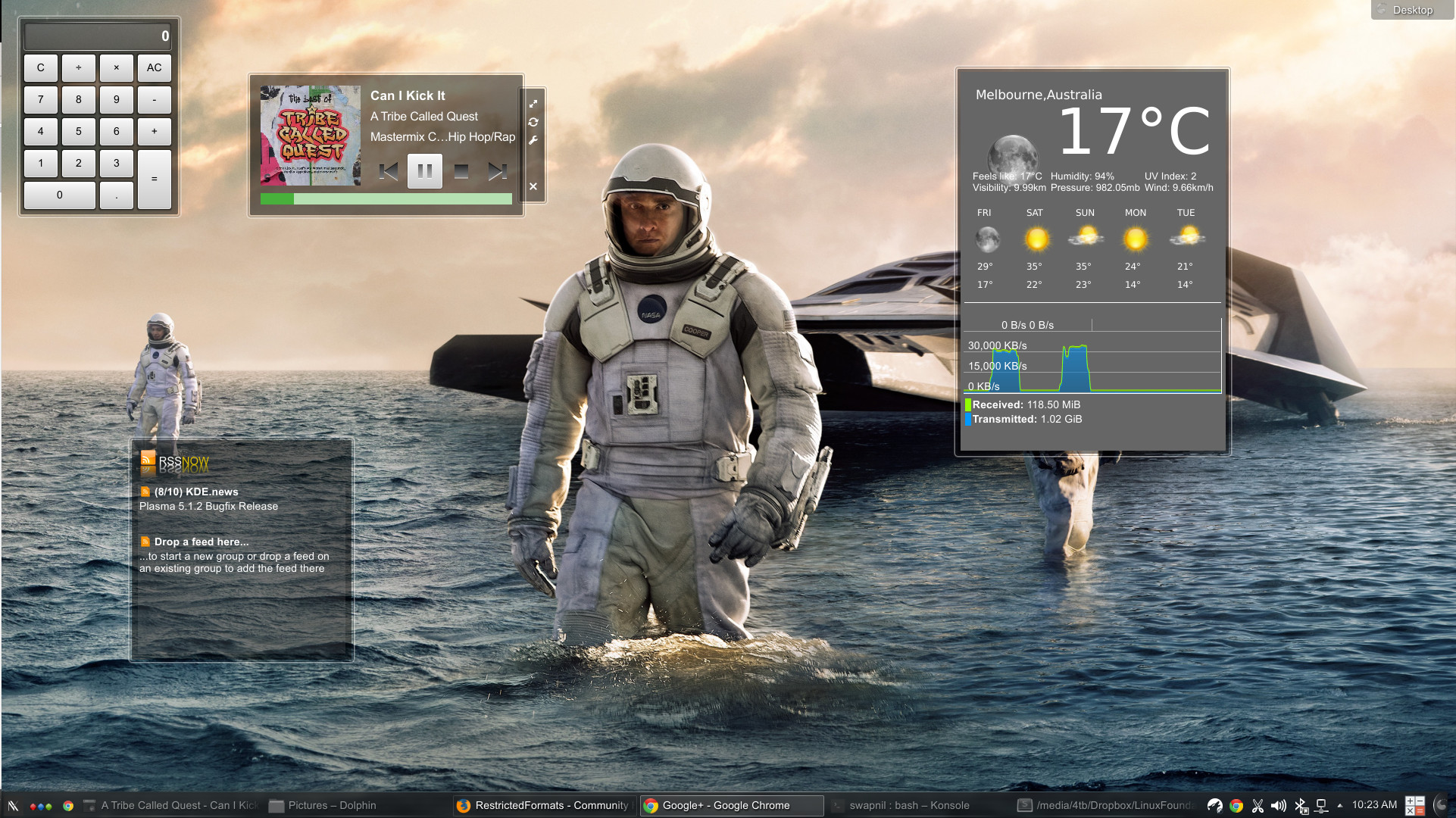
KDE’s widgets take the customization of the desktop to the next level. These widgets allow you to access information quickly on the desktop, as well as on the panel. These widgets, embedded on panel are not mere icons to open that app – they work like the widgets you have seen on Android.
Widgets can also be added to the desktop – the way you do with Android. Depending on the distro, a Plasma desktop comes with a set of widgets, but you can always install more widgets which are being developed by the community. I installed a couple of widgets such as Play Control (which allows me to control the music player), RSS reader, Weather, etc. Go ahead, explore and you will find something new.
Dolphin, smarter than others
Dolphin is one of the many gems that KDE has; by far it is the best file manager which can perform tasks that others can’t.
The basic functionality of Dolphin can be further enhanced by adding new services. And any third party developer can create a new package for Dolphin to integrate a service, such as Dropbox, with the Plasma desktop.
One area where I cringe whenever I use other DE’s is their inability to bulk or mass rename files. I am an avid photographer and end up with hundreds of images with names like DCS323.NEF on my PC. That makes it extremely hard to search and find the right images when you need them. I wish there were some standard ‘tagging’ for images which could have been used across platforms, sadly there is none. So providing proper names to images is the best, time-tested solution.
I was looking for Linus Torvalds images from LinuxCon 2014 and the file name helped. In Dolphin I can easily select multiple image and change their names, something that can’t be done on Gnome or even Mac OS X. To rename files, just select them and hit F2, that will open a file rename dialog.
Dolphin is also capable of showing thumbnails of different file types including images, videos, and text – which improves the overall desktop environment.
Some mysterious activities seen on Plasma desktop
Activities are one of the most mysterious and lesser known features of the Plasma desktop. I must admit that even I don’t make full use of Activities.
So what are these activities? The short, and not so accurate, answer is that that they are more or less an extension of ‘virtual desktops’.
However, each activity can have its own virtual desktop. Now what does it mean? I will try to keep it as simple as possible. Let’s say I am writing my novel on Sublime Text with research material open on the second. This pristine setup gets disturbed every time I open another window or application to check my mail or chat with a colleague. That’s where virtual desktops, aka workspaces, come into play on a Linux desktop. Activities take that experience to the next level.
I can create a new activity for my novel writing, configure all the monitors and workspaces as I want – open the apps where I need them. The second activity can be about my journalism work with a text editor, all the rss feeds, emails, configured. So on and so forth I can create different activities for different work. I can easily switch between them without interrupting others.
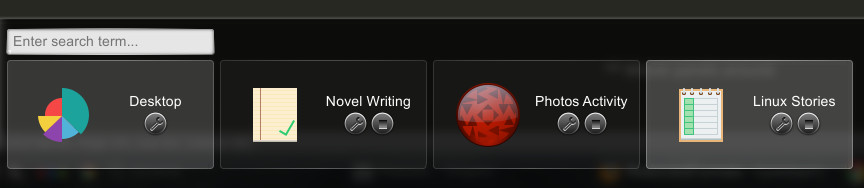
Now where it gets even more interesting is that each activity can have their own panels, widgets and background wallpaper. The name and icon of each Activity can be changed to further personalize them.
Conclusion
KDE Plasma remains one of the best open source technologies that Linux users can enjoy. Plasma allows us to exploit the full potential of our PCs and shows us that they don’t have to make compromises with what they want to do on their PCs.
You don’t have to compromise if you are using a Linux desktop. That’s the whole point!

 Last week we told you that Pebble set up a countdown on its website which is due to expire in a day or so.
  Robolinux is an easy-to-use Linux distribution based on Debian that features various flavors. The developers have just upgraded all the flavors and have announced that the new 7.8.2 version is out and comes with many interesting features.
 Unity 8 is making great strides and it’s looking more and more like a proper desktop. Canonical is getting ready to ship this new desktop by default next year in April, and everything is falling into place.
 This is a guest blog by Doug Balog, General Manager,