You’ve decided it’s time to give one of the most stable and reliable Linux distributions a try. So you download the latest version of Debian, burn the ISO image, fire up your computer, slide the CD into your drive, and begin the installation process. Once the install is complete, you find out your wireless isn’t working! What do you do?
This has been a problem that once plagued Linux for a very long time. But recent years have seen massive improvement in the way of hardware support. But with Debian, you will find that the standard release doesn’t include non-free software (including drivers). Before we get too far into this, know that there is a Debian non-free release that does, in fact, contain the firmware necessary to run most hardware. If you don’t care that the release includes all the non-free software, I highly recommend you use the non-free release. If, however, you want a distribution as free of non-free software as possible ─ yet you still want your wireless to work ─ I have a very easy method for making this a reality.
This process can work for just about any hardware on your system. I will, however, explain the process using a wireless adapter as an example. These steps will also assume you have yet to install Debian on your machine (you’ll understand why in a moment).
With that said, let’s get on with the how to.
During Debian Installation
The first thing you need to do is start the Debian installation. The installer is incredibly simple to use ─ just answer a few questions and click your mouse button a few times and you’re on your way. However, there is one very important step you need to catch (and not just immediately click through the page). At some point, before the installation starts, a screen will appear warning you that some of your hardware needs non-free firmware files to operate (Figure 1).
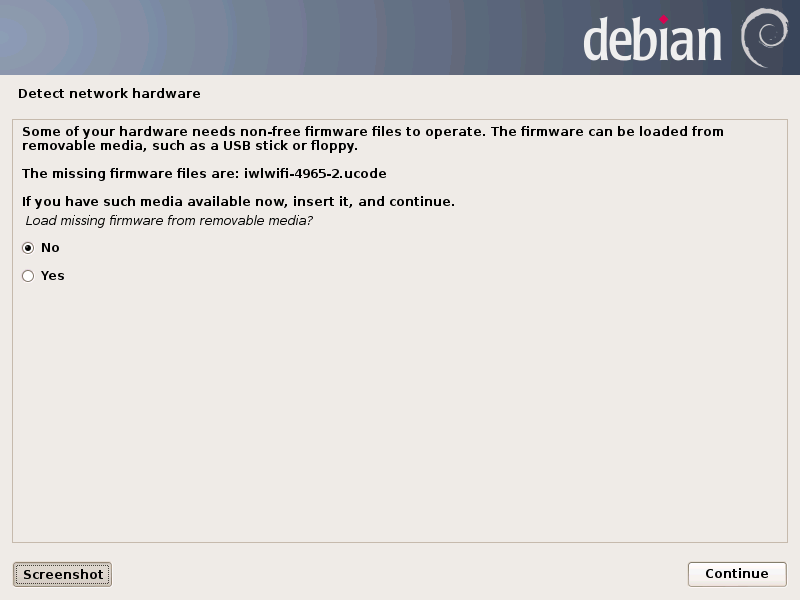
If, however, you do not see the hardware listed, continue on with the installation. When the installation completes, it will be necessary to do a bit of digging to find out what hardware your machine has. The best route would be to run a live distribution, such as Ubuntu, that does work with the wireless card. Once that is running (and you’ve connected to a wireless network), issue the command lspci | grep Wireless and you should be greeted with the necessary information regarding your chipset. With that information in hand, reboot into Debian and continue on.
There are two routes to success at this point. If you already have the correct firmware files, you can save them to a thumbdrive (FAT32 format) and plug it into the machine so the installer can find the files and apply them. This is not always the most reliable method. If, however, you want to try that method, here’s what you need to do:
-
First, download the tar file of the full firmware package from here (make sure to navigate through to the release you are using).
-
Unpack the .tar file onto a thumbdrive (all files should remain within the firmware folder).
-
Start the installation and, when you are greeted with the firmware warning, insert the thumbdrive.
-
Select Yes and click Continue.
-
Continue on with the installation as per normal.
As I mentioned, this method is hit and miss. In my case, it worked flawlessly. If, however, this process does not work for your setup, fear not, there’s another method that will most likely deliver success.
NOTE: For a laptop that requires non-free firmware to make use of wireless, you will want to connect that device via ethernet so the installer can download updates (if applicable).
During the installation, write down the information presented to you on the non-free firmware warning. In my case, the important bit was:
iwlwifi-4965-2.ucode
Once you have that information jotted down (you can also take a screenshot that will be saved in /var/log/installer/), select No and click Continue. Finish up the installation per normal and then allow the machine to reboot. Log into the machine and (while the machine is connected via ethernet), open up the web browser and use Google to search for the necessary firmware file. In my case, the wireless firmware was found here (this is why it’s important to write down the information presented during the installation ─ it will make finding the firmware incredibly simple).
Install the firmware package
The downloaded file will be in the .deb format. That should key you in on the next step. That’s right, we’re going to use the command line to install this package. It’s quite simple.
-
Open up a terminal window.
-
Change to the Downloads directory with the command cd Downloads.
-
Change to the root user with the command su.
-
Type your root password and hit the Enter key.
-
Assuming the firmware deb package is the only file in your Downloads folder, issue the command dpkg -i *.deb.
-
Allow the installation to complete.
At this point, the firmware is in place, but the kernel isn’t aware. The easiest resolution for this is to simply reboot the machine. Once the machine has rebooted, the firmware will be available to use and you should now be able to configure the wireless network device.
Debian is a choice many take very seriously. If you desire the best in free software, and want as little non-free apps and files on your machine as possible, yet you still want to enjoy the convenience of properly working wireless, sound, or video you might need to break down and add a little non-free firmware. Of course, if you want to enjoy the stability and reliability of Debian, but don’t care if the firmware is free or not, don’t hesitate to download the non-free version of Debian, burn the ISO, and enjoy.

 Canonical is out with findings from its sixth annual Ubuntu Server and Cloud Survey, which went out to respondents at the end of 2014. The survey aims to provide an overview of the enterprise cloud market, including emerging and changing trends, current challenges and technology preferences. It also tracks the adoption of OpenStack and Ubuntu as well as public cloud usage.
 Back in early January, Microsoft finally made the Office preview for Android tablets openly available for most owners of Android slates.
 A new version of open-source office suite LibreOffice is now available for download and the hands behind it are calling it ‘the most beautiful’ release ever.
 Details about a GLIBC vulnerability were published a couple of days ago by a company called Qualys, and the distributions using it have already received patches. Now, it seems that Google knew about this problem, patched it in ChromeOS a year ago, and forgot to say anything to anyone.
 Valve has just announced that it’s extending the Steam Workshop to two additional games, after the program had huge success since it was released back in 2011.