
There are so many reasons why you might be considering the migration to SUSE or openSUSE. For some, it’s the logical step to integrating Linux into a business environment (SUSE paid support is phenomenal and the openSUSE community is always at the ready to help). To others, it’s one of the most power-user friendly Linux distributions on the market.
Regardless of why you are considering a move to the SUSE ecosystem (be it through SUSE or openSUSE), it’s best you know the tools of the trade before you make the leap. Fortunately, as with the whole of the Linux landscape, package management is an incredibly user-friendly task ─ when you know what you’re looking for.
Some distributions make the process of managing software incredibly easy. Take, for instance, Ubuntu Linux. Front and center on the Launcher is the Ubuntu Software Center icon. Click that icon and search hundreds of thousands of apps to install. With openSUSE, you won’t find that launcher so up front and center, but the tool is easy to locate and easy to use.
Let’s dive into the world of package management with openSUSE, from the GUI perspective. After giving this a read, you should be able to easily install software, update your machine, and even add repositories (so you can install third-party applications).
YaST2 is all you need
One outstanding element of the SUSE-verse, is they centralize the vast majority of their system management into a single tool called YaST2 (Yet Another Setup Tool). From within YaST2 you can do a great many things ─ one of which is manage the software on your system.
I’m going to be working with the latest release of openSUSE (13.2) and the KDE desktop. If you’ve opted for the GNOME desktop environment, this will not change YaST (only how you get to YaST2).
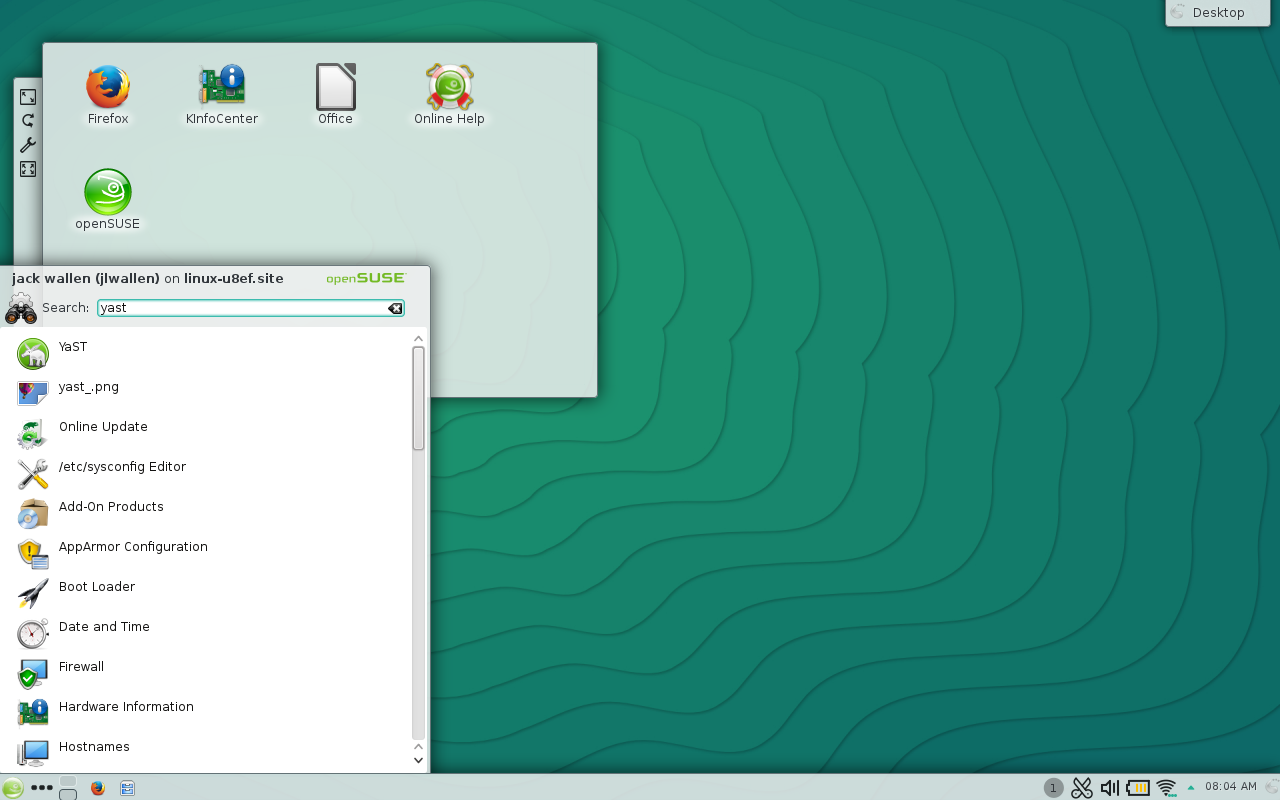
The easiest way to get to YaST2 is to open up the KDE “K” menu and type “yast” in the search field (Figure 1). When the YaST2 entry appears, click it to fire up the tool.
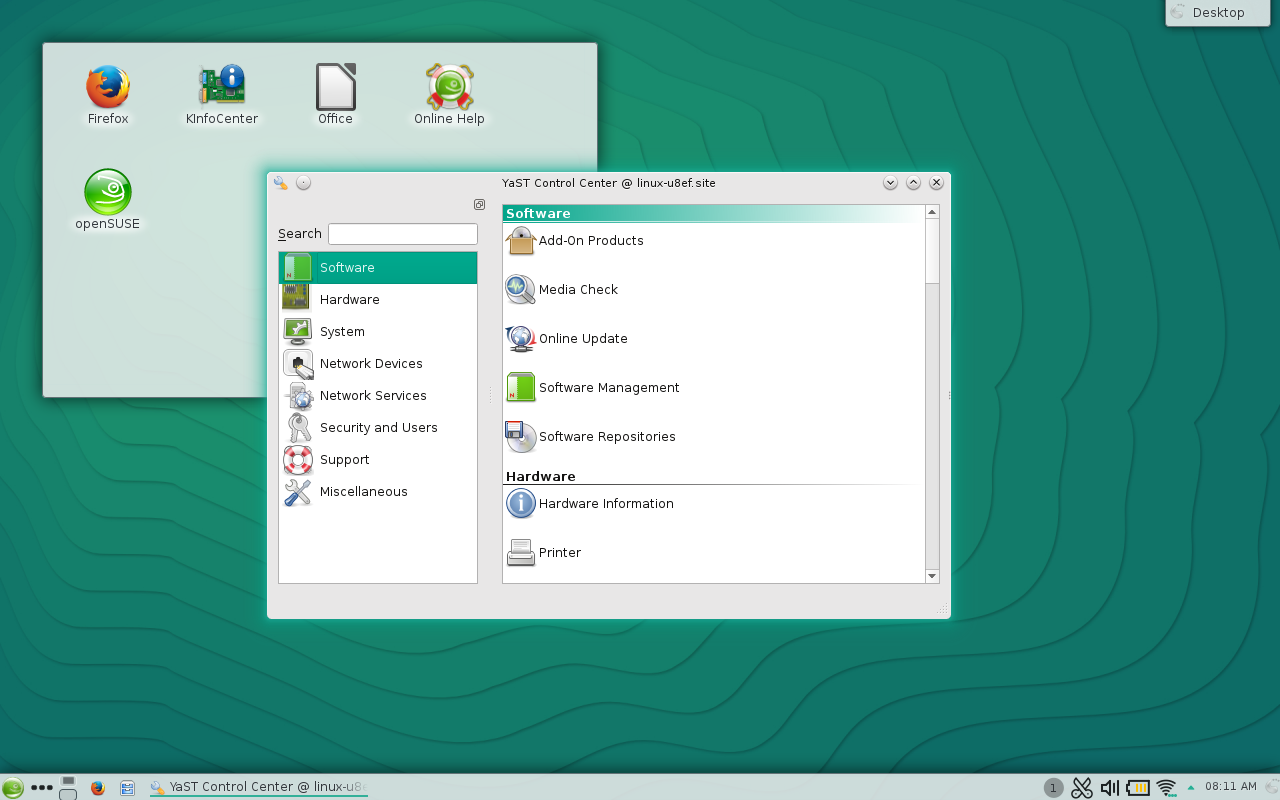
Once YaST2 is open, click on the Software entry in the left navigation (Figure 2) to reveal all of the available software-related entries.
Installing software
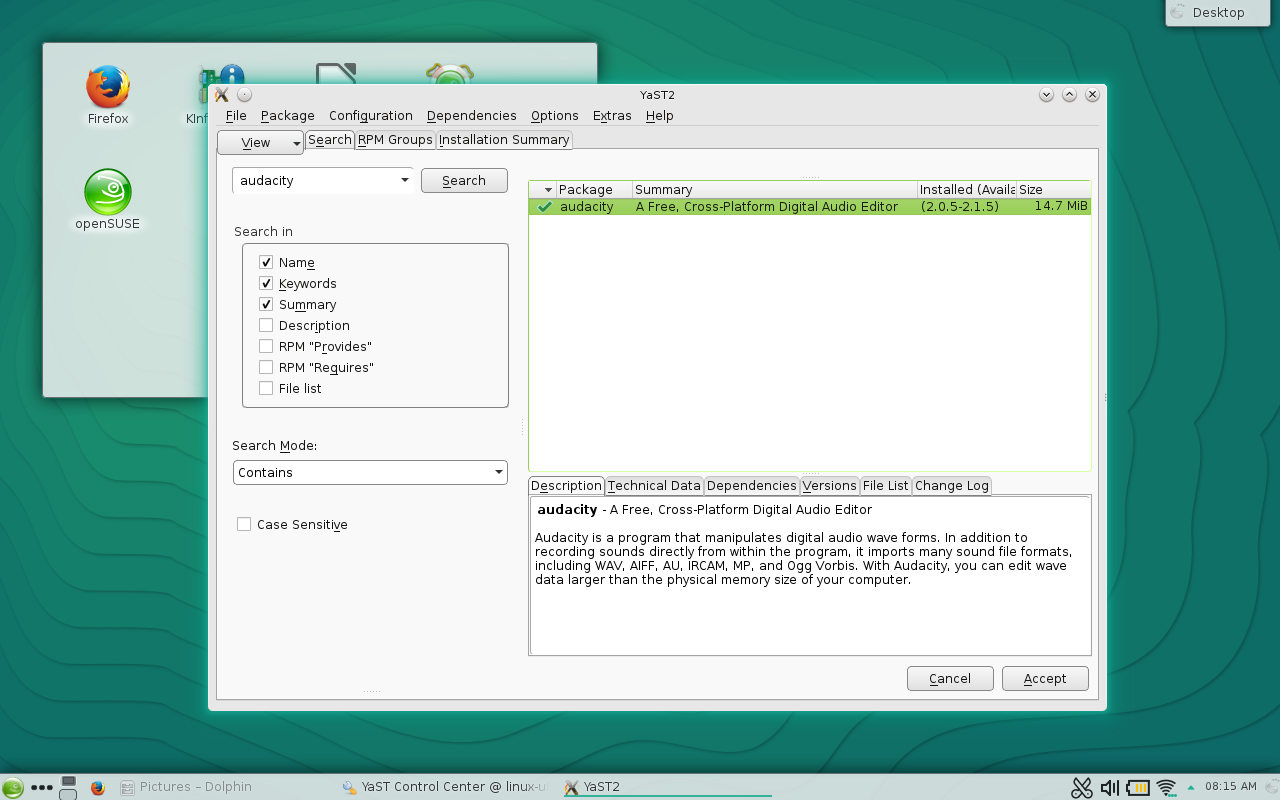
The first thing I want to demonstrate is how to install a piece of software. This is quite simple. From with the Software section of YaST2, click the Software Management and wait for the software management system to open.
-
Enter the title of the software you want to install in the Search field.
-
Click Search.
-
When the software appears in the main panel, click the associated check box (Figure 3).
-
Click Accept.
-
Read through the dependencies (a popup will appear).
-
If the dependencies are acceptable, click Continue.
-
Allow the installation to complete.
-
When the software is complete, click Finish.
That’s it! You’ve officially installed your first piece of software on openSUSE.
Updating software
One of the most important things you can do with YaST2 is update your system. Updates are crucial as they often contain security patches and bug fixes. Updates are handled from within the same YaST2 sub-section (Software). Within that sub-section, you will find an entry called Online Update. Click that and YaST2 will check for available updates. When the check is complete, you will be presented with a full listing of what is available (Figure 4).
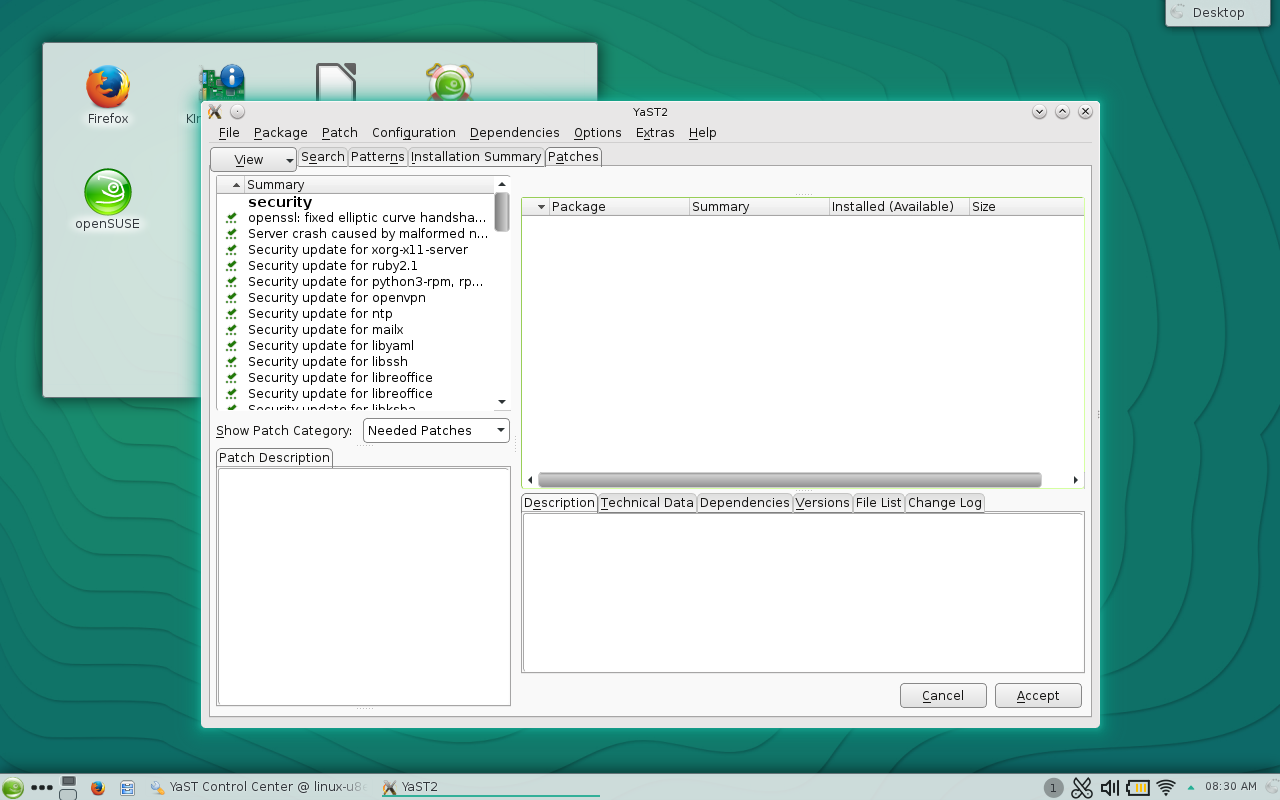
By default, all available upgrades will be selected for processing. You can comb through the package listing and de-select any packages you might not want to upgrade. However, if you opt to remove packages, from the upgrade list, know that they can impact other upgrades as well. If you’re okay with the list, click Accept and the upgrade will begin.
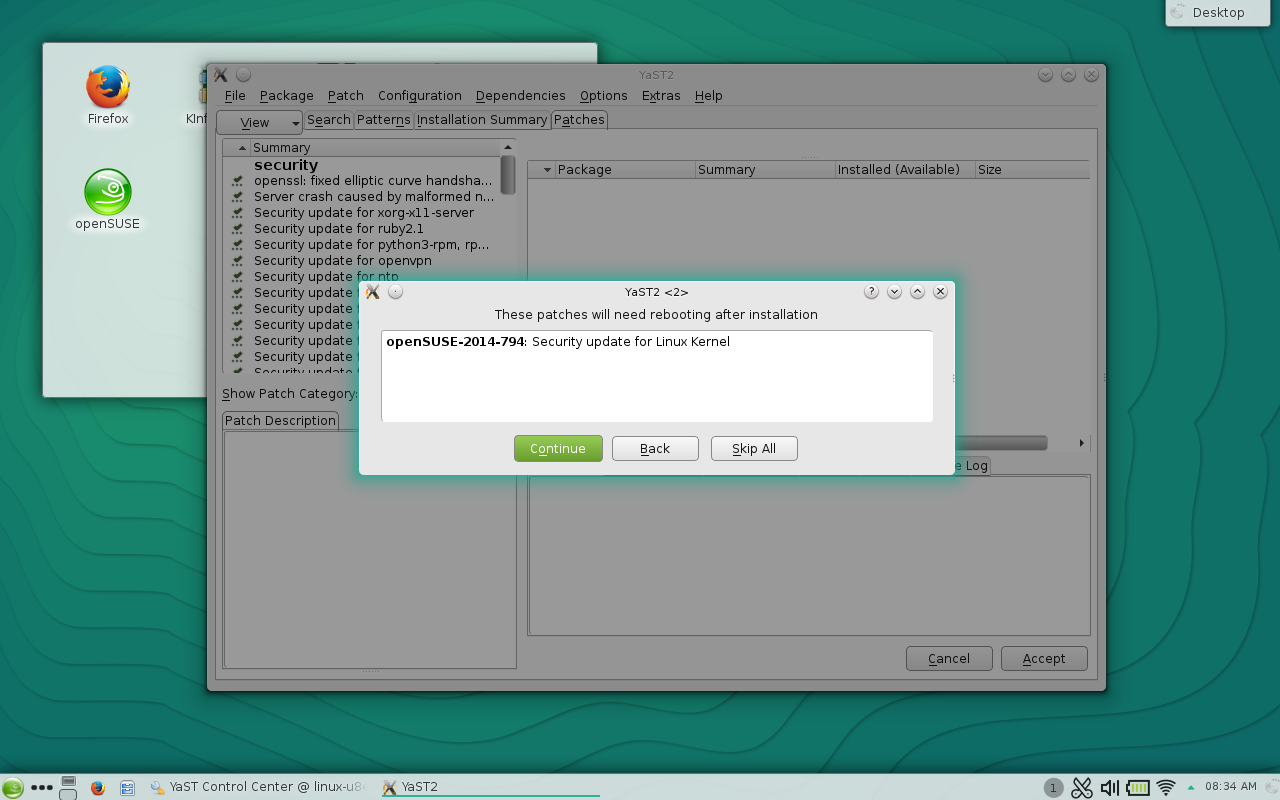
NOTES: In some instances (as with the upgrade of any Adobe packages), you may have to accept an End User License Agreement (EULA). There may also be conflict resolution to deal with. To resolve any issues, click Continue when presented with the dependency resolutions. If the kernel is being updated, YaST will inform you that a reboot will be necessary. To continue after this warning, you must click Continue (Figure 5).
Depending upon how many updates are available, the process can take a while. Sit back and enjoy or go about administering your other machines or network. Once the update completes, reboot the machine (if prompted) and enjoy the latest iteration of your software packages.
Adding repositories
Now we get into something that may be a bit more challenging to newcomers. First and foremost, what is a software repository? Software repositories are simply online locations that house packages for installation. The openSUSE platform has its own, official, repositories and many other applications have their own. When you search for a piece of software to install within YaST2 ─ a software title you know exists for Linux ─ and it doesn’t appear in the search results, most likely YaST2 simply doesn’t know where to find it. Because of this, you have to tell YaST2 where that software can be found: a software repository.
Let’s say, for instance, you want to install the Google Chrome browser onto openSUSE. To do this, you will have to first add the official Google repository. Here are the steps:
-
Open YaST2
-
Click on Software (left panel)
-
Click on Software Repositories (right panel)
-
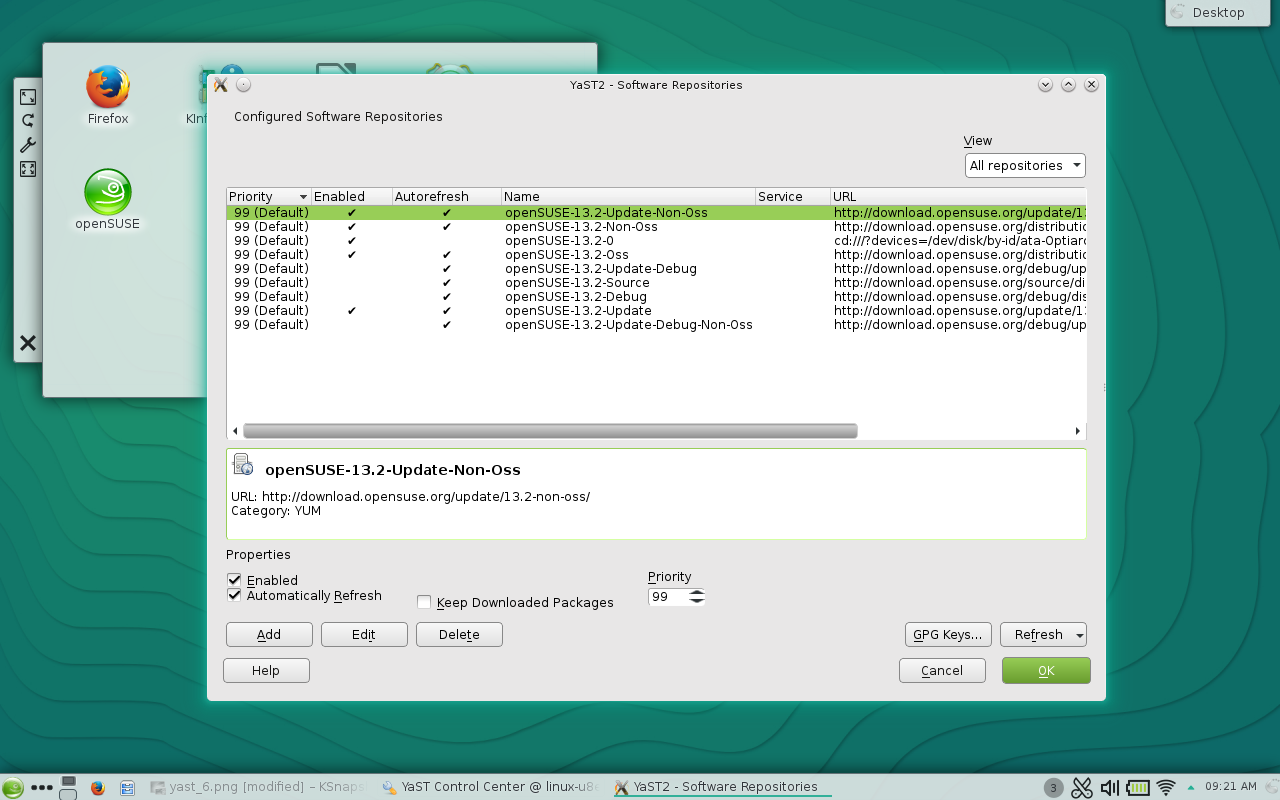
From the Software Repositories click Add (Figure 6)
-
Select Specify URL and click Next
-
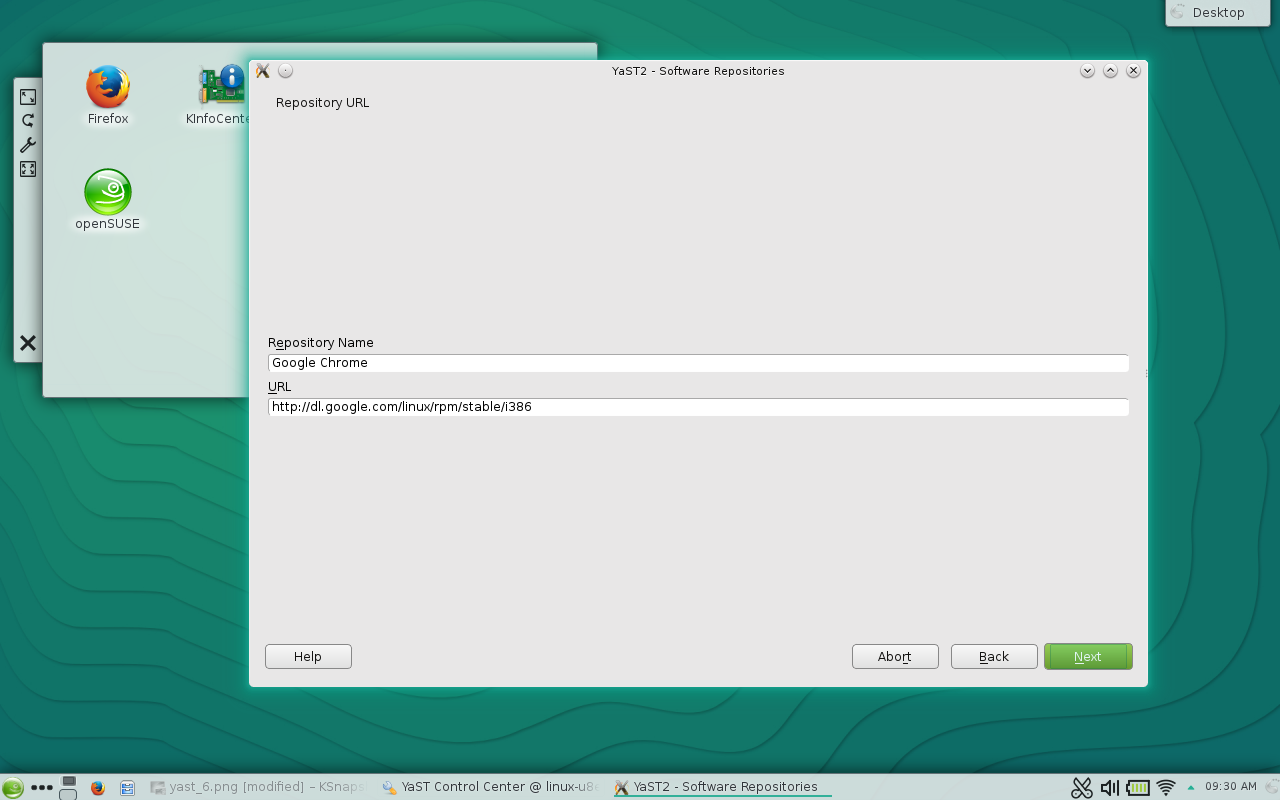
Name the repository Google Chrome
-
Enter the url http://dl.google.com/linux/rpm/stable/i386 (Figure 7)
-
Click Next
-
Click OK
-
Click Yes (when prompted) to accept the GnuPG Key.
NOTE: If you are using a 64-bit machine, the above URL would change to http://dl.google.com/linux/rpm/stable/x86_64
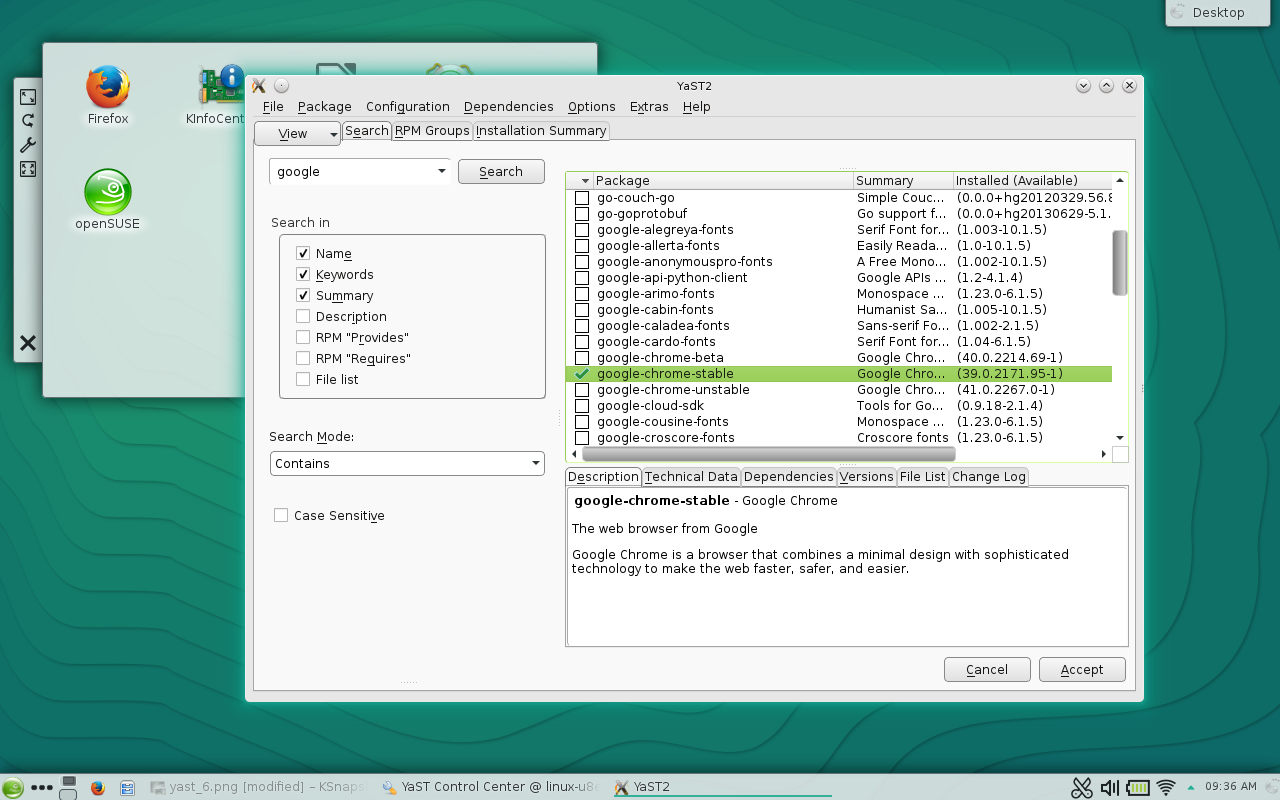
At this point, you can now go back to the Software Management section, search for Google Chrome, and install (Figure 8).
If you find a package you want to install on openSUSE, and it doesn’t show up in YaST2, a bit of googling should locate an available repository for the platform.
Managing software on openSUSE is not in the least bit challenging. Once you know where to look and what to do, you can be installing and updating software like a pro.
 As cloud computing expands beyond the data center to include all connected devices, technologies are rapidly changing to meet the need. Cloud services provider
 As you may have seen, the
  Looking back over the last decade and a half, we as a society are quite fortunate that Linux hit a level of maturity right at the time that Unix was getting long in the tooth, when bandwidth was cheap and accessible, and when the capabilities of commodity hardware were really taking off. A large community of really smart people suddenly discovered they had an itch to scratch, and came together to create something that reflected their own current needs, not just those of systems designed years ago. Linux was truly a breath of fresh air for the entire IT and consumer electronics industry, and we’ve all been reaping the benefits of that. Even if you’re using something that doesn’t use open source (and where on earth did you dig up that old fossil?), chances are good they’ve had to scramble to keep relevant as their competitors increasingly use open source components. The economics of open source are unforgiving to those who don’t embrace them. These communities tend to innovate quickly, so you really can’t afford not to use it.
 Like many large, modern open source projects Tizen is a composite, constructed from other open source software components. We can pick and choose from the best of the best open source components, and design a system that reflects all of this open source innovation from the past few years. And so far, it’s paying off. Across the board, Tizen devices so far have done extremely well against their peers on things users actually care about, like performance and battery life.
 This week’s
  Several other community-backed ARM board projects are included on the list of 21 supporters, as well as chip vendor Allwinner and various IoT frameworks. The most important partner here, however, is the Open Source Robotics Foundation (OSRF), which maintains the Robot Operating System (ROS), a popular open source robotics platform that recently announced ARM Linux support. Ubuntu may not know much about robots, but combine it with ROS, and you’re well on your way. (Here’s a