
HP is offering Tesla GPUs and Xeon Phis with its Apollo supercomputers, while Dell’s new PowerEdge system also uses both.
Read more at eWeek

Here at SUSECon 2014, I’ve settled in with wide-open eyes to cover a convention that has, somehow, been off my radar. But it’s on now. It is very on. And after my initial chats with the likes of Nils Brauckmann (President & General Manager), Edwin L. Bowman III (VP North American Sales), Michael Miller (Vice President Global Alliances and Marketing), and Ralf Flaxa (Vice President SUSE Engineering), there’s one very clear image coalescing ─ the whole of SUSE needs to learn the fine art of bragging.
Why? They’ve earned it. Plain. And. Simple.
I went into SUSECon intentionally in the dark with what they are bringing to the table. I wanted to be blown away. I wanted someone in the world of Linux to remind me exactly what it was (back in the late 90s) that opened my eyes to the open source ecosystem in the first place. The more I spoke with the leaders of SUSE, the wider my eyes became. By the time I completed the first round of interviews, all bets were off. SUSE had won me over just like Caldera Open Linux 1.0 had so many years ago.
Along with their current, world-wide Enterprise-level offerings, SUSE is about to unleash some serious, game-changing technology onto the world. This is the stuff most other companies can only dream of delivering. In fact, SUSE is about to unveil one of the single most important technological breakthroughs to come about in recent years. That technology is live kernel patching. SUSE Enterprise Live Patching is based on the kGraft project (created in the SUSE Labs) and will effectively allow you to patch a live kernel … without interruption. What does this mean? Simple, it means, say, a security patch could come through and be rolled into your production machine without a second of downtime for that server. No services are disrupted, no immediate reboot is required. That server can keep on serving until you decide when a reboot can occur (if it is even necessary). For businesses demanding 24/7 uptime, SUSE Enterprise Live Patching will come as close to delivering that guarantee as anything ever has.
Of course, SUSE is much more than just a promise of 24/7/365 uptime (though that, in and of itself is about as impressive as you can get). SUSE, as a company, is truly passionate and dedicated to the “open” in open source. This passion does not just apply to their code, patches, and other software developments ─ but in their processes, their very business. SUSE is one of those companies that greets their partners and prospects with open arms and a level of transparency most others in the enterprise sector cannot touch. Their theme is “always open”. This applies to businesses, developers, customers, press … anyone and everyone. SUSE is proud to deliver:
True open source
No closed stacks
Freedom of choice, even within the open source world
Open collaboration ─ work with many tech partners
Enhanced performance
Optimized interoperable solutions for enterprise customers.
But with all of this massively impressive work going on, what strikes me the most is how gracefully and humbly SUSE approaches what they do ─ almost as if they were bereft of ego all together. In a world where business is brutally competitive and every company must hold their advantage close to the vest, SUSE takes the opposite approach. Not only do they function in a nearly 100 percent open capacity, they do so without a hint of braggadocio.
To that end, SUSE needs to learn how to brag. They’ve earned it. What they are about to drop into the lap of the enterprise world is game changing. But you wouldn’t know it by chatting with them. To the executives and developers at SUSE, they are just doing what they do.
More coverage of SUSECon 2014 to come.
Editor’s Note: Thanks to SUSE for sponsoring travel expenses to cover this conference.
 In recent months, without a lot of fanfare, major technology firms have been open sourcing extremely sophisticated security tools. A number of these are flying under the radar, but they are worth knowing about. Here are some of most useful tools to be open sourced recently by Google, Facebook and Netflix.
Nogotofail. Last week, as covered here, Google has announced an open source tool for testing network traffic security called Nogotofail. The project is now available on GitHub, and Google is inviting the community to work with it and help improve the security of the Internet. The tool provides an easy way to confirm that the devices or applications you are using are safe against known TLS/SSL vulnerabilities and misconfigurations. Nogotofail works for Android, iOS, Linux, Windows, Chrome OS, OSX, or any device you use to connect to the Internet. The Android security team has already been using this tool for quite some time.
I am a huge fan of Chromebooks and so is Linus Torvalds. He believes that “…Chromebooks are the kind of things that will make the year of the desktop more possible.”
I love Chromebooks not only because they run the Linux-based operating system Chrome OS, but also because they are inexpensive and the app ecosystem around the OS is evolving rapidly. The device needs zero maintenance. It has ended the ‘paid’ OS upgrade model used by some companies and ensures that you don’t have to be a rocket scientist to run a PC. I was surprised to see the drop in support calls I used to get from my wife when she was on Windows or Mac, because Chrome OS is extremely simple to use and there is virtually nothing that one can break.
However, as a Linux user, I cringe to run a ‘full-blown’ desktop on my Chromebook (even if I don’t need one). There are many ways to install a Linux-based OS on your Chromebook. For this tutorial I have chosen Crouton (aka Chromium OS Universal Chroot Environment), which is a set of scripts that bundle up into an easy-to-use, Chromium OS-centric chroot generator. The scripts are hosted on GitHub and currently support only Ubuntu and Debian. It offers various desktop environments including Xfce, Unity, and KDE. Unity can be quite heavy for your Chromebook, depending on your hardware, and I don’t find Xfce to be enough eye candy, so I am going to try KDE and see how it works.
Some of the advantages of Crouton are that unlike other methods, you don’t have to reboot your machine to switch operating systems; you can switch between them using keyboard shortcuts as if you are switching between two apps. I tested it on a Samsung Chromebook.
#Step 1: Back up your data
Before we start poking around, please ensure that you have a back-up of your data. Since all of your data is synced to Google Server, you actually don’t have to worry about losing any data. The only data that you must make a back-up of is the ‘Download’ folder because the content of this folder is not synced. Once you have taken the back-up, it’s also a fail-safe plan to create a restore USB of ChromeOS, in case something goes wrong and you need to re-install ChromeOS.
#Step 2: Create a restore image for Chrome OS
Since Crouton is not going to wipe your Chrome OS, there is no risk of corrupting your Chrome OS. It’s always a good idea to keep a restore image of your OS.
Install Chromebook recovery utility from the Chrome web store. Open the app and follow the instructions to create the recovery drive. It’s an easy three-step, click next process. All you need is working Internet and a USB drive with at least 4GB space.
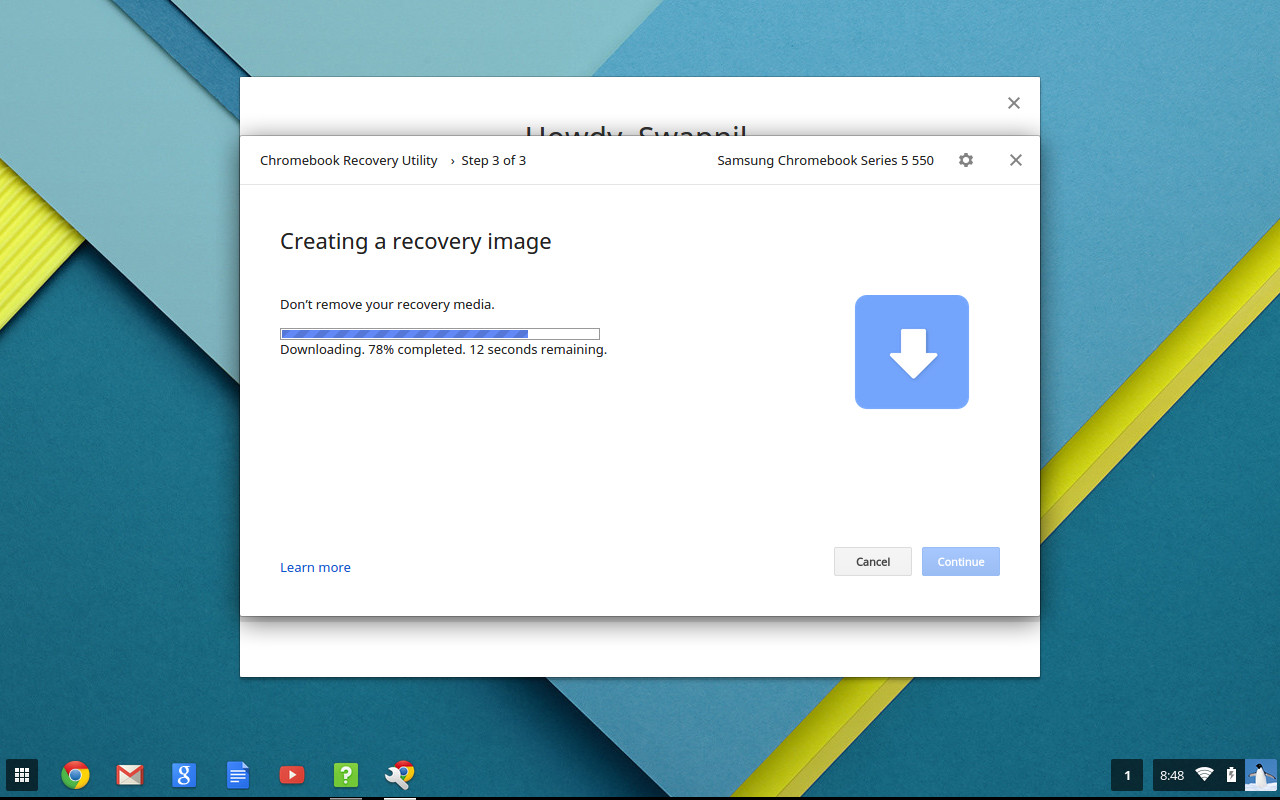
Once the recovery disk is created, unplug it and follow the following steps.
#Step 3: Enable developer mode
In order to install your own operating system on Chromebooks, you have to enable the developer mode. It’s extremely easy to do and is very well documented by Google. The latest Chromebooks use a combination of keys to enter the developer mode, whereas older devices have a
physical switch. Different devices have different locations for the switch, so please Google your device to find the location of the switch and flip it. If you are on the latest Chromebook then you can enable the developer mode by holding Esc + Refresh keys and then push the ‘power’ button. The recovery screen will show a scary warning. Just ignore it and let Chrome OS wipe your data. The process can take up to 15 minutes, so don’t turn off your Chromebook.
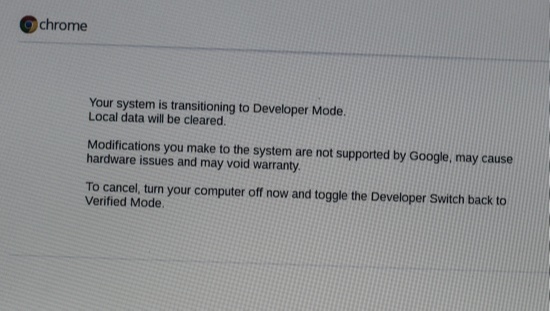
Also keep in mind that once Chrome OS is reinstalled you will continue to see this warning every time you boot your system, as long as the developer mode is enabled. However, it won’t wipe the data every time. You can simply hit Ctrl+d to quickly boot into Chrome OS (don’t do it this time while Chrome OS is preparing your system for developer mode).
Step #4: Let’s install Crouton
1- Log into your Chromebook and open the GitHub page of Crouton and download the latest script.
Check the download folder to see if crouton is downloaded.
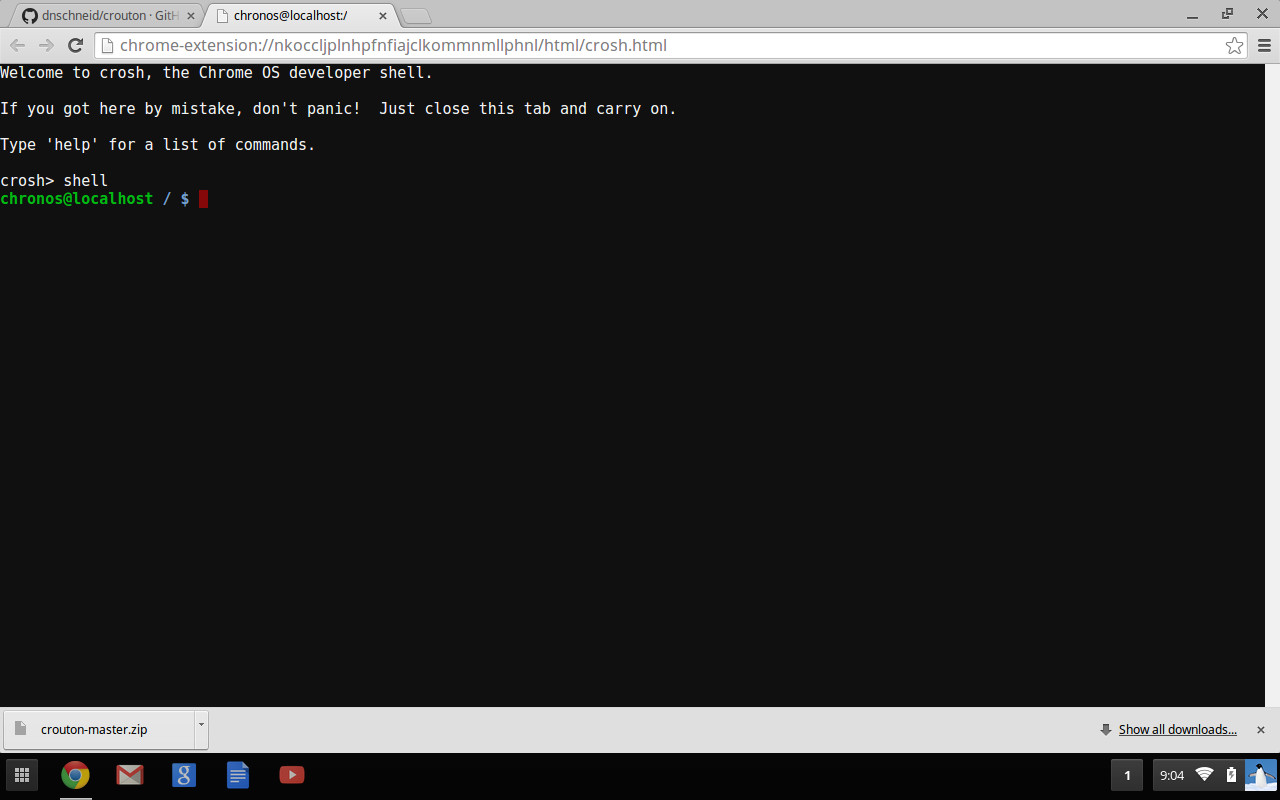
2- Open the terminal in Chromebook (yes, there is now a terminal in Chromebook! by hitting Alt+Ctrl+t
3 -Type this command to open shell: shell
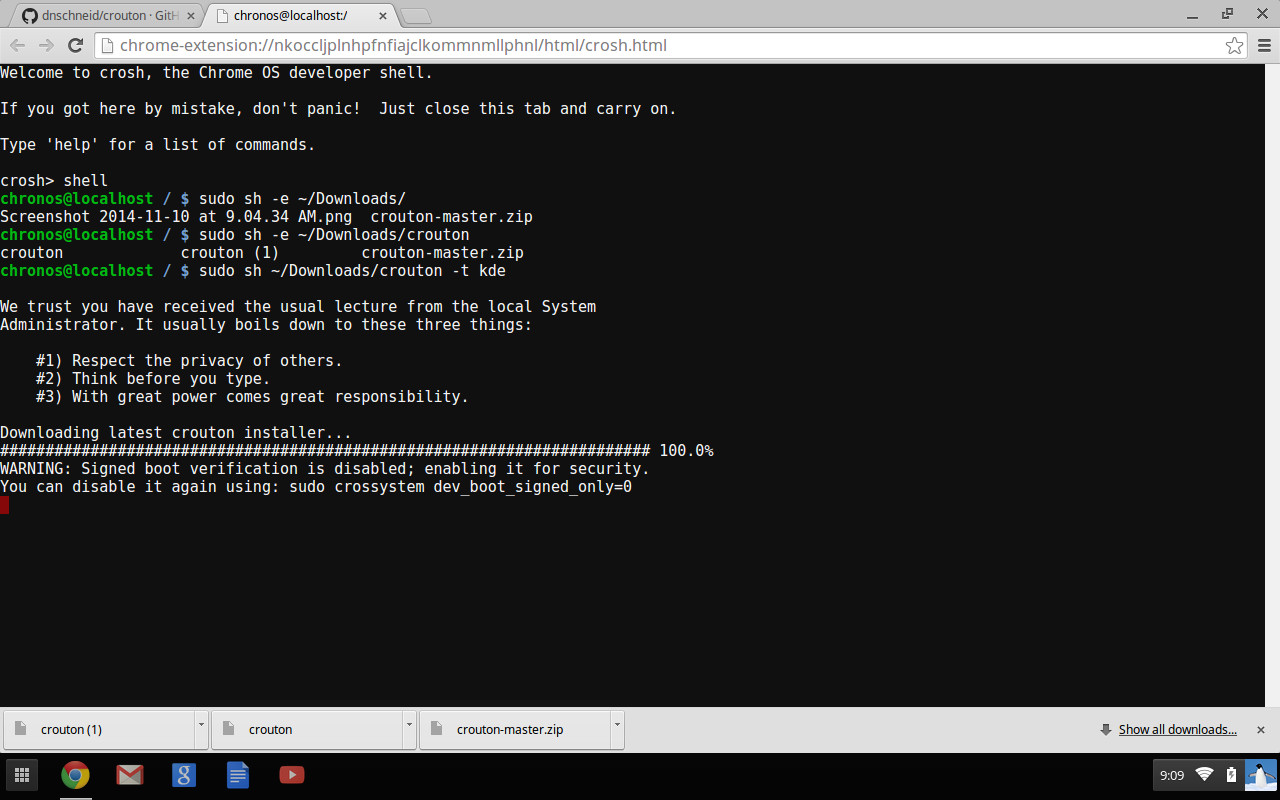
4- Now we are going to install Ubuntu. There are several desktop environments available including KDE Plasma, Unity and Xfce. Unity can be quite heavy for Chromebook hardware and xfce is way too plain for my taste, so I am going to install KDE Plasma.
sudo sh ~/Downloads/crouton -t kde
(If you don’t want KDE, then you can replace kde with xfce, or unity )
For example:
sudo sh ~/Downloads/crouton -t xfce
We have not encrypted the chroot, if you want to encrypt it then add -e parameter to the command above:
sudo sh -e ~/Downloads/crouton -t kde
If you are installing it on a Chromebook with touchscreen then also add the ‘touch’ parameter:
sudo sh -e ~/Downloads/crouton -t touch,kde
Since the script will download Ubuntu from the Internet, depending on your broadband speed, it may take a while, so go and grab some Indian chai or coffee. With my 150Mbps download speed it took me around 18 minutes. Once the install is finished Crouton will ask you to enter the user-name and UNIX password for it – which will be used to perform administrative tasks in Kubuntu.
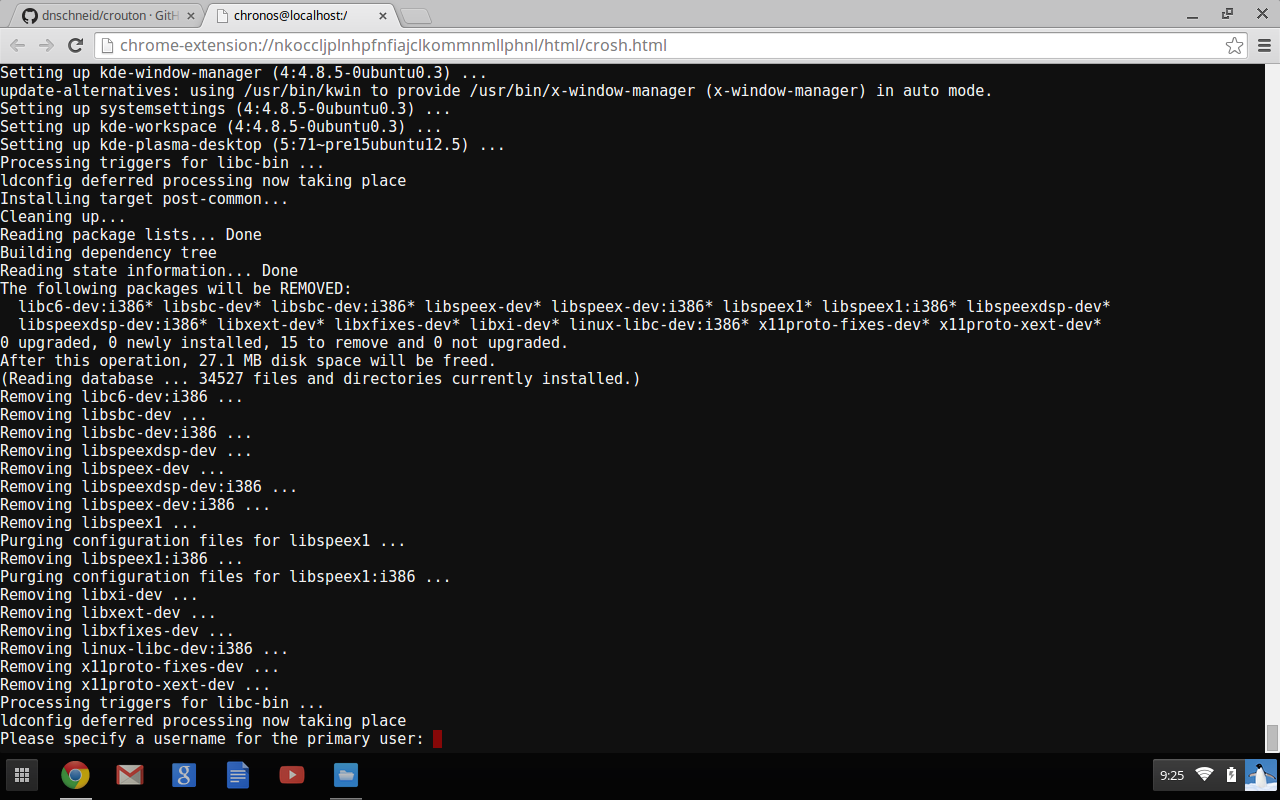
Now you can start Plasma by running the following command in shell:
sudo startkde
If you installed xfce then run:
sudo startxfce4
You will be greeted by the KDE greeter.
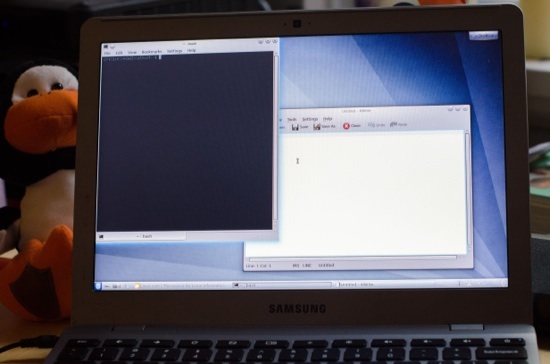
The install will be bare-minimum and won’t come with the applications that are packed by distributions, but you can easily install applications from Konsole / terminal. It’s also a good idea to update the system.
sudo apt-get update sudo apt-get upgrade sudo apt-get install
I installed all that I needed – LibreOffice, Sublime Text, Chrome browser (so I can watch Netflix), GIMP, VLC, etc.
To go back to Chrome OS, and keep KDE running, use this key combination Alt+Ctrl+Shift+Back. To come back to Kubuntu from Chrome OS, use this combination:Alt+Ctrl+Shift+Forward. You can find the back/forward keys on the top row of the keyboard.
When you log out of KDE, it exits you from Chroot and you will have to again run the sudo startkde command to start Plasma or the desktop that you have installed.
You might need a full blown desktop Linux, like Ubuntu, on your Chromebook, or not. It depends heavily upon what you do on your computer. I use the appropriate platform for that particular task so I don’t struggle to do something on a platform which it’s not meant to do. I am a heavy Chromebook user; my wife is a full-time Chromebook user. I can do pretty much everything in Chromebook that I do on my openSUSE or Arch Linux box, excluding professional image and audio/video editing. As I writer, I can live within Chromebook and would not need anything – all the needed tools are there.
A majority of these apps work in offline mode, so you don’t have to worry about Internet connectivity no matter what Microsoft tells you in their Pawn Star ad campaign. You don’t have to give all of your data to Google to be able to work using Chromebook. Just grab the apps which support offline mode, go offline, insert a good capacity USB drive and start working – nothing will leave your network.
However, at times you may need some tools which are not yet available for Chrome OS and that’s where you may need a full-blown Linux desktop.
There is no doubt that installing your favorite Linux distribution onto a Chromebook is not as comfortable as it is on a regular PC, and considering the small onboard storage, it may not seem to be as appealing as a PC with 500GB HDD. But keep in mind that Chromebooks have SSDs which are much faster and durable than hard drives. On top of that, Chromebooks are extremely affordable – you can get one for just under $200; it’s better to set-them up and give to your 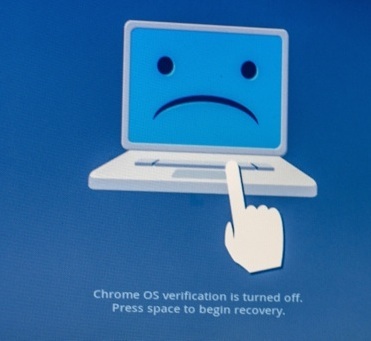 kids and employees rather than buying expensive $500+ PCs.
To my surprise, I found Kubuntu to be much faster on my Chromebook than on a Windows netbook. There is virtually no driver issue on Chromebook, which can be a big problem on many Windows PCs which use proprietary hardware. I never keep any of my data on my laptop, it’s always on my ownCloud server or on my hard drives so on-board storage has never been an issue for me – which can be a big factor for many others. If I am looking for inexpensive hardware to mostly do online work, I would prefer a Chromebook over a Windows PC.
I must admit that I live my life on the Internet. The browser is the first app that I open after booting into my system. I spend 90% of my time inside a browser – in Chrome, to be precise – so I don’t really mind Chrome OS and would not bother with installing some other Linux on it. If I do need to install Linux, then Crouton is my favorite method. The advantage of Crouton is that you don’t give up on one system to use the other; you run them simultaneously. Since it shares the ‘Downloads’ folder between the two operating system so you can easily share data – create some work in KDE and it’s already there in Chrome OS.
If you want to get rid of Linux and go back to the ‘verified’ Chrome OS, hit the space bar when your Chromebook reboots to re-activate verification. On older hardware, you will need to flip the physical switch and Chrome OS will restore to verified state. If something goes wrong, use the restore drive that we created in the beginning to restore the OS.
As they say, “Best of both worlds!”