
Employing open standards is the key to unlocking the full potential of your datacentre infrastructure.
Read more at Enterprise Open Source Toolkit
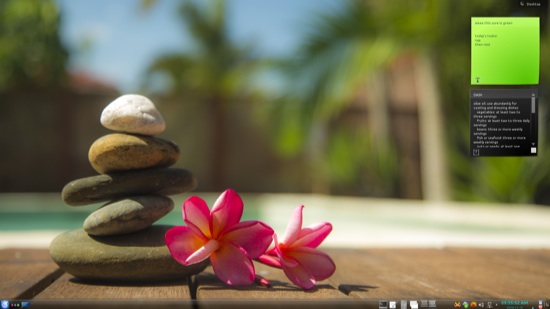
Time is money, so I set up my main PC for maximum productivity. Everything I use the most is no more than a click away, and I have a batch of fave useful CLI and keyboard shortcuts and commands. Life is too short to wade through inefficient GUIs. I like all Linux graphical environments, and the one I keep coming back to the most is KDE. I loved it when it was pixely and not very pretty and had tons of customizability, and now it is sleek and gorgeous and has tons of customizability.
Figure 1 shows my current setup. The photo is a KDE wallpaper, and it’s a shame to mar it with those ugly little sticky note widgets. But I use sticky notes so much they have to be there: I keep reminders on them, todo lists, and all kinds of temporary snippets.
The KDE panel is a key player in my efficiency scheme. You can stuff all kinds of things into the Panel, arrange them however you like, and even have multiple panels. I have my Application Launcher, Activities, Show Desktop, and Task Manager on the left side. To add or remove widgets, or to move items around right-click on any blank area, then go to Panel Options > Panel Settings. Or click the Cashew way over on the right side of the panel. I think the Cashew is kind of weird, giving the impression that it should do something really cool, but it only opens a configuration manager (figure 2). When you are in this view hover your cursor over your widgets to see their names. When you want to remove a widget click the X to the right of the widget’s name. The little wrench on the left opens a configuration dialog. When you see the four-way cross, grab that with your cursor to move your widget. When you have trouble positioning your panel widgets, insert spacers to make them stay where you want. Spacers have adjustable lengths; just grab and drag either the right or left border.

Click anywhere on your main desktop to close the panel configurator, or press the Esc key. Then you can right-click on any widget to open its configuration dialog.
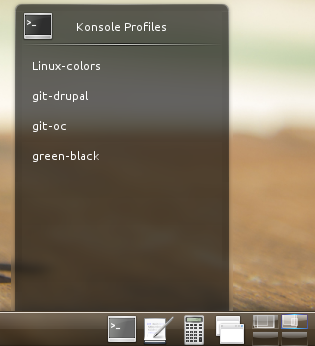
Over on the right side of my panel I keep a gaggle of Useful Stuff. The Konsole profiles widget (figure 3) opens any of my Konsole profiles with a single click. I work in Konsole a lot so this is a big time-saver. I also use the Kate profiles widget, which operates the same way for the Kate text editor. (We’ll get into creating and using profiles in a moment.) Then the Calculator widget, and then the Window List and Desktop Pager widgets.
The Window List widget displays all open applications on all virtual desktops. The Pager controls how many virtual desktops you have, the switching action (I like the cube), and you can configure keyboard shortcuts for all pager actions. I use these in concert with the Task Manager. I have the Task Manager set to display applications only on the current desktop, because I have the Window List for quickly finding and switching to a running app on another desktop.
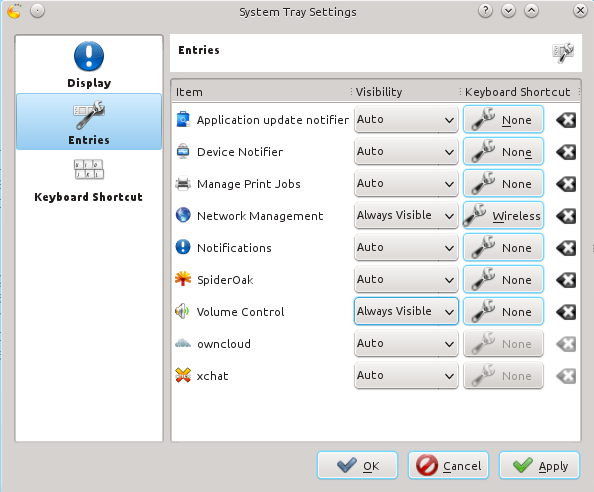
The System tray (figure 4) is populated by widgets that you select from its configuration menu, and by widgets installed from applications, such as XChat and Skype. Then I have a clock, System Monitor, and the Lock/Logout widget which saves clicks when it’s time to shutdown or lock my screen.
Some other interesting panel widgets:
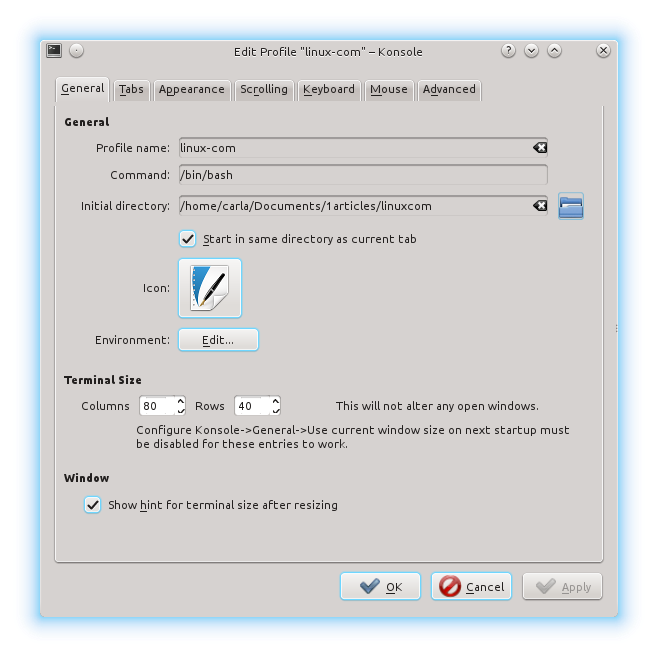
Konsole is the KDE terminal emulator, and Kate is the KDE text editor. I like Konsole for its nice appearance; it is clean and readable, and very configurable. You can save custom settings in profiles, so when you open Konsole it’s ready to go to work. For example, when I’m writing for Linux.com I have Konsole set up to open to my working directory at a specific window size, with certain colors and fonts, a custom icon, and a bunch of other tweaks to make it exactly how I want (figure 5).
 Kate is a super-powerful editor with automatic syntax highlighting for all kinds of programming and scripting languages, soft and hard line-wrap, code folding, bookmarks, embedded terminal sync, and configurable keyboard shortcuts for many of the menu items. Kate uses sessions rather than profiles. Kate’s sessions are a bit quirky; they’re supposed to save window states, but they don’t save everything, such as hard line wrap or display line numbers. They do save documents and fonts, so I create new sessions for unfinished documents, and nuke the sessions when they’re finished.
Whether you use the classic-style KDE menu, or the newer Application Launcher style, the KDE system menu is completely configurable. Right-click on its icon, then left-click Edit Applications. You can add and remove items, re-arrange them, put your most-used applications in Favorites or anywhere you want. The Application Launcher settings are different for the classic menu, and in my needlessly-humble opinion more useful.
And now, my favorite thing: desktop widgets (see figure 1 for a peek at my KDE desktop). The Desktop Pager has a very cool setting, and that is “Different widgets for each desktop.” This means you can have a different wallpaper and different widgets for each virtual desktop. I use this to keep track of multiple projects: one desktop is for Linux.com, another one is for a coding project I’m working on, and a third one is for audio recording and editing. (Another excellent way to organize projects is with Activities, which you can read about in KDE4 Activities for Fast Efficient Workflow.)
Right-click anywhere on your desktop to open a desktop settings menu. “Default desktop settings” controls the layout and appearance of your desktop, including wallpapers, and you can download more from the wallpaper configuration dialog. This is also where you install new widgets. Widgets have a tricksy little disappearing sidebar which appears only when you hover your cursor over the exactly correct spot; use the sidebar to configure, drag, and remove widgets.
Well here we are at the end already, and barely scratching the surface of KDE’s configuration options. Have fun exploring, and please share your own favorites in the comments.
 As a system administrator for the Government of Nepal in Kathmandu, Sandeep Aryal says it will be a formidable challenge to convince his employer to adopt Linux and open source software. But he believes the training he receives through his Linux Foundation scholarship will help him better make his case, he says.
“In my office, a government office, Linux is a term that is unheard of. So, after taking this training, I will be helping in automation of things around the office,” Aryal said via email. “Linux is free, and always legal to share with infinite potential – this shall be my motivational speech all around. I will help it grow for the better of all of us.”
Aryal was one of five winners announced last month at LinuxCon and CloudOpen Europe as part of the annual Linux Foundation training scholarship program. More than 1,000 applicants entered this year to receive a free Linux Foundation training course.
Here, Aryal tells us more about what he hopes to learn from his Linux training, his career goals, and his dream of being a Linux kernel developer.
What Linux Foundation course are you planning to take with your new scholarship?
I’ve been selected as a winner for the System Administration (LFS220) course.
What do you hope to learn in the course?
The course, I believe, is prepared for Linux users who have been using Linux for years but don’t have much knowledge about its administration part. Being a user with much enthusiasm for Linux as a platform for any task, I hope to add up to my current knowledge and be good overall in Linux.
How do you expect to use the knowledge you gain from the course?
There are lots of uses. The System Administration course covers system management and networking too. In my office and at home I share my internet with other users. In this sharing users have not been differentiated for their privileges and are equally given authority.
In this process, however, users with hardly any knowledge on computers use online games, pirated and cracked games, proxies against filtered websites. These make life harder for genuine users and computer networks have become vulnerable to cracking. Just an instance but, this administration course should help me pacify things.
What Linux skill would you most like to master next and why?
Being a Masters in Computer Science with much enthusiasm for Linux, I’d want to master in Linux Kernel enhancements and tweaks. It’s a dream for me. I want to be a pundit in Linux.
What are your career goals? How do you see a Linux Foundation course benefiting you in the long term?
My career goal is to do a Ph.D in Computer Science and with it I’d want to work for the people of developing world in bridging the digital divide prevalent in countries like Nepal. The Linux Foundation course, although a stepping stone for now, should provide me with skills that are required to understand how things can be modified, tweaked and enhanced to reduce the cost of use of technology both at the hardware and software level.
What other interesting hobbies/ side projects are you working on?
I’m very much fond of writing. It’s passion for me. Besides my regular job, I teach. I love that too.