
Red Hat, the world’s open source leader, is a billion dollar company, but it began in a sewing closet. Co-founder Bob Young talks about the company’s humble beginnings.
Read more at Enterprise Open Source Toolkit
If you’re a lover of music and Linux, you’re in for a treat. As streaming music services slowly take over as the means for listening to your favorite tunes, the Linux platform has quickly matured into an outstanding ecosystem for that very purpose. With plenty of streaming servers, everyone knows how powerful Linux is at serving up tunes…but did you know it was equally powerful at playing those streaming services?

That’s right, Linux can get that music stream to your desktop in many ways. If you’re a lover of Spotify, Pandora, Last.fm, SoundCloud…you name it, there’s a way to stream that music. But don’t think you’re limited to using a web browser. Linux has clients, and plenty of them.
I want to highlight what I consider to be some of the best streaming music clients for Linux. Some of these are a one-trick pony, while others allow for the streaming of multiple services. Either way, you’ll be rockin’ open source on your desktop of choice.
I must confess that I am a Spotify premium subscriber. I listen to this streaming server pretty much all day at my desk. What I really like about Spotify (other than the CD-quality streaming) is the client (Figure 1). It’s incredibly simple to use, offers all the features you need for streaming. With it, you can search for artists and other users, follow artists, add songs/albums to custom playlists, and much more. With the Spotify client, you can also add your own local music sources.
Though Linux is not an officially supported platform for Spotify, installing Spotify on Linux is actually quite simple. I’ll demonstrate on the Ubuntu platform (specifically, Ubuntu 14.04). Here are the commands, to be run in a terminal window, to install the Spotify client:
sudo apt-add-repository -y “deb http://repository.spotify.com stable non-free”
sudo apt-key adv –keyserver keyserver.ubuntu.com –recv-keys 94558F59
sudo apt-get update
sudo apt-get install spotify-client
Once the client is installed, you will find the Spotify launcher in the Unity Dash. Start it up and then log into your Spotify account. The client allows you to log in via Facebook or using a Spotify username/password. You may have to log onto Spotify via Facebook on the web-browser client and then set up a device username/password. This is done under your profile (you’ll see the link for “Set a password for your devices”). The username will be a string of random numbers and you have to send your default email address a link in order to set the password.
This simple Pandora streaming client has long been one of my favorite streaming tools. With an incredibly easy-to-use interface, and the ability to add new stations (based on artists) and even select a quick mix (based on your current listing of stations). The best aspect of Pithos is its stripped-down interface (Figure 2). There are few bells and whistles here, just pure Pandora streaming goodness.
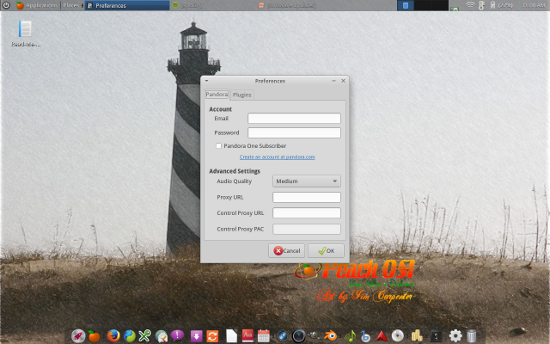
To install Pithos, issue these commands in a terminal window (again, illustrating on the Ubuntu platform):
sudo add-apt-repository ppa:pithos/ppa
sudo apt-get update
sudo apt-get install pithos
Once installed, you’ll find the launcher in the Unity Dash. Fire up Pithos and you’ll be prompted to log into your Pandora account. Once logged in, you can start creating stations. Here’s how:
Click the Pithos button (it doesn’t actually look like a button, just the word Pithos over the Play button — design flaw?)
Click Stations
Click Add Station
Enter an artist name
Click Search
Select the artist from the results
Click OK
Click Close.
Once the station has been added, you can select it from the drop-down on the upper right corner. You can also select Quick Mix to get a shuffled playlist of songs from your stations.
By far, my favorite tool for listening to music is Clementine (Figure 3). There are a lot of reasons to love this player (built-in equalizer, easy to handle playlists, etc.), but the inclusion of streaming services helps edge this to the top for me. Clementine can stream:
Digitally Imported
Icecast
Jamendo
Last.fm
Google Drive
Grooveshark
JAZZRADIO.com
Magnatune
Podcasts
Radio GFM
ROCKRADIO.com
SKY.fm
SomaFM
Soundcloud
Spotify
Subsonic
Dropbox
Skydrive
Box.
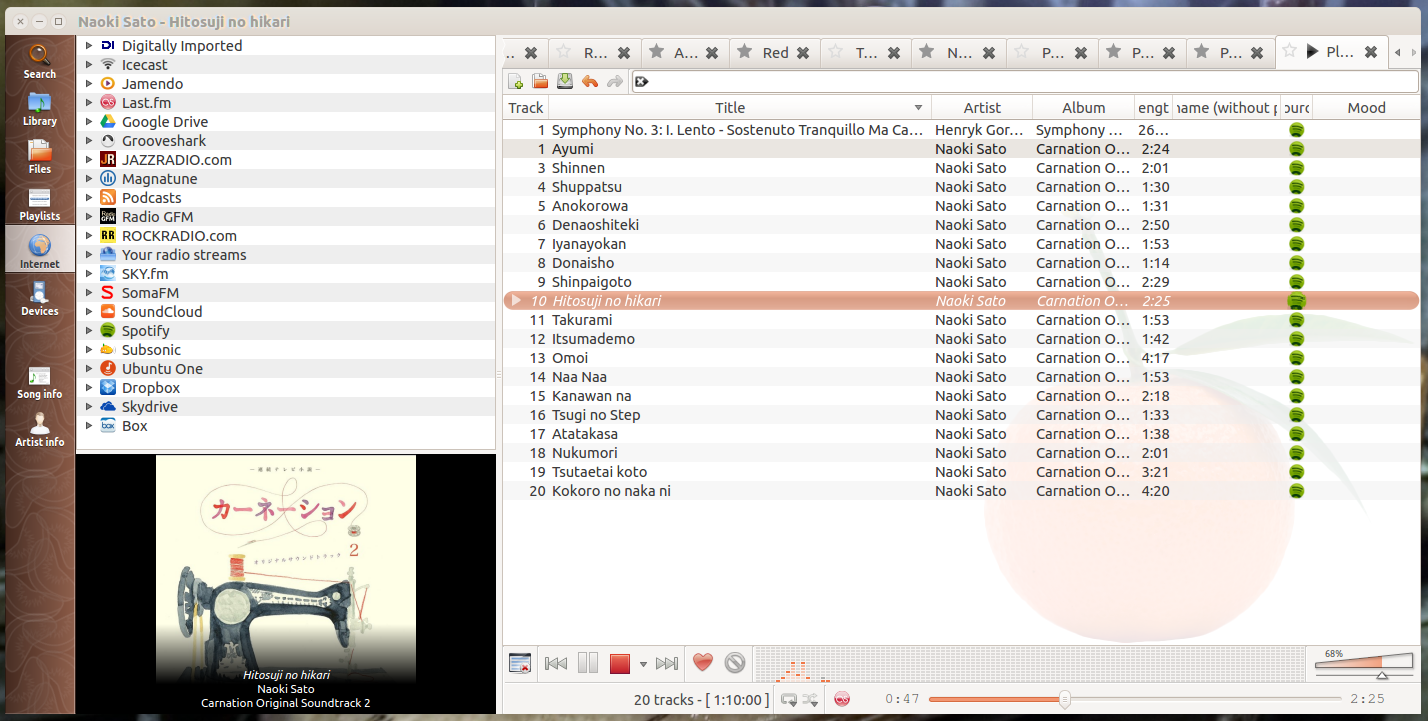
And with its ridiculously easy playlist setup, it makes for creating a streaming sampler very user-friendly.
Because of licensing, some of the above requires a bit of work. Let me illustrate how to get Clementine streaming Spotify. Here are the steps you need to take (illustrating on 64-bit Ubuntu):
Close Clementine (make sure the Clementine icon isn’t appearing in your panel)
Open a terminal window
Create a new directory with the command: mkdir -p -m 775 ~/.config/Clementine/spotifyblob/version14-64bit/
Change to the newly created directory: cd ~/.config/Clementine/spotifyblob/version14-64bit/
Download the Spotify plugin: wget http://spotify.clementine-player.org/version14-64bit/blob
Download the second file for the plugin: wget http://spotify.clementine-player.org/version14-64bit/libspotify.so.12.1.45
Change the permissions for the file: chmod 775 blob libspotify.so.12.1.45
Rename the file: mv libspotify.so.12.1.45 libspotify.so.12
Open Clementine and click on the Internet button in the left navigation. Right-click the Spotify entry and select Configure Spotify. You’ll need to enter your Spotify username and password. You cannot log into Spotify with Facebook credentials here. You must set up device username/password via your Spotify account (as mentioned earlier). Once authentication succeeds, you should be able to double-click the Spotify entry in Clementine’s left navigation and see all of your playlists, top tracks, Inbox, and more. The one thing you will not find is your saved artists. If you have favorite artists, you want to add their albums to playlists — otherwise you won’t see them. You also cannot search Spotify through Clementine (it’s best use is playing music from your current crop of Spotify playlists). But with Clementine’s outstanding EQ, you can match the quality of sound to your liking (something you cannot do on the Spotify client).
Linux is not short on multimedia tools. If you’re looking for a reliable platform with which to stream music, you would be remiss to not give the Linux desktop a try. Although this piece just barely scratches the surface of streaming clients, you should now see that there are plenty of options available.
 The Apache CloudStack project has released version 4.4.1, the new version of its private, public and hybrid cloud software. The lates revision of the open source CloudStack platform has “dozens of new features and improvements,” as noted in an Apache Software Foundation release.
CloudStack includes an intuitive user interface and rich APIs for managing the compute, networking, software, and storage infrastructure resources. It was contributed to Apache by Citrix, which has a commercial arm of the cloud computing platform, although that business has gone through shakeups recently.
 HP has steadily been making a lot of noise about its commitment to cloud computing overall, and the OpenStack platform in particular. And, back in May, HP chief Meg Whitman announced the cloud-focused Helion brand, and pledged to commit $1 billion over the next two years on products and services surrounding OpenStack.
Now, Hewlett-Packard has hit the ground running with a Helion hybrid cloud initiative focused on the launch of its first fully supported commercial release of HP Helion OpenStack with Cloud Foundry. There is also an enterprise-grade OpenStack-based private cloud storage component. Amazon should be watching all of this very closely.
Read more at Ostatic