
Grounded in open source and energy efficient designs, the world’s largest social network shared its latest updates for cost and power savings attributed to its cutting-edge datacenters.
Read more at Enterprise Open Source Toolkit

Krita is a wonderful drawing and painting program, and it’s also a nice photo editor. Today we will learn how to add text to an image, and how to selectively sharpen portions of a photo.
Like all image creation and editing programs, Krita contains hundreds of tools and options, and redundant controls for exposing and using them. It’s worth taking some time to explore it and to see where everything is.
The default theme for Krita is a dark theme. I’m not a fan of dark themes, but fortunately Krita comes with a nice batch of themes that you can change anytime in the Settings > Theme menu.
Krita uses docking tool dialogues. Check Settings > Show Dockers to see your tool docks in the right and left panes, and Settings > Dockers to select the ones you want to see. The individual docks can drive you a little bit mad, as some of them open in a tiny squished aspect so you can’t see anything. You can drag them to the top and sides of your Krita window, enlarge and shrink them, and you can drag them out of Krita to any location on your computer screen. If you drop a dock onto another dock they automatically create tabs.
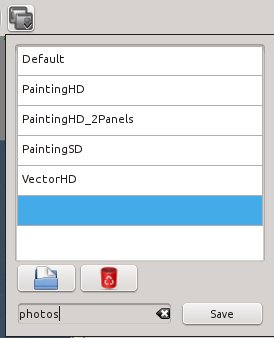
When you have arranged your perfect workspace, you can preserve it in the “Choose Workspace” picker. This is a button at the right end of the Brushes and Stuff toolbar (Settings > Toolbars Shown). This comes with a little batch of preset workspaces, and you can create your own (figure 2).
Krita has multiple zoom controls. Ctrl+= zooms in, Ctrl+- zooms out, and Ctrl+0 resets to 100%. You can also use the View > Zoom controls, and the zoom slider at the bottom right. There is also a dropdown zoom menu to the left of the slider.
The Tools menu sits in the left pane, and this contains your shape and selection tools. You have to hover your cursor over each tool to see its label. The Tool Options dock always displays options for the current tool you are using, and by default it sits in the right pane.
Of course there is a crop tool in the Tools dock, and it is very easy to use. Draw a rectangle that contains the area you want to keep, use the drag handles to adjust it, and press the Return key. In the Tools Options dock you can choose to apply the crop to all layers or just the current layer, adjust the dimensions by typing in the size values, or size it as a percentage.
When you want to add some simple text to a photo, such as a label or a caption, Krita may leave you feeling overwhelmed because it contains so many artistic text effects. But it also supports adding simple text. Click the Text tool, and the Tool Options dock looks like figure 3.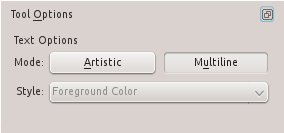
Click the Multiline button. This opens the simple text tool; first draw a rectangle to contain your text, then start typing your text. The Tool Options dock has all the usual text formatting options: font selector, font size, text and background colors, alignment, and a bunch of paragraph styles. When you’re finished click the Shape Handling tool, which is the white arrow next to the Text tool button, to adjust the size, shape, and position of your text box. The Tool Options for the Shape Handling tool include borders of various thicknesses, colors, and alignments. Figure 4 shows the gleeful captioned photo I send to my city-trapped relatives.

How to edit your existing text isn’t obvious. Click the Shape Handling tool, and double-click inside the text box. This opens editing mode, which is indicated by the text cursor. Now you can select text, add new text, change formatting, and so on.
Krita has a number of nice tools for making surgical edits. In figure 5 I want to sharpen Annabelle’s face and eyes. (Annabelle lives next door, but she has a crush on my dog and spends a lot of time here. My dog is terrified of her and runs away, but she is not discouraged.) First select an area with the “Select an area by its outline” tool. Then open Filter > Enhance > Unsharp Mask. You have three settings to play with: Half-Size, Amount, and Threshold. Most image editing software has Radius, Amount, and Threshold settings. A radius is half of a diameter, so Half-Size is technically correct, but perhaps needlessly confusing.
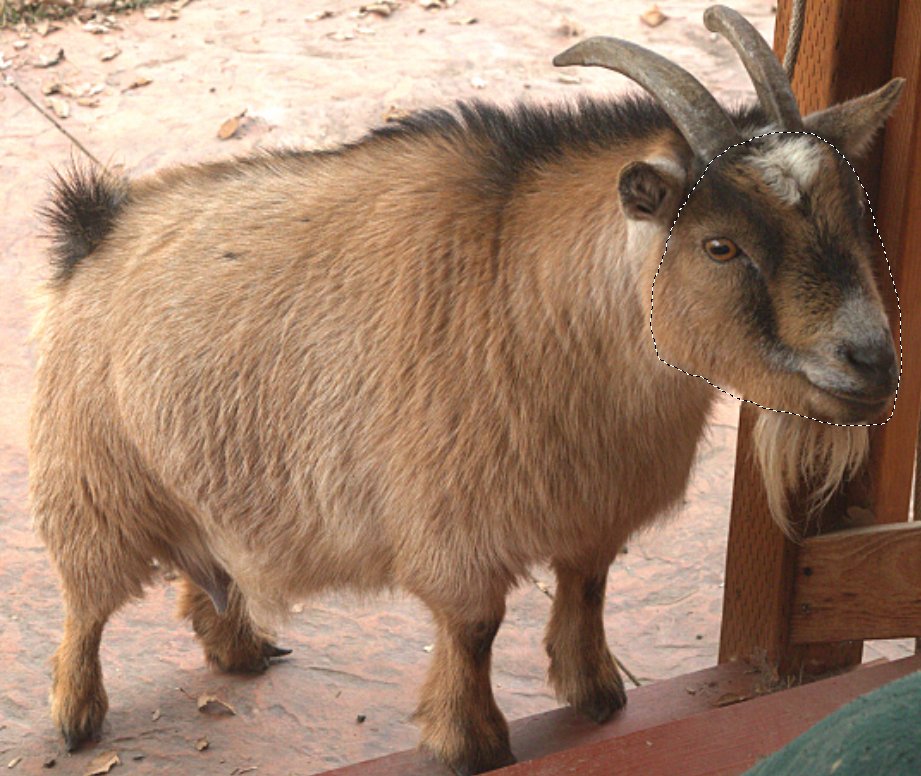
The Half-Size value controls the width of the sharpening lines. You want a large enough value to get a good affect, but not so large that it’s obvious.
The Threshold value determines how different two pixels need to be for the sharpening effect to be applied. 0 = maximum sharpening, and 99 is no sharpening.
Amount controls the strength of the sharpening effect; higher values apply more sharpening.
Sharpening is nearly always the last edit you want to make to a photo, because it is affected by anything else you do to your image: crop, resize, color and contrast… if you apply sharpening first and then make other changes it will mess up your sharpening.
And what, you ask, does unsharp mask mean? The name comes from the sharpening technique: the unsharp mask filter creates a blurred mask of the original, and then layers the unsharp mask over the original. This creates an image that appears sharper and clearer without creating a lot of obvious sharpening artifacts.
That is all for today. The documentation for Krita is abundant, but disorganized. Start at Krita Tutorials, and poke around YouTube for a lot of good video how-tos.
Move Over GIMP, Here Comes Krita
Professional Graphics Creation on Linux
Build A Serious Multimedia Production Workstation With Arch Linux

“At Cray, we are a big user and investor in Lustre. Because Lustre is such a great fit for HPC, we deploy it with almost all of our systems. We even sell and deliver Lustre storage independent of Cray compute systems. But Lustre is not (yet) the perfect solution for distributed and parallel-I/O, so Cray invests a lot of time and resources into improving, testing, and honing it. We collaborate with the open-source Lustre community on those enhancements and development. In fact, Cray is a leader in the Lustre community through our involvement in OpenSFS.”
The post Why Cray is Backing Lustre and OpenSFS appeared first on insideHPC.
 Docker has only gained traction since its launch a little over a year ago as more companies join the community’s efforts on a regular basis. On July 30, the first official Docker build for openSUSE was released, making this distribution the latest among many to join the fray. I connected with Flavio Castelli, a senior software engineer at SUSE, who works extensively on SUSE Linux Enterprise and has played a major role in bringing official Docker support to openSUSE. In this interview, he discuses the importance of bringing Docker to each Linux distribution, the future of Docker on SUSE Linux Enterprise, and other interesting developments in the Docker ecosystem.
What were the primary motivations that led to your work in bringing Docker to openSUSE?
Flavio Castelli: Docker is an extremely versatile tool. Once you add an application to an image you can use it everywhere, from bare metal machines all the way to the cloud. The very same image can be used on development, testing and production systems; this is an incredible life-saving feature. If you want to experiment with a new technology or build a quick proof-of-concept you can find a ton of Docker images with all sorts of software pre-installed and configured. You just need to ask Docker to download them and voilà, you’re ready to go. Like many others, openSUSE is the Linux distributions that I use on a daily basis. I wanted to be able to use all the Docker goodies without leaving my favorite environment.
It seems Docker is becoming ubiquitous across most major Linux distributions. Do you see the adoption of Docker as necessary for all distributions at this point?
Today, I think the ability to run Docker is a mandatory requirement for all Linux distributions, fortunately this is also the easiest part of the job. Supporting Docker on a Linux distribution involves two steps, the first is adding the ability to run Docker, and the second is providing an official base image. Providing an official image for Docker requires more effort, but it is something that I highly recommend. Building images with Docker is incredibly easy thanks to its integrated build system, however, these new images must be based on an existing one. The creation of the base image can be complicated and time consuming because each Linux distribution has its own build tools and requires specific source files. Each distribution should take this trouble away from users by providing an official and maintained base image, allowing users to focus on creating new content.
What are the biggest benefits you think will come to openSUSE as a result of adding official Docker support?
There are several advantages I can think of. By being able to run Docker our users will be able to access to all the images published (14,000 and counting) on the Docker Hub. Additionally, by providing an official openSUSE image we can expose the incredible resources of openSUSE to anyone interested in building Docker images. The Docker community can now access the power of tools like the Open Build Service and its “openSUSE declination,” while the openSUSE community can grow in numbers by attracting new users and contributors, mutually benefiting both groups.
What kind of upstream contributions have you been making to Docker?
I made some small contributions to Docker including bug fixes and better support for Linux systems using SysVinit. I focus mostly on bringing Docker to both openSUSE and SUSE Linux Enterprise. The next version of SUSE Linux Enterprise is going to offer Docker as a technical preview. We want Docker to be integrated into both openSUSE and the SUSE ecosystem and provide our customers with the best user experience. Of course, this requires some work from our side.
What additions to Docker do you most want to see at this point?
I think the Docker community is already working on many new, interesting additions. Personally, I would love to see the ability to add a EULA to an image. This would make it possible to publish images based on commercial Linux distributions, like SUSE Linux Enterprise, or that contain commercial software on the Docker Hub. I already created an issue about that on Docker’s GitHub page; I might tackle it in the next months.
You stated on your blog, back in April, that you hoped to see more integration of Docker into SUSE Studio. What kind of progress has been made on this over the past 4 months?
Unfortunately no progress has been made on this front during the last months. Everyone at SUSE is busy building/adding support to the next version of SUSE Linux Enterprise.
What major obstacles are in the way of making this happen?
I have been part of the SUSE Studio team, so I am familiar with its internals. Adding Docker support can be achieved in two ways.
SUSE Studio uses KIWI internally to build its appliances, which recently added support for the Docker format. Leveraging this new KIWI feature would be the fastest way to add Docker support to SUSE Studio. However I think that would not be the best choice because the resulting images would be seen by Docker as big monolithic layers. I’ll elaborate on this a bit.
Each Docker image is composed of a list of layers that are mounted on top of each other. This is a big advantage because layers can be reused between different images leading to less disk space usage, faster deployments, and faster builds when using Docker’s internal build system. Building Docker images as a single big layer would waste these advantages.
I think the proper way to add Docker support to SUSE Studio would be to build the appliances using Docker’s internal build system rather than KIWI. All Docker images built using SUSE Studio should be based on the same base images (one per template offered) and be composed of the set of layers produced by Docker’s build system. That would bring the best of SUSE Studio and Docker together. As you can imagine this would require quite a lot of work inside SUSE Studio.
In your opinion, what are the most awesome things being done with Docker right now?
It is surely exciting to see how Docker is being used by Google inside of the Google App Engine PaaS or on big production environments like at Spotify. With the recent acquisition of Fig and Orchard by Docker I also expect to see even more awesome orchestration tools for Docker.
If there was one thing you could change about Docker, what would it be?
In the early days of Docker, I would have said the disk back-end needed to be changed, because Docker images worked only with the AUFS filesystem. That proved to be difficult to maintain (it is not part of the official Linux kernel) and not reliable as the traditional Linux file systems (no offense intended to the developer of AUFS, he is a really nice guy who always helps us). Fortunately, before release 1.0 Docker gained a modular back end system which allows the users to choose their favorite storage driver. Right now I don’t have any particular complaints.