Clonezilla is a partition and disk cloning application for Linux, Free-, Net-, and OpenBSD, Mac OS X, Windows, and Minix. It supports all the major filesystems including EXT, NTFS, FAT, XFS, JFS, and Btrfs, LVM2, and VMWare’s enterprise clustering filesystems VMFS3 and VMFS5. Clonezilla supports 32- and 64-bit systems, both legacy and UEFI BIOS, and both MBR and GPT partition tables. It’s a good tool for backing up a complete Windows system with all of your installed applications, and I like it for making copies of Linux test systems so that I can trash them with mad experiments and then quickly restore them.
Clonezilla can also copy unsupported filesystems with the dd command, which copies blocks rather than files, so it doesn’t need to understand filesystems. So, the short story is Clonezilla can copy anything. (A quick note on blocks: disk sectors are the smallest addressable storage units on hard disks, and blocks are logical data structures made up of single or multiple sectors.)
Clonezilla comes in two versions: Clonezilla Live and Clonezilla Server Edition (SE). Clonezilla live is ace for cloning single computers to a local storage device or network share. Clonezilla SE is for larger deployments, and fast multicast cloning an entire network of PCs at once. Clonezilla SE is a wonderful bit of software that we shall cover in the future. Today we shall create a Clonezilla Live USB stick, clone something, and restore it.
Clonezilla and Tuxboot
When you visit the download page you’ll see Stable and Alternative Stable releases. There are also Testing releases, which I recommend if you’re interested in helping to improve Clonezilla. Stable is based on Debian and includes no non-Free software. Alternative Stable is based on Ubuntu, includes some non-Free firmwares, and it supports UEFI Secure Boot.
After you download Clonezilla, install Tuxboot to copy Clonezilla to a USB stick. Tuxboot is a modification of Unetbootin that supports Clonezilla; you can’t use Unetbootin because it won’t work. Installing Tuxboot is a bit of pain, though Ubuntu users can install Tuxboot the easy way from a personal packages archive (PPA):
$ sudo apt-add-repository ppa:thomas.tsai/ubuntu-tuxboot
$ sudo apt-get update
$ sudo apt-get install tuxboot
If you’re not running Ubuntu and your Linux distribution doesn’t include a packaged version of Tuxboot, download the source tarball and follow the instructions in the README.txt file to compile and install it.
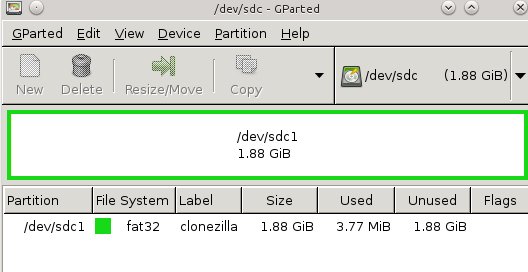
Once you get Tuxboot installed, use it to create your nice live bootable Clonezilla USB stick. First create a FAT32 partition of at least 200 megabytes; figure 1 (above) shows how it’s done in GParted. I like to use labels, like “clonezilla”, so I know what it is. This example shows a 2GB stick formatted as a single partition.
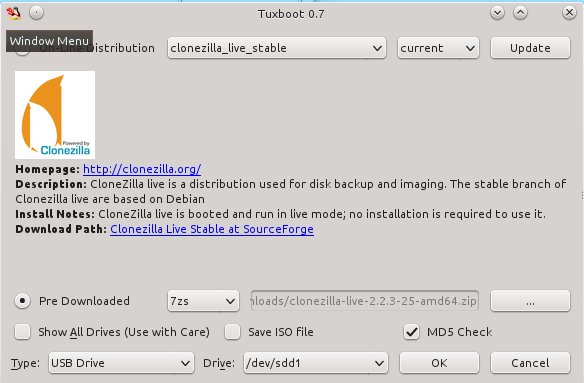
Then fire up Tuxboot (figure 2). Check “Pre-downloaded” and click the button with the ellipsis to select your Clonezilla file. It should find your USB stick automatically, and you should check the partition number to make sure it found the right one. In my example that is /dev/sdd1. Click OK, and when it’s finished click Exit. It asks you if you want to reboot now, but don’t worry because it won’t. Now you have a nice portable Clonezilla USB stick you can use almost anywhere.
Creating a Drive Image
Boot up your Clonezilla USB stick on the computer that you want to backup, and the first thing you’ll see is a normal-looking boot menu. Boot to the default entry. You’ll be asked language and keyboard questions, and when you arrive at the Start Clonezilla menu select Start Clonezilla. In the next menu select device_image, then go to the next screen.
This screen is a little confusing, with options for local_dev, ssh_server, samba_server, and nfs_server. This is where you select the location for your backup image to be copied to. The size of your destination partition or drive must be the same size or larger than the volume you’re copying. If you choose local_dev, then you’ll need a local partition with enough room to store your image. An attached USB hard drive is a nice fast and easy option. If you choose any of the server options you’ll need a wired Ethernet connection, the IP address of your server, and your login. I’ll use a local partition, which means selecting local_dev.
When you select local_dev Clonezilla scans all of your locally-attached storage, including hard disks and USB storage devices, and makes a list of your partitions. Select the one you want to store your new image in, and then it asks which directory to use and shows you a list. Select your desired directory, and the next screen shows all of your mounts and used/available space. Press Enter, and the next screen gives you the option of Beginner or Expert mode. I choose Beginner.
In the next screen you can choose savedisk, which creates an image of an entire hard disk, or save_parts, which allows you to select individual partitions. I want to select partitions.
The next screen asks for a name for your new image. After accepting the default or entering your own name, go to the next screen. Clonezilla scans your partitions and creates a checklist so you can pick the ones you want to copy. After making your selections, the next screen gives you the option to do a filesystem check and repair. I’m impatient, so I skip this part.
The next screen asks if you want Clonezilla to check your newly-created image to make sure it is restorable. I always say yes. Next, it gives you a command-line hint in case you ever want to use the command-line instead of the GUI, and you must press Enter again. You get one more confirmation, and then type y for Yes to make the copy.
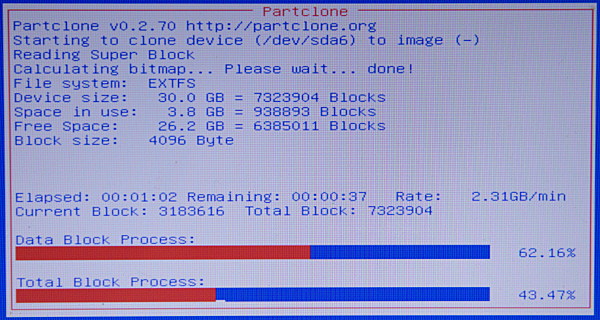
You get to watch a nice red, white, and blue progress screen while Clonezilla creates your new image (figure 3).
When it’s all finished press Enter and then select reboot, and remember to remove your Clonezilla USB stick. Boot up your computer normally, and go look at your nice new Clonezilla image. You should see something like this:
$ ls -l /2014-08-07-11-img/
total 1241448
-rw-r--r-- 1 root root       1223 Aug  7 04:22 blkdev.list
-rw-r--r-- 1 root root        636 Aug  7 04:22 blkid.list
-rw-r--r-- 1 root root       3658 Aug  7 04:24 clonezilla-img
-rw-r--r-- 1 root root      12379 Aug  7 04:24 Info-dmi.txt
-rw-r--r-- 1 root root      22685 Aug  7 04:24 Info-lshw.txt
-rw-r--r-- 1 root root       3652 Aug  7 04:24 Info-lspci.txt
-rw-r--r-- 1 root root        171 Aug  7 04:24 Info-packages.txt
-rw-r--r-- 1 root root         86 Aug  7 04:24 Info-saved-by-cmd.txt
-rw-r--r-- 1 root root          5 Aug  7 04:24 parts
-rw------- 1 root root 1270096769 Aug  7 04:24 sda6.ext4-ptcl-img.gz.aa
-rw-r--r-- 1 root root         37 Aug  7 04:22 sda-chs.sf
-rw-r--r-- 1 root root    1048064 Aug  7 04:22 sda-hidden-data-after-mbr
-rw-r--r-- 1 root root        512 Aug  7 04:22 sda-mbr
-rw-r--r-- 1 root root        750 Aug  7 04:22 sda-pt.parted
-rw-r--r-- 1 root root        625 Aug  7 04:22 sda-pt.parted.compact
-rw-r--r-- 1 root root        514 Aug  7 04:22 sda-pt.sf
Restoring a Clonezilla Image
Restoring your image is similar to creating it. Again, boot up Clonezilla, go through the same initial steps, select dev_image, and then on the local_dev screen select the location of your image that you want to restore, whether it’s on a local device or network share. Then continue through the rest of the screens, making sure that you have the correct restore image and target locations selected.
You can learn more of Clonezilla’s amazing powers at the Clonezilla Live Documentation page.


 Red Hat last month released the latest version of Inktank Ceph Enterprise, their object and block storage product based on the upstream open source Ceph project. It’s notable not only as the first release since Red Hat acquired the two-year-old startup, Inktank, in April, but also for two key features that help open up a new market for Ceph.
 While Ceph gained prominence as the open source software-defined storage tool commonly used on the back end of OpenStack deployments, it’s not strictly software for the cloud. With the latest new enterprise feature addition, Ceph has begun to see adoption among a new class of users interested in software-defined storage for big data applications.