Home Blog Page 1400

Is Open Source the Key to Innovation?

Collaboration is a core component of modern business, and over the years, collaborative efforts have resulted in some of the world’s most groundbreaking innovations, in the areas of technology, medicine and engineering. The opportunities are seemingly endless when people unite and work together, whether within a single organization or across many.

But what if this collaborative ethos is extended to include practically every human being on earth? Are there any limitations on what can be accomplished?

Core Security Effort Aims to Improve Firms’ Handling of Software Flaws

Companies too often focus on fixing the wrong software vulnerabilities, leaving themselves open to attack, a security expert says. Core Security is releasing at Black Hat a model to help companies properly patch flaws.

Read more at eWeek

Docker Comes to openSUSE

Docker’s container take on virtualization keeps getting more and more popular as openSUSE adopts it for use.

Top 10 Best Open Source Softwares that Rocks World Wide Web

Top 10 Open Source Softwares that Rocks World Wide Web

Open-source software is also called as OSS, which is a computer software program designed and deployed with its source code made available and licensed with a free license in which the copyright holder provides the rights to an anonymous entity for any purpose. People using OSS can distribute the software to anyone and for any purpose because Open-source software is very often developed in a public, collaborative manner. Open-source software is the most prominent example of open-source development and often compared to (technically defined) user-generated content or (legally defined) open-content movements.

The top Five reasons why individuals or organizations choose open source software are:

1) Lower cost,

2) Security,

3) No vendor ‘lock in’, and

4) Better quality

5) Transparency

The Open source code modification, redistribution of open-source software reserved under copyright holder according to copyright law. GNU General Public License (GPL), is a good example of it which allows free distribution under the same license for  its free usage. Software licenses grant rights to users, which would otherwise be reserved by copyright law to the copyright holder. Among thousands of  Open source software projects these 10 Open Source Softwares  listed below are the most important and valuable. These are rare software product that has no alternatives and must require.

1) Linux kernel

The Linux kernel is a prominent example of free and open source software. It is a Unix-like operating system released under the GNU General Public License version (GPLv2). Linux wasn’t the first open source software project, but it was the powerful community developed by contributors worldwide. The Linux kernel is used by a variety of operating systems based on it, which are usually in the form of Linux distributions. The popularity of Linux Kernel rapidly accumulated developers and users who adopted code from other free software projects for use with the new operating system.

2) GNU Utilities and Compilers

The GNU Project is the flagship of the free software movement and Compiler Collection, which is also named as GNU Compiler Collection (GCC) which is developed by the GNU Project supporting various programming languages. The Free Software Foundation (FSF) distributes GCC under the GNU General Public License (GNU GPL), which is the source of an amazing variety of tools and utilities that, when combined with the Linux kernel, provide a complete operating system.

With the Linux kernel, the GNU utilities and the GNU Compiler Collection make up the holy trinity of the Linux world. As well as being the official compiler of the unfinished GNU operating system, GCC has been adopted as the standard compiler by most other modern Unix-like computer operating systems, including Linux and the BSD family. Versions are also available for Microsoft Windows and other operating systems. GCC is also available for most embedded platforms, including Symbian (called gcce),[6] AMCC, and Freescale Power Architecture-based chips. It is named the GNU C Compiler, because it only handled the C programming language and the compiler was extended to compile C++ in December of that year 1987.

3) Ubuntu

Ubuntu is a Debian-based Linux operating system developed to increase usability and ease of use.  Ubuntu is a free software and named after the Southern African philosophy of Ubuntu (literally, “humanness”), which often is translated as “humanity towards others” or “the belief in a universal bond of sharing that connects all humanity”. Ubuntu is the first choice of novice users and PC sellers because its free and no need to pay fees. The Ubuntu project is publicly committed to the principles of open source development; people are encouraged to use free software, study how it works, improve upon it, and distribute it.

According to some metrics, Ubuntu is the most popular desktop Linux distribution. Ubuntu comes installed with a wide range of software that includes LibreOffice, Firefox, Empathy, Transmission, and several lightweight games.

4) BSD Operating Systems

Linux isn’t the only popular free open source operating system, there are a number of Unix-like operating systems under active development, named behind BSD (Berkeley Software Distribution). Free BSD, Net BSD and OpenBSD are very famous examples of the BSDs.

FreeBSD is famous for superior reliability and performance. It’s a free Unix-like operating system developed by AT&T UNIX and has more than 200 active developers and thousands of contributors.

NetBSD is a freely redistributable, open source version of the Unix-derivative BSD, computer operating system notable for supporting a wide range of hardware platforms, including embedded systems and mobile devices. NetBSD is famous for its portability and quality of design and implementation, it is often used in embedded systems and as a starting point for the porting of other operating systems to new computer architectures.

OpenBSD is touted as perhaps the most secure Unix-like operating system, with a security audit that never stops. It includes a number of security features absent or optional in other operating systems and has a tradition of developing auditing the source code for software bugs and security problems.

5) Samba

Samba is Free Software licensed under the GNU General Public License, the Samba project is a member of the Software Freedom Conservancy. Samba is a free software re-implementation of the SMB/CIFS networking protocol, originally developed by Andrew Tridgell. Samba bridges the gaps between Linux/Unix and Windows, allowing Unix and Linux servers to provide file and print services to Windows clients, and Linux and Unix clients work with Windows file servers. A Samba host can even serve as the primary domain controller for a Windows network. Samba provides file and print services for various Microsoft Windows clients and can integrate with a Windows Server domain, either as a Primary Domain Controller (PDC) or as a domain member. Samba is released under the terms of the GNU General Public License. The name Samba comes from the SMB (Server Message Block), the name of the standard protocol used by the Microsoft Windows network file system.

6) MySQL

The world’s most popular open source database with easy administration, excellent read performance, and transparent support for large text and binary objects make it the top choice for many Web sites. The MySQL development project has made its source code available under the terms of the GNU General Public License, as well as under a variety of proprietary agreements. It is a popular choice of database for use in web applications, and is a central component of the widely used LAMP open source web application acronym for “Linux, Apache, MySQL, Perl/PHP/Python.” Free-software-open source projects that require a full-featured database management system often uses MySQL. Applications which use MySQL databases include: TYPO3, MODx, Joomla, WordPress, phpBB, MyBB, Drupal and other software.

7) BIND

BIND is the most popular open source DNS (Domain Name System) server software on the Internet. It works on Unix-like operating systems, it is the de facto standard that implements DNS protocols for the Internet. The Berkeley Internet Name Domain package was originally written at the University of California at Berkeley.  The software consists, most prominently, of the DNS server component, called contracted for name daemon. In addition the suite contains various administration tools, and a DNS resolver interface library. The latest version of BIND is BIND 9, first released in 2000.

8) Sendmail

Sendmail is a general purpose internetwork email routing facility born before the Internet was standardized and supports different kinds of mail-transfer and delivery methods, including the Simple Mail Transfer Protocol (SMTP) used for email transport over the Internet. Sendmail served as the backbone of the Internet mail system throughout the 1980s and 1990s. It has lost ground to Postfix, Qmail, Exim, and Microsoft Exchange in recent years, but still ranks among the most popular MTAs (mail transfer agents). It is a well-known project of the free and open source software and Unix communities. It has spread both as free software and proprietary software.

9) OpenSSH and OpenSSL

OpenSSH

OpenSSH is an abbreviation of OpenBSD Secure Shell developed as part of the security conscious OpenBSD project. It is a set of computer programs providing encrypted communication sessions over the Internet using the SSH protocol. It was created as an open source alternative to the proprietary Secure Shell software suite offered by SSH Communications Security.

OpenSSL

OpenSSL is an open-source implementation software package uses strong cryptography. OpenSSH encrypts shell communications to remote computers, addressing the shortcomings in tools such as rlogin and telnet, which send usernames and passwords in clear text. OpenSSL is a software library that allows developers to incorporate SSL or TLS into their Internet applications. It was written in the C programming language, implements the basic cryptographic functions and provides various utility functions. The project is managed by a worldwide community of volunteers that use the Internet to communicate, plan, and develop the OpenSSL toolkit and its related documentation.

10) Apache

The Apache HTTP Server Project is an effort to develop and maintain an open-source HTTP server for modern operating systems including UNIX and Windows. The Web server that puts the A in LAMP is still fast, flexible, and secure, with broad operating system and Web programming language support and hundreds of modules available to extend the functionality. Apache is developed and maintained by an open community of developers under the auspices of the Apache Software Foundation. The goal of this project is to provide a secure, efficient and extensible server that provides HTTP services in sync with the current HTTP standards.

Apache httpd has been the most popular web server on the Internet and generally used on a Unix-like system, the software is available for a wide variety of operating systems, including Unix, FreeBSD, Linux, Solaris, Novell NetWare, OS X, Microsoft Windows, OS/2, TPF, OpenVMS and eComStation. Released under the Apache License, Apache is open-source software.

Linux 3.16 Release: ARMed and Ready

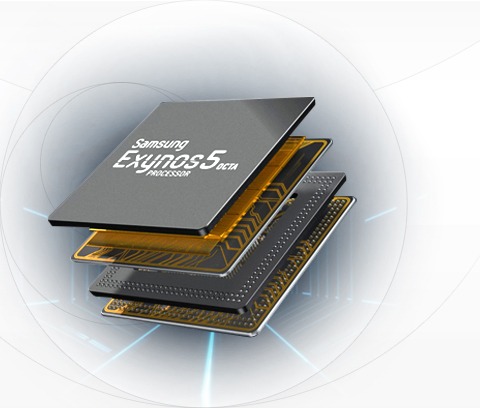
Samsung exynosCulminating a development cycle that wasn’t always as smooth as he would have wished, Linux creator Linus Torvalds on Sunday released version 3.16 of the Linux kernel.

“While 3.16 looked a bit iffy for a while, things cleared up nicely, and there was no reason to do extra release candidates like I feared just a couple of weeks ago,” Torvalds wrote in the official release announcement.

Seven release candidates preceded the final version, including two late in the process that Torvalds felt were bigger than they should have been by that point. Just 83 commits were needed in the final release, however, and “it’s really fairly small stuff randomly all over, with a third being architecture updates, a third drivers, and a third ‘misc’ (mainly mm and networking),” he explained.

Ready for a closer look? Here are three key features in Linux 3.16, the latest in the series known as “Shuffling Zombie Juror.”

1. A Shot in the ARM

Increased ARM support was a big part of what we saw added in Linux 3.15, which made its debut back in June, and Linux 3.16 takes that support up yet another notch or two. Perhaps most notable among the improvements is support for ARM SoCs including Samsung’s Exynos.

“We’ve been holding back Samsung from adding new SoC support until they sorted out their multiplatform support, which they now have done,” wrote developer Olof Johansson in a git pull message in June. “We’re very happy to be able to build an Exynos-enabled kernel together with the other platforms now (Tegra, i.MX, OMAP, and all the others).

“This also means that their slight backlog of SoC support is now picked up, so we’ve got a bunch of clock drivers and other things for their 3250 and 5410/5420/5800 series of chips,” he added.

2. Control Groups, Controlled

Control groups are “one of those features that kernel developers love to hate,” kernel developer Jonathan Corbet wrote back in 2012, and discussions about how to fix it date back at least as far. Work in this area has been ongoing ever since, and Linux 3.16 is where the results become visible.

Control groups are a way for the kernel to gather processes into hierarchical groups to which policies and resource usage limits can be applied. Whereas originally control groups have allowed the creation of multiple hierarchies, “the plan has long been to get rid of the multiple-hierarchy feature” because of several problems associated with it, Corbet explained in a recent article on the new unified control group hierarchy feature.

Code merged into the 3.14 and 3.15 kernels lay much of the groundwork, and now, version 3.16 makes the feature officially available, though only to users who ask for it explicitly.

“The 3.16 kernel will provide an opportunity for interested users to try out the new mode and find out which problems remain; actual migration by users to the new scheme cannot be expected to happen for a few more development cycles at the earliest, though,” Corbet wrote.

3. Beefed Up Drivers

Last but certainly not least, Linux 3.16 delivers numerous improvements to the kernel’s collection of drivers, delivering better Radeon graphics support, among many other benefits. Also notable is the addition of support for Dell’s Free Fall sensor, a feature in its Latitude laptops that can detect when the device is falling.

There are, of course, numerous other compelling features in Linux 3.16 as well. Though it doesn’t appear to be available yet, a changelog describing the highlights in more detail will no doubt be published soon on Kernel Newbies.

How to Choose the Best Linux Desktop for You

With Linux comes choice. Along with that choice, comes debate. Which desktop is the best? Which offers the most user-friendly experience? The questions are not only never-ending, but date back over a decade where the “war” between KDE, GNOME, and every other desktop was given voice. I would, contend, however, that there is a desktop for every kind of user to be found within the Linux landscape. To that end, I want to take some of the most popular desktops and match them to end users.

Of course, this is not science. There are no hard and fast rules, tests to take, or wizards to walk you through to your final Linux desktop destination. For most people it’s about taste and features. But if you look at each desktop long enough, you discover there is a clear connection between desktop and end user. I will examine the following Linux desktops:

  • Ubuntu Unity

  • GNOME 3

  • Cinnamon

  • KDE

  • Enlightenment

  • XFCE

  • Deepin Desktop 

Each of the above desktops has a strong following (with good reason). As well, each desktop offers a wholly unique experience with plenty of features to please anyone. However — getting connected with the right desktop, up front, can go a very long way to ensuring an overall positive experience with the Linux desktop. With that said, let’s connect users with desktops.

Ubuntu Unity

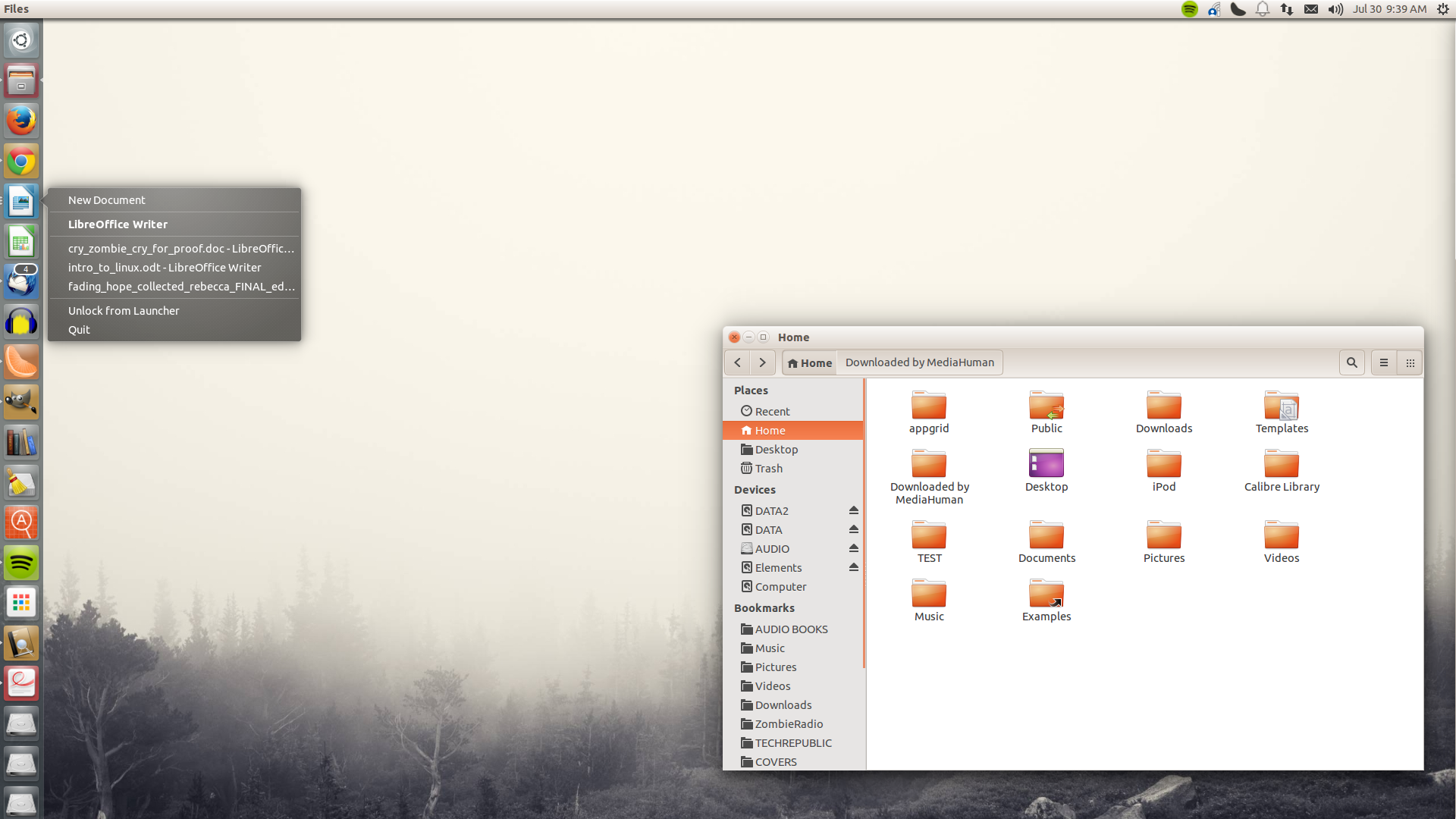
unity

Ubuntu Unity is the ideal desktop for any user wanting a modern interface that connects them to not only their local data, but data from over 100 remote sources. Users who want to be connected and have quick access to social networks, shopping, Wikipedia, and more will find Ubuntu Unity to be a welcome environment. Ubuntu Unity should also be given serious consideration by any user who prefers to spend most of their time on the keyboard and not switching back and forth between keyboard and mouse. With the help of the Head Up Display (HUD), you no longer have to reach for the mouse to interact with application menus. Tap the Alt key and type a search string to bring up application menu options. It’s an incredibly efficient means of interacting with applications.

Best user for Ubuntu Unity: New user who wants as much information at their fingertips as possible and doesn’t care too much about a highly individual look and feel to their desktop.

GNOME 3

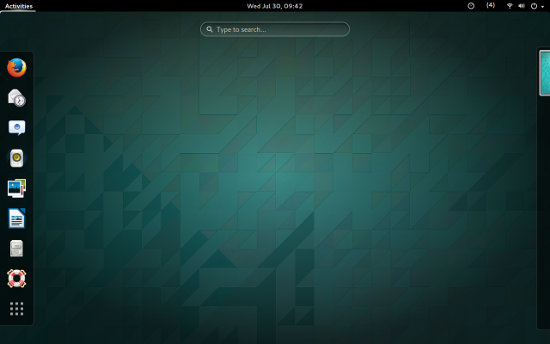
gnome3 desktop

GNOME 3 is a bit of an anomaly – a sort of minimalist approach to a full-featured desktop environment. On the surface, you have what looks like very little to interact with. Open the Dash, however, and you find plenty to use. Where Ubuntu Unity locks down the majority of its interface, GNOME 3 allows for a bit more tinkering. Specifically, the addition of GNOME Shell Extensions helps the end use refine the experience to better match their needs. So if you’re looking for a Ubuntu Unity-level modern take on the desktop, but want to be able to tweak it to your tastes, GNOME 3 is for you.

Best user for GNOME 3: Somewhat experienced user who wants a modern desktop but still wants to tweak the look and feel.

Cinnamon

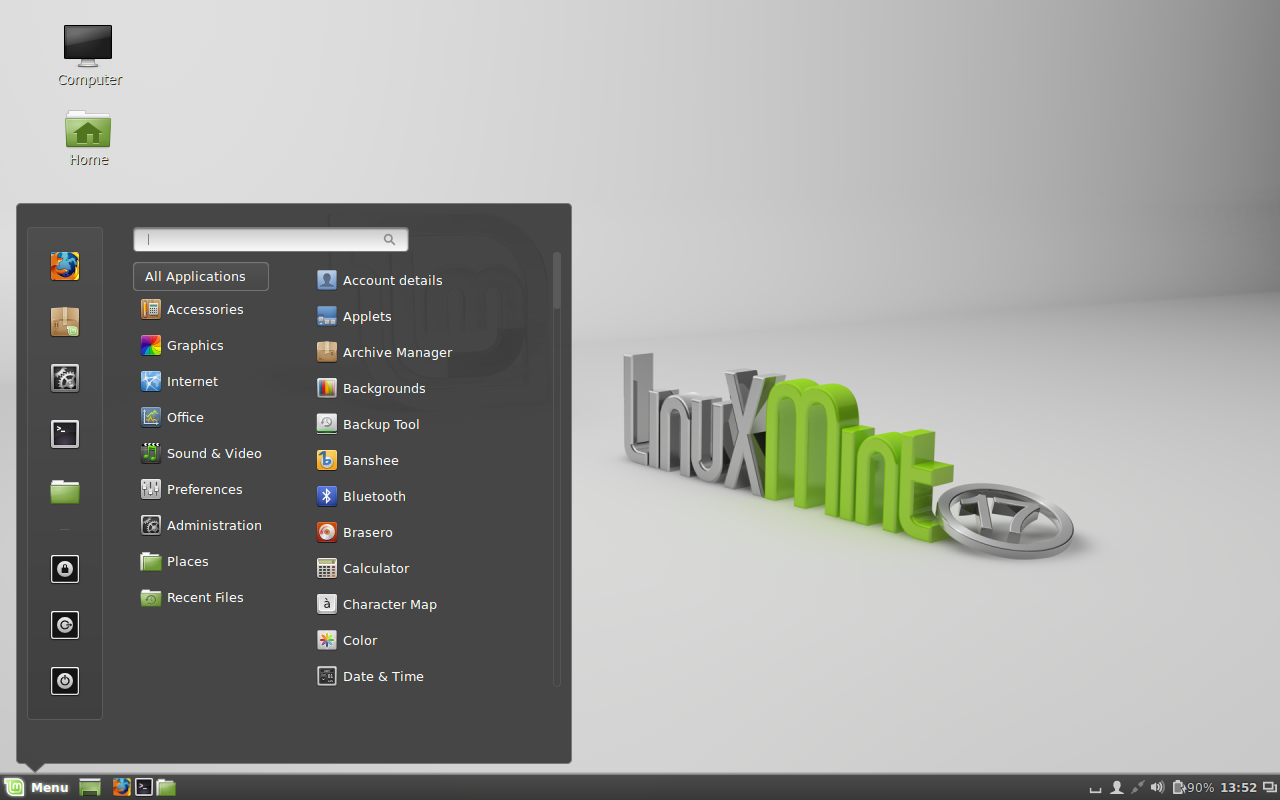
mint

Cinnamon came to be because the Linux Mint team did not feel the direction of GNOME 3 fit in with theirs. So they forked GNOME 3 and completely reworked the interface. What came of that was an interface that seems a melding of GNOME 3 and GNOME 2. Cinnamon allows even more configuration than does GNOME 3 and does a great job of harkening back to GNOME 2, but does so with a nod to a more modern look. Even though Cinnamon has a decidedly Linux look and feel, any user would instantly be at home working within this environment. With a “start button”, panel, and system tray, Cinnamon holds strong to the desktop metaphor that has worked so well for so long. But if you don’t like that look… change it. Cinnamon can be highly tweaked in numerous ways (move panels, add desklets, add/remove effects, and more).

Best user for Cinnamon: Anyone. If you’re familiar with the standard desktop, you’ll be right at home with Cinnamon.

KDE

kde5

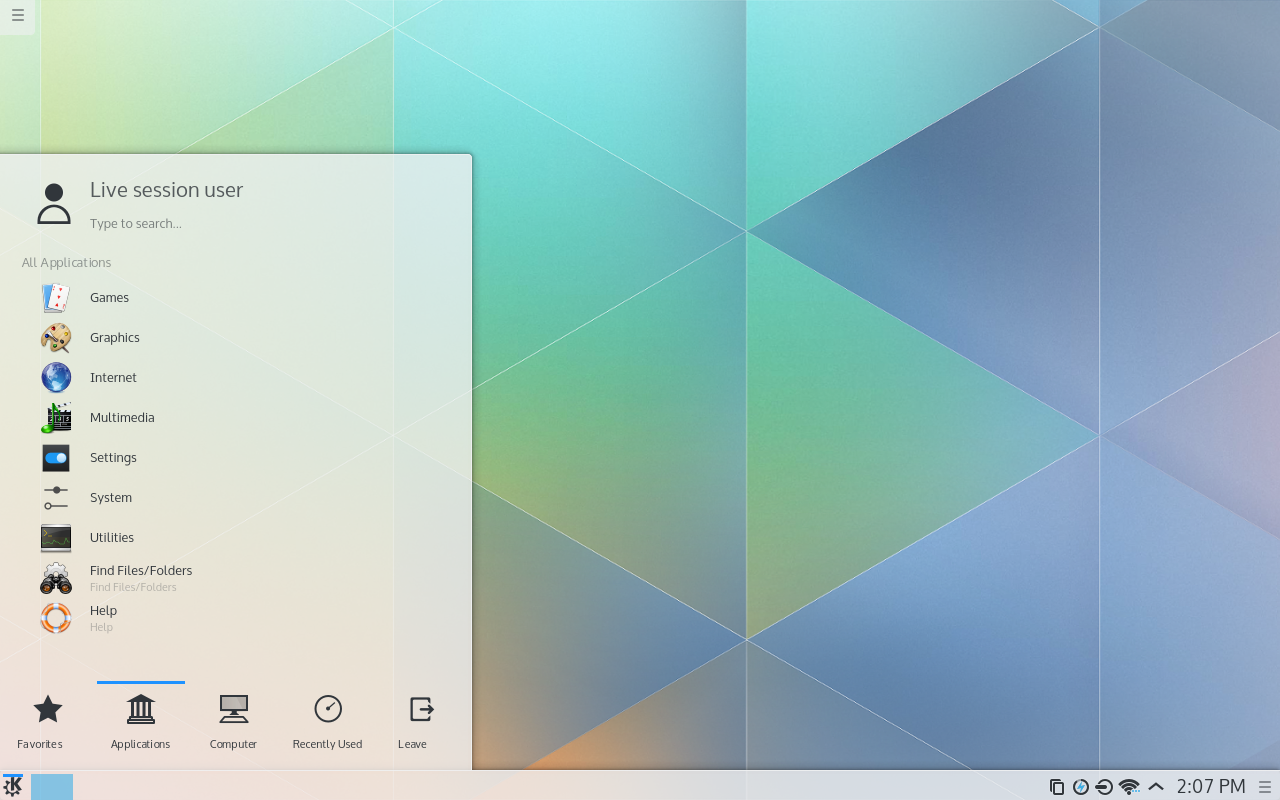
KDE was one of the first “full-blown” desktop environments for the Linux operating system. It’s only been through a couple of major changes (from 3.x to 4.x being the largest), so what it does… it does very well. The KDE desktop is about to flip the switch on the latest version of this long-standing environment — a change that brings a serious speed increase to the environment. Even with the new major version releasing, you won’t find much change in the interface. KDE has always held fast with the old metaphor. This desktop lives and dies by the start menu/panel/system tray model. Even though it has a bit of modern flair, KDE always seems like a holdover from the Windows XP/7 generation. That’s not a bad thing — especially for those that resist change.

Best user for KDE: Windows users who want the easiest transition from XP or 7 but prefer the traditional desktop metaphor over the modern look and feel.

Enlightenment

bodhi

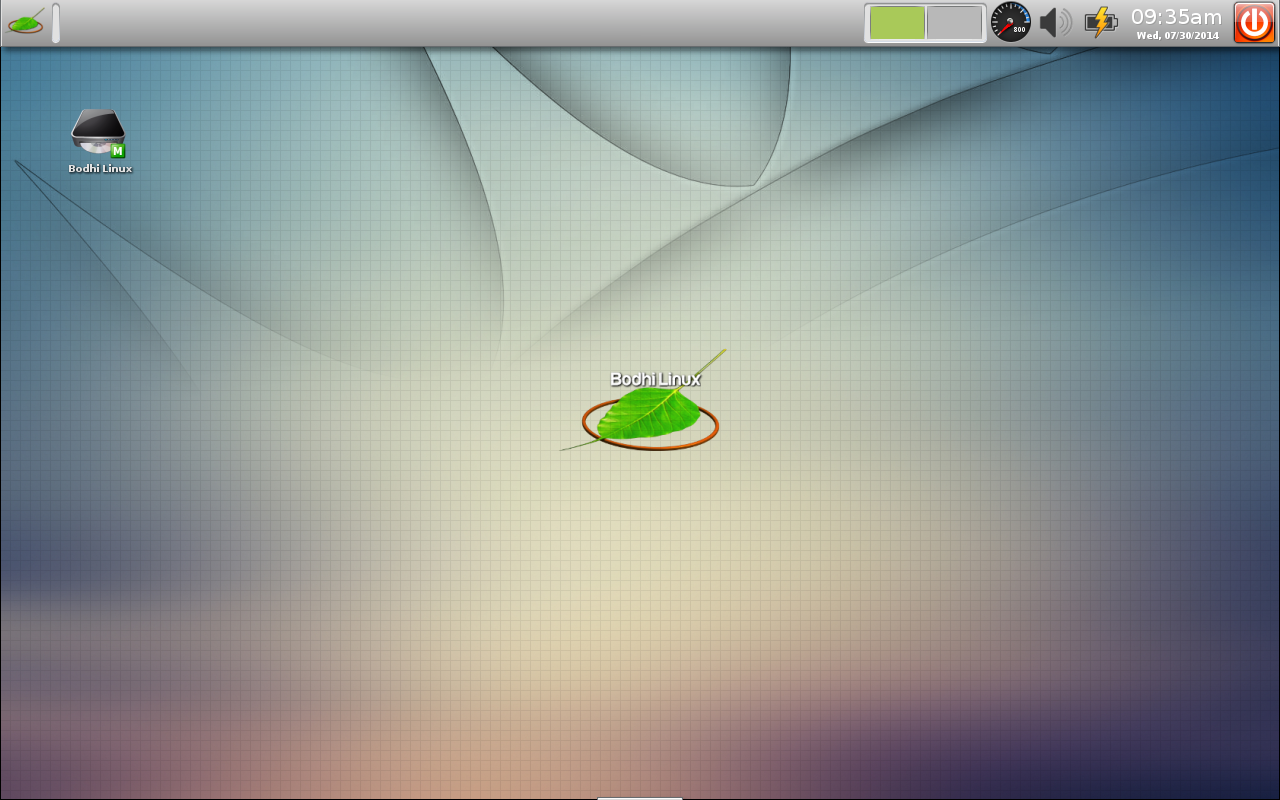
The Enlightenment is a different beast altogether. When you use Enlightenment, you know you’re working within a different environment. It’s as vastly different as it is unique. Gone are the standard start menus and panels. In their place, you’ll find a desktop menu, shelves, and other one-of-a-kind elements. To that end, Enlightenment isn’t for everyone. But if having a desktop that is a beautiful as it is configurable sounds like your cup of tea — this might be a perfect match. Of course, all of that uniqueness and tweak-ability comes with a price… a learning curve. Many users will find Enlightenment a bit tedious out of the box. Users who like to tinker will find Enlightenment a desktop dream come true.

One great element of Enlightenment is the vast amount of themes available. These themes don’t just change the color of the desktop — some change the shape of windows and more.

Best user for Enlightenment: Advanced user who fancies themselves a tinkerer and always likes to change up the look and feel of their desktop.

XFCE

xfce

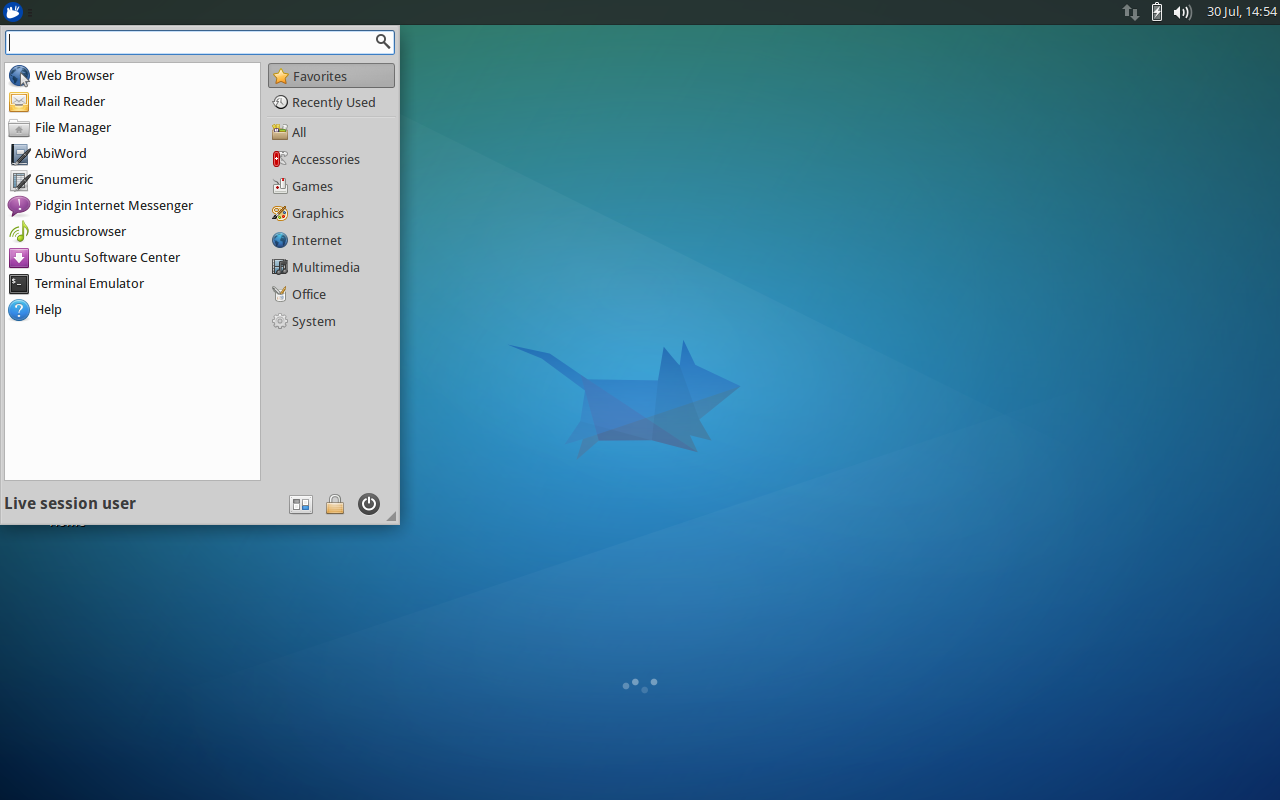
This is a perfect example of just one of the ways in which Linux shines. XFCE is a very lightweight desktop environment. If you have older hardware you want to keep using, XFCE might be the ideal environment. Or, if speed is your primary concern… XFCE will give you just that. But don’t think XFCE skimps on either the features of the customization — you get both. In face, XFCE offers as much customization as any desktop available yet doesn’t sacrifice speed and stability. But XFCE isn’t for everyone. Although not nearly as challenging as Enlightenment, XFCE would present a bit of a configuration challenge for the new user.

Best user for XFCE: Moderately experienced user looking to get the most out of old hardware who just wants as much speed from their desktop as possible.

Deepin Desktop

deepin

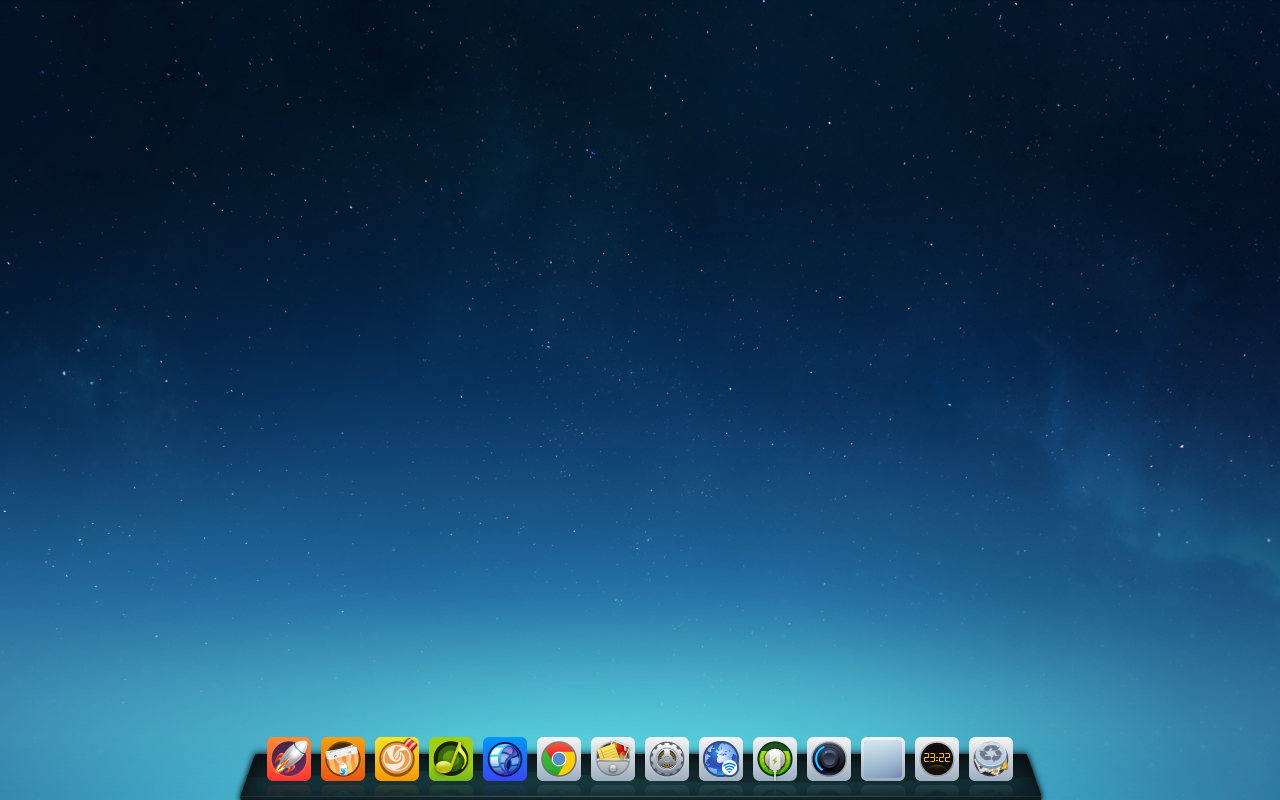
Deepin is a new entry to the Linux landscape, but has already turned a lot of heads. The Deepin Desktop is an incredibly modern take on the interface. This desktop takes bits and pieces from some of the best desktops available and blends them into one, cohesive unit. Deepin Desktop is inspired by GNOME 3, but completely built in-house. It adds an outstanding Dock and one of the finest control panels you’ll see. With the addition of the Dock, the Deepin desktop is easily used by any skill-level user. As the new users continue exploring this new desktop, they’ll be delighted with the features and the modern approach to the interface.

Best user for Deepin Desktop: Any user looking for something different, elegant, and easy to use.

The landscape of the Linux desktop looks stellar at the moment. With so many solid choices to pick from, you’ll find there’s a desktop for anyone — no matter your skill level, no matter your needs. Anyone who says Linux isn’t ready to take over the desktop, hasn’t spent much time working with any of these environments. Linux is ready to be your desktop of choice…which choice will you make?

Rugged DAQ System Runs Real-Time Linux

NI unveiled a rugged 4-slot “CompactDAQ” system for data acquisition and control (DAQ), with real-time Linux, an Atom E3825, and optional sensor modules. Usually, when you have a choice of Windows or Linux, the Windows version costs more. In the case of the National Instruments (NI) CompactDAQ cDAQ-9134 Controller, however, it’s the Linux version that […]

Read more at LinuxGizmos

Smart Cities Market – A Brief Insight 2013 – 2019

The global Smart Cities Market is expected to reach a value of USD 1,265.85 billion by 2019, growing at a CAGR of 14.0% from 2013 to 2019. Increase in migration from rural to urban areas is the major factor responsible for the growth of smart cities market, globally. North America was the largest contributor to the smart cities market and accounted for a share of 34.5% in 2012. This is mainly attributed to the increasing smart grid investments, upgradation in the water infrastructure and transportation sector. The manufacturers in this region are investing more in smart meters and smart grids to provide an excellent foundation for smart city programs.

Browse the full Smart Cities Market Report at http://www.transparencymarketresearch.com/smart-cities-market.html

Among the different application categories, smart transportation segment held the largest share of around 16% in 2012. This was due to the growing demand for advanced traffic management, building a superior environment and reducing the volume of delivery vehicles. At the same time, smart transportation links the modes of transport to improve the traffic flow in both urban and inter-urban networks. Smart transportation system helps in minimizing the economic burden of government by reducing traveling delays and fuel consumption rate. Smart security is the fastest growing segment and is expected to grow at a CAGR of 15.0% during the forecast period from 2013 to 2019. One of the reasons for the growing popularity of smart security is that it avoids third party misuse by imposing high security requirements onto the used technology.
In terms of geography, North America represents largest market for smart cities and is expected to reach a market size of USD 392.41 billion by 2019. The regional governments are taking steps towards reducing the carbon footprint by increasing the use of renewable energy resources. Governments in North America are currently working on an objective to accomplish the target of zero wastage of energy by the year 2020.

Get report sample PDF copy from here: http://www.transparencymarketresearch.com/sample/sample.php?flag=B&rep_id=357

Some of the major players in smart cities market include Siemens AG, ABB Ltd., IBM Corporation, Hitachi Ltd., Alcatel-Lucent S.A., Honeywell international Inc., Alstom S.A., General Electric Company, Telefonaktiebolaget L. M. Ericsson, Cisco Systems Inc., Oracle Corporation and others.

The global smart cities market is segmented as below:
Smart Cities Market, By Application

  • Smart homes
  • Smart buildings
  • Smart energy management
  • Smart industrial automation
  • Smart healthcare
  • Smart transportation
  • Smart security
  • Others (smart water management, smart education, so on)

Browse the full Smart Cities Market Report Press Release : http://www.transparencymarketresearch.com/pressrelease/smart-cities-market.htm

Smart Cities Market, By Geography

  • North America
  • Europe
  • Asia Pacific
  • Rest of the World (RoW)

Browse Technology and Media Market Research Reports @ http://www.transparencymarketresearch.com/technology-market-reports-8.html


Securing SSH with two factor authentication using Google Authenticator

Securing SSH with two factor authentication using Google Authenticator

Two-step verification (also known as Two-factor authentication, abbreviated to TFA) is a process involving two stages to verify the identity of an entity trying to access services in a computer or in a network. This is a special case of a multi-factor authentication which might involve only one of the three authentication factors (a knowledge factor, a possession factor, and an inheritance factor) for both steps. If each step involves a different authentication factor then the two-step verification is additionally two-factor authentication.

Link to original post: http://www.blackmoreops.com/2014/06/26/securing-ssh-two-factor-authentication-using-google-authenticator/

Google’s two-step verification process

Google was one of the first Internet companies to introduce a two-step verification process. To access a Google service using the two-step verification process, a user has to go through the following two stages:

The first step is to log in using the username and password. This is an application of the knowledge factor.
The implementation of the second step requires a mobile phone or the Google Authenticator application, which is an application of the possession factor.

If the user opts to use a mobile phone, he/she has to register his/her phone number with Google. When one attempts to authenticate with username and password, Google will send via SMS a new, unique code to the phone. Receiving the SMS demonstrates that the user has the phone (or, in the case of GSM like networks the appropriate SIM chip).

If the user opts to use the Google Authenticator (or another supported code generator application), he/she simply opens the application, which generates a new code every 30 seconds. This code is to be entered to complete the log in process. As a backup option in case the registered mobile phone or device running Google Authenticator is lost, stolen, or otherwise unavailable, the user can print a set of static single-use backup codes (also the knowledge factor) and store them in a safe place.

The following are some other sites which offer two-step verification service:

  1. Amazon Web Services
  2. ANX
  3. App.net
  4. Apple ID
  5. Authy
  6. Battle.net
  7. Bitstamp
  8. Blockchain.info
  9. Box
  10. Dropbox
  11. eBay
  12. Etrade
  13. Evernote
  14. Facebook
  15. GitHub
  16. GoDaddy
  17. HootSuite
  18. Lastpass
  19. LinkedIn
  20. LocalBitcoins
  21. Microsoft
  22. MongoLab
  23. Namecheap
  24. PayPal
  25. SocialFlow
  26. timetotrade
  27. Tumblr
  28. Twitter
  29. Viaduct
  30. WordPress
  31. Yahoo! Mail
  32. innoview.gr
  33. zoho

Google Authenticator

Google Authenticator implements TOTP security tokens from RFC6238 in mobile apps made by Google, sometimes branded “two-step authentication”. The Authenticator provides a six digit one-time password users must provide in addition to their username and password to log into Google services or other sites. The Authenticator can also generate codes for third party applications, such as password managers or file hosting services. Some versions of the software are open source.
[Source: WikiPedia]
14 - Securing SSH with two factor authentication using Google Authenticator - blackMORE Ops

Note: Google Authenticator doesn’t “call home” to Google — all the work happens on your SSH server and your phone. Google Authenticator is a open-source software, that means you can check the codes yourself. I guess after what happened with openSSL, that’s not a bad idea after all.

In this article I will demonstrate how to secure SSH by setting up Two Factor Authentication (TFA) with Google Authenticator for the following Linux operating systems:

  1. Debian
  2. Ubuntu
  3. Linux Mint
  4. Kali Linux
  5. Red Hat
  6. CentOS
  7. Fedora

Google Authenticator can be used in the following smartphones:

  1. Android,
  2. iOS and
  3. Blackberry.

I am not too sure if you can use this on a Windows Based phone (i.e. new Nokia phones or Windows Mobiles devices). Feel free to try and report back.

App Download Links as follows:

  1. Android: https://play.google.com/store/apps/details?id=com.google.android.apps.authenticator2&hl=en
  2. iOS: https://itunes.apple.com/au/app/google-authenticator/id388497605?mt=8
  3. Blackberry: http://www.google.com/mobile/other

More detailed per device install instructions can be found on this page:
https://support.google.com/accounts/answer/1066447?hl=en

The implementation is exactly same except for some package name differences. So you can implement this in any Linux Operating System that uses these packages.

Requirements

Followings are the requirements for using Google Authenticator on your system:

  1. A PC running Linux
  2. A smartphone
  3. A running SSH server on your machine.

In case you don’t have SSH server running, just follow this guide to install openSSH server.

Step 1: Install dependencies for Google Authenticator Module

You need to have either root or sudo privileges on the machine where you want to secure SSH by enabling Two Factor Authention using Google Authenticator. Login to your machine and use the following commands to install required dependency packages:

On Debian, Kali, Ubuntu, Linux Mint (they all are Debian based system that uses aptitude as package manager i.e. apt-get/aptitude)

apt-get install libpam0g-dev
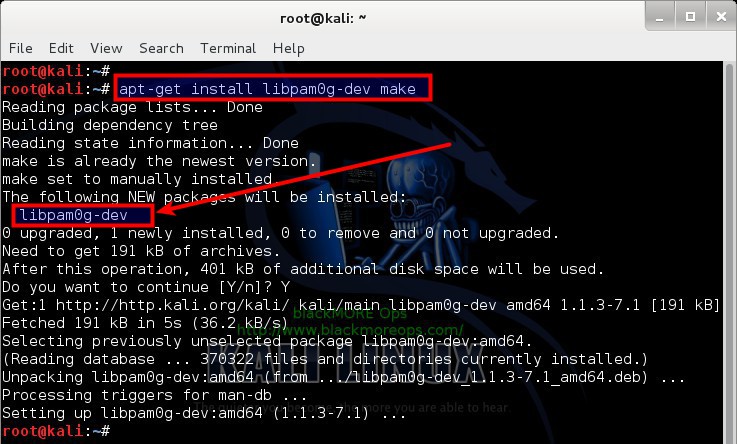
1 - Install dependencies for Google Authenticator PAM module - blackMORE Ops

On Red Hat, CentOS and Fedora (they all are RedHat based where you use yum as the package manager):

yum install pam-devel

That’s it. That should install the necessary dependencies on your system. In case you have a very restricted system where you dont have GCC, make and wget, you can install them using the following command(s):

yum install make gcc wget
(or)
apt-get install make gcc wget
 

Step 2: Download Google Authenticator Module

Google Authenticator is available on GoogleCode website.

Link: https://code.google.com/p/google-authenticator/

You can just copy paste the codes below to download and extract Google Authenticator codes. I personally use Kali Linux, that means I am always logged in as root user, if you’re using any of the other Linux distributions like Debian, Ubuntu, Linux Mint, Red Hat, CentOS or Fedora where you don’t usually login as root user, then you should choose your own directory to download and extract these codes.

To download Source code of the Google Authenticator PAM library module use the following command:

root@kali:~# wget http://google-authenticator.googlecode.com/files/libpam-google-authenticator-1.0-source.tar.bz2

At the time of writing this article, v1.0 was available.
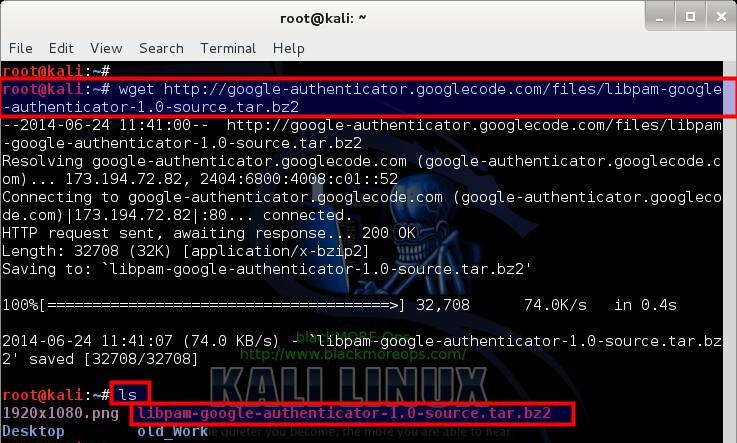
2 - Download Google Authenticator PAM module from GoogleCode - blackMORE Ops

Now extract your tarball:

root@kali:~# tar -xvf libpam-google-authenticator-1.0-source.tar.bz2

Change directory to the extracted folder:

root@kali:~# cd libpam-google-authenticator-1.0/
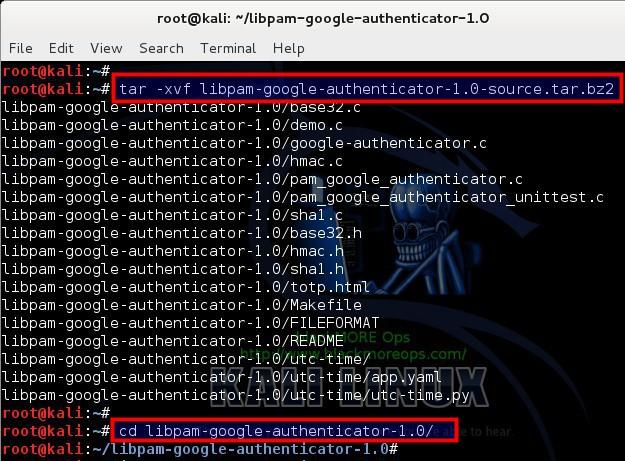
3 - Extract Google Authenticator PAM module from GoogleCode - blackMORE Ops

Step 3: Compile and Install Google Authenticator PAM module

So far we’ve installed dependencies, downloaded and extracted Google Authenticator PAM module. Now we need to compile the codes and install compiled software on our system.
use the following command to compile your downloaded source codes:

root@kali:~/libpam-google-authenticator-1.0# make
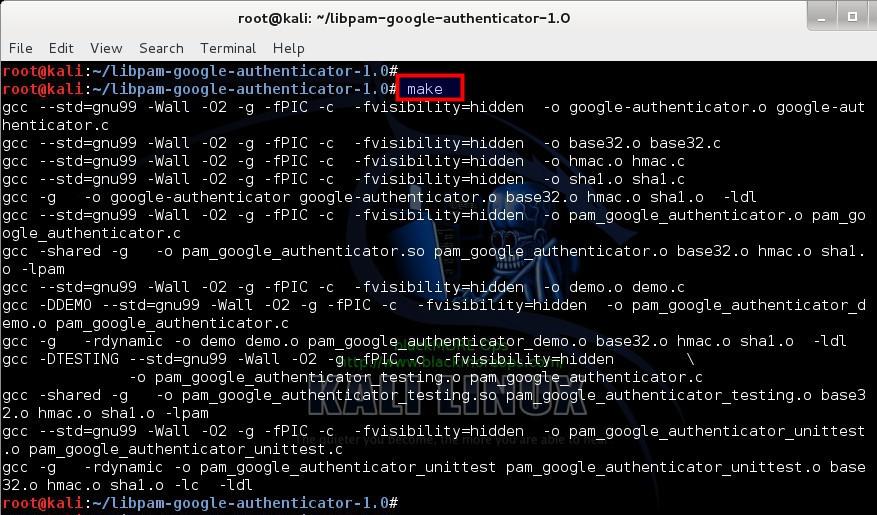
4 - Compile extracted Google Authenticator PAM module from GoogleCode - blackMORE Ops

Now install Google Authenticator PAM module on your system:

root@kali:~/libpam-google-authenticator-1.0# make install
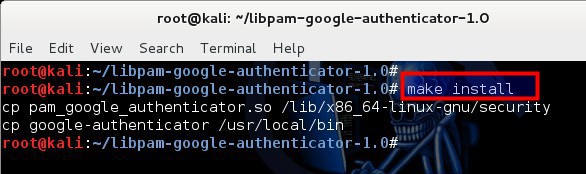
5 - Install compiled Google Authenticator PAM module from GoogleCode - blackMORE Ops

Step 4: Run and configure Google Authenticator

Just run Google Authenticator PAM module from command line to configure it for your system:

Run Google Authenticator PAM module using the following command:

root@kali:~/libpam-google-authenticator-1.0# google-authenticator

It should present you with bunch of question where you get to choose Y or N . Let’s have a quick look at those questions and the outputs.

Do you want authentication tokens to be time-based (y/n) y
https://www.google.com/chart?chs=200x200&chld=M|0&cht=qr&chl=otpauth://totp/root@kali%3Fsecret%3DWKHM6UVJNTPYSPTQ
Your new secret key is: WKHM6UVJNTPYSPTQ
Your verification code is 434260
Your emergency scratch codes are:
  30287010
  70585905
  68748337
  15176712
  38041521

So on your first question, you get a secret key, Your new secret key is: WKHM6UVJNTPYSPTQ and 5 emergency scratch codes. You use the emergency key on your mobile so that you can get the correct verification code next time you login. Emergency codes are used when you’ve lost your mobile.
Next it asks you if you want to use this for your root account? Me being root users, I’ve chosen Yes.

Do you want me to update your "/root/.google_authenticator" file (y/n) y

Next up, it asks you if you want to disallow multiple uses of the same verification code. Unless you have a good reason not to, choose Yes.

Do you want to disallow multiple uses of the same authentication
token? This restricts you to one login about every 30s, but it increases
your chances to notice or even prevent man-in-the-middle attacks (y/n) y

Next part is time based login. From the point of getting the code on your mobile to typing in to your login prompt, 30 seconds should be more than enough. If you’r time sync is bad on your system or you’ve giving the code to someone over phone or you are a VERY slow keyboard warrior, I see no reason to change it. Select Yes here.

By default, tokens are good for 30 seconds and in order to compensate for
possible time-skew between the client and the server, we allow an extra
token before and after the current time. If you experience problems with poor
time synchronization, you can increase the window from its default
size of 1:30min to about 4min. Do you want to do so (y/n) y

Last up, well, of course we want to enable rate-limiting, by enabling this, you ensure that only 3 login attempts every 30s can be made.

If the computer that you are logging into isn't hardened against brute-force
login attempts, you can enable rate-limiting for the authentication module.
By default, this limits attackers to no more than 3 login attempts every 30s.
Do you want to enable rate-limiting (y/n) y

This finishes your initial setup for Google Authenticator PAM module. Now we need to configure PAM and SSH to actually use this technique. This is really awesome.
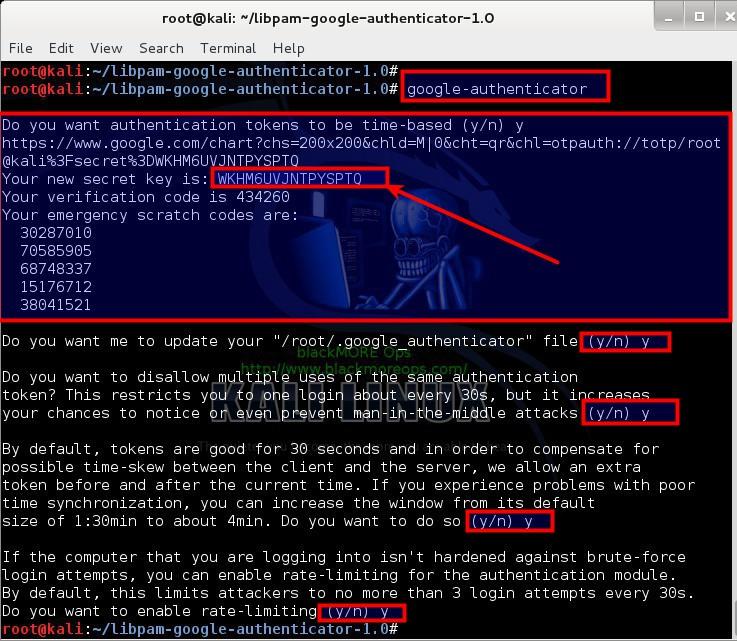
6 - Configure google-authenticator PAM module for the first time - blackMORE Ops


Note: Leave this terminal window open (DO NOT CLOSE). We need the codes for next steps.

Step 5: Configure SSH to use Google Authenticator PAM Module

Open your PAM configuration file /etc/pam.d/sshd

root@kali:~# vi /etc/pam.d/sshd

and add the following line:

auth       required     pam_google_authenticator.so
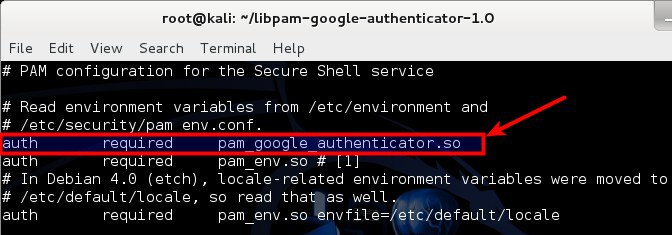
7 - Configure SSHD PAM to use Google Authenticator PAM Module - blackMORE Ops

Next up, open your SSH configuration file /etc/ssh/sshd_config

root@kali:~# vi /etc/ssh/sshd_config

and modify the line containing ChallengeResponseAuthentication no:

ChallengeResponseAuthentication no
(change it to)
ChallengeResponseAuthentication yes
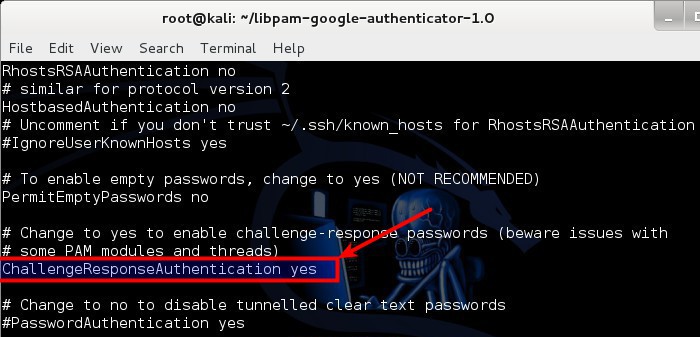
8 - Configure sshd_config PAM to use Google Authenticator PAM Module - blackMORE Ops

To have these changes take effect, restart SSH server:

service ssh restart
(or)
service sshd restart
(or)
/etc/init.d/ssh restart
(or)
/etc/init.d/sshd restart

Why 4 commands? Depending on your Linux distribution, some refers SSH Daemon as SSHD, some as SSH, some got service module installed, some requires you to go into /etc/init.d folder and restart SSH service manually.

Step 6: Configure your SmartPhone for Google Authenticator App

Like I said before, Google Authenticator can be used in the following smartphones:

  1. Android: https://play.google.com/store/apps/details?id=com.google.android.apps.authenticator2&hl=en
  2. iOS: https://itunes.apple.com/au/app/google-authenticator/id388497605?mt=8
  3. Blackberry: http://www.google.com/mobile/other

More detailed per device install instructions can be found on this page:
https://support.google.com/accounts/answer/1066447?hl=en

Assuming you managed to install the App properly, Launch your Google Authenticator app in your SmartPhone.

From Menu select Set up account
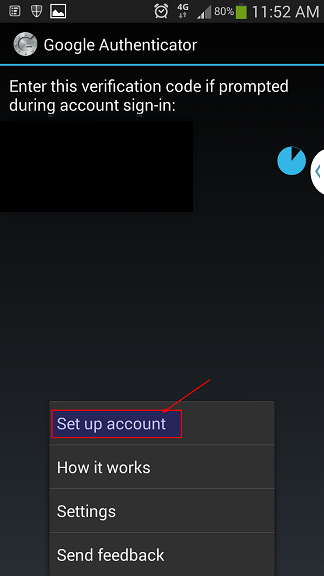
9 - Configure SMARTPhone to use Google Authenticator - blackMORE Ops

Step 6.1: Google Authenticator Setup Account

Remember the secret key you got when you initialized Google-Authenticator PAM module on your computer? I hope you still got that window open. Select Enter provided key.
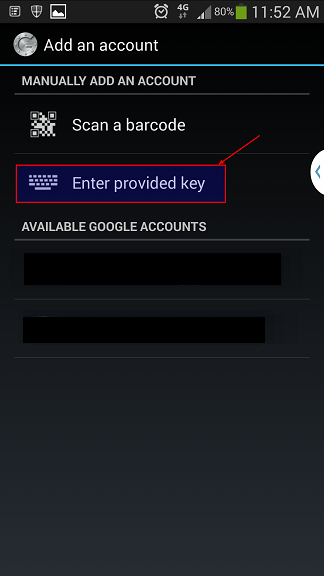
10 - Select Enter provided key on SMARTPhone to use Google Authenticator - blackMORE Ops

Next window you give it a name (something you can remember or relates to your workstation .. i.e. Home Workstation or My SuperAwesome LinuxBox … I’m going to use blackMORE Ops as the name.

Type in your Secret Key on the next field and click on Add button.
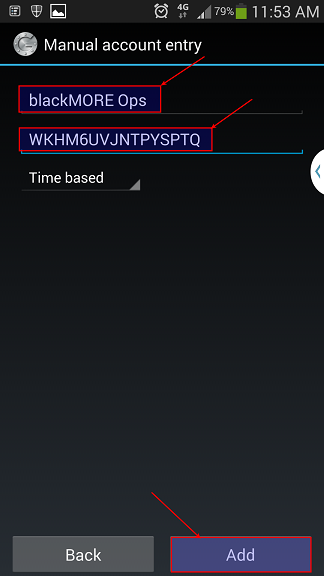
11 - Manually enter name and secret key on SMARTPhone to use Google Authenticator - blackMORE Ops

Once it’s added it will generate a one time verification code (pin number) that will keep changing every 30 seconds.

Step 7: Login to your computer via SSH

Because I am doing all these in the same computer I will just login to localhost (IP: 127.0.0.1) If you got 2 or more machines or VirtualBox/VMWare machines then you can try to login from a different one. One thing to note, you MUST have SSH server running.

In case you don’t have SSH server running, just follow this guide to install openSSH server.

So we type in the following command: (this is where you need to find out your SSH server’s IP address, I’ve shown using localhost or 127.0.0.1 IP but this can be anything from an IP, FQDN or Domain name.)

root@kali:~# ssh 127.0.0.1

and immediately you see a prompt asking for Verification code. This is your Google Authenticator code that you get from your Google Authenticator Mobile App.
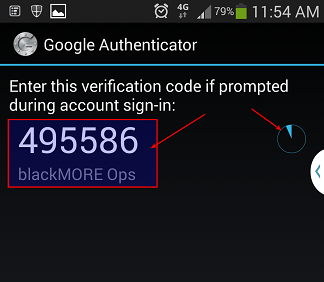
12 - Verification Key on SMARTPhone to use Google Authenticator - blackMORE Ops

Type in the numbers from your SmartPhones Google Authenticator App and then it will prompt your for your password. Type in your password to login now.
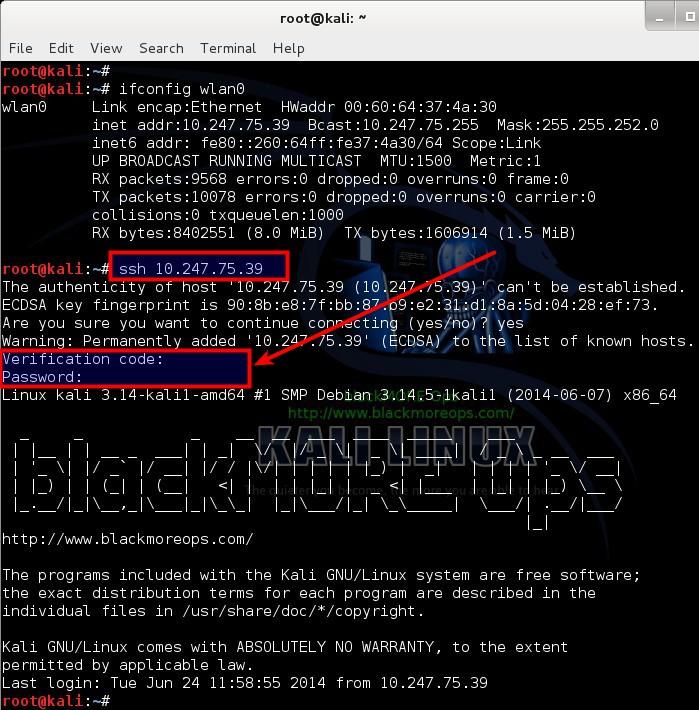
13 - Securely SSH and enter Google Authenticator Verification Key and password to login to SSH - blackMORE Ops

If you failed to type in the Verification code within 30 seconds, you have to try the next code shown on your SmartPhones Google Authenticator App. Awesome? Wouldn’t you agree?

Alternatives to Google Authenticator SmartPhone App:

In case you don’t own a SmartPhone or don’t want to use any, you can use the following add-on on your FireFox or IceWeasel browser:

FireFox/IceWeasel App: GAuth Authenticator https://marketplace.firefox.com/app/gauth-authenticator/
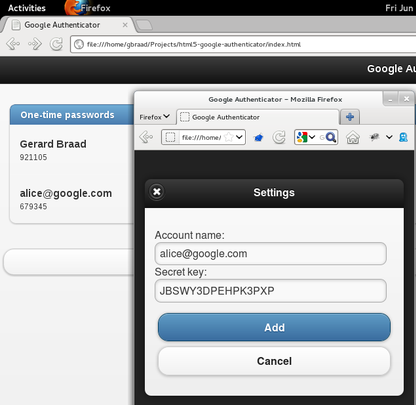
15 - Secure SSH with two factor authentication using Google Authenticator from FireFox- blackMORE Ops

Interesting Fact:

[Update]

Got a response from the dev behind the Google Authenticator add-on for Chrome, Gerard Braad, who explained that Google have taken it down but gave no explanation as to why even after being asked several times.

The Firefox version is still available though and work great. Hopefully he may look into the issue with the Chrome version and re-submit.

Here is the FF version for those wishing to use it:

https://marketplace.firefox.com/app/gauth-authenticator/

Richard

How about that?

[ Source: https://productforums.google.com/forum/#!topic/chrome/P9rTLaeyHjg ]

Conclusion

Securing SSH with two factor authentication using Google Authenticator is possibly the best security model you can out there for free. You can always restrict SSH by IP, change port, rate-limit and do all sorts of crazy stuffs. But those who wants to open SSH to the outside world and implement all these extra security models (i.e. Brute-force detection etc.) have to constantly worry about the fact that who is trying is and what you’ve missed while securing your system. Securing SSH with two factor authentication using Google Authenticator possibly relieves you from that worry and you stop getting emails in the middle of the night saying someone tried to login via SSH X amount of times.

Let me know you thoughts and if you’ve found this useful. Thanks for reading and being on my website. Please share. This would be best for System Administrators on any Linux systems.

Facebook’s Parse Releases PHP SDK, Its First for a Server-Side Language and Its First to Be Open Source

Parse today released the Parse PHP SDK, which you can download yourself from GitHub. The Facebook-owned company says the release is its first SDK for a server-side language as well as the first to be “truly open-source.â€

Until today, accessing Parse from PHP could only be done from the REST API. While a few Parse API wrapper libraries have been released by third parties on GitHub, Parse decided to build a first-party SDK after “many developers requested better PHP support.â€

Read more at The Next Web.