
Eric Anholt, one of the most prolific contributors to Intel’s Mesa graphics driver stack in past years, has departed Intel to instead work for Broadcom…
Read more at Phoronix
Apple Inc, is seen by many in the open source world as a power hungry and closed technology company. Although it might be the case to some extent, Apple has in fact contributed quite some open source code. The Darwin kernel based on FreeBSD, Webkit which is a open source browser engine and CUPS web utility to name a few are some of the projects Apple has released under GPL. The CUPS web utility is one project that many Linux users simply can’t live without. Based on the Internet Printing Protocol (IIP), CUPS has become a standard printing service in many Linux distros, especially the ones that are based no Debian. Many Debian-based distributions like Ubuntu, Linux Mint, Elementary OS, etc are now bundled with the Common Unix Printing System. It was originally developed for Mac OS X and since it was made open source is now used by UNIX like operating systems.
If ou are using a Linux computer and wish to print from it, you should make use of CUPS to configure your printer. Let us take a look at how you can connect a printer with this print server.

If you get a page that looks something like in the image above, congratulations, you already have CUPS in your system. If you get an error, you should probably install it. For Ubuntu and and its derivative, you can use the following code to install it.
sudo apt-get update
sudo apt-get install cups
You should also check if all the CUPS dependensies are also installed and check its status.
dpkg -l cups
service cups status

Image source: https://db.tt/VnVXRJy0
Choose “Internet Printing Protocol (https)” or “HP Printer (HPLIP)” if you have an HP machine. You can also use the https method to install your HP Printer.
ifconfig
iwconfig
If the printer is connected to a server the IP address of the server is going to the the IP of the printer, as well. It could look something like this, socket://10.34.23.21, along with the port number if need be.

The machine is now ready for printing. You can now configure it, and queue jobs. Using the above steps, you will be able to add multiple printers to your Linux machine.
With the help of CUPS, installing a printer in a Linux machine is not as intimidating as it used to be in the old days even though you might have to use the terminal a couple of times. However on the downside, it might be impossible for you to find the ink level in your printer directly from the machine, like how you could do it with proprietary software provided by the manufacturer for Windows. So the next time you are buying printer ink, make sure you buy more supplies from Ink Station and Amazon for backup.
 Mozilla has been making much noise about the Firefox OS mobile platform, and new $25 phones that it wants to bring to emerging markets. The company plans to deliver a $25 smartphone by the end of this year, the Wall Street Journalreported last week. Now, TIME is pronouncing the move “a brilliant game-changer,” but let’s remember that mobile phones are all about the apps, and even Mozilla officials have stopped short of calling Firefox OS phones “smartphones” in the sense that they run the robust apps that iOS and Android phones do.
Android and iOS smartphones have the best apps available for them precisely because they dominate the market and attract developers. In the final quarter of 2013, Android OS had 78% of smartphone users, Apple’s iOS had 18% and Windows Phone and other platforms grabbed the remaining share.
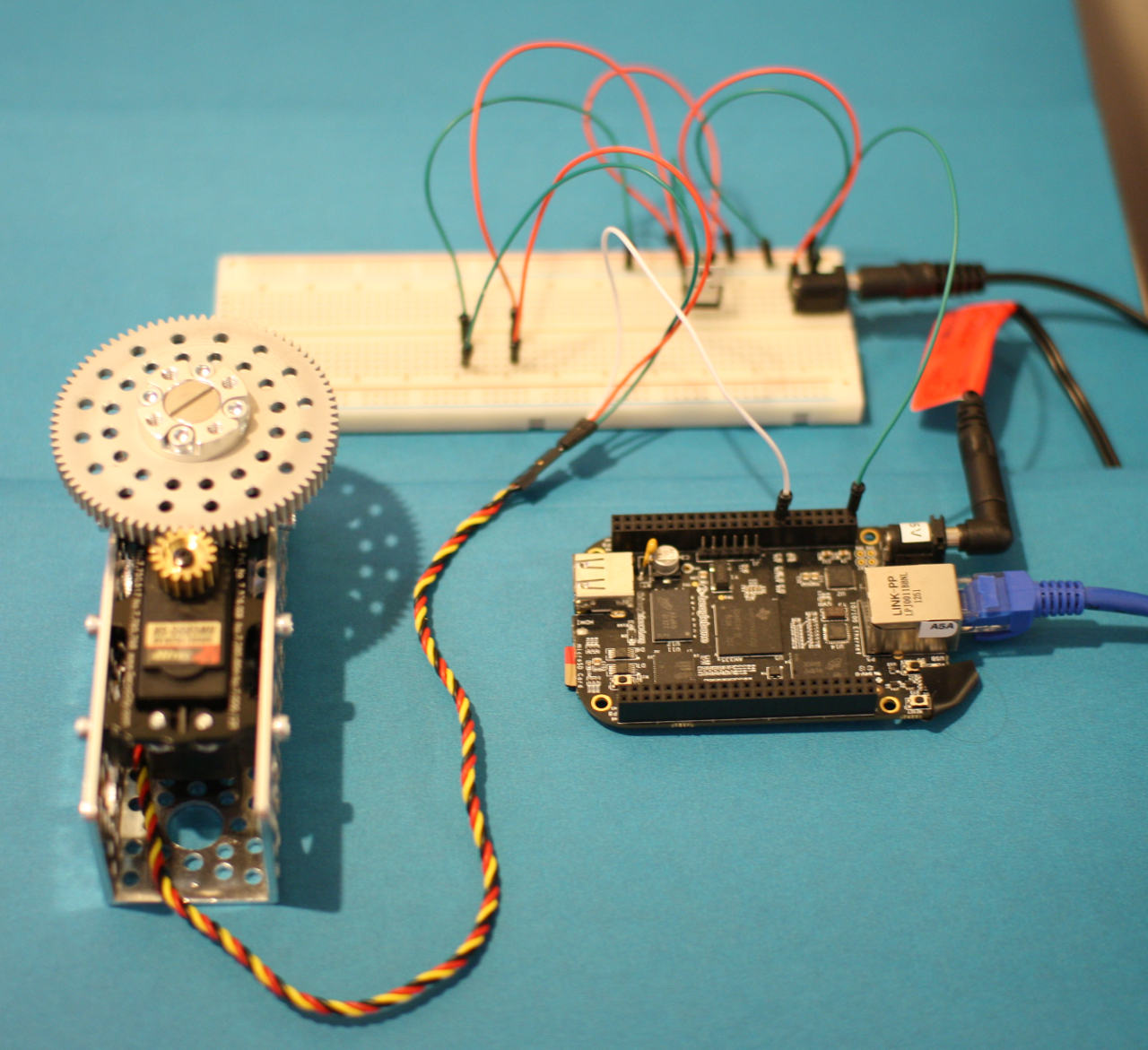 Servo motors can rotate to a specified angle and hold that angle against a resistive force. This makes Servos great for creating a DIY pan-and-tilt camera system, for moving panels through a limited distance in a model aircraft where the wind might provide resistance to that movement, and in many cases in robotics where you might need to rotate something to a specific angle. In this tutorial, we’ll cover how to connect and control a servo motor with a BeagleBone black running Linux.
Higher torque servos can run at a higher voltage than a BeagleBone Black will supply, so you might need to bring an external power source into the mix. To make things interesting, the servo for this article needs at least 6 Volts and is mounted into a gearbox to trade some RPM for even more torque.
Using an external power source means you only need two pins from the BeagleBone Black, a PWM pin (the white wire in the figure, above) to control the Servo and a ground pin to ensure that both power sources have a common ground (green wire) to operate from.
The BeagleBone Black is a small 1 Gigahertz (Ghz) ARM machine with 512 Megabytes (MB) of RAM, 2 Gigabytes (GB) of on-board flash memory, and most importantly, two headers each with two rows of pin sockets ready for your next embedded project. In this series on the BeagleBone Black we have seen how to use the Linux interface allowing us to access chips over SPI and receive interrupts when the voltage on a pin changes.
Inside a servo motor you will find the motor itself, a feedback mechanism, and a little curcuit to control things. Many servos offer a limited range of motion, for example 90, 180, or 360 degrees of motion. Because of the range of motion, a servo is controlled by telling it what angle you would like the motor to hold. That said, some servos have no restriction and offer continuous rotation. The feedback mechanism inside a servo might be a potentiometer which allows the servo to know what angle it is currently holding. This way you can tell the servo to move to 120 degrees and it will make adjustments itself to move the motor to that angle and then continue to hold that angle.
There are normally three wires for a servo: power, ground, and a signal wire. This article uses an Hitec HS-5685MH servo. For this Hitec servo the power wire is red, ground is black, and the signal wire is yellow. This servo offers a good amount of torque and can run on 6 to 7.4 Volts (V) of power. It is interesting to note that the lock/stall power requirements of the Hitec HS-5685MH is 2 Amps when you are powering it at 6 V.
Because of the high power requirements of this servo, trying to run it directly off the Arduino or BeagleBone Black power output ports is a bad idea. So I powered it off a power source external to the BeagleBone Black or Arduino and connected the ground on the BeagleBone Black/Arduino to the ground on the external servo power curcuit to establish a common ground. I found that the servo didn’t want to operate at 5 V –no surprise as this is out of the servo’s spec. At 6 V the servo moved smoothly. The maximum voltage of the servo at 7.4 V should allow many battery options to provide the best torque the servo can offer.
The signal wire uses Pulse Width Modulation (PWM) to allow you to tell the servo the angle you would like it to rotate to. When using PWM to control a servo, time is divided into 20 millisecond (ms) blocks. Inside a block if the voltage is high for 1.5 ms and then low for the remainder of the block, the servo will sit at about the middle of its range, at least for the Hitec servos uses in this article. If the signal is high for only 1 ms of the 20 ms block of time then the servo will move to a smaller angle than its middle. Likewise holding the signal high for 2 ms will cause the servo to move to a larger angle than its mid-point.
Some servos are available allowing motion through many different ranges of angles. For this article the Hitec HS-5685MH was configured for motion through about 400 degrees. The block of time (20 ms in this case) is called the period of the signal and the time the voltage is high (1-2 ms) is the duty cycle.
Even with a high torque servo you might want to trade some of your RPM for an increase in torque. The image above shows the servo mounted in a ready-made Servo Gearbox which is then mounted inside some Actobotics aluminum channel. One little catch here is that the brass servo gear will have to rotate many times in order for the larger alloy gear to rotate once.
To help keep servo control simple, the feedback mechanism in the servo is removed from the servo and attached to the larger alloy gear. This way a servo that was going to offer a 360-degree maximum rotation will spin many times in order to provide a 360-degree rotation of the larger alloy gear. Of course, you have to use a servo that can fully rotate many times. Some servos have physical stoppers within them that do not permit full rotation. By moving the feedback mechanism you can directly control the angle the alloy gear is holding using the same PWM range that the servo can understand.
As I have done in the past, I first started out by interacting with the hardware using an Arduino and then moved to replace the Arduino with a BeagleBone Black. Thinking in milliseconds made the numbers in the above discussion easier, but in a program it can be more convenient to use microseconds (µs) throughout to avoid mixing milliseconds and microseconds. The following program sweeps the Hitec HS-5685MH servo through about 360 degrees of rotation. The first 20 ms (20,000 µs) block of time will only have a high voltage for 800 µs of time. This will steadily increase up to being high 2400 µs of the 20,000 µs time block.
void setup()
{
    pinMode(5, OUTPUT);
    digitalWrite(5, LOW);
}
int periodTimeSlice = 20 * 1000;
int minPulseTimeSlice = 800;
int maxPulseTimeSlice = 2400;
int TimeDelta = 1;
void loop()
{
    int c = minPulseTimeSlice;
    for( c = minPulseTimeSlice; c <= maxPulseTimeSlice; c += TimeDelta )
    {
        digitalWrite(5, HIGH);
        delayMicroseconds( c );
        digitalWrite(5, LOW);
        delayMicroseconds( periodTimeSlice - c );
    }
    for( c = maxPulseTimeSlice; c >= minPulseTimeSlice; c -= TimeDelta )
    {
        digitalWrite(5, HIGH);
        delayMicroseconds( c );
        digitalWrite(5, LOW);
        delayMicroseconds( periodTimeSlice - c );
    }
}
The Arduino servo library provides a much more convenient interface to controlling servo motors. The above code was deliberately written at a low level without using any specific PWM hardware so that the PWM output is explicit.
I started testing using an HS-422 servo and the BeagleBone Black. Given the the lower power requirements of the HS-422 I decided to run it directly from the 5 V output on the BeagleBone Black. At first I started tinkering around in the promising looking /sys/class/pwm directory tree which is documented in the Linux kernel documentation files. After a while with no success using /sys/class/pwm I moved on to using the device tree overlays in /lib/firmware.
One little trick here is that if you enable two PWM outputs which are driven by the same chip then you cannot change the period of the PWM. You get something like “write error: Invalid argument” when you try to write to the period file. If you get the write error, try disabling other PWM overlays so that there is only one use of the PWM chip. An example of removing an overlay is shown at the end of the article. The default period is 500000 nanoseconds, or half a millisecond which is too short for servo control.
My initial plan was to use pin 22 on header 9 which is the first PWM chip. That overlay failed to load because there was a conflict with the SPI bus overlay, shown below. So the device tree overlays protected a potential conflicted use of some pins! The PWM on P9_16 was able to load without conflict.
A word of caution before you enable a PWM output, for me they always started with default values and one of these is to start in a running state. So you will want to move to the pwm_test_P9_16 directory fairly quickly and disable the PWM output. I tried changing the dts file to tell the Linux kernel that I wanted the PWM interface to be started in a non-running mode and without inverted output. Unfortunately my many attempts did not result in any change from the default values when setting up the slot.
root@beaglebone:/lib/firmware# uname -a
Linux beaglebone 3.8.13 #1 SMP Thu Sep 12 10:27:06 CEST 2013 armv7l GNU/Linux
root@beaglebone:/lib/firmware# echo bone_pwm_P9_22 > /sys/devices/bone_capemgr*/slots
-bash: echo: write error: File exists
root@beaglebone:/lib/firmware# dmesg | tail
[ 4510.813900] bone-capemgr bone_capemgr.9: part_number 'bone_pwm_P9_22', version 'N/A'
[ 4510.814095] bone-capemgr bone_capemgr.9: slot #30: generic override
[ 4510.814353] bone-capemgr bone_capemgr.9: bone: Using override eeprom data at slot 30
[ 4510.814412] bone-capemgr bone_capemgr.9: slot #30: 'Override Board Name,00A0,Override Manuf,bone_pwm_P9_22'
[ 4510.818521] bone-capemgr bone_capemgr.9: slot #30: Requesting part number/version based 'bone_pwm_P9_22-00A0.dtbo
[ 4510.818589] bone-capemgr bone_capemgr.9: slot #30: Requesting firmware 'bone_pwm_P9_22-00A0.dtbo' for board-name 'Override Board Name', version '00A0'
[ 4510.818654] bone-capemgr bone_capemgr.9: slot #30: dtbo 'bone_pwm_P9_22-00A0.dtbo' loaded; converting to live tree
[ 4510.819308] bone-capemgr bone_capemgr.9: slot #30: bone_pwm_P9_22 conflict P9.22 (#9:BB-SPIDEV0)
[ 4510.828819] bone-capemgr bone_capemgr.9: slot #30: Failed verification
root@beaglebone:/lib/firmware# echo bone_pwm_P9_16 > /sys/devices/bone_capemgr*/slots
# cat /sys/devices/bone_capemgr*/slots
 0: 54:PF---
 1: 55:PF---
 2: 56:PF---
 3: 57:PF---
 4: ff:P-O-L Bone-LT-eMMC-2G,00A0,Texas Instrument,BB-BONE-EMMC-2G
 5: ff:P-O-- Bone-Black-HDMI,00A0,Texas Instrument,BB-BONELT-HDMI
 6: ff:P-O-- Bone-Black-HDMIN,00A0,Texas Instrument,BB-BONELT-HDMIN
 7: ff:P-O-L Override Board Name,00A0,Override Manuf,cape-bone-iio
 8: ff:P-O-L Override Board Name,00A0,Override Manuf,am33xx_pwm
 9: ff:P-O-L Override Board Name,00A0,Override Manuf,BB-SPIDEV0
10: ff:P-O-L Override Board Name,00A0,Override Manuf,gpio-P9.12
11: ff:P-O-L Override Board Name,00A0,Override Manuf,gpio-P9.15
12: ff:P-O-L Override Board Name,00A0,Override Manuf,gpio-P9.23
14: ff:P-O-L Override Board Name,00A0,Override Manuf,gpio-P9.26
15: ff:P-O-L Override Board Name,00A0,Override Manuf,gpio-P9.27
29: ff:P-O-L Override Board Name,00A0,Override Manuf,bone_pwm_P9_16
Once the pwm_test_P9_16 directory exists you’ll want to move to it and set run to 0 to disable output while you configure the PWM. Below, I set the period to 20 ms and a starting duty of 1 ms, after enabling output again the servo will swing to left of its central position. After echoing 2 ms into the duty the servo should move to right of its center.
root@beaglebone:# cd /sys/devices/ocp.3/pwm_test_P9_16.*
# echo 0 >run
# cat period
500000
# cat duty
0
# cat polarity
1
# echo 0 > polarity
# echo 20000000 > period
# echo 1000000 > duty
# echo 1 >run
# echo 2000000 > duty
# echo 0 >run
Replacing the HS-422 servo with the channel mount Servo Gearbox I again ran the Servo from an external 6 V power source and connected the ground pin to the ground of the external power supply used for the servo. I found the range of 360 degree movement could almost be achieved using a range of 1 to 2 ms pulse. The minimal useful pulse was about 880,000 ns up to about 2,200,000 ns. Writing a value outside that range caused the servo to continually rotate instead of settling at any specific angle.
If you want to remove an overlay for a PWM output simply view the slots file, see the slot number of what you want to remove and write -1 * slot-number back to the slots file as shown below.
root@beaglebone:/lib/firmware# echo bone_pwm_P9_16 > /sys/devices/bone_capemgr*/slots
# cat /sys/devices/bone_capemgr*/slots
 0: 54:PF---
 1: 55:PF---
 2: 56:PF---
 3: 57:PF---
 4: ff:P-O-L Bone-LT-eMMC-2G,00A0,Texas Instrument,BB-BONE-EMMC-2G
 5: ff:P-O-- Bone-Black-HDMI,00A0,Texas Instrument,BB-BONELT-HDMI
 6: ff:P-O-- Bone-Black-HDMIN,00A0,Texas Instrument,BB-BONELT-HDMIN
 7: ff:P-O-L Override Board Name,00A0,Override Manuf,cape-bone-iio
 8: ff:P-O-L Override Board Name,00A0,Override Manuf,am33xx_pwm
...
15: ff:P-O-L Override Board Name,00A0,Override Manuf,gpio-P9.27
29: ff:P-O-L Override Board Name,00A0,Override Manuf,bone_pwm_P9_16root@beaglebone:/lib/firmware# echo -29 > /sys/devices/bone_capemgr*/slots

It seems that device tree overlays play a key role in accessing much of the hardware on the BeagleBone Black. With a SoC that can use its pins for many different purposes depending on how it is configured, the device overlays can save you from trying to accidentally reuse some pins which might be already reserved for other purposes. Once a PWM directory is setup in /sys/devices/ocp.3 controlling a servo from the BeagleBone Black is as simple as writing a number to a file. Tune in next time when we'll control some gearmotors to move a robot base around using Bonescript.
We would like to thank ServoCity for supplying the gearbox and servo used in this article.