
500 million wearable tech articles will be sold annually by 2020, Intel believes – and they won’t be smartwatches.
Read more at Enterprise Open Source Toolkit
Apple Inc, is seen by many in the open source world as a power hungry and closed technology company. Although it might be the case to some extent, Apple has in fact contributed quite some open source code. The Darwin kernel based on FreeBSD, Webkit which is a open source browser engine and CUPS web utility to name a few are some of the projects Apple has released under GPL. The CUPS web utility is one project that many Linux users simply can’t live without. Based on the Internet Printing Protocol (IIP), CUPS has become a standard printing service in many Linux distros, especially the ones that are based no Debian. Many Debian-based distributions like Ubuntu, Linux Mint, Elementary OS, etc are now bundled with the Common Unix Printing System. It was originally developed for Mac OS X and since it was made open source is now used by UNIX like operating systems.
If ou are using a Linux computer and wish to print from it, you should make use of CUPS to configure your printer. Let us take a look at how you can connect a printer with this print server.

If you get a page that looks something like in the image above, congratulations, you already have CUPS in your system. If you get an error, you should probably install it. For Ubuntu and and its derivative, you can use the following code to install it.
sudo apt-get update
sudo apt-get install cups
You should also check if all the CUPS dependensies are also installed and check its status.
dpkg -l cups
service cups status

Image source: https://db.tt/VnVXRJy0
Choose “Internet Printing Protocol (https)” or “HP Printer (HPLIP)” if you have an HP machine. You can also use the https method to install your HP Printer.
ifconfig
iwconfig
If the printer is connected to a server the IP address of the server is going to the the IP of the printer, as well. It could look something like this, socket://10.34.23.21, along with the port number if need be.

The machine is now ready for printing. You can now configure it, and queue jobs. Using the above steps, you will be able to add multiple printers to your Linux machine.
With the help of CUPS, installing a printer in a Linux machine is not as intimidating as it used to be in the old days even though you might have to use the terminal a couple of times. However on the downside, it might be impossible for you to find the ink level in your printer directly from the machine, like how you could do it with proprietary software provided by the manufacturer for Windows. So the next time you are buying printer ink, make sure you buy more supplies from Ink Station and Amazon for backup.
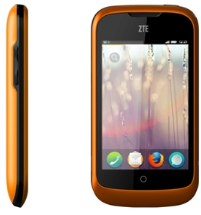 Mozilla has been making much noise about the Firefox OS mobile platform, and new $25 phones that it wants to bring to emerging markets. The company plans to deliver a $25 smartphone by the end of this year, the Wall Street Journalreported last week. Now, TIME is pronouncing the move “a brilliant game-changer,” but let’s remember that mobile phones are all about the apps, and even Mozilla officials have stopped short of calling Firefox OS phones “smartphones” in the sense that they run the robust apps that iOS and Android phones do.
Android and iOS smartphones have the best apps available for them precisely because they dominate the market and attract developers. In the final quarter of 2013, Android OS had 78% of smartphone users, Apple’s iOS had 18% and Windows Phone and other platforms grabbed the remaining share.