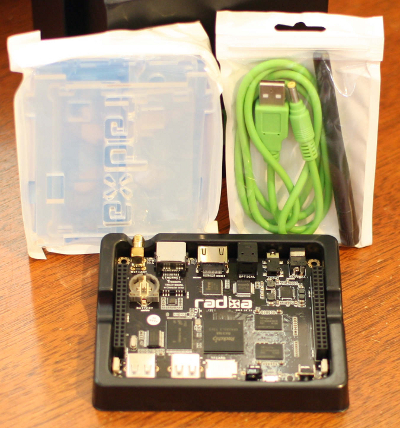
 Many will think of the Raspberry Pi or BeagleBone Black when considering a DIY project running Linux. But if you want to do some CPU-heavy work in your DIY project, like running some opencv code to give your project some vision, the Radxa Rock might be the right choice. Even if you’re not looking at a DIY project, this machine makes for a nice little Linux server.
The Radxa offers 80 pins to interface with other electronics and offers a much faster quad core CPU, up to 2 Gigabytes (GB) of RAM, 8 GB of on-board flash storage and bluetooth for $100. The Radxa also has on-board wifi with an antenna to provide a good wireless link, and comes with a clear, friction fit case.
The Radxa is built around the Rockchip RK3188 Quad core SoC, which it runs at 1.6Ghz. There are two configurations depending on how much RAM, on-board flash storage, and Bluetooth you want. The less expensive Radxa Rock Lite model goes for $80 and has 1GB of RAM, 4GB of flash, and no Bluetooth. Both boards include the quad core CPU, 100-Megabit ethernet, wifi-n, an infrared receiver, HDMI, SPDIF, and headphone output jacks and two blocks of two rows of headers to help connect your DIY project.
The Radxa Lite might give the most bang for your buck. The BeagleBone Black revision C has a single core ARM with 1GB of RAM and 4GB of flash and is offered at $55. The extra $25 for the cheaper Radxa gets you a quad core which is at a higher clock speed, a Mali-400 GPU, wifi-n, audio output ports, a second USB port, and infrared input.
If you are intending to run Linux on a mobile platform, the Radxa’s built-in wifi antenna will help untether your project. You could add a cheap ($20) device running openWRT to give the BeagleBone Black a wifi access point. Though this brings the price of the Radxa ($80-$100 depending on model) and BeagleBone Black Rev C and access point combination ($75) setups closer. The Radxa’s two USB ports also gives it a bit more breathing room, relative to the one on the BeagleBone Black. And the IR receiver on the Radxa should give you a cheap and immediate way to control your DIY code.
Updating the Software
The Radxa has operating system images to run Android Jelly Bean 4.2.2, Linaro 13.11, or an image that can dual boot to either.
The default image that comes with the Radxa is version 4.2.2 of Android. The status bar at the bottom of the screen includes soft keys for volume up and down, a power-off button, and a button to hide the bottom status bar. The status bar can be brought back by clicking at the bottom of the screen, dragging upwards and then releasing the mouse button.
There are a few apps installed by default including ES File Explorer, SuperSU, WifiDisplay, an RKGameController tool, and BootUbuntu. Selecting BootUbuntu opens up a superuser request dialog for an interactive shell. After granting privileges you will see another dialog asking if you want to reboot into Ubunutu. Then after a while you should see a desktop running Linaro version 13.08. As the latest Linaro offered is version 13.11 the first order of business was to update the software.
There are many methods to flash new software onto the Radxa including a closed source tool from Rockchip and an open source tool with a GUI. Unfortunately it seems the open source rkflashkit can not flash the update.img file which is used to update the complete installation. So it seems, for now at least, you are left having to use a closed source tool in order to flash an updated operating system image to the Radxa. The instructions mention running the closed source tool as root on your desktop Linux machine. Instead of this you might like to add a minimal privileged user account and allow all accounts full access to the Radxa OTG interface by adding the following rules to your desktop Linux machine by placing them in “/etc/udev/rules.d/50-radxa.rules”.
$ cat /etc/udev/rules.d/49-radxa.rules
SUBSYSTEMS=="usb", ATTRS{idVendor}=="2207", ATTRS{idProduct}=="310b", MODE:="0666"
With the above in place you can reconnect the USB link from your desktop machine to the OTG port of your Radxa and upgrade your Radxa using any user account on the desktop machine. No need to give root access to the closed source upgrade_tool. First put your Radxa into recovery mode by holding down the recovery button on the Radxa and connect its OTG port to any USB port on the desktop Linux machine. The recovery button is on the opposite side of the Radxa board to the power button. If in doubt choose the side button that is not near the OTG port.
[ norights@desktop ]$ ./upgrade_tool  uf /tmp/radxa_rock_ubuntu_desktop_140318_update.img
Loading firmware...
Support Type:RK31       FW Ver:1.0.00   FW Time:2014-03-18 16:22:24
Loader ver:2.08 Loader Time:2013-12-02 18:58:57
Upgrade firmware ok.
The /etc/release files showed version 13.09 of Linux after the reflashing. I found that the wired ethernet was not automatically brought up so had to enable that from the panel first. Then I changed the root password. To login as root, open a local XTerm and type “sudo su -l”, I found that no password was required for that. Then the root password can be changed as desired.
I found that the ubuntu_desktop_140318 had neither NFS client or server support. While I could install the nfs-kernel-server package there was no kernel module to support it. To get around that you may have to download a matching updated modules file and expand that into /lib/modules. After I did this I had NFS support and could mount a filesystem from the Radxa using the below:
[root@desktop mnt]# mount
  -o soft,intr,tcp,bg,noatime,nodiratime,rsize=32768,wsize=32768,async
  radxa:/tmp /mnt/tmp
Getting at those 80 pins
Just as one would expect, the GPIO interface is exposed at /sys/class/gpio by the Linux kernel.
root@radxa:/sys/class/gpio# ls -l
total 0
--w------- 1 root root 4096 Jan  1 12:00 export
lrwxrwxrwx 1 root root    0 Jan  1 12:00 gpiochip160 -> ../../devices/virtual/gpio/gpiochip160
lrwxrwxrwx 1 root root    0 Jan  1 12:00 gpiochip192 -> ../../devices/virtual/gpio/gpiochip192
lrwxrwxrwx 1 root root    0 Jan  1 12:00 gpiochip224 -> ../../devices/virtual/gpio/gpiochip224
lrwxrwxrwx 1 root root    0 Jan  1 12:00 gpiochip256 -> ../../devices/virtual/gpio/gpiochip256
--w------- 1 root root 4096 Jan  1 12:00 unexport
The TWI interfaces are exposed in /dev as well, though SPI is not exposed by default.
# ls -l /dev/i2c*
crw------- 1 root root 89,  0 Jan  1 12:00 /dev/i2c-0
crw------- 1 root root 89,  1 Jan  1 12:00 /dev/i2c-1
crw------- 1 root root 89,  2 Jan  1 12:00 /dev/i2c-2
crw------- 1 root root 89,  3 Jan  1 12:00 /dev/i2c-3
crw------- 1 root root 89,  4 Jan  1 12:00 /dev/i2c-4
crw------- 1 root root 10, 51 Jan  1 12:00 /dev/i2c_detect
# ls -l /dev/*spi*
ls: cannot access /dev/*spi*: No such file or directory
Performance Testing
For wifi performance, an rsync to the Radxa from a Fedora machine got up to around 6.9 Megabytes per second (Mb/s), though it did drop to 3.3 Mb/s on occasion. This was connected over a D-Link 855 wifi-n access point. Overall I got about 6.5 Mb/s while copying a 900 Mb file from an NFS server hosted on the Radxa to a desktop machine over wifi.
A single job compile of openssl 1.0.1e took a little over 8 minutes. For comparison, the BeagleBone Black took over 20 minutes. I found that Linaro had issues performing a multi-job compile of the openssl codebase. Cipher performance was similar or better than the ODroid-U2.
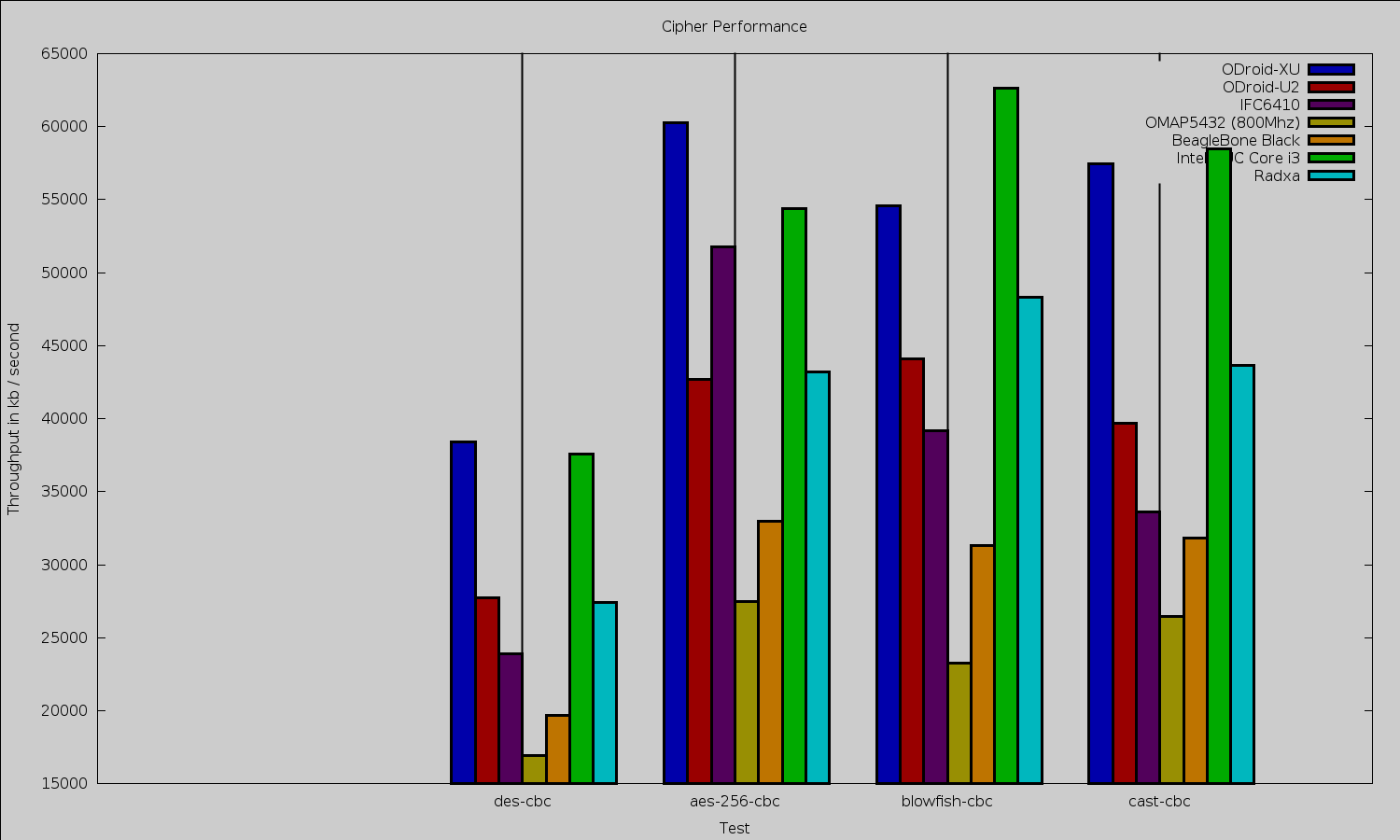
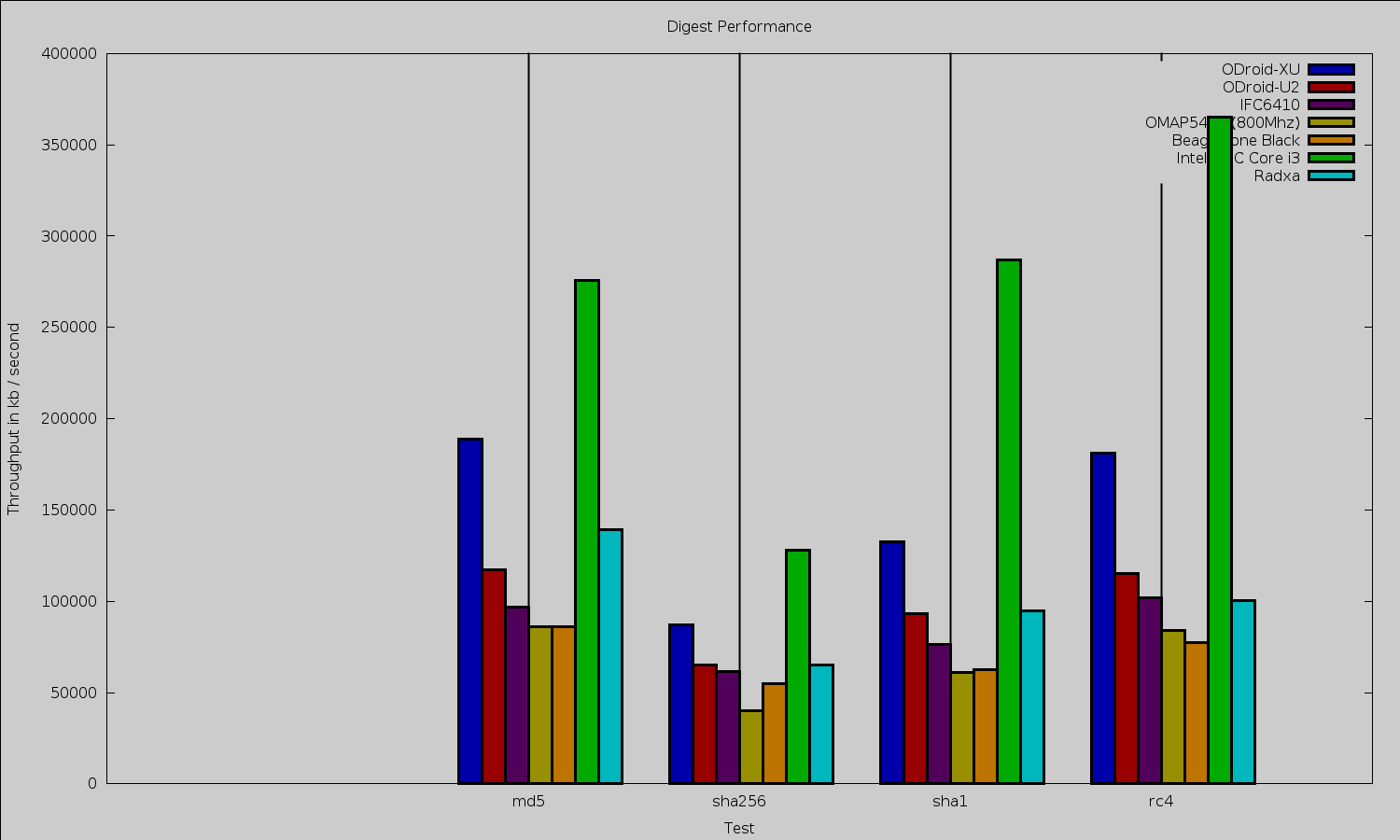
Digest performance was similar to cipher performance with the Radxa competing with the ODroid-U2. Notice that the Radxa offers significantly better MD5 digest performance than the U2 though.
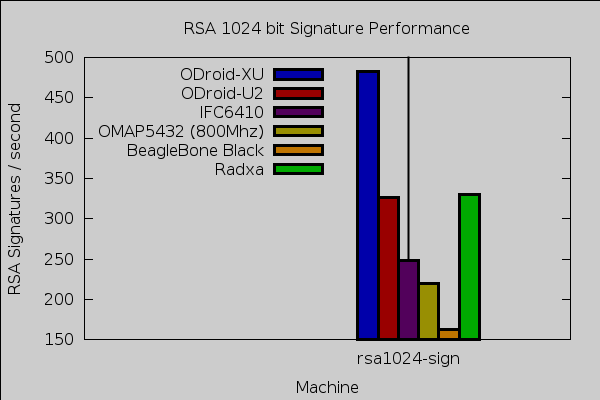
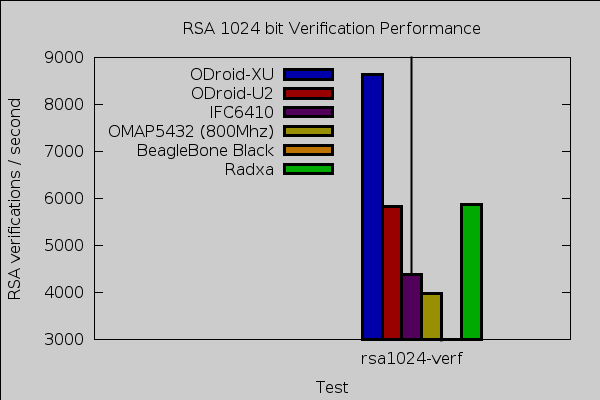
RSA signature and verification performance continued this trend with the Radxa being in the ballpark of the ODroid-U2 for both tests. For these benchmarks the Radxa has a clear performance advantage over the BeagleBone Black.
The Radax used for this review had 2Gb of RAM, so bonnie++ would need 4 GB of flash in order to avoid the disk cache giving false performance numbers. While it is possible to run bonnie++ in its default mode using 4GB of disk, I limited file size, as shown below, in order to allow comparisons with other machines.
me@radxa:~/bonnie$ bonnie++ -f -m radxa -s 200 -r 100 -d `pwd`
For sequential output I got 7.4 Mb/s with rewrite at 7.6 Mb/s. Around 10.5 and 15.4 thousand files could be created and deleted per second. For comparison the MarS board got 4.7 Mb/s for output and 3.5 MB/s for rewrite; the BeagleBone Black got 4.2 MB/s and 4.5 MB/s respectively; and the ODroid-U2 quad core ARM got 16 Mb/s and 12 MB/s respectively. Not only is the on-board flash 8 GB in size, you can get better performance out of it than many other boards. The ODroid-U2 is significantly faster than the rest of the group using its eMMC interface.
To test 2D graphics performance I used version 1.0.1 of the Cairo Performance Demos. The gears test runs three turning gears; the chart runs four line graphs; the fish is a simulated fish tank with many fish swimming around; gradient is a filled curved edged path that moves around the screen; and flowers renders rotating flowers that move up and down the screen. For comparison I used a desktop machine running an Intel 2600K CPU with an Nvidia GTX 570 card which drives two screens, one at 2560 x 1440 and the other at 1080p. It is interesting that the Radxa offers similar performance to the BeagleBone Black with the Radxa running at 1080 instead of the 720 resolution used for testing the BeagleBone Black.
           Radxa      BBB fps    Mars fps       desktop 2600k/nv570
           at 1080    at 720p    LVDS at        two screens.
                                        1024x768
  gears         29      26         18             140
  chart          3       2            2              16
   fish          3        4           0.3             188
gradient        12     10        17             117
flowers          2       1           2             170
Power Usage
At an idle 1080 desktop the Radxa drew about 3.5 Watts. Adding a USB keyboard and mouse bumped this to 4.2 W. Running a single openssl compilation moved to 5.5 W and two compiles at once needed 6.0 W. A similar power requirement was seen when running one and two instances of the ‘openssl speed’ benchmark. Interestingly, running a third and fourth openssl speed didn’t seem to change the power draw much. I didn’t see any change in power when wifi was connected; perhaps the wifi chip is always powered.
Wrap up
The light Radxa model brings quad core DIY ARM down to only $80. Having the larger sibling at $100 gives you the extra RAM and storage headroom if your project needs it. If your project can scale to use the four cores and you want a small wireless Linux machine at the heart of your next DIY project the Radxa might be just what you are looking for.
We would like to thank Miniand for supplying the Radxa hardware used in this review.
For more in this embedded board series see:
The MarS DIY Platform for Around $100 (Without Screen)
BeagleBone Black: How to Get Interrupts Through Linux GPIO