
Home Blog Page 1597

Students Can Help Improve LLVM & Clang, Make The Kernel Build

Besides GCC looking towards new features and improvements this year via Google’s Summer of Code, the LLVM project also has a growing list of hopeful projects for student developers…

Read more at Phoronix

Wine Support On Chrome OS Is Unlikely

If you were hoping to eventually be able to run Windows applications within Google’s Chrome OS environment via Wine, the possibilities of that working out well are very slim…

Read more at Phoronix

How to Install the LTSI-3.10 Kernel on Raspberry Pi and MinnowBoard

I have installed the new official LTSI-3.10 release on Raspberry Piand MinnowBoard. The following describes the installation steps of a kernel image that I built by downloading the kernel source and applying the patch. The second tutorial in this series explains how to create an LTSI kernel package for easier management.

(1) Obtaining LTSI-3.10

To get started, download LTSI-RC1. Go to the LTSI Releases page to find the download URL. The official LTSI-3.10 release is based on 3.10.31. While you can also download in Git, I used the tarball format which I’m more familiar with. Unpack the tar file under a desired directory.

$ cd work/patch
$ tar xvzf ~/Download/patch-3.10.31-ltsi.gz

Installing on Raspbian on Raspberry Pi

Next, set up a kernel build environment for Raspberry Pi. You can use either a cross-build environment or a self-build one. I tested both. Setting up a self-build environment, however, requires patience. In the case of a self-build environment, you use ssh connection for setup. There is a lot of information available on the Internet about how to set up a kernel build environment, but here’s the process I used.

(a) Cross-build environment

I chose Ubuntu Desktop 12.04 (32-bit version) for setting up the build environment. Install the necessary package.

$ sudo apt-get install build-essential libncurses5-dev

Next, obtain a cross-compiler.

$ wget --no-check-certificate https://github.com/raspberrypi/tools/archive/master.tar.gz 

Unpack it under a desired directory. I chose /opt.

$ cd /opt
$ tar xvzf ~/Download/master.tar.gz

(b) Self-build environment

If you have Raspbian installed, you probably have the build environment set up already. At least it worked in my case. If you have trouble using the make command, install the necessary package as when setting up a (a) cross-build environment.

$ sudo apt-get install build-essential libncurses5-dev

(2) Obtain the kernel source

The Raspbian kernel source is made available on github.

$ wget --no-check-certificate https://github.com/raspberrypi/linux/archive/rpi-3.10.y.tar.gz

Unpack the file under the work directory.

$ cd ~/work
$ tar xvzf ~/Download/rpi-3.10.y.tar.gz
$ cd linux-rpi-3.10.y

Henceforth, I will work under the ~/work/linux-rpi-3.10.y directory. Install the LTSI patch.

$ cat ~/work/patch/* | patch -p1

Next, obtain the kernel configuration from the Raspbian on Raspberry Pi that is currently running. Here, I will use “raspberry” as the host name for Raspberry Pi.

Cross-build environment:

$ scp pi@raspberry:/proc/config.gz .
$ zcat config.gz > .config

Self-build environment:

$ cp /proc/config.gz .
$ zcat config.gz > .config

Use the

make oldconfig

command to update the kernel configuration. Due to the different kernel versions, you will be asked a question regarding the settings of the newly added configuration, but leave all the settings at default for now.

Cross-build environment:

$ make CROSS_COMPILE=~/tools-master/arm-bcm2708/arm-bcm2708hardfp-linux-gnueabi/bin/arm-bcm2708hardfp-linux-gnueabi- ARCH=arm oldconfig

Self-build environment:

$ make oldconfig

Next, use the make

menuconfig

command to set detailed configuration.

Cross-build environment:

$ make CROSS_COMPILE=~/tools-master/arm-bcm2708/arm-bcm2708hardfp-linux-gnueabi/bin/arm-bcm2708hardfp-linux-gnueabi- ARCH=arm menuconfig

Self-build environment:

$ make menuconfig

Now you are ready to start compiling a kernel. With a self-build environment, you will need to prepare a night batch.

Cross-build environment:

$ make CROSS_COMPILE=~/tools-master/arm-bcm2708/arm-bcm2708hardfp-linux-gnueabi/bin/arm-bcm2708hardfp-linux-gnueabi- ARCH=arm

Self-build environment:

$ nohup make 1>/tmp/log.txt 2>&1 &

When working in a self-build environment, you will be logged in remotely, so I used the nohup command so that the build will continue even after I log out.

Once you finish building the main body, compile the modules.

Cross-build environment: 

$ make CROSS_COMPILE=~/tools-master/arm-bcm2708/arm-bcm2708hardfp-linux-gnueabi/bin/arm-bcm2708hardfp-linux-gnueabi- ARCH=arm modules

Self-build environment:

$ make modules

Last, install the modules. When installing in a cross-build environment, do it the following way. First, store the modules in a temporary directory, and then remote copy from there.

Cross-build environment:

$ mkdir /tmp/rasp-mod
$ sudo make CROSS_COMPILE=~/tools-master/arm-bcm2708/arm-bcm2708hardfp-linux-gnueabi/bin/arm-bcm2708hardfp-linux-gnueabi- ARCH=arm \

INSTALL_MOD_PATH=/tmp/rasp-mod modules_install

$ sudo rm /tmp/rasp-mod/lib/modules/3.10.y/build
$ sudo rm /tmp/rasp-mod/lib/modules/3.10.y/source
$ scp -rp /tmp/rasp-mod/lib arch/arm/boot/zImage pi@raspberry:~/

Here, you log into Raspberry-pi and unpack the secure-copied files.

$ sudo cp -rp lib /
$ sudo cp /boot/kernel.img /boot/kernel.org
$ sudo cp -rp zImage /boot/kernel.img

Self-build environment:

$ sudo make modules_install
$ sudo cp /boot/kernel.img /boot/kernel.org
$ sudo cp arch/arm/boot/zImage /boot/kernel.img

This completes the setup process. Now reboot.

$ sudo reboot

Installing on Angstrom on MinnowBoard

Next, let’s look at LTSI on MinnowBoard. For this I only tested in a self-build environment. The steps are the same as with Raspberry Pi. The differences are that the kernel source was downloaded from the mainline kernel (http://www.kernel.org), and that the boot method has been changed to EFI.

(1) Obtaining LTSI-3.10

Refer to Raspberry Pi. Complete the steps up to unpacking the file under a desired directory.

$ cd work/patch
$ tar xvzf ~/Download/patch-3.10.31-ltsi.gz

Next, set up a kernel build environment for MinnowBoard. You can use either a cross-build environment or a self-build one. I tested in a self-build environment. In the case of a self-build environment, you use ssh connection for setup. The standard distribution of MinnowBoard is Angstrom built with the Yocto Project. You can find information on how to build a distribution on the MinnowBoard Wiki site, but it is not clear on how to build just the kernel. So here's the process I used on my system.

Setting up a build environment

If you have Angstrom installed, you probably have the build environment set up already. At least it worked in my case. If it happens that you have trouble using the make command, install the necessary package. 

$ sudo apt-get install build-essential libncurses5-dev

(2) Obtain the kernel source

Download the appropriate kernel from Kernel.org. I chose the official LTSI release version 3.10.31. Unpack the file under the work directory.

$ cd ~/work
$ tar xvzf ~/Download/linux-3.10.31.tgz

(3) Creating a Minnow patch

MinnowBoard’s GPIO/LED does not work with the mainline kernel alone, so you need to create a patch for this function. Check the original MinnowBoard kernel version. In my case, it was 3.8.13-yocto-standard. So you download the 3.8.13 kernel from Kernel.org. Next, use the package management command

opkg

on Angstrom to obtain the kernel source for MinnowBoard.

$ opkg install kernel-3.8.13-yocto-standard

Compare the contents of the two files.

$ diff -rNu linux-3.10.13 /usr/src/kernel > patch-minnow

In my case, the difference was great and also included irrelevant content, so I extracted the necessary portion as shown below.

$ mkdir ~/patch-m
$ cd ~/patch-m
$ csplit ~/patch-minnow /^diff/ {*}

This will split the patch results into a number of files.

Search only for the patch that relates to Minnow.

$ grep MINNOWBOARD *

Combine only the relevant patch files.

$ cat files found > ~/patch-minnow-result

Henceforth, I will work under the ~/work/linux-3.10.31 directory. Install the patch for MinnowBoard and the LTSI patch.

$ cat ~/patch-minnow-result | patch -p1
$ cat ~/work/patch/* | patch -p1

Next, obtain the kernel configuration from the Angstrom on MinnowBoard that is currently running.

$ cp /proc/config.gz .
$ zcat config.gz > .config

Use the make oldconfigcommand to update the kernel configuration. Due to the different kernel versions, you will be asked a question regarding the settings of the newly added configuration, but leave the settings at default for now.

$ make oldconfig

Next, use the make menuconfig command to set a detailed configuration.

$ make menuconfig

Now you are ready to start compiling a kernel.

$ nohup make 1>/tmp/log.txt 2>&1 &

Once you finish building the main body, compile the modules.

$ make modules

 Last, install the modules and the kernel.

$ sudo make modules_install

Install the kernel in the EFI partition.

$ sudo mount /dev/sda1 /efi
$ sudo cp /efi/vmlinuz /efi/vmlinuz.org
$ sudo cp arch/arm/boot/zImage /efi/vmlinuz

This completes the setup process. Now reboot.

$ sudo reboot

If it doesn’t boot, turn off the power and turn it back on. For some reason reboot does not seem to work properly. It might be a tendency with the Angstrom Distribution.

 Hisashi Hashimoto is a Senior Engineer at Hitachi.

Cisco Launches Internet of Things Security Challenge

Cisco is offering prizes worth up to $300,000 for those who can solve security issues surrounding the “Internet of Things” concept.

How Will Microsoft Respond to the Success of Chromebooks?

As we’ve reported, although market research findings have been very bleak for PCs and PC equipment makers, Chromebooks–portable computers based on Google’s Chrome OS platform–have continued to sell well, and did especially well during the 2013 holiday season. These devices feature low prices, with some of the them going for $200, and a cloud-centric approach to working with apps and data. They also increasingly come with freebies, such as large amounts of free, online storage.

The success of Chromebooks is causing a lot of speculation that Microsoft may be concerned about them. Microsoft also has a new CEO who knows his way around the cloud, so we could see some new approaches from the Redmond giant on the mobile computing front.

Read more at Ostatic

NVIDIA Outs New 334 Linux Driver With New Features, Fixes

The NVIDIA 334.21 Linux graphics driver was released this morning and its change-log is quite lengthy…

Read more at Phoronix

Kernel Prepatch 3.14-rc5

The 3.14-rc5 kernel prepatch is out right on schedule. Linus says: “Not a lot. Which is just how I like it. Go verify that it all works for you.

Read more at LWN

An Introduction to the AWS Command Line Tool Part 2

In Part 1 of this series, I introduced awscli, a powerful command line interface which can be used to manage AWS services.

I’d like to continue digging deeper into awscli by provisioning a Volume with Amazon Elastic Block awscli exampleStore (EBS) and creating an Amazon Relational Database Service (RDS) MySQL instance.
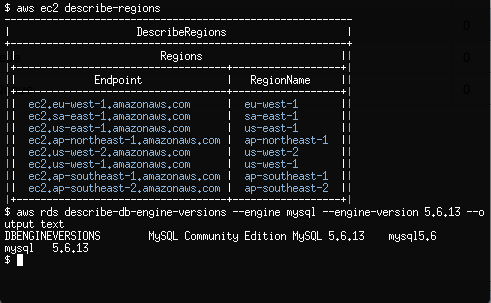
By using awscli to provision EBS volumes, we have a simple and cost effective way via the command line, to expand our Ec2 disk capacity without any downtime. EBS volumes also support snapshots, providing us with low level block device backups which can be restored or copied to new or existing Ec2 instances.

RDS instances are a way System Administrators can run our own Databases within AWS without having to spend the extra effort on complex performance tuning, routine maintenance and redundancy configuration.

Both Amazon EBS and RDS are available to new AWS customers under the AWS Free Usage Tier. Please ensure you understand AWS pricing before proceeding.

Create and Attach a Volume with Elastic Block Store

Let’s get started with creating and then attaching a 1GB EBS volume to our Ec2 Instance created in Part 1 of our tutorial.

$ aws ec2 create-volume 
    --size 1 
    --availability-zone ap-southeast-2a

The output of create-volume will provide us with a VolumeId which we will use to attach the volume to our Ec2 instance. Note that I’ve chosen ap-southeast-2a as the availability-zone which shares the same Availability Zone of my Ec2 instance created in Part 1.

$ aws ec2 attach-volume 
    --volume-id vol-5dda4d0a 
    --instance-id i-0d9c2b31 
    --device /dev/xvdb

From within our Ec2 instance, we should now see the new EBS volume as /dev/xvdb.

$ fdisk -l /dev/xvdb
Disk /dev/xvdb: 1073 MB, 1073741824 bytes
255 heads, 63 sectors/track, 130 cylinders
...

We are now free to use this block device as a normal disk within Linux. Let’s go ahead and partition the disk, apply a filesystem and then mount it on /srv.

$ parted -s -a optimal /dev/xvdb mklabel msdos
$ parted -s -a optimal /dev/xvdb mkpart primary ext2 0% 100%
$ mkfs.ext4 /dev/xvdb1
$ mount /dev/xvdb1 /srv

EBS volumes support snapshots which are a point in time copy of the volume.

Snapshots are ideal for simple and cost effective backups of block devices which contain file systems. Snapshots can be copied across AWS regions and turned into volumes which can be mounted on other Ec2 Linux instances.

$ aws ec2 create-snapshot 
    --volume-id vol-5dda4d0a 
    --description "My First Snapshot"

If we wanted to attach this snapshot to any other Ec2 instance, we would use —snapshot-id as an argument to aws ec2 create-volume. We could then attach the volume created from a snapshot to another Ec2 instance, which is a very efficient way to copy large blocks of data across servers.

Provision a MySQL Database with Relational Database Service

Before we create our first RDS MySQL DB instance, lets create another Security Group which only allows inbound traffic on port 3306/tcp.

$ aws ec2 create-security-group 
    --group-name MySecurityGroupDBOnly 
    --description "Inbound DB only"

authorize-security-group-ingress allows us to permit source traffic for a Security Group by providing a source network address range (eg; 172.31.0.0/20), an AWS Account ID (eg; 561434394141) or a Security Group Name.

$ aws ec2 authorize-security-group-ingress 
    --group-name MySecurityGroupDBOnly 
    --source-group MySecurityGroupDBOnly 
    --protocol tcp --port 3306

The above rule, perhaps slightly confusing at first, allows any Ec2 instance associated with the Security Group MySecurityGroupDBOnly to access any other Ec2 or RDS instance associated with the MySecurityGroupDBOnly Security Group on port 3306/tcp. We’ll come back to this Security Group later.

Let’s move on to creating our first RDS instance by making use of the rds service within awscli.

New RDS DB instances are provisioned using the create-db-instance option. create-db-instance requires a password for our instance which we will rely on apg, an automated password generator, to create for us. We will also disable our shell’s history file so we don’t save any sensitive passwords to disk in clear text.

$ apg -a0 -n10 -m16
$ unset HISTFILE
$ aws rds create-db-instance 
    --db-name MyDatabase 
    --db-instance-identifier my-db-instance 
    --allocated-storage 5 
    --db-instance-class db.t1.micro 
    --engine MySQL 
    --master-username dbadmin 
    --master-user-password @SECURE_PASSWORD_GENERATED_WITH_APG@ 
    --vpc-security-group-ids sg-c53b20a7

Do replace @SECURE_PASSWORD_GENERATED_WITH_APG@ with a password generated from apg.

Also note the Security Group Id passed to —vpc-security-group-ids which is the Id of MySecurityGroupDBOnly returned by awscli when we created the group with create-security-group. You will need to substitute this with your Security Group Id for MySecurityGroupDBOnly.

After a few minutes, we can discover the RDS instance Address which is within the Endpoint section of describe-db-instances.

$ aws rds describe-db-instances

By default, all inbound traffic to our new RDS DB instance will be denied though by modifying the Security Groups our current Ec2 instance belongs to, we can neatly grant access to our DB instance.

$ aws ec2 modify-instance-attribute 
    --instance-id i-95bd36aa 
    --groups sg-8a051ee8 sg-c53b20a7

Ec2 instances can belong up to 5 Security Groups which provides us with a lot of flexibility when designing our Internal and External traffic policies. By using the modify-instance-attribute command above, we’ve confined our Ec2 Instance to the Security Groups with Ids of sg-8a051ee8 and sg-c53b20a7. The first Security Group Id, sg-8a051ee8, is the original Security Group MySecurityGroupSSHOnly created in Part 1. The second, sg-c53b20a7, is the Security Group Id of MySecurityGroupDBOnly.

Once we install the MySQL client on our Ec2 instance, we should now be able to connect into our RDS DB instance which will have our MyDatabase database waiting for us.

$ yum install mysql
$ mysql --user=dbadmin 
    --password 
    --host=my-db-instance.ccyld3xbhrju.ap-southeast-2.rds.amazonaws.com
mysql> SHOW DATABASES;

An expert in the Linux Infrastructure space, Rene Cunningham is a passionate Systems Engineer with a strong background in Open Source Software Stacks and large scale infrastructure. Based in Melbourne, Australia, Rene works on a highly experienced, distributed team of professional System Administrators at The Linux Foundation.

Android Beat Apple in Tablet Sales Last Year — Gartner

Apple lost the lion’s share of the global tablet market in 2013, though the iPad remained the top seller, says Gartner. [Read more]

Read more at CNET News

A Formula for Launching the Red Hats of the Future

open innovation

Last week Peter Levine, former XenXource CEO and current Andreesen Horowitz partner, wrote an article for TechCrunch: Why There Will Never be Another RedHat: The Economics of Open Source. In that article he makes a reasonable case for opining that the likelihood of another company achieving Red Hat-scale success based on wrapping services around an open source offering is very low. Instead, he proposes that the model that can lead to significant success is to include open source components in a service that includes additional (presumably proprietary) functionality and/or services.

read more

Read more at OpenSource.com