In a report, project lead Paul Eremenko talks details about the tech giant’s far-out initiative to make a free, open hardware platform for customizable smartphones. [Read more]
Read more at CNET News
An Internet Protocol (IP) address is a numerical identifier that is assigned to every device or machine in a computer network. If you are planning to start your own Internet business, using a virtual private network VPN or VOIP, you need to be adequately informed about IP addressing. We all (should) know – there are static and dynamic IP addresses. But when should you use them?

A dynamic IP address changes each time you boot your machine or network device. It also changes when you dial into your Internet service provider. Some ISPs change your IP each time you log on to their network while some make the changes periodically.
Most dynamic IP addresses are assigned using the Dynamic Host Configuration Protocol (DHCP). The router on your home network assigns IP addresses to your computers and other network devices as you put them on. Private IP addresses usually have this format: 192.168.0.x. Your router’s IP address will usually be 192.168.0.1 while your computers will be assigned numbers ranging from 192.168.0.2 to 192.168.0.254.
In situations where you need to remotely administer a particular computer on a network, you may need to reserve a particular address for it. To assign static IPs to certain computers and dynamic IPs to others on the same network, you should reserve the IPs for the specific machines on the DHCP server. This will help you to administer the network centrally without the need to assign static IPs manually. It will also prevent the occurrence of IP conflicts.
Dynamic IPs will be good for anyone who uses their computer or home network for the following:
* To browse the Internet and upload or download files
* To send and receive email through a mail server or via a web based email service like yahoo mail, hotmail or gmail.
* To use online chat services or instant messaging
* To use FTP servers or web servers that only require access from your LAN or corporate network but do not require access from the Internet.

What is a Static IP Address?
A static IP address is a fixed IP address that is manually assigned to a device on a network. It is called a static IP because it is not changed each time the device is switched on. Static addresses remain the same each time you connect to the network or send a message.
Static IP addresses provide greater reliability for applications such as voice over Internet protocol (VOIP). If you run a service that permits incoming audio or video, you may need to use a static IP. For example if you have an on-site IP-PBX, you will need to have at least one static IP address.
A static IP will also be required if you have a machine that functions as a server and requires external access from the users online. This includes running a web server, e-mail server, FTP server, or DNS server. A static IP allows you to enjoy faster upload speeds which boost the efficiency of these services.
If you intend to host a gaming website or you want to use Play Station, X-Box or a VPN to provide secure access to files from your corporate network server, you should also consider buying a public static IP address.
Here are the steps you should take to assign a static IP address on a Linux system.
1. Make sure you are logged on as root
2. Create a backup copy of the /etc/network/interfaces file on your machine. You can easily restore the backup if something goes wrong.
3. Edit the /etc/network/interfaces file. From the text console, you can load this file into the famous vi editor.
4. Scroll down the file until you locate the network interface card. An Ethernet connection is usually identified by eth0 or wlan0 while a wifi connection is identified as wifi0.
5. Replace “ iface eth0 inet dhcp “ with “ iface eth0 inet static “.
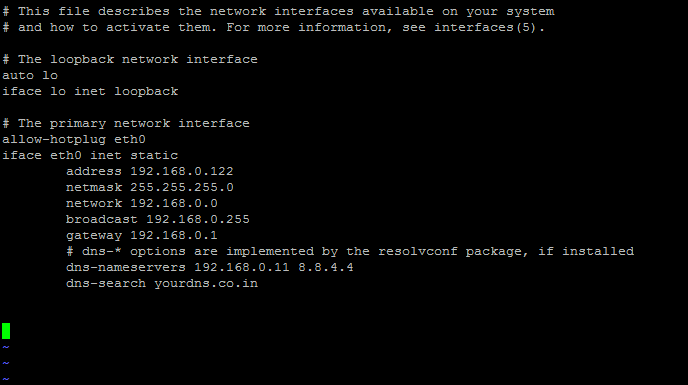
6. Add these lines: (you can replace the address and dns nameserver with your own configuration)
address 192.168.0.5
netmask 255.255.255.0
network 192.168.0.0
gateway 192.168.0.0
dns-name-servers 216.10.119.241
If you are running Slackware or Red Hat Linux, one of the simplest methods is to log on as root and then type ifconfig/netstat at the console. You can then use the text-based menu to modify the configuration settings.
In Slackware the settings will take effect instantly. But in Red Hat you need to type “ service network restart “ and press enter.
Chromebooks are amazing little machines. They are a marvel of speed and simplicity. The Acer C720 Chromebook is certainly near the top of the list of Chromebooks to be purchased (next to the Chromebook Pixel, of course). It’s speedy and it’s inexpensive. But for some, the simplistic nature of the devices doesn’t 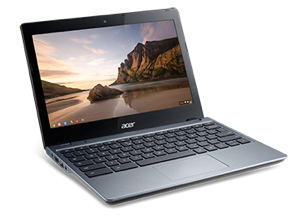 offer enough power or flexibility. For those who need more from this Acer platform, I have the answer – in fact, I have two answers:
Install Ubuntu.
Install Bodhi Linux.
Both solutions will land you with a full-blown Linux set up, ready to do what you need to do. But the process isn’t exactly as simple as slapping a USB flash drive in, booting, and installing. There are a few tricks to get this working. In the end, you’ll wind up with either a dual booting Chromebook (in the case of ChrUbuntu) or a single boot system (with Bodhi). With the dual boot, you retain the simplicity of ChromeOS, with the addition of the power and flexibility of Ubuntu. The Bodhi installation will give you more space for your Linux needs, at the cost of ChromeOS.
Before you install Linux, I highly recommend creating a recovery USB flash drive. Chromebook offers a simple solution for this. Just follow these steps:
Boot up your Chromebook and login
Plug in a spare ~2GB+ USB flash drive
Open the Chrome browser
Go to chrome://imageburner
Follow the simple instructions.
When all is said and done, you’ll have a recovery drive to use to get your system back where it was (should you not like either Linux install or something goes wrong).
Now, it’s time to start the process.
Make sure Chromebook is turned off
Hold Escape and Refresh and tap the Power button
When the device reaches the recover screen, press Ctrl+d and then (after releasing Ctrl+d) press Enter
The system will reboot (this will take some time)
When the system finally boots to the set up, select a wireless connection and click continue
Accept the EULA by clicking Accept and continue
Once you reach the Google login screen, do NOT log in
Press Ctrl+alt+ → (not the right cursor key, but the key where the standard F2 key would be)
You are now ready to begin the installation process.
You should now be at the command prompt on your Chromebook. Here, type:
curl -L -O http://goo.gl/9sgchs; sudo bash 9sgchs
Make sure you get this command exactly right. Once you’ve done that, you will be asked to configure a size for the Ubuntu installation. This will obviously depend upon the size of SSD on your Chromebook. The recommended is 24. After you type the size and hit enter, the device will reboot a couple of times. This process is setting up the Stateful partition to make room for ChrUbuntu. Eventually it will come back to the Chromebook setup screen. Once again, configure your network and then hit Ctrl+alt+ → at the login screen. Log back in as chronos and then type the original command again:
curl -L -O http://goo.gl/9sgchs; sudo bash 9sgchs
This time around, the installation process will begin. Hit Enter (when prompted) and watch the fun begin! During the installation process (it will take quite some time), you may be prompted for:
encoding
locale
language
You will also have to decide where to place GRUB. You must check the box next to /dev/sda, or the boot process will not work. NOTE: During my installation process, this step was skipped. I assume the install script has been updated to automatically set the location of GRUB.
After the Ubuntu files have been downloaded and installed, the script will finally prompt you to reboot. When you reach the developers screen, hit Ctrl+L and ChrUbuntu will start up (or Ctrl+d to boot Chrome).
To log into your Ubuntu system, use the credentials:
username: user
password: user
Your Ubuntu Chromebook should be ready to go, complete with LibreOffice and a number of other tools (Figure 1).
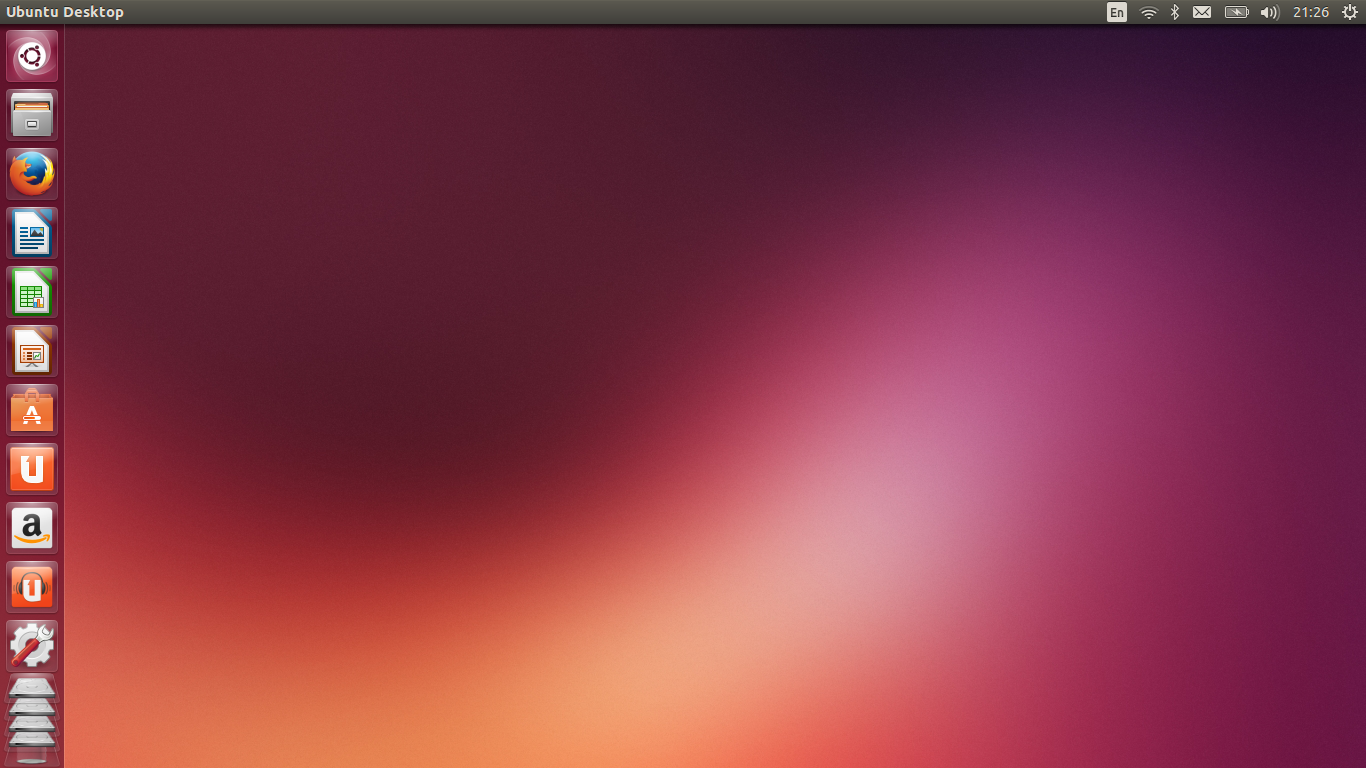
Now, let’s install Bodhi Linux. This flavor of Linux is a very minimalist take on an already minimalist platform and will give you an incredibly fast and efficient machine.
The first thing you need to do is enable the Legacy Bios Mode – this will allow you to boot from a USB flash drive.
Follow the steps above to boot into recovery mode
Log into your Chromebook as normal
At the crosh prompt, type shell and hit Enter
Become the super user with the command sudo bash
Enter the command crossystem dev_boot_usb=1 dev_boot_legacy_1
Exit out of bash with the exit command and then close the Chrome browser
Now you can boot your Chromebook from a USB flash drive.
The next step is to create a USB flashdrive with the proper Bodhi image. The developers (specifically Jeff Hoogland) have created an Acer 720-specific image that you can download here. Once you’ve downloaded that file, insert a USB flash drive, open up a terminal window, change to the directory where the Bodhi iso is located, and issue the command:
dd if=bodhi-c720-chromebook.iso of/dev/sdX
(where X is the drive letter of your USB flash drive).
Unmount and remove that flash drive and insert it into one of your Chromebooks USB ports. Boot the device and then, at the startup screen, press Ctrl+l to boot from the legacy BIOS. When prompted, hit Esc to enter the boot menu and select 1 for the USB drive. At this point, boot the Live Bodhi instance and then walk through the standard installation process. You can allow Bodhi to take the entire drive, or set it up to dual boot (Figure 2).
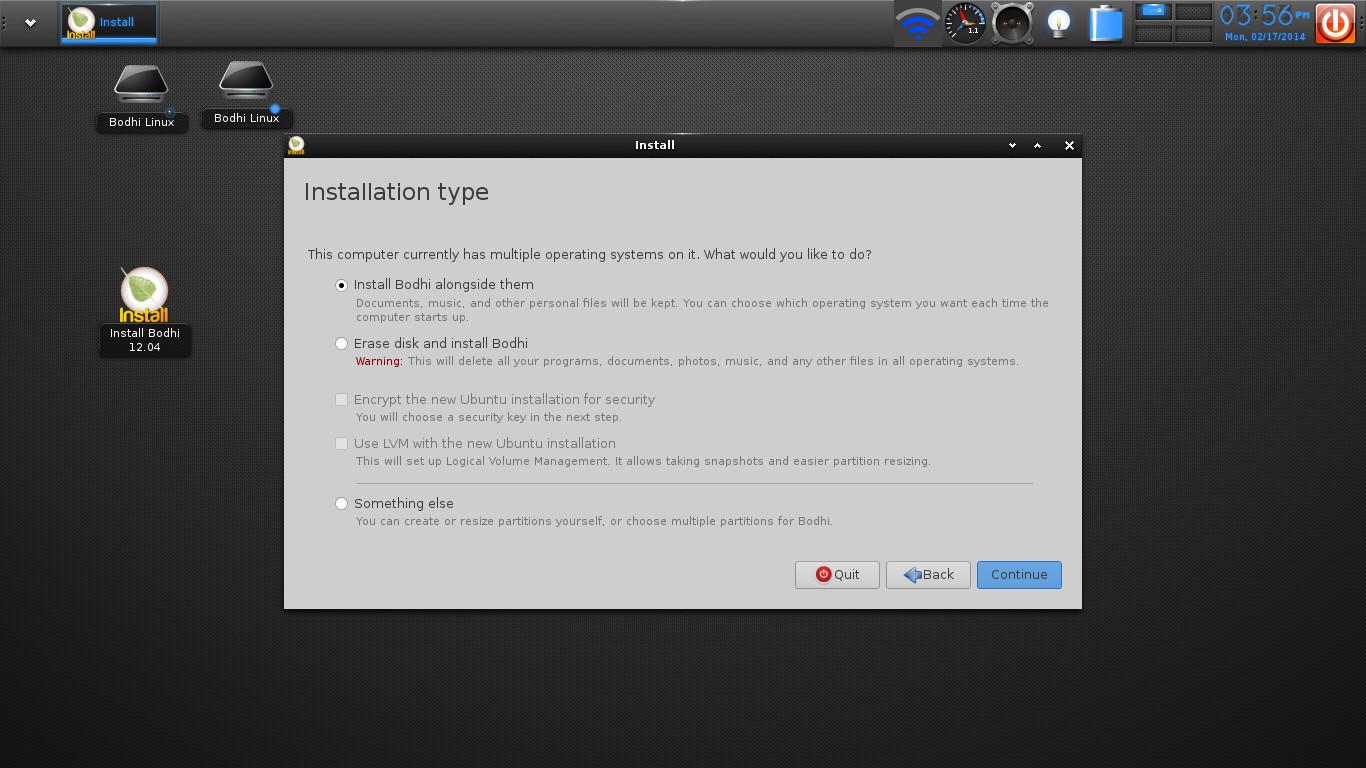
You will need to hit Ctrl+l every time you boot – there is no work around for this at the current time.
Should anything go wrong, you have your restore USB drive. To use this, follow these steps:
Boot the machine
When you see Chrome OS is missing or damaged, insert the USB flash drive
Wait for the Chromebook to boot from the flash drive
If you’re looking for a way to supercharge your Acer C720, you now have the means. Whether you want a stripped-down, lightning-fast Bodhi-based Chromebook, or a full-blown Ubuntu-based Chromebook, you can stretch the limits of that device or even go back to the original set up. If you do opt to stick with either Bodhi or Ubuntu on your Chromebook, you might want to invest in a 64 GB SD card for some extra space.
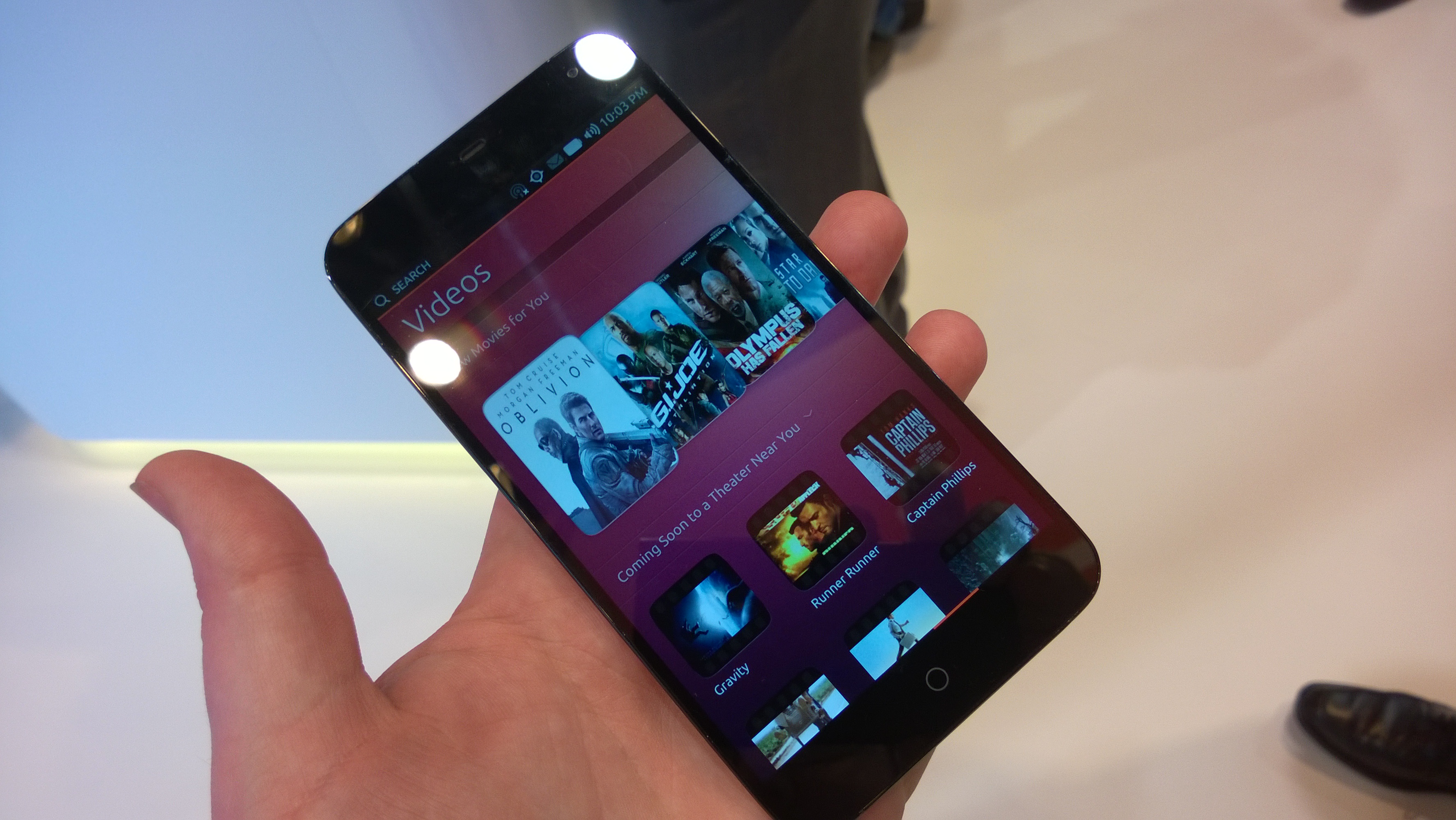
Last week Canonical announced that Ubuntu would ship on handsets from two companies, BQ and Meizu, later this year. This week at MWC in Barcelona the hardware was on display—or at least, prototype hardware was.
Canonical had a working version of the Meizu handset and a plastic model of the BQ. The Meizu MX3 is a fully functional device that’s already on the market (running Android) with a Samsung Exynos Octo processor and an 1800×1080 screen.
 The Linux Foundation has announced the keynote speakers for ApacheCon and the CloudStack Collaboration Conference. ApacheCon takes place April 7-9, 2014 in Denver, Colorado. The CloudStack Collaboration Conference takes place April 9-11, 2014 in the same location. In particular, the CloudStack conference sounds like a very interesting event, and given all the hype about OpenStack, it’s easy to forget that CloudStack has momentum, too.
ApacheCon features discussion of many notable open source projects, including Apache projects like Cassandra, Cordova, CloudStack, CouchDB, Geronimo, Hadoop, Hive, HTTP Server, Lucene, OpenOffice, Struts, Subversion and Tomcat. This year’s event offers over 170 conference sessions in addition to keynotes, tutorials, a hackathon, mini-summits and a barcamp.