
AppRadio Unchained is a fan-built app for Android that unlocks the ability to mirror and control any app with the in-dash reciever’s 7-inch display. [Read more]
Read more at CNET News
How does the penguin community celebrate February 14 every year? Is it with a box of chocolates? Maybe if it’s sitting next to our keyboards alongside multiple coffee mugs. What about little Necco Sweethearts? Those “luv you” messages seem a little too general to fully express the amorous thoughts of those with Linux already seeded deep in their hearts.
So in the spirit of the #rejectedcandyhearts trend on Twitter we thought about command line junkies and kernel devs and asked, “What would their candy hearts say?”
For those who like to have fun with a holiday that can be a bit brutal sometimes, these hearts are for us. Share what your candy hearts would say with #Linux and #rejectedcandyhearts on Twitter, and we’ll help spread the Linux love.




ZoneMinder is a glorious application for operating your security cameras, but it can be a bit of a beast to set it up. It is Web-based, so you need a LAMP stack, and some knowledge of running a Web server. Then you need supported cameras, and some twiddling in Zoneminder’s multitude of options to get them working the way you want. In this how-to we’ll focus on setting up and operating a single Foscam FI8905W outdoor 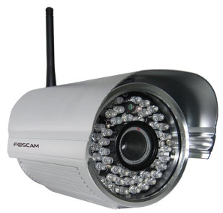 wireless IP camera on the local network, and configuring ZoneMinder to record motion-activated events.
Wireless IP cameras need only power hookups, and you can even get battery-powered models. Do your homework before you purchase anything to make sure it’s supported by Zoneminder. An IP camera should be the easiest to operate from any operating system, because it’s just another node on your LAN. But of course in our weirdo commercial tech world there are always unnecessary obstacles to interoperability, and some IP cameras require Mac or Windows. (Requiring Windows, and especially ActiveX, for anything security-related is mind-boggling.) The Zoneminder wiki lists supported cameras, and the user reviews on shopping sites like Newegg and Amazon are great resources. These instructions for the Foscam should be useful for other IP cameras as well.
Foscam surveillance cameras are generally pretty good and affordable, and Foscam’s customer support is good. The Foscam FI8905W is a basic, inexpensive outdoor wired and wireless IP camera with infrared for night surveillance. It has no pan, tilt, or zoom, and for $90 that’s fine with me. (ZoneMinder supports pan, tilt, and zoom cameras.) The camera has its own embedded Web server which contains a basic administration panel, and a simple live stream. Unfortunately, I have only a dreary gray day to show you (figure 2).
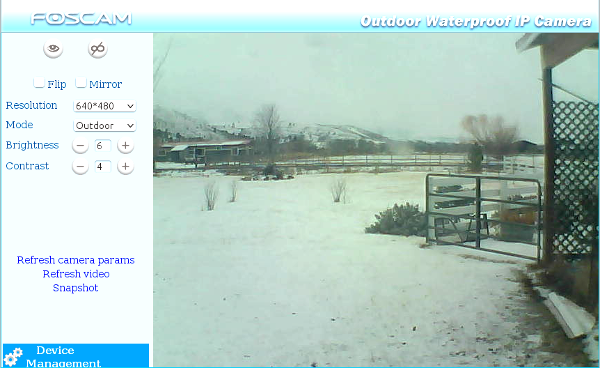
The Foscam comes with decent surveillance software that is similar to ZoneMinder, but of course it does not run on Linux, but only Mac and Windows.
The Foscam has no default IP address, but rather is set up to snag an address via DHCP. If you have no DHCP server you’ll need to find a Windows or Mac machine to set it up, because it has special setup software for those.
To set it up on Linux, connect it to your wired Ethernet and plug in the power cord. Give it a minute to boot up and get an IP address, and then use nmap to find its address:
$ nmap -sP 192.168.1.*
Nmap scan report for ipcam_00E6E22E40074E_1.alrac.net (192.168.1.191)
Of course, you must search using your own network address. The default port is 80, so open a Web browser to the camera’s hostname or IP address. The default login is admin with no password. Now you can look at the pretty spypics streaming from your camera, and configure it. Give it a different login with a strong password, and a different port than 80. Any unused port over 8100 is good. Set the correct time and date, configure your wireless network authentication, and give it a static IP address so you don’t have to hunt it down again. Give it a friendly name, like Driveway, so you know what it’s watching. The Foscam has some basic alerting and recording to an FTP server built in. If you forget your login, you can reset it to factory defaults by holding the reset button for 30 seconds.
If all you want is a live stream direct from the camera, with rudimentary alerting and recording, then you don’t need ZoneMinder. But we want ZoneMinder, so let’s keep going.
ZoneMinder runs on a LAMP stack, so the beastliest part is installation and configuring your Web server. The ZoneMinder Wiki has installation instructions for various Linux versions. Pay special attention to configuring ZoneMinder to work with Apache. By default Apache disables CGI, which ZoneMinder needs. This is what I did on Kubuntu 13.10:
$ sudo tasksel install lamp-server
$ sudo apt-get install zoneminder ffmpeg
$ sudo ln -s /etc/zm/apache.conf /etc/apache2/conf-enabled/zoneminder.conf
$ sudo adduser www-data video
$ sudo a2enmod cgi
Change short_open_tag = Off in /etc/php5/php.ini to short_open_tag = On, and in /etc/init.d/zoneminder add sleep 15 on the line above zmfix -a, like this:
start() {
        echo -n "Starting $prog: "
    sleep 15
    zmfix -a
        $command start
Now restart Apache:
$ sudo service apache2 restart
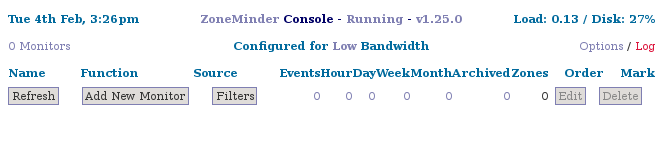
Then open http://localhost/zm in a Web browser, and you should see the ZoneMinder console (figure 3).
Let’s back up a bit and review the installation commands. The first one installs a LAMP stack with one command: Apache, PHP, Perl, and MySQL. The second one installs ZoneMinder, and for insurance ffmpeg, which is required but not always installed. The third command adds your ZoneMinder site to Apache. The fourth command makes the www-data user a member of the videogroup. The fifth command enables Apache’s CGI module, so that ZoneMinder’s CGI scripts will work.
Take a look at your ZoneMinder console to verify that everything is working. It should say Running at the top, and if it doesn’t click on the Log link to see what’s going on. Click Running/Stopped to bring up a stop/start/restart dialog.
OK then, after all that let’s add our nice Foscam to ZoneMinder. Click the Add New Monitor button. There are just two tabs to configure: General and Source. On the General tab (figure 4) enter the same name that’s in the camera’s own admin panel, which for mine is Driveway.
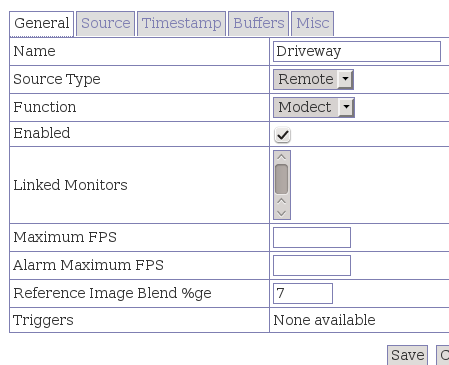
The Source Type is Remote.
The function is Modect, for motion detect.
Check the Enabled checkbox.
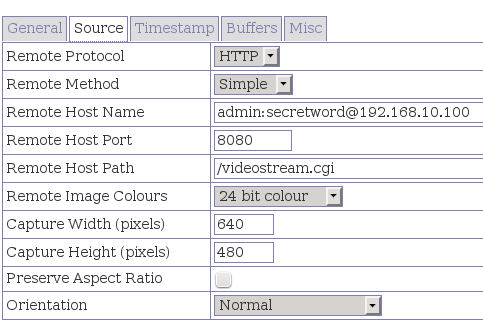
On the Source tab (figure 5), the Remote Protocol is HTTP.
Remote Method is Simple.
Remote Host Name is either the camera’s hostname or IP address, and you must pass your login to the camera, so it looks like username:password@hostname, or username:password@ip-address.
Remote Host Port is whatever port you assigned to it.
Remote Host Path is /videostream.cgi Capture Width and Capture Height must be the same as the camera’s configuration.
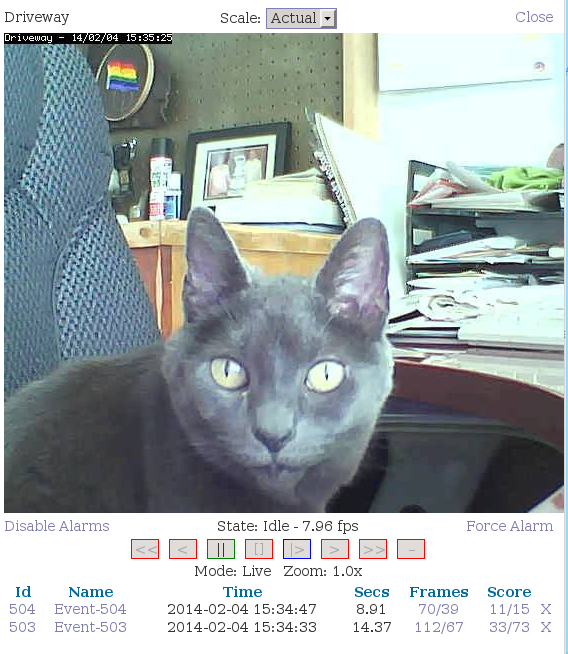
Save your changes, and then return to the main ZoneAlarm console. Click on the name of your new monitor, and you should see something like figure 6. I got tired of the dreary view outside, so you get to see a picture of my cat. Note the two events listed at the bottom: these are recordings triggered by movement, so you can click on any event name to see a replay.
Well now, that is a whole lot of steps in a short article. If you run into problems getting the ZoneMinder console working check the ZoneMinder logs, and also your Web server logs. The ZoneMinder forums can be helpful, and also the wiki. In part 2 we’ll add a USB Webcam, configure alerts, make videos, and tweak quality settings.