
The first game was Door Kickers, a game that claims to be a swat simulation.
The post Linux game review: Door Kickers appeared first on Muktware.
Read more at Muktware
Today’s ImageMagick lesson covers how to resize images, change case on file extensions, convert file formats, construct a proof sheet of thumbnails, and search and sort photos by their Exif data.
The ImageMagick suite of image processing and manipulating commands has been around forever, and lurks in all kinds of places: it is the image-processing backend in Drupal, Lyx, OpenShot, and many more. ImageMagick is über-powerful, and because it is a command-line program you can build clever scripts with it and automate routine tasks. You can flip, mirror, resize, distort, shear, and rotate images; do special effects, edit colors, and draw lines and shapes; create thumbnails, galleries, and proof sheets. It supports a skillion image formats and has APIs for a horde of programming languages, such as MagickCore (C), MagickWand (C), Magick++ (C++), JMagick (Java), RMagick (Ruby), TclMagick (Tcl/TK), and several more.
The most worthy use of ImageMagick I have ever seen is to manipulate images for the Upside-down-Ternet, which is a slick script that uses iptables and ImageMagick to have fun with freeloaders who poach your wi-fi. It re-directs pages to Kittenwar! and mangles images on other pages.
man imagemagick lists all the commands. There is no imagemagick command. The display command opens a graphical editing interface (fig. 1).
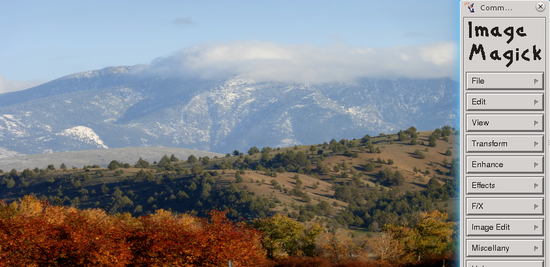
The original image was too large, so I resized it with convert:
$ convert fig-1.png -resize 550x fig-1-s.png
The resize value is the width in pixels. Width always comes first, and you can make sure by putting an x after the value, with no space. When you specify only the width then your new image will be exactly that width, and the height will automatically be in proportion. When you want to specify the height, give the height value prefixed with an x, like this:
$ convert fig-1.png -resize x250 fig-1-s.png
One thing you have to watch with the various ImageMagick commands is overwriting your original images. With convert you preserve your original and create the new file by giving it a different name.
Windows and a lot of cameras are like old people on Facebook: they shout at you in uppercase. My Canon camera writes filenames in uppercase, so they look like WP7_4117.CR2. You can easily make all file extensions lowercase with this Bash one-liner:
$ for file in *.CR2; do mv $file ${file%%.CR2}.cr2; done
The convert command converts image file formats. You can modify the upper-to-lowercase incantation to batch-convert formats, like this example that converts .png to .jpg:
$ for file in *.png; do convert $file ${file%%.png}.jpg; done
This preserves your originals and creates new images in the new format with the same filename, like this:
$ ls
bittersweet.jpg
bittersweet.png
juniper-berries.jpg
juniper-berries.png
The default quality level for .jpg files converted from other formats is 92. You can control it with the -quality option with values from 1 to 100, with 1 being maximum compression and crappiest quality, to 100 which is best quality and least compression. This example uses 75, which is a decent level for Web images:
$ for file in *.png; do convert -quality 75 $file ${file%%.png}.jpg; done
Now that you have a nice batch of images to admire, make a proof sheet so you can admire them all in a single .jpg:
$ montage -label '%f'-geometry 350x+7+7 '*.jpg' proof-sheet.jpg
This results in something like figure 2, with each image 350 pixels wide, borders of 7 pixels, and the filenames of each image. If you like a nice frame instead of a plain border, -frame [value in pixels] creates a border around each image, and -mattecolor [color] lets you select the border color if you don’t like the default meh gray. Color Names tells you the color codes.
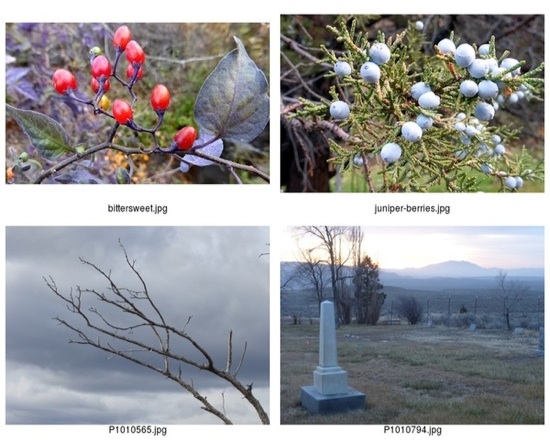
As with all ImageMagick commands there are a squillion options. Use -pointsize 12 to set a font size of 12 points, or other sizes as you desire, and these options let you fine-tune the labels:
There are way more, and you can find them all at ImageMagick Escapes.
The identify command reads the Exif data of photographs. You can easily view a basic set of information:
$ identify kitten.jpg
kitten.jpg JPEG 3648x2736 3648x2736+0+0 8-bit DirectClass 4.402MB 0.000u 0:00.000
Want to see everything there is to know about your photos? Try this:
$ identify -verbose kitten.jpg
That is a deluge of data, so you can fine-tune it to look for specific information, like which photos with the .cr2 extension in the current directory were taken with a flash:
$ for file in *.cr2; do identify -format '%[exif:flash] [%f]' $file; done
16 [WP7_4272.cr2]
16 [WP7_4273.cr2]
9 [WP7_4274.cr2]
9 [WP7_4275.cr2]
So…9 and 16. Okay. What do those mean? The Exif flash tags are combinations of the following values:
0:  FlashDidNotFire
1:  FlashFired
2:  StrobeReturnLightDetected
4:  StrobeReturnLightNotDetected
8:  CompulsoryFlashMode
16: AutoMode
32: NoFlashFunction
64: RedEyeReductionMode
So 16 means the camera was in auto flash mode, but the flash did not fire. 9 means compulsory flash mode, and it did fire (8 + 1). So you can add an egrep incantation to find only the images where a flash was fired:
$ for file in *.cr2; do identify -format '%[exif:flash] [%f]' $file | egrep ^'1 |9 |17 |65 ' ; done
Note the spaces after each number in the egrep search pattern. That limits your search to those exact numbers, and filters out larger numbers like 11 and 9897 and such.
You can dig up any Exif tag you want with identify, and ImageMagick Escapes describes dozens of escapes to use. But it’s not a complete list, so the quickest way to see what tags you can search on is to run identify -verbose [filename], and then look at the output. It’s going to be different for different image file formats, and it’s going to differ according to whether the images have been edited, and the software used. Here is an abbreviated example:
$ identify -verbose WP7_4275.cr2
    date:create: 2014-01-29T16:35:34-08:00
    date:modify: 2014-01-29T16:35:34-08:00
    dng:Aperture: F5
    dng:FocalLength: 28.0 mm
    dng:ISOSpeed: 640
    dng:Lens: Canon EF 24-105mm f/4L IS
    dng:Model: EOS 7D
    exif:DateTime: 2013:12:25 15:59:28
    exif:Flash: 9
So you could extract some of these this way:
$ identify -format '%[exif:datetime] %[dng:aperture] %[dng:lens] %[dng:model]' WP7_4275.cr2
2013:12:25 15:59:28 F5 Canon EF 24-105mm f/4L IS EOS 7D
This gives you a powerful way to find photos with particular traits, such as lens, camera, flash or no flash, date, focal length, size, bit depth…if it’s in Exif you can find and sort it.
One more fun Exif tip: if you’re going to post photos online, you might want to strip the Exif data so you don’t give away too much information. You can do this with the mogrify command:
$ mogrify -strip kitten.jog
Or strip a whole directory of photos:
$ mogrify -strip /imagesforweb/*
Weird and true Exif fact: Even though it is a widely-used standard, it is not maintained by anyone. The current version, 2.3, was released in 2010 by Japan Electronics and Information Technology Industries Association (JEITA) and Camera and Imaging Products Association (CIPA). Since then it has been orphaned.
For many users of Linux, getting used to file permissions and ownership can be a bit of a challenge. It is commonly assumed, to get into this level of usage, the command line is a must. Although there is always far more power and flexibility to be had, running seemingly complicated command isn’t alwaysa necessity. With the help of some of the most user-friendly desktop interfaces available, you can get away with little to no command line usage. Even with file permission and ownership.
That’s right, much to the surprise of many a new user, managing files and folders can be done from within the file managers. But before we get to the GUI, it’s always best to have a solid understanding of what it’s doing. So, we’ll start with the command line first.
The commands for modifying file permissions and ownership are:
chmod – change permissions
chown – change ownership.
Neither command is difficult to use. It is important, however, that you understand the only user that can actually modify the permissions or ownership of a file is either the current owner or the root user. So, if you are user Bethany, you cannot make changes to files and folders owned by Jacob without the help of root (or sudo). For example:
A new folder was created on a data partition called /DATA/SHARE. Both users Bethany and Jacob need read and write access to this folder. There are a number of ways this can be done (one of which would be to join the users to a special group – we’ll go over managing groups in another post). If Bethany and Jacob are the only users on the system (and you know your network is safe – very important), you can change the permissions of the folder to give them access. One way to do this would be to issue the command:
sudo chmod -R ugo+rw /DATA/SHARE
The breakdown of the above command looks like:
sudo – this is used to gain admin rights for the command on any system that makes use of sudo (otherwise you’d have to ‘su’ to root and run the above command without ‘sudo’)
chmod – the command to modify permissions
-R – this modifies the permission of the parent folder and the child objects within
ugo+rw – this gives User, Group, and Other read and write access.
As you can probably surmise, this command opens wide the SHARE folder such that anyone on the system can have access to that folder. As I mentioned earlier, a more secure method would be to use groups. But we’re just using this for the purpose of demonstration.
The breakdown of permissions looks like this:
u – user
g – group
o – other
The ‘other’ entry is the dangerous one, as it effectively gives everyone permission for the folder/file. The permissions you can give to a file or folder are:
r – read
w – write
x – execute
Using the -R switch is important. If you have a number of sub-folders and files within the SHARE directory, and you want the permissions to apply from the parent object (the containing folder) to the child objects (the sub-folders and files), you must use the -R (recursive) switch so the same permissions are applied all the way to the deepest folder, contained within the parent.
Changing the ownership of a file or folder is equally as simple. Say Jacob moved a folder for Bethany into the SHARE directory – but Jacob still has ownership. This can be changed with a simple command:
sudo chown -R bethany /DATA/SHARE
Let’s break this down.
sudo – admin rights must be used since we are dealing with a folder that belongs to another user
chown – the command for changing ownership
-R – the recursive switch to make sure all child objects get the same ownership changes
bethany – the new owner of the folder
/DATA/SHARE – the directory to be modified
Should Bethany send the folder back to Jacob, the ownership would need to again be changed (again, this will be simplified with the use of groups).
I’m going to demonstrate changing file permissions using the Nautilus file manager on an Ubuntu 13.10 system.
Let’s say you need to allow everyone to gain read/write permissions to the folder TEST. To do this, within the Nautilus file manager, follow these steps:
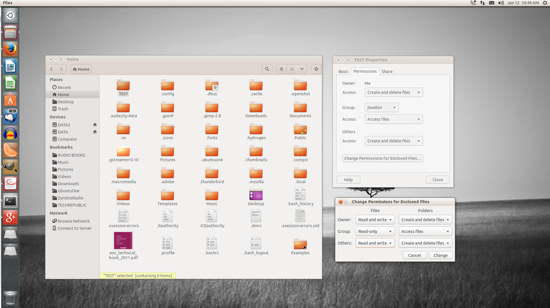
The trick comes when you need to change the permissions of a folder which does not belong to you. It can be done, but Nautilus must be started with admin access. To do this, follow these steps:
Open up a terminal window
Issue the command sudo -i
Issue the command nautilus
The sudo -i command gives you persistent access to sudo, until you enter the exit command to remove that access. Once Nautilus is open, you can change the permissions of the folder or file as described above – even if you are not the owner of the folder or file.
NOTE: If you’re using a distribution that doesn’t use sudo, alter the above instructions to:
Open up a terminal window
Issue the command su
Type your root password and hit Enter
Issue the command nautilus.
After you’ve completed the task, close the Nautilus window and then the terminal window.
Changing the ownership of a file or folder will most often require the use of admin rights. So for this, you’ll need to start Nautilus in the method described above.
For changing ownership of a folder or file through Nautilus, do the following:
In the Nautilus window (opened with admin rights), locate the folder or file in question
Right click the folder (or file)
Click on the Permissions tab
Select the new owner from the Owner drop-down (below)
Click Close.
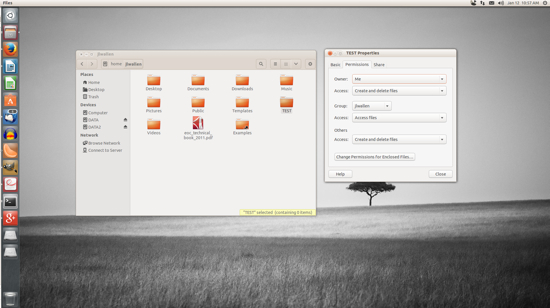
That’s all there is to it. At this point you shouldn’t have any problems changing permissions or ownership for a file or folder with either the command line or the GUI. The use of groups will empower you to alter permission and ownership with more power and security – we’ll cover that soon. Until then, enjoy modifying your files and folders!
 Google’s announcement last week of a tool for building Chrome apps that can run on Android and Apple’s iOS mobile platform could have much more far reaching implications than many observers realize. The new development toolkit from Google is based on Apache Cordova and lets developers build native Chrome apps for Android and iOS using HTML, CSS, and JavaScript. “The toolchain wraps your Chrome App with a native application shell and enables you to distribute your app via Google Play and the Apple App Store,” notes a post from Google. “We provide a simple developer workflow for packaging a Chrome App natively for mobile platforms.”