I love screensavers, and the timeless old Xscreensaver by Jamie Zawinski is still my favorite. Xscreensaver has been around since forever, or more precisely 1992, which in Linux-years is forever. Xscreensaver runs on any Linux, Unix, OS X, and iOS. Xscreensaver supports 200+ screensavers thanks to its modular structure, which allows contributors to plug in new screensavers seamlessly. My favorites are Atlantis, Matrix, Bouncing Cow (that one entertains my dog for hours) and Star Wars (figure 1). The Star Wars screensaver displays a text crawl like the beginning of the Star Wars movie. Which may be obvious to my fellow geezers and codgers, but there are young whippersnappers walking the Earth now who have no clue what Star Wars is. There is a sad blurry lo-fi rendition of the original Star Wars opening crawl on YouTube.
GNOME and KDE have their own front-ends for Xscreensaver. Except GNOME 3, which has decided its users don’t need screensavers, so it only blanks the screen. You don’t need these anyway because Xscreensaver runs fine without them, and you get more configuration options. When you install it you have several packages to choose from. The base is xscreensaver, and then depending on your distro you’ll have some additional packages to give you more screensavers such as xscreensaver-data-extra, xscreensaver-gl, and xscreensaver-gl-extra. You may find other screensavers in your distro repos. Go ahead and load up, it’s easy and fun.
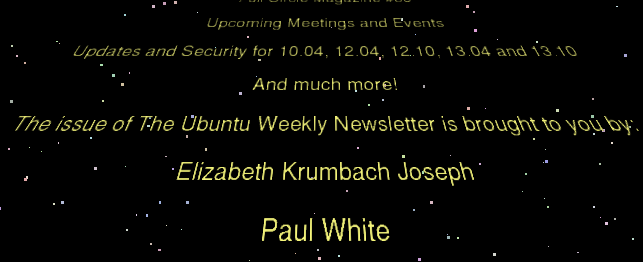
The default behavior for the Star Wars screensaver is to pull recent RSS entries from Wikipedia. The URL for English-language pages is http://en.wikipedia.org/w/index.php?title=Special:NewPages&feed=rss. If you prefer a language other than English, just replace “en” in the URL with the appropriate encoding. *buntu (U/Ku/Lu/Xu/etc./buntu) displays the Ubuntu Weekly Newsletter instead. These are both fine and dandy, but why live with the default when you can program the crawl to display what you want? Xscreensaver is designed to make this easy. Open xscreensaver-demo, which should open with a click of the Xscreensaver menu icon. Go the Advanced tab, and take a look at the four configuration panels: Image Manipulation, Display Power Management, Text Manipulation, and Fading and Colormaps. Text Manipulation controls the content of the crawl. Figure 2 shows my default Kubuntu configuration.
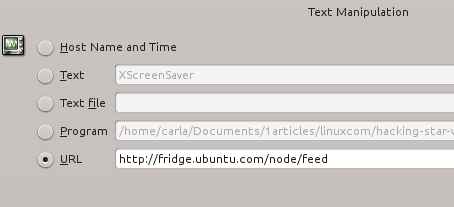
Perhaps you would rather see good Linux.com content in your Star Wars screensaver. Just copy your chosen RSS feed link (note that there are several to choose from) onto the URL line, then return to the Display Modes tab to preview it. Yes, it is that easy.
Show Fortune Cookies
The fortune command is another hackable oldie but goodie, and it makes a great Star Wars crawl because it displays random quotations from multiple databases. The simplest usage is to copy the command name– fortune — onto the Program line, and remember to check the checkbox. But you can do more because fortune supports a number of options. fortune -s selects short quotations only, which is 160 characters or less. fortune -l selects long ones. There are multiple fortune databases, so fortune -c tells you which one each quotation comes from. Some of the fortune databases in the standard *buntu repos are:
- fortunes-bofh-excuses- BOFH excuses for fortune
- fortunes-debian-hints – Debian Hints for fortune
- fortunes-mario – Fortunes files from Mario
- fortunes-off – Data files containing offensive fortune cookies
- fortunes-spam – fortunes taken from SPAM messages
- fortunes-ubuntu-server – Ubuntu server tips for fortune
You can select a specific database like this:
$ fortune riddles
FORTUNE PROVIDES QUESTIONS FOR THE GREAT ANSWERS: #19
A:      To be or not to be.
Q:      What is the square root of 4b^2?
And you can select multiple databases like this:
$ fortune riddles chalkboard literature
You can get even fussier and control how often each database will be called with percentages:
$ fortune 30% riddles 10% chalkboard 60% literature
Look in /usr/share/games/fortune to see the names of your installed fortune databases. fortune -o selects only offensive fortunes, which are mainly bad dirty jokes. You won’t see offensive fortunes without the -o or -a (all) options. You can find lots of fortune databases on the Web, like Christian fortunes and Splitbrain’s quotes from The Simpsons, X-Files, Discworld, and Forrest Gump.
Make Your Own Fortune Cookie Database
Want to make your own fortune collection? It’s easy. First put your fortune cookies in a plain text file in this format:
The whole world is a tuxedo and you are a pair of brown shoes.
		-- George Gobel
%
A day for firm decisions!!!!!  Or is it?
%
You will pay for your sins.  If you have already paid, please disregard
this message.
%
See the pattern? All you do is insert a percent sign after each one. Save your file, and then use the strfile command to create the data file. Let’s say the name of the textfile is carlas-wisdoms:
$ strfile carlas-wisdoms
"carlas-wisdoms.dat" created
There were 3 strings
Longest string: 87 bytes
Shortest string: 41 bytes
Copy these two files to /usr/share/games/fortune (or wherever your fortunes files are stored) and you’re done. strfile takes your text file and randomizes its contents. It is amazing what weird and useful little Linux commands we can find.
Screen Locking and Power Management
Xscreensaver can handle power management and screen locking, so if you’re using something else disable it because you shouldn’t have two power managers and screen lockers running. Look on the Display Modes tab to configure blanking and screen locking intervals, and the Advanced tab for some simple power management options.
Learn more features and options by consulting the fine man pages: man xscreensaver, man xscreensaver-demo, man fortune, and man strfile.

