Valve recently released an early-access preview of its future strategy for game distribution: the Steam Machine, and the SteamOS operating system that runs it. The company has developed a beta reference platform, but the really interesting part is SteamOS: an open OS with fairly flexible hardware specs that anyone can download and play with.
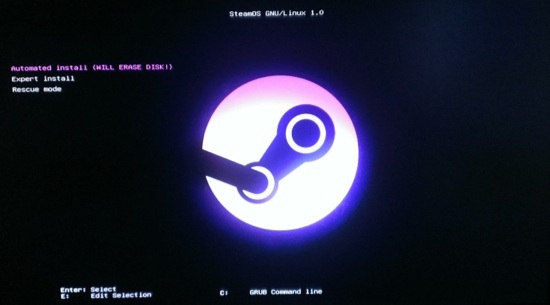 SteamOS has generated a lot of interest, but the “beta” label makes one hesitate a bit. Is it a “Google beta”, where most everything works pretty well, or is it a big pile of bugs and misfeatures? Let’s find out.
SteamOS Architecture
With previous releases of Steam for Linux, Valve had shown a preference for Ubuntu as a platform; it was therefore a bit of a surprise when SteamOS was revealed to be a direct derivative of Debian rather than Ubuntu. Valve’s explanation pitches Debian as a better base for customization than Ubuntu, and they continue to recommend Ubuntu for Linux game development and the best Steam experience. Ubuntu is itself based on Debian, so the differences between the two environments are small.
Most of the interesting software consists of Steam itself and the games; all you need beyond that is “just enough OS” to deal with the hardware, graphics drivers, and so on, as well as infrastructure for installing and maintaining the complete system. SteamOS does provide a GNOME 3 desktop with the Iceweasel browser (a fork of Firefox); these are just carried over from Debian 7. A “Valve Bug Reporter” app is also included in the desktop, along with an icon which returns you to Steam.
But the clear intent of the system is to run the Steam client, and not a general-purpose desktop. You can’t even get to the desktop without checking a box in the Steam client’s settings (under “Interface” if you’re interested). And you’ll find that the desktop is missing lots of functionality you’d expect, with no way to install what’s missing. This is not a Debian system so much as it is a Steam system which happens to use Debian under the hood.
Installation: For Experts Only
Arguably, SteamOS is targeted more at hardware integrators than end users, so the smoothness of the install process is probably not a high priority. Add to that its beta status, and you can understand how installing SteamOS is definitely “for experts only” at this point.
The “Custom” install I used started out trouble-free. The SteamOS installer is the Debian installer with SteamOS theming, with most steps automated. Be careful not to boot this USB stick on any system you care about, as the installer is preset to blow away the first disk on the system with no warning!
Not everything got set up correctly, however; I was greeted with a very nice-looking Steam client, but no sound. The SteamOS install process is clearly aimed at preferring the “connect to TV” environment, as it preferred my HDMI audio support on the video card to the motherboard’s sound interface. If you’re not running SteamOS on a HDTV, be prepared for a bit of fiddling with PulseAudio configuration and kernel module tweaking. One helpful tip: Debian 7 software works fine on SteamOS, so you can add Debian’s repositories to SteamOS to get any missing utilities for getting things working.
(For a full installation guide, including audio and wifi configuration, see Micah Ferrill’s tutorial on Linux.com.)
Getting Down To Business
Once installation is complete and the hardware all works, SteamOS fades into the background, and you’re presented with Steam in Big Picture Mode.
After answering a few questions and accepting the license, I was able to log in to my regular Steam account. Note that SteamOS counts as a new device from Valve’s point of view; I had to type in an emailed code before I was able to successfully log in. It’s also worth remembering that Steam only allows one device at a time to be logged in, so you’ll be logged out of your SteamOS system if you try to run Steam anywhere else at the same time.
Gameplay was pretty much like Steam on Linux. My Steam for Linux games (or game, in my case) showed up in the Library. Downloading and running games from the Library was straightforward, and my saved games were also synchronized from my other system. Before long, I was
stumbling through Portal with the same ineptitude I was showing on Ubuntu.
Similarly, I was able to easily browse the Steam Store on SteamOS and pick up a few free-to-play favorites: DOTA 2 and Team Fortress 2. My video card turned out to be a little too weak for DOTA 2, but Team Fortress 2 played fine.
I had never played with Big Picture mode on Ubuntu, which turns out to be identical to the SteamOS environment. There were a few quirks with graphics not loading on the SteamOS version. I was occasionally irritated by the keyboard navigation; for example, Escape typically took you to the beginning of the last screen’s entries, rather than where you left off. Overall, though, the interface works well.
Verdict: Promising, But Needs Work
SteamOS is off to a good start. Their previous work on Steam for Linux pays off in SteamOS, and the choice to wrap Steam in a Debian base seems to be working.
There are still a number of technical glitches to work out, especially in the installation process. It’s not entirely clear how far Valve will go in providing a pain-free installer, given that it’s targeted at system integrators and power users rather than the average consumer.
If you just want to play Steam games on your custom-built Linux box, your best bet for now is to stick with Steam for Linux running on Ubuntu (or, if you’re so inclined, your favorite non-Ubuntu distribution). For the complete SteamOS experience, switch to Big Picture mode. It will tend to work more smoothly, and some may prefer the traditional Steam interface over Big Picture.
For Linux experts, SteamOS is an easy to moderate challenge, especially if the installer gets your hardware right the first time through. Brave and curious non-experts should anticipate getting an education in Linux hardware support. The challenge is worth taking, though, especially for those who want to help Valve make gaming on Linux as awesome as possible.
But if you’re a Debian fan excited by the prospect of a Debian-flavored Steam experience, you’re likely to be disappointed. It’s nice to see the Debian installer handling installation duties, but after that, you could use SteamOS for years without seeing even a hint of Debian. Even if you’re wanting a custom box running Steam on Debian, you might be happier with just that instead of SteamOS, if only because of the broader hardware support in the underlying OS and the support for non-gaming tasks.
