The ODroid-XU contains 8 CPU cores in a big.LITTLE configuration where four of the cores are active at any time. The Single Board Computer comes with 2Gb of RAM, USB 3, a microHDMI connector able to output 1080p, 10/100 network connectivity, a microSD slot, and the ability to connect up to 64Gb of eMMC flash memory to the system.
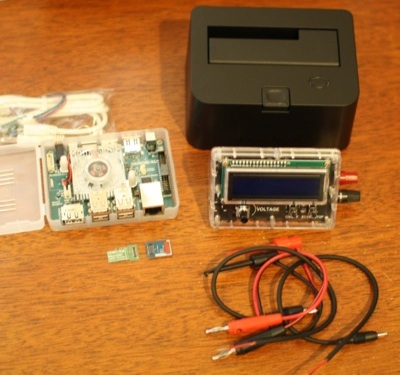 In the picture, at left, you can see the ethernet connector, 4 USB 2.0 ports, and the display port connector. The connectors at the other end of the machine are headphone, microsd, two USB 3.0 ports, and power input. The four pin white connector on the top left of the board is for the UART to serial cable which allows you to get a serial console on the ODroid-XU right from the start of booting. The 30 pin header on the right side of the board offers ADC, SPI, and GPIO access.
There are many optional extras for the ODroid-XU; the top of your list should be one of the eMMC boards which allow you to choose how much flash memory you want on your ODroid. The benchmarks below will shine some light on this suggestion. The eMMC is shown below the ODroid-XU. I also got the SATA to USB3 dock and Smart Power to measure and contrast power consumption. During this series on embedded Linux boards I have been using an at-the-wall power meter to show the full power consumption of these ARM machines. Using an at-the-wall meter also means I am measuring the inefficiency of the normal power supply that the ARM machine comes with. With the smart power device I can compare the at-the-wall figures to “at the wire” post power brick figures.
The eMMC flash also comes with a small adaptor board which is shown to the left of the eMMC flash in the picture. The adaptor board is green, the eMMC board is blue. The adaptor board has a connector for the eMMC board on one end and a microSD connector on the other end. This way you can use the adaptor board to connect the eMMC to a desktop machine using a microSD card reader. You will want to connect the eMMC to the desktop like this to write a Linux system image to the eMMC. Then you can disconnect the adaptor board and connect the eMMC directly to the ODroid to boot up. The eMMC connects to the ODroid-XU on the left side just above where the heatsink fan power lead connects, making it a touch fiddly to connect, getting in between the heat sink and case.
Installing Fedora
The eMMC came with Android 4.2 installed on it so I gave that a quick look before installing Fedora. The grapics transitions operated smoothly, with fennec-23.0b10 getting 3997 overall in the Octane benchmark. I noticed a few little gotchas on the Android install: no play store, and when trying to install apk files through the browser I was met with a message that installation could not progress because there was no sdcard. I guess the eMMC setup confused Android. The later issue can be gotten around by using a USB cable and the Android debugger “adb” to install your custom apk files on the ODroid-XU.
To get Fedora 19 on the ODroid-XU, download the latest image, connect the eMMC card using the adaptor, and use dd to copy the image to the card. The command below uses the /dev/disk/by-id path to minimize the risk of accidentally overriding the wrong disk. Using “fdisk -l” on that usb-Generic device is a handy double check that you have a disk that is of 16Gb (or the expected size of your eMMC). Once I copied the image to the eMMC and connected it the ODroid-XU booted into a Fedora desktop at 720p.
# dd bs=4096 if=fedora19_armhf_odroidxu_20130927.img
  of=/dev/disk/by-id/usb-Generic_STORAGE_DEVICE_000000009412-0:0
You can’t use the normal preferences panel to change the display resolution. Instead you set a few options shown below in the /boot/uboot/boot.ini file to your tastes. Unlike some uboot configuration setups, there is no extra processing you need to do after editing the boot.ini file as it is used directly during system boot. There are some issues with HDMI listed on the ODroid Forums but I didn’t have display issues at either 720 or 1080p.
setenv fb_x_res     "1920"
setenv fb_y_res     "1080"
setenv hdmi_phy_res "1080p60hz"
Benchmarking speed
Moving on to benchmarks, first I’ll take a look at the performance of the optional eMMC module against a class 10 microSD card (I used a Sandisk 16Gb Ultra mSDHC UHS-I Class10 card). For benchmarking I used both bonnie++ and a targeted test using IOzone. The target I chose for IOzone was for uncached read and write of data in 4Kb size. This is a particularly weak area for general purpose microSD cards as many of the cards are designed to write digital pictures and video onto instead of for use with general purpose computing devices.
The eMMC performed wonderfully with bonnie++ getting about 128Mb/s sequential read and failing to 30Mb/s and 20Mb/s for sequentail write and rewrite respectively. The class 10 microSD card got 22, 5, and 3.7Mb/s respectively for read, write, and rewrite performance. This makes the eMMC about 6 times faster than the class 10 card for sequential read and write. Looking back at theODroid-U2 benchmarks, it got 61Mb/s, 16Mb/s, and 12Mb/s for sequentail read, write, and rewrite respectively on it’s eMMC. So sequential IO performance where both the ODroids were using eMMC makes the ODroid-XU about twice as fast as the ODroid-U2.
There are many times when a machine will want to read and write small random bits of data. When you start an application many configuration files, icons, and other files are likely to be needed, and those might not be in the cache already. To test for this small IO pattern I used the below commands to invoke IOzone. The -I option means to use direct IO which will avoid the Linux disk caches. The -i0 through -i4 select which tests to run, -r 4k means to use 4Kb records during tests, and -s 16m means to use 16Mb files for testing. Using direct IO allows smaller files to be used without letting Linux cache the whole file in RAM and skew the results.
$ time iozone -I -a -i0 -i1 -i2 -i4 -r 4k -s 16m
The results are shown below. For comparison to a desktop machine I used an OCZ Vertex2 60Gb SSD drive attached a Z68 motherboard using an Intel 2600K CPU. As expected, the OCZ SSD has a healthy lead across the board. It is interesting that using the eMMC write and random writes are about 3 times faster than the class 10 microSD card. Read performance at 4Kb is closer to 2.5 times faster when using the eMMC compared to the 16Gb class 10 card.
                                            random  random   record
           write rewrite    read    reread    read   write  rewrite
eMMC16G     4551    4856    13146    13059   12780    4561     5573
Sandisk16G  1578    1764     5039     5075    5108    1692     2704
OCZ V2     45212   45569    53995    54375   30248   24482    60865
Looking at the Octane Javascript benchmark, an Intel 2600K using firefox-24.0-1 gets 17899. The ODroid-XU gets around 30% of that performance with 5215 overall. This is the highest Octane performance I have seen from an ARM machine in the series so far. Though I should also mention that the OMAP5432 chip from Texas Instruments which got 1914 was only at half its true clock speed at the time.
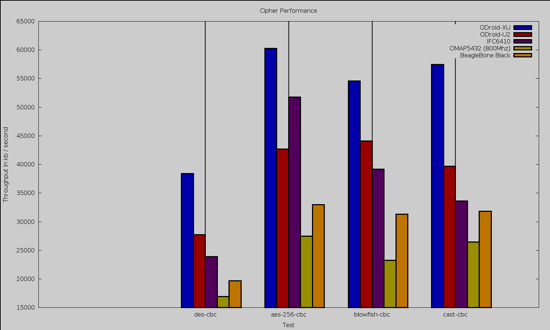
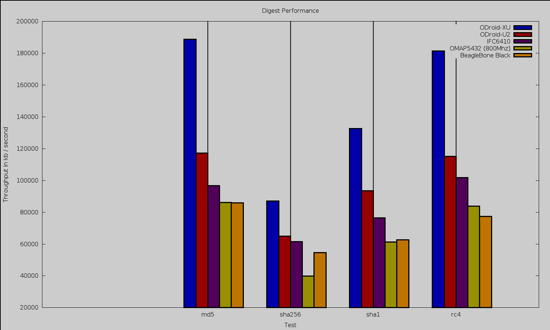
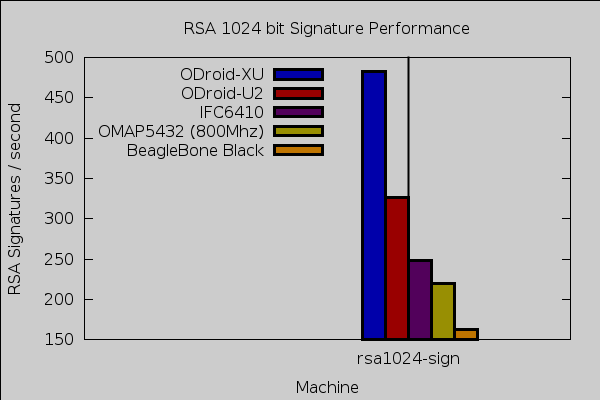
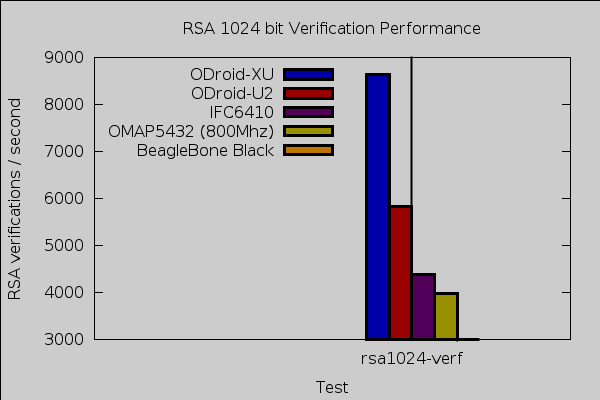
The OpenSSL speed test is single threaded, so some of the performance advantage of the ODroid-XU having the quad A15 cores is lost in the results. The ODroid-XU gets 483 and 8647 for 1024 bit RSA signature and verification. An Intel 2600K gets 3965 and 73462 for the same tests, making the Intel 2600K about 8 times faster than the ODroid-XU. The Intel 2600K to ODroid-XU numbers for 1024 bytes of sha256 is 186835 to 86985 respectively making the Intel slightly over twice as fast for this digest.
Benchmarking Graphics Performance
To test 2d graphics performance I used version 1.0.1 of the Cairo Performance Demos. Clearly the ODroid-XU is not doing any hardware accelerated 2D graphics at the moment. The gears test runs three turning gears, the chart runs four line graphs, the fish is a simulated fish tank with many fish swimming around, gradient is a filled curved edged path what moves around the screen, and flowers renders rotating flowers that move up and down the screen. For comparison I used a desktop machine running an Intel 2600K CPU with an NVidia GTX 570 card which drives two screens, one at 2560×1440 and the other at 1080p.
      ODroid-XU    BBB    desktop 2600k/nv570
          1080p   720p    two screens
chart:       5       2      16
fish:        7       4     188
flowers:     4       1     170
gears:      36      26     140
gradient:   17      10     117
The two main downsides I encountered with the ODroid-XU are fan noise and support for hardware accelerated video playback. The CPU itself should be fast enough to decode and display content up to 720p and I experimented a bit with upscaling smaller content to screen size. Looking at the 1080p Big Buck Bunny didn’t decode in real time purely in software. The fan is connected with 4 screws and I imagine that replacing it with a larger 80mm fan would mitigate the noise issue at the expense of the ODroid-XU then looking a bit awkward.
Power wise the ODroid used about 2 watts idle at a 1080p desktop. Plugging in a passive hub with a keyboard and mouse jumped that to 3.1 Watts at idle. Leaving the keyboard and mouse plugged in, during openssl speed consumption moved up to around 7 W. When running, octane power was mostly in the 6 W range with the occasional jump into the 7s. Running 5 instances of openssl speed at once gave peaks into the 10 W range. Given that the keyboard and mouse were only drawing 1 W of that, this might be why the default power supply can potentially deliver up to 20 W.
To compare the numbers above with those taken using the wall power meter that I’ve been using throughout the series, at idle with the keyboard and mouse plugged in a 5V/3.1A supply used 4 W. The MinnowBoard power supply also used around 4 W powering the ODroid-XU at idle. Running 5 openssl speed processes at once, the wall power meter showed in the 13 W range. This makes the wall power readings about 20-25% higher than the at the board readings measured by the smart power supply. Though the smart power supply is itself powered by a 12V/3A power supply.
The ODroid-XU performs well for general CPU tasks and its eMMC helps the machine hum along. Hardware video decode and scale isn’t there at the moment, though that might change in the future. Video decode aside, if you are looking for a small very fast quad core ARM machine that you can run Fedora or other Linux distributions on easily the ODroid-XU might be what you are after. The ODroid-XU has a healthy lead in openssl performance and the highest Octane performance of ARM machines in the series so far.
There are two variations of the XU, with “+E” adding the ability to measure the power usage of the A15 and A7 ARM CPU cores, the GPU, and the memory. I hope to review the external hard disk bay soon using a nice SSD to see how performance is impacted by going over USB 3.0.


 Anne Nicolas