
The company wrote in a blog post that while 128-bit architecture might have a place in the mobile space in years to come, for now, 64-bit is all that’s needed. [Read more]
Read more at CNET News
Chip giant demonstrates a 64-bit Android platform running on its latest Atom processors at an investor conference. [Read more]
Everyone knows that keeping regular backups of our data is the No. 1 best insurance against mishaps. The No. 2 best insurance is smart partitioning on your Linux PC that puts your data on a different partition from the root filesystem. Having a single separate data partition is especially useful for distro-hoppers, and for multi-booting multiple distros; all your files are in one place, and protected from mad installation frenzies. And why not distro-hop and multi-boot random distros? Unlike certain inexplicably popular expensive fragile, low self-esteem proprietary operating systems it’s easy and fun. No hoops to jump, no blurry eleventy-eight digit registration numbers, no mother-may-I, no phoning your activities home to the mother ship: just download and start playing.
Just to keep it simple let’s start with a clean new empty hard disk. Thanks to SATA and USB adding new hard drives is dead-easy, which I know is totally obvious, but we should regularly take time out to be thankful for cool things like SATA and USB. Because adding new hard disks in the olden days was not easy, and we made do with megabytes. That’s right, not giga- and terabytes. Oh, the hardships.
But I digress. So here we are with our new hard disk all ready to be populated with Linuxes and reams of data files. (Why not reams of data? We still dial our phones.) The first thing to do is to write a new partition table to your hard disk with GPT, the GUID partition table. This is the new replacement for the creaking and inadequate old MS-DOS partition table. So how do you install a new GUID partition table? Gparted provides a pleasant graphical interface, and command-line commandos might enjoy GPT fdisk. Use a nice bootable rescue distro to format your new drive, like SystemRescue, or use the partitioning tool in the installer of whatever Linux you are installing.
You may also elect to stick with the musty old MS-DOS partition table if you prefer; the point is to use a partitioning scheme that puts your data files off in their own little separate world.
You could do it this simply: root, data, and swap (figure 1).
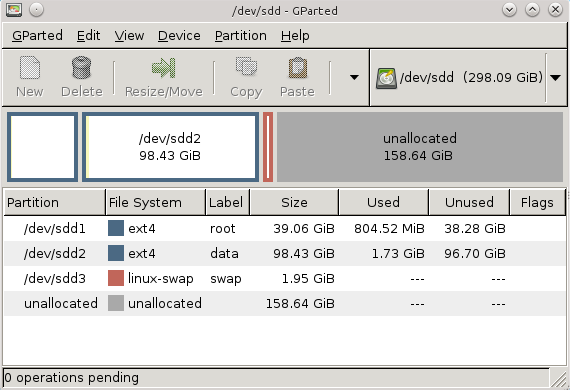
Using labels helps you know what’s on each partition. This particular partitioning scheme is simple: just map your home directory to the data partition. Your home directory could even be on a separate hard disk. How do you do this? Do it with the installer’s partitioning tool when you install a new distro. Or do it post-installation in /etc/fstab, which thankfully is the same as it’s always been and has not been “improved” to the point that only a kernel hacker understands how to use it. Like this example:
# /home on sdb4
UUID=89bc6f52-fa07-45a9-b443-25bb65279d6a  /home  ext4  defaults
Now you can muck with the root filesystem all you want and it won’t touch /home. This has one flaw, and that is dotfiles are stored in the same place as your data files. This has the potential to create a configuration mess when you have even slightly different versions of the same desktop environment, whether it’s on a multi-boot setup or installing a different distro with the same DE. Another potential problem to look out for is your mail store– some mail clients default to putting your messages in a dotfile. I recommend creating a normal, not-hidden directory for your mail store.
So here is my clever tweak to avoid dotfile hassles, and that is to keep /home in the root filesystem. Then create a symlink from your homedir to your data partition, which contains only your data files and no dotfiles. This creates an extra level in your filepaths, which is a bit of an inconvenience, but then you get the best of all worlds: your personal dotfiles in /home, and the root filesystem cleanly separated from your data files.
But, you say, I want the same configs in multiple distros! No worries, just copy your dotfiles to your different homedirs. Though the reason for not sharing them in the first place is to avoid mis-configurations and conflicts, so don’t say I didn’t warn you.
You can share /boot, /tmp and swap on a multiboot system (figure 2). Just remember, when you install a new Linux, to map it to these partitions. It’s nice to have /tmp on its own partition in case some process goes nuts and fills it. /var is also a good candidate to have its own partition, but you can’t share it– each Linux installation must have its own /var.
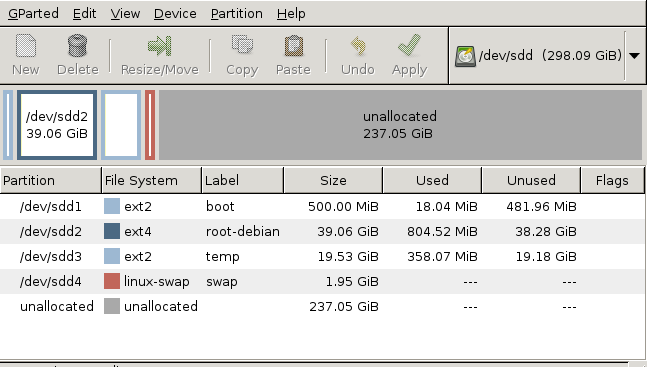
I give my /boot partition 500MB to a gigabyte on a multi-boot system. The Linux kernel and System.map run around 3-5MB, but initrd on some of my systems hits 30MB and up. I’m not interested in finicky housekeeping and keeping old /boot files cleaned up, so it hits 150MB for a single distro easily.
What if you already have a separate /home partition, complete with dotfiles, and you want to overwrite your root partition with a different Linux, or install some new distros to multi-boot, and still share your homedir? Easy peasey, though a bit of work: first move all your dotfiles into a new directory in your homedir. Rename your original /home directory to something that doesn’t conflict with the root filesystem like /data or /myfiles or whatever. Then install your new Linux or Linuxes and keep /home in the root directory, rather than putting it on a separate partition. Then symlink/data inside your new homedir, like this:
$ ln -s /data /home/carla/data
You’ll want to create an entry in /etc/fstab to make sure your /data partition is mounted at boot, like this example:
# /data on sdc3
UUID=3f84881f-507a-4676-8431-7771a6bc6d39 /data ext4 defaults
When you install a new Linux it automatically installs a set of default dotfiles, and also when you install new applications. If there is anything you need from your original set of dotfiles just copy them to wherever you need them.
What if everything is in your root filesystem and you don’t have a separate /home partition? Again all you do is create new partitions, symlinks, and appropriate entries in /etc/fstab.
Be sure to consult du Know How Big Your Linux Files Are? and Linux Tips: The Misunderstood df Command for cool ways to manage filesystems and see what’s going on in them, and GPT, the GUID partition table to learn more about GPT and UUIDs.
As a kid, and some ten years before he started using Linux, Eduard Bachmakov dreamed of one day being involved in open source software. He didn’t really know how code worked, but thought the idea of collaborative global development, free of corporate interests, was cool. He started by playing around with virtual machines and dual boot, but didn’t make the full switch to Linux until he got to college, he said.
 Now a dual-degree major in computer engineering, astrophysics and astronomy in his senior year at Villanova University in Pennsylvania, Bachmakov is doing some real programming. And this past summer, through his Google Summer of Code internship with The Linux Foundation, he worked on Linux for the first time.
Bachmakov contributed to the LLVM Clang Static Analyzer for the Linux kernel with LLVM project lead Behan Webster and Linux Foundation trainer Jan-Simon Moeller as one of 15 GSoC interns with the Linux Foundation this summer. The analzyer is a userspace tool used at compile time to find bugs in a patch before it’s submitted, Bachmakov said. It was an appealing project to him, not only from a technical perspective but because it could have an impact on a larger group of people as support for the Clang compiler for the kernel grows, he said.
“People have heard about it, and some are using it a little bit, but no one is even close to using it near its full potential,” Bachmakov said. “So ideally if this tool for development would be developed further, a lot of sleepless nights would no longer occur.”
Say, for example, you’re allocating memory and for whatever reason end up freeing it twice, Bachmakov says. “A compiler can’t find that, but through a static analyzer you can write a checker that keeps track of where you’ve allocated memory and find paths through your program to find where you’d done it twice.”
Much work toward creating a static analyzer for the Linux kernel had already been done as part of the LLVM project. One of the goals of Bachmakov’s internship was to demonstrate how the analzyer works through a tool that traces where errors come from and creates a report. (See an example of his checker tool, here.) He also set out to make a selection of checkers that make sense within the kernel.
“A lot (of checks) while technically correct, don’t apply. Many checks are just omitted because it’s understood that this would never happen,” Bachmakov said. “These are issues that can’t be read from the code. These are things you have to know, so there were a lot of false positives.”
While his main concern now is prepping job and graduate school applications, Bachmakov says he’ll continue to contribute to open source projects. He’s playing around with a small Snapdragon development board to see if he can build a kernel for it and compile it with Clang.
He doesn’t quite feel ready to be a kernel developer, he says, but “whatever my job ends up being I’ll try to incorporate as much Linux and open source as I possibly can.”
Editor’s note: Stay tuned in coming weeks for our series of profiles on Linux Foundation GSoC interns. If you’re interested in learning more about Google Summer of Code internships in 2014 please visit: http://www.google-melange.com/gsoc/homepage/google/gsoc2014
The next round of applications starts Feb. 3, 2014.