
Greetings fellow Linux users, and welcome to the second part of our glorious OpenVPN series. When last we met we learned how to set up a simple OpenVPN encrypted tunnel between a home server and a remote node, such as a laptop. Today we’re adding refinements such as how to daemonize OpenVPN so we don’t have to start it manually, use Network Manager for easy connecting to our remote server, and access services.
Network Manager Integration
Network Manager is a nice OpenVPN client; just make sure you have the network-manager-openvpn plugin installed. We’ll use our example configurations from part 1. Open your Network Manager configuration and find the window where you set up a new VPN connection. This looks different on KDE and GNOME, but the information you’ll need is the same. When you start you need to see an OpenVPN connection type, like in figure 1; if you don’t see this then the plugin is missing. (The figures are from GNOME.)
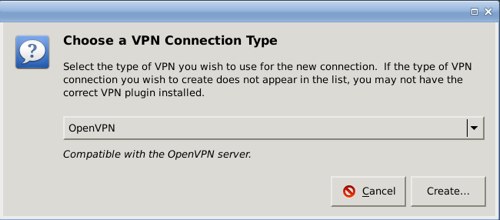
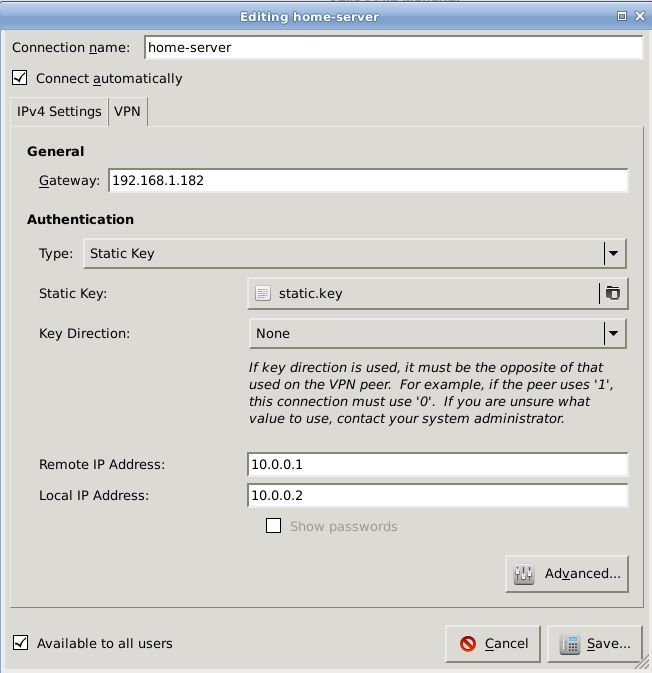
Figure 2 shows the main configuration screen. Starting from the top:
- Whatever name you want for this connection.
- The Gateway is the IP address of your remote server.
- Select Static Key from the dropdown menu,
- Then use the filepicker to find the key you want to use.
- This is not a directional key, so select None.
- The remote and local IP addresses are your virtual OpenVPN addresses, from your
/etc/openvpn/foo.conffiles. - We did not set a password.
- “Available to all users” or just you, whichever you want.
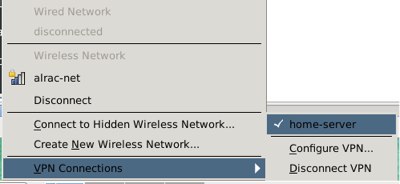
Save, and then use Network Manager to connect. Easy peasey! Now you can connect and disconnect with the click of a button (figure 3).
Run OpenVPN Automatically
It’s simple to start up OpenVPN manually, but you might want to daemonize it on your server for convenience, and to survive accidental reboots. On Debian/Ubuntu/great-thundering-herd-of-spawn distros this is handled automatically: when you install OpenVPN it’s configured to automatically start at boot. So, after installation you need to reboot, or start the daemon with one of these commands:
$ sudo /etc/init.d/openvpn start
$ sudo service openvpn start
The first command is the old-fashioned way, and the second command uses the service command. service first appeared in Red Hat Linux back in the olden days, and if your distro doesn’t install it by default it’s probably lurking in the repos if you want to use it.
Fedora uses the systemd init system, in contrast to Ubuntu which uses Upstart, and Debian still uses good old SysV init. If you have multiple OpenVPN configurations in /etc/openvpn you can start each one selectively in systemd, like this:
# systemctl start systemctl start openvpn@studio.service
Where “studio.service” references our example /etc/openvpn/studio.conf file from part one. This invocation does not survive a reboot, so it’s just like running openvpn /etc/openvpn/studio.conf, which is how we started OpenVPN sessions manually in part 1. You should be able to daemonize OpenVPN on systemd with chkconfig:
# service openvpn start
# chkconfig openvpn on
That should daemonize OpenVPN in the usual way, which is as a monolithic daemon and not individually per .conf file in /etc/openvpn/. systemd supports the chkconfig and servicecommands so it should work. However, the distros that use systemd are quite variable, so if yours is different please let us know in the comments.
Strengthening Your Connection
OpenVPN is robust and is good at maintaining a persistent connection, even with service interruptions. You can make your connection even stronger by adding these lines to your .conf files on clients and server:
persist-tun
persist-key
These are helpful for laptop users who disrupt their connection a lot with power-save and being on the move.
Now What?
Now that you have this all set up and working, what do you do with it? If you’re used to using OpenSSH for remote operations you might be stuck in the SSH mindset of being able to log into specific machines and run applications. It doesn’t work that way. Rather, think of OpenVPN as a virtual Ethernet cable to your server or LAN, all wrapped in a nice stout layer of encryption. You can run unencrypted and encrypted services over the same tunnel, and you only have to open a single hole in your firewall.
So you can run SSH in the way you’re used to over your OpenVPN tunnel, and do remote administration and run applications. You can access network resources such as fileshares and Web applications. You can force all networking on the client to go through your VPN tunnel, but for this series I’ve assumed that you want to be able to use both your native and VPN networks.
So there you are on your trusty laptop and you can surf the Web, run SSH, do whatever you want on whatever network you’re connected to. Then when you want to run something over your OpenVPN tunnel open it up and specify the IP address, like this:
$ ssh carla@10.0.0.1
Web applications are easy: point your Web browser to the virtual IP address of your OpenVPN server and log in as usual. For example, I run various Web services for testing on my home server. So I access Drupal at http://10.0.0.1/drupal and OwnCloud at http://10.0.0.1/owncloud. I use the nice gFTP graphical FTP client, so all I need to connect is the virtual IP address on the Host line, username, and password. Or use the command line:
$ ftp 10.0.0.1 21
You can administer your MySQL database from afar, using your own username and password:
$ mysql -h 10.0.0.1 -u admin -p
So the main thing you need to know is how to add the host specification to whatever command you want to run.
Obviously, this would all be easier with name services instead of having to use IP addresses, so one of these days we’ll learn how to implement name services in OpenVPN. Meanwhile, please enjoy your nice secure OpenVPN tunnel.
 Back in June, the Android-based Ouya gaming console launched and quickly