
New Intel processors are about to come to desktops, laptops, and tablets near you. Here’s the full rundown on what it all means. [Read more]
Read more at CNET News
New Intel processors are about to come to desktops, laptops, and tablets near you. Here’s the full rundown on what it all means. [Read more]
One of the great things about modern mobile phones is the increasingly good onboard camera. The Android API gives you seamless access to the camera from any other app, giving you plenty of scope to enhance existing apps or create new ones.
There are two basic approaches to camera access: you can use an Intent to call the default camera app, or you can use the API to build your own camera Activity. The second is more flexible, but also requires more work to code. Often it’s fine just to use the default app, and that’s what we’ll cover in this tutorial.
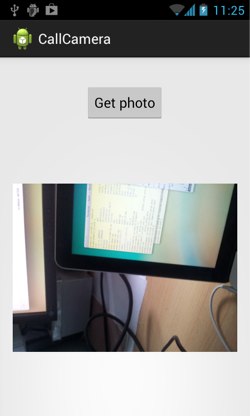
Our example app will be pretty basic, just to illustrate the idea. We’ll have a button, which we click to launch a camera intent, then we’ll show the returned picture. As explained in a previous tutorial, Intents are used by Android to pass messages within and between Activities and modules. Here, our Intent will pass a message to and from the onboard Camera.
Once you’ve created your project, and before you start coding, you’ll need to edit your manifest (AndroidManifest.xml) to add permission to use the camera and external storage, and to add a note that this app uses the Camera feature:
<manifest .... >
  <uses-permission android:name="android.permission.CAMERA" />
  <uses-permission android:name="android.permission.WRITE_EXTERNAL_STORAGE" />
  <uses-feature android:name="android.hardware.camera" />
Next, set up the XML display (in activity_call_camera.xml) to show a button and an image:
<RelativeLayout xmlns:android="http://schemas.android.com/apk/res/android" >
    <Button
        android:id="@+id/button_callcamera"
        android:layout_width="wrap_content"
        android:layout_height="wrap_content"
        android:layout_alignParentTop="true"
        android:layout_centerHorizontal="true"
        android:layout_marginTop="18dp"
        android:text="@string/get_photo" />
    <ImageView
        android:id="@+id/photo_image"
        android:contentDescription="will vary; image taken from camera"
        android:layout_width="wrap_content"
        android:layout_height="wrap_content"
        android:layout_below="@+id/button1"
        android:layout_centerHorizontal="true"
        android:layout_marginTop="80dp"
        android:src="/@drawable/ic_launcher" />
</RelativeLayout>
Now, set up your single Activity:
public class CallCamera extends Activity {

  private static final String TAG = "CallCamera";
  private static final int CAPTURE_IMAGE_ACTIVITY_REQ = 0;

  Uri fileUri = null;
  ImageView photoImage = null;
  @Override
  protected void onCreate(Bundle savedInstanceState) {
    super.onCreate(savedInstanceState);
    setContentView(R.layout.activity_call_camera);
    photoImage = (ImageView) findViewById(R.id.photo_image);

    Button callCameraButton = (Button) findViewById(R.id.button_callcamera);
    callCameraButton.setOnClickListener(new View.OnClickListener() {
      public void onClick(View view) {
        Intent i = new Intent(MediaStore.ACTION_IMAGE_CAPTURE);
        File file = getOutputPhotoFile();
        fileUri = Uri.fromFile(getOutputPhotoFile());
        i.putExtra(MediaStore.EXTRA_OUTPUT, fileUri);
        startActivityForResult(i, CAPTURE_IMAGE_ACTIVITY_REQ );
      }
    });
  }
}
We’re using startActivityForResult(), because we want a result (the photo file) returned to our Activity when the camera is done. This means that we need to hand in a URI to give the Camera somewhere to save the photo. (See a little further down for why fileUri, annoyingly, needs to be a class variable.)
The getOutputPhotoFile() method looks like this:
private File getOutputPhotoFile() {
  File directory = new File(Environment.getExternalStoragePublicDirectory(
                Environment.DIRECTORY_PICTURES), getPackageName());
  if (!directory.exists()) {
    if (!directory.mkdirs()) {
      Log.e(TAG, "Failed to create storage directory.");
      return null;
    }
  }
  String timeStamp = new SimpleDateFormat("yyyMMdd_HHmmss", locale.UK).format(new Date());
  return new File(directory.getPath() + File.separator + "IMG_"
                    + timeStamp + ".jpg");
}
This gives your photo a sensible and standard (time-linked) name, and uses the system-preferred picture storage directory for your device.
Finally, we need to deal with the result when it returns to the activity. This is our onActivityResult():
protected void onActivityResult(int requestCode, int resultCode, Intent data) {
  if (requestCode == CAPTURE_IMAGE_ACTIVITY_REQ) {
    if (resultCode == RESULT_OK) {
      Uri photoUri = null;
      if (data == null) {
        // A known bug here! The image should have saved in fileUri
        Toast.makeText(this, "Image saved successfully",
                       Toast.LENGTH_LONG).show();
        photoUri = fileUri;
      } else {
        photoUri = data.getData();
        Toast.makeText(this, "Image saved successfully in: " + data.getData(),
                       Toast.LENGTH_LONG).show();
      }
      // showPhoto(photoUri);
    } else if (resultCode == RESULT_CANCELED) {
      Toast.makeText(this, "Cancelled", Toast.LENGTH_SHORT).show();
    } else {
      Toast.makeText(this, "Callout for image capture failed!",
                     Toast.LENGTH_LONG).show();
    }
  }
}
You’ll notice that comment about a known bug. What should happen is that the image URI should be returned by the Intent. However, some older devices (including mine) do save the file in the requested location, but send back a null Intent. The workaround is to save the location (fileUri) and use that if we get an “OK” result code but no image location data. If you run this code as-is, it should work, but you’ll only get Toast messages on return.
Now, let’s show the returned image. Uncomment the showPhoto() line in the method above, and add a showPhoto() method:
private void showPhoto(Uri photoUri) {
  File imageFile = new File(photoUri);
  if (imageFile.exists()){
     Bitmap bitmap = BitmapFactory.decodeFile(imageFile.getAbsolutePath());
     BitmapDrawable drawable = new BitmapDrawable(this.getResources(), bitmap);
     photoImage.setScaleType(ImageView.ScaleType.FIT_CENTER);
     photoImage.setImageDrawable(drawable);
  }
}
Run the code, and you should see the photo shown beneath the ‘get photo’ button when you return from the Camera.
If you click the button a second time and take a second photo, the old photo should be replaced by your new one… but in fact, if you try it, depending on your device you may be faced with an OutOfMemoryError. To fix this, add this line in showPhoto(): private void showPhoto(Uri photoUri) { if (imageFile.exists()){ ((BitmapDrawable)photoImage.getDrawable()).getBitmap().recycle(); //… as before } }
Finally, you might have noticed that initially when you fire up the code, you get a little Android robot where the image should be. To fix this and just show nothing, add a line in onCreate():
photoImage = (ImageView) findViewById(R.id.photo_image);
photoImage.setImageDrawable(null);
You’ll also need to make some changes in showPhoto() to avoid a NullPointerException:
private void showPhoto(Uri photoUri) {
  if (imageFile.exists()){
    Drawable oldDrawable = photoImage.getDrawable();
    if (oldDrawable != null) { ((BitmapDrawable)oldDrawable).getBitmap().recycle(); }
    // rest as before
  }
}
One last issue: depending on your device, the image may also be rotated on your screen. Unfortunately this is a little complicated to fix, largely because of the memory cost of rotating bitmaps, and is outside the scope of this tutorial. If you want to explore this further, you can use the EXIF information to find the rotation, and BitmapFactory to reduce the overhead of handling bitmaps. A little later in this tutorial series, I’ll look at manipulating bitmaps and images; the next tutorial in the series, though, will take a closer look at the Camera API and at building your own camera app.