Home Blog Page 2812

Mozilla Puts Brakes on Auto Firefox Updates

Patch Tuesday from Microsoft coincided with browser updates from both Mozilla and Google this month.

Mozilla released a new version of Firefox 4 Beta that’s designed to fix a pair of stability bugs that caused problems for some testers. One of the tweaks addresses a problem with plugins for the Mac version of the browser that made it hard for users to type into some web pages while the second addresses an unspecified stability issue in the Windows version of Firefox 4 beta.

Read more at The Register

Mesa 7.8.3 Release Candidate 1 Is Here

While Mesa 7.9 is just around the corner with a great number of new features and other improvements to this open-source graphics stack used by Linux and other operating systems, those being bound to releases that are proven stable will still be leaving with Mesa 7.8 until Mesa 7.9.1 or 7.9.2 is released later in the year. But for those stable users, there’s also Mesa 7.8.3 that will soon be released…


Read more at Phoronix

Nokia’s VP Of Design Has A Plan To Crack The US Market With MeeGo, And We’re All Accomplices

One look at the N8 and E7 should be enough to convince the casual observer that Nokia is serious about design. The man behind Nokia’s hardware and software design for the last year is Marko Ahtisaari, Senior Vice President of Design and former CEO and co-founder of Dopplr. We asked Marco what it would take to be successful in the US market. His response, while not direct, was still illuminating and gives us implicit insight into how MeeGo, not Symbian, might be Nokia’s near-term play to conquer the American smartphone market. While gesturing to the N8, Marko had this to say:
“In the US I think it will require a somewhat more consequent approach in the high end. No matter how smooth and fast we make this, and we improve the camera — this is the best camera right — it still won’t cut though enough until we do an operating system level innovation. It will do extremely well in the market but it’s not a breakthrough device.”
Read more at Engadget Mobile

Doctors Will Use Dell Streak Tablets When Treating Patients

At 5-inches, the Streak is a lot more portable than the iPad—but still not quite as pocket-friendly (lab coat-friendly?) as the iPhone. Nonetheless, that’s where Dell wants to place its tablets, ramming it with a healthcare software app. 
 
Read more at Gizmodo

Nexenta 3.0 Benchmarked Against PC-BSD, OpenSolaris, Ubuntu

With the release of Nexenta Core Platform 3.0 a few weeks back we decided to run some benchmarks of this operating system against PC-BSD 8.1, OpenSolaris b134, and Ubuntu 10.04.1 LTS. For those unfamiliar with Nexenta Core Platform, it is an operating system that combines the OpenSolaris kernel with a Linux user-land provided by the Ubuntu 8.04 LTS “Hardy Heron” package repository, complete with apt-get support for easy package installation.

Read more at Phoronix

Install XOOPS for Powerful Open Source Content Management

Content is king. It always has been and always will be. It drives our businesses and motivates our customers. But when you think content management, so many tools come to mind. There’s Drupal and Joomla! for starters. Both of those tools are outstanding solutions for content management. But many organizations are projects are choosing XOOPS.

So what would make one choose XOOPS over other strategies? XOOPS offers the following features:

  • Database driven: XOOPS is powered by MySQL database.
  • Modular: Add or remove as many modules as you like.
  • User customization: Your users can edit profiles, select personal themes, upload custom avatars, and more.
  • World-wide support: Official support sites can be found all over the world (in many languages).
  • Multi-byte languages: Including Japanese, simple and traditional Chinese, Korean, and more.
  • Group permission system: Granular control over group and user permissions.
  • Skinnable interface: Over 800 themes available.

But features alone don’t always demonstrate why you should choose a particular project, especially when a feature set is matched almost feature-for-feature by other projects. If you look at sourceforge.net, you will find XOOPS one of (if not the) highest ranked CMS tool. You’ll find many reasons to select XOOPS as your CMS. Once you have made that choice, it is then time to get going on the build. You might be surprised to know that, regardless of power, XOOPS isn’t all that difficult to get up and running. In this tutorial I will lay out the steps to installing XOOPS on your already running Linux box.

It should be noted, just for clarification, that this tutorial will be using Ubuntu 9.10 as a base for installation.

Requirements

Let’s take a look at the requirements, before we begin the installation. In order to successfully install XOOPS, you will need:

  • Web server: For this install, we will use Apache. XOOPS can be installed on other platforms using other servers.
  • PHP >= 4.3.0 (5.2 recommended)
  • MySQL >= 3.23 (>= 4.1 recommeded)

Pre-flight setup

You will be using your web browser for the actual installation of XOOPS. But before you can get to that stage, there are a few steps you must take:

  1. Make sure your server is set up and running properly (with PHP and MySQL support). 
  2. Set up your database for XOOPS.
  3. Prepare the directory structure for XOOPS

Let’s tackle these steps one at a time.

Step One

If you have set up your server as a LAMP (Linux Apache MySQL PHP) server, you should be good to go. If you haven’t done so, you can do this easily on a Ubuntu machine with the command:

sudo tasksel

You will then select LAMP server and follow the simple instructions.

Step Two

The next step is to set up your database. We will create a database called “xoops” (no quotes) with the following steps:

  1. Create the database with the command: mysqladmin -u db_user -p create xoops
  2. Change to the MySQL prompt with the command: mysql -u db_user -p (Where db_user is the MySQL administrative user — usually root, unless you’ve made a change to this in order to heighten security).
  3. Grant privileges to the user on the xoops database with the command: GRANT ALL PRIVILEGES ON xoops.* TO root@localhost IDENTIFIED BY 'password'; Here password is the actual password of the database administrator.
  4. Flush all privileges with the command: flush privileges;

Step Three

Now it’s time to prepare the directory structure. The first thing you will do is download the XOOPS file from Sourceforge.  Once you have downloaded that file move the file to /var/www/. But before you unpack the file you need to consider one thing: Are you planning on having more than XOOPS served up on this server? Will you have multiple web sites here? If so you will want to contain XOOPS inside of its own directory. If not, you can unpack the XOOPS file directly into /var/www. I will go on the assumption you plan on having more than one site on your server, so we will create a container folder for XOOPS. Follow these steps:

  1. From within your terminal (and from within the /var/www directory) issue the command su mkdir XOOPS.
  2. Move the XOOPS file into the newly created XOOPS directory with the command sudo mv xoops-XXX.zip XOOPS (Where XXX is the release number).
  3. Change into the XOOPS directory with the command cd XOOPS.
  4. Unpack the XOOPS file with the command sudo unzip xoops-XXX.zip (Where XXX is the release number).

So far so good. Remember where we mentioned we were going to serve XOOPS from within its own directory? Well, as it stands, you would have to be pointing your browser to http://SERVER_ADDRESS/XOOPS/htdocs/. We want to avoid this so move into the the /var/www/XOOPS/htdocs and move the entire contents of this directory into /var/www/XOOPS. You can do this with the command sudo mv * ../. Now you can back out into /var/www/XOOPS and all of those files will be found.

You now need to create the directory /var/www/XOOPS/uploads with the command sudo mkdir /var/www/XOOPS/uploads. 

The next step is to check to see if the directory /var/www/XOOPS/xoops_data exists. If it does not, create it with the command sudo mkdir /var/www/XOOPS/xoops_data. Now you have to change some permissions. You must give the following directories/files write permission:

  • /xoops_data/configs/
  • /xoops_data/caches/
  • /xoops_data/caches/xoops_cache/
  • /xoops_data/caches/smarty_cache/
  • /xoops_data/cache/smarty_compile/
  • /var/www/XOOPS/mainfile.php

The above is done with the command chmod 777 "DIRECTORY/FILE NAME". And that is the difficult aspect of the installation. Now you only need point your browser to http://ADDRESS_TO_SERVER/XOOPS/ to begin the web-based installation.

Web install

There will be approximately fourteen screens to walk through for this installation. All of these screen will be very intuitive. The screens are:

  1. Language selection: Select the language for the installer.
  2. Introduction: Read about the installation process.
  3. Configuration check: XOOPS installer checks to see if everything is ready.
  4. Paths settings: Are all of your paths correct?
  5. Database connection: Database server settings.
  6. Database configuration: XOOPS database settings.
  7. Configuration save: Write settings to mainfile.php.
  8. Tables creation: Create tables on database.
  9. Initial settings: Admin user creation.
  10. Data insertion: Data is inserted into tables.
  11. Site configuration: Configure your site.
  12. Select theme: Choose the default theme for your site.
  13. Modules installation: Select modules to install.
  14. Welcome: Final notes.

Xoops install Only a couple of these screens really need any explanation. The first is Figure 1. This is the second screen you will come across. This screen not only serves as an introduction, but also outlines everything you will need to do for the installation. There are a couple of steps I intentionally left out. Should you choose to add those steps, the instructions are fairly obvious on this screen. 

You might think the next screen(s) that would need attention would be related to the database. If you have created the database in the manner outlined above, you can accept the defaults from the screens. The only exception will be the MySQL admin password.

After the database screens (screens 5 and 6) the next screen that requires user-input is screen 9. Screen 9 requires you to fill out information for an administrator account — very simple.

Xoops Installation The Site Configuration screen (see Figure 2) might be the next screen that could trip you up. As you can see there is a bit of pre-configured data added to each section. If your site is a public site, you will want to play close attention to the Meta Tags and Description as these can help your search rankings. You will also want to make sure Yes is selected, if you want to allow New User registration.

The next two screens (Select theme and Modules installation) are also both very intuitive. Upon installation you will only have two themes to choose from and three modules to install. You will need to download more themes and modules in order to further extend the look and functionality of your XOOPS site. You can find more modules at the XOOPS Module Repository and XOOPS themes from the XOOPS Theme Gallery.

Final thoughts

Congratulations! You now have a running XOOPS site installed and ready to go. Make sure you log in as the administrator you created in screen 9 (Initial Settings) so you can further customize your XOOPS site.

Five Features to Look Forward to in Firefox 4.0


Firefox 4.0 is still a bit away from final release, but the time to think about switching is now. The Mozilla Project is releasing Firefox 4.0 beta 6 this week, and the current builds are really good. Why switch? I’ll give you five excellent reasons to jump on the 4.0 train today.

One of the great things about open source development is that you don’t have to wait for the final product to ship to get your hands on it. Case in point, I’ve been running development builds of the Firefox 4.0 series off and on for weeks. You can too, if you don’t mind some rapid changes and possible instability.

Firefox 4.0 is on its 5th beta at the moment, with the 6th beta planned for the end of September and the final release tentatively scheduled for November.

Learning to Fly

Getting Firefox 4 betas onto your system is pretty easy. The Mozilla Project makes tarballs available with Firefox builds for Linux on the beta page. Just download, uncompress (tar -jxvf firefox-4.0b5.tar.bz2), and cd to the firefox directory and run ./firefox. The only problem is that Mozilla only makes 32-bit versions via the beta page. You might be able to find 64-bit Linux versions on the nightly page, though.

You might also want to have Firefox as a native package for your distribution rather than just the tarball. For the major distros, this shouldn’t be hard at all.

Tom ‘Spot’ Callaway has a repo for Fedora 13 and 14. Instructions are available elsewhere, but I haven’t tested the F13 and F14 installs yet.

Ubuntu and Linux Mint users can add the ubuntu-mozilla-daily repository for Lucid like so:

sudo add-apt-repository ppa:ubuntu-mozilla-daily/ppa ; sudo apt-get update ; sudo apt-get install firefox-4.0 firefox-4.0-gnome-support

Note that the last package (firefox-4.0-gnome-support) is optional, but a good idea if you’re running GNOME.

The openSUSE Project has the mozilla:beta repos for users who want to track the Firefox betas for openSUSE.

Whatever you do, be sure to make a backup of your Firefox profile before running Firefox 4.0 betas. I’ve switched back and forth without any problems, but there’s always a chance that it could eat your profile for lunch. Better to be safe than sorry, and all that. To back up your profile, just run tar -cf mozilla-profile-backup.tar ~/.mozilla and keep the resulting file (mozilla-profile-backup.tar) around for safe-keeping.

The Fantastic Five

Now that that’s out of the way, here’s what you’ll be wanting to upgrade to Firefox 4.0 for.

Tab Improvements: A lot of extensions have been written for Firefox over the years trying to enhance tab behavior. Firefox 4.0 brings a number of improvements to tabbing that are well worth the upgrade just on their own.

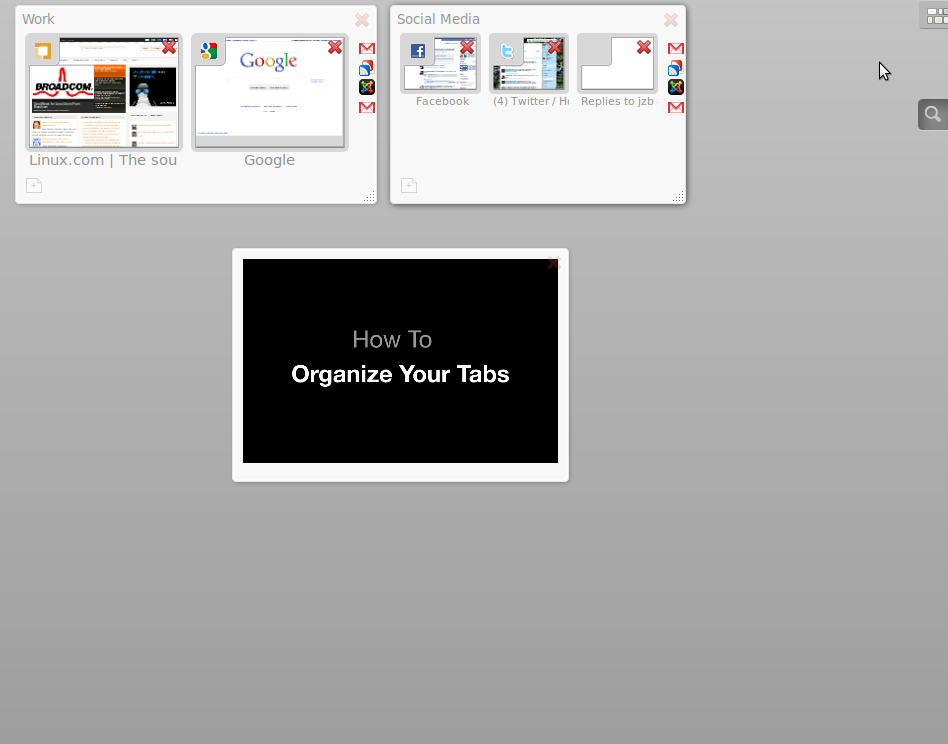
First and foremost is the Panorama feature (formerly Tab Candy). With Panorama, you can quickly view all your open tabs as tiles, much like the Compiz feature or Mac OS X’s Exposé feature. Even better, you can create groups of pages and switch between them. So I can have one group of tabs that have all my (distracting) social media pages like Facebook, Twitter, and Identi.ca, and then another group with my Web applications, and yet another with all the pages related to stories that I’m writing. Try Panorama for a few days, and you won’t want to go back to Firefox 3.x or Chrome.
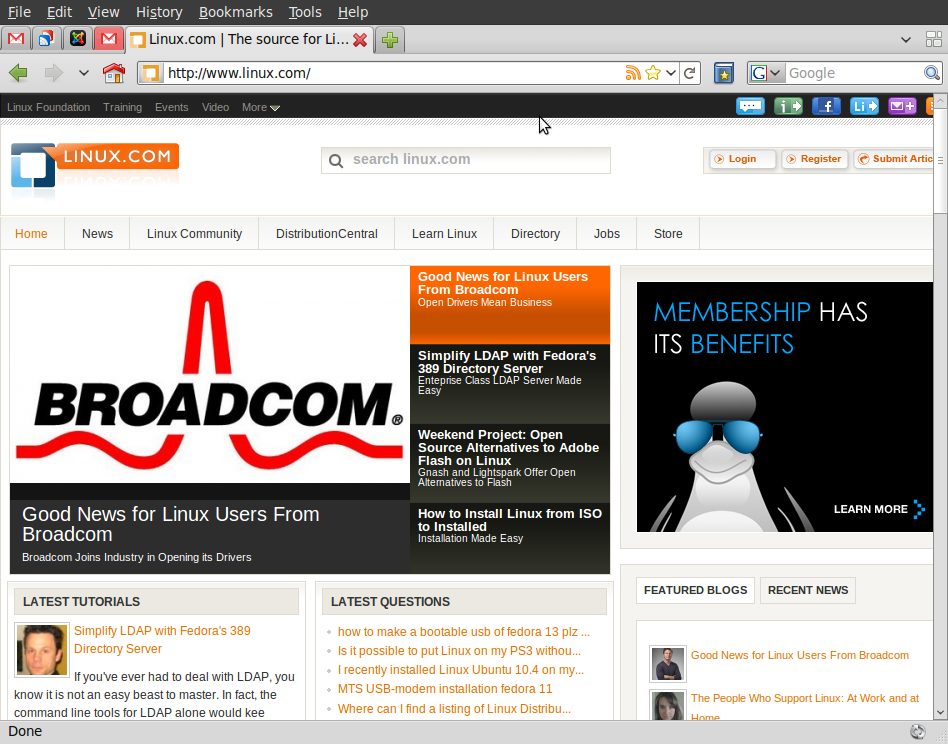
Firefox 4 Figure 1Speaking of Web apps, Firefox takes a cue from Chrome in this release and adds “pinning” for Web apps. The “pinned” tabs take up less space — just the favicon worth of space, and sit on the left-hand side of the browser. Handy for sites like Gmail or a Web-based helpdesk that you need to keep open all the time.

The pinned apps are available in all tab groups, so if you set up pinned tabs for your most-used pages or Web applications, they’ll automatically live in all tab groups. The pinned tabs also survive restarts, so if you exit Firefox (or it crashes…) then you’ll have your pinned apps by default when you restart Firefox.

Finally, Firefox is joining the “tabs on top” movement, though it’s not enabled by default in Firefox 4.0 beta 5 on Linux. You can enable this by going to the Tab bar, right-clicking and selecting Tabs on Top.

Performance Improvements: Firefox has been raked over the coals about performance since Google has been tearing it up with Chrome. It’s no surprise then that a major focus of Firefox 4.0 is improving performance.

For example, Firefox 4.0 includes a new JavaScript engine called JaegerMonkey, which is supposed to be much faster than the engine shipped with Firefox 3.6.x. The improvements are already obvious in the Linux builds, though they’re not optimized yet — so expect to see continual improvements as Firefox marches towards the final 4.0.

The only gripe I have with the tab improvements is the video that just won’t go away. Firefox 4.0 preview builds come with a video in a tab group that shows how to use the Panorama features. That’s great, except when you close its tab group, it just comes back when you restart Firefox.Firefox Panorama
WebM Video: You probably won’t find a ton of use for this one outside of YouTube right away, but Firefox 4.0 will bring support for WebM. Linux users, in particular, should be very happy to see WebM taking off. An open format for video backed by a major player means that Linux users will be first-class citizens for multimedia in the near future.

How does WebM content look? If you watch some of the videos demoing new FF4 features, you’ll have the chance to choose WebM as one of the supported formats. I’m not a video expert, but they look great to me.

Sync Built In: If you use more than one computer, or just want to be cautious about backing up bookmarks and such, Firefox 4.0 delivers built-in Sync. Using Firefox Sync in Firefox 4.0, you can synchronize passwords, bookmarks, and even open tabs across computers.

Syncing bookmarks isn’t new, I’ve been using Xmarks to do this for quite some time, but Firefox 4.0 gives two advantages. First, it’s baked into the browser — no extension required. Second, Firefox Sync allows you to set up your own server if you don’t want to trust the Mozilla Project to host your data. As organizations go, I’m OK with Mozilla hosting my data — especially since the data is encrypted so that the Mozilla folks couldn’t read it if they wanted to. But for anyone who is feeling particularly paranoid, or just wants to host their data because they can, the option is available.

Test Pilot: One of the things that developers need to make smart decisions is accurate information about the user base and how the software is used. The Moz folks have been working on a feature called Test Pilot for some time, which was available for earlier releases as an extension. Firefox 4.0 will have this baked right in.

Being Mozilla, you have to opt in to sharing any information and the privacy policy is very user-friendly. By making it a default part of Firefox, though, the Mozilla folks should be able to gather quite a bit of useful info to help improve Firefox down the road. I’ve been participating in the Test Pilot surveys for a few months with Firefox 3.x and haven’t noticed any performance hit, and the results that come out of the surveys are really eye-opening. For instance, check out the analysis for the “week in the life of a browser” study.

The features I’ve outlined aren’t the whole of it, of course. Firefox 4.0 has a number of enhancements that are on the way, including a single-button menu (similar to what Chrome has) that will save space and presumably be a bit more intuitive than the current menu system. It hasn’t landed in Linux yet, though.

Firefox 4.0 also includes support for CSS3, JavaScript, and other under-the-hood improvements that you might not be able to spot right away — but should make the Web much more fun and usable down the road.

I have one minor grumble about Firefox 4.0 development, though. The Linux builds have lagged behind Windows and Mac in features. Specifically the Firefox Button (a single-button menu) isn’t enabled for Linux yet. And hardware acceleration of graphics for 2D stuff is going into Windows only, based on DirectX 10 with supported hardware. I’m sure that bringing the same feature to Linux is going to be a bit more challenging, but it’s still disappointing to the Windows version passing ahead of Linux.

The Waiting is the Hardest Part…

The final release of Firefox 4.0 isn’t scheduled until November, and word is that if that date slips then it won’t be released until 2011 (to avoid holidays). Since the November cutoff misses the release dates for Ubuntu 10.10 and Fedora 14, it won’t show up in those distros until Spring 2011. The next openSUSE release is scheduled for March, so Firefox 4.0 should fit right into that schedule.

As mentioned above, though, you don’t need to wait. You can start running Firefox 4.0 right away or as soon as it’s released if you’re willing to run through one or two extra steps.

The betas are not feature complete on Linux, and have some polishing left to do. The single button menu hasn’t been implemented on Linux yet, and the current builds are still a bit sluggish from time to time on Linux. Otherwise, though, the betas seem to be good enough for everyday use and bring enough interesting new features that it’s probably worth the bumpy ride to start running Firefox before it hits the major distro stable releases.

Video: Sneak Peak at Intel Sandy Bridge

There’s a lot of news in store this week from the Intel Developer Forum. In this video, Intel’s Steve Smith gives a first look at the company’s next-generation, 32 nanometer processor expected in 2011. Codenamed “Sandy Bridge,” the chips will be based on a new “visibly smart” microarchitecture produced on second-generation high-k metal gate transistors.

Read more at insideHPC

Taking the App to Market, Part 2

In our last article we examined the steps required to prepare an Android application for publication to the Android Market, or for that matter, any number of other venues for distributing Android applications.

Read more at Linux Magazine

4 Linux and BSD Firewall/Router Projects


Both Linux and FreeBSD are built on strong networking stacks, and both make first-rate firewalls and routers. Many commercial products are based on these. Eric Geier rounds up four firewall/router projects for our perusal.

Read more on LinuxPlanet