Home Blog Page 2866

Auto Key press fill forms through simulating key presses

This script can be used to repeatedly press keys on the keyboard, it was used to fill out 100 odd entries on a web page while testing without having to physically enter the data.

Save the code below some where like /usr/bin/ with what ever file name you like, set the file to be  executable with chmod +x /usr/bin/keyrepeat

you can then run the command keyrepeat 100 “1” or what ever you chose as the filename of your script.

You will have 5 seconds to focus a window, the program will then simulate a user pressing the keys on the keyboard.

sleep 5                 #delay to allow the user to focus a window
number=$1       #first parameter, number of times to repeat
text=$2               #second parameter, text to repeat will interpret as tab                     
for ((counter=1;counter<=$number;counter+=1)); do       #loop required number of times
        xvkbd -xsendevent -text $text                   #this sends the text as key presses
done


Linuxables: Get Your Edit On With Gedit


We continue our Linuxables series on the Linux text editor. As you might have noticed, this is one of those topics that breed much contempt. If you talk about vi, you must give equal time to emacs. If you talk about Kate, you best talk about Gedit. And that is precisely where we are – Gedit (although we have yet to talk about Kate, that comes next week).

So far what we’ve discussed in this series is text-based text editors. These text-based editors are hold-overs from the days of UNIX when many machines were GUI-less but still had to have the ability to edit configuration files. Well, fewer and fewer machines are GUI-less now, but they still need to have configuration files edited. Although the text-based editors are still very popular (I use Nano myself), many users are hesitant to have to learn the various keyboard combinations in order to simple tasks such as saving a file, searching a file, and copying or pasting text. So, what do they do? Open up their configuration files in OpenOffice? That is certainly not advisable. For those users who want to edit text using a GUI tool and the GNOME desktop, there is a great solution in Gedit. 

Gedit is the “official” text editor for the GNOME desktop. It offers plenty of features that will appeal to just about any level of user:

  • Full support for internationalized text.
  • Configurable syntax highlighting for many languages.
  • Undo/Redo.
  • Remote edit support.
  • File reverting.
  • Print and print preview support
  • Copy/paste/cut support.
  • Search and replace.
  • Go to specific line.
  • Auto indentation.
  • Text wrapping.
  • Line numbers.
  • Right margin.
  • Current line highlighting.
  • Bracket matching.
  • Configurable fonts and colors.
  • Online user manual.
  • Tab support.

Usage

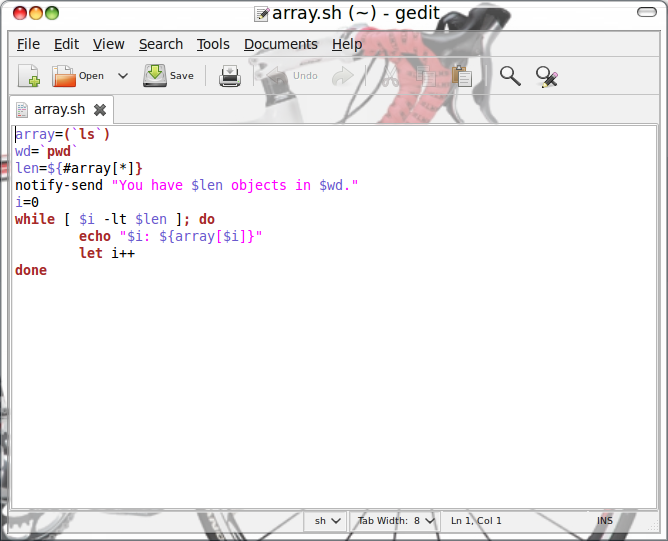
Gedit showing syntax highlighting

By default Gedit will be installed on a GNOME desktop. In order to start Gedit click Start > Accessories > Gedit Text Editor. When Gedit opens you will see a very simple window open that looks like pretty much any other application: It has a working pane, tool bars, menu bars, etc. Figure 1 shows Gedit in action complete with a simple bash file to illustrate the syntax highlighting. You can actually change the syntax highlighting mode by clicking View > Highlight Mode and then clicking one of the submenus to select the type of highlighting you want.

Unlike the text-based editors, Gedit will work and perform exactly as you would expect it to. Copy/paste keyboard shortcuts work exactly as you would expect, printing, spell checking, everything will work just as you are accustomed to with other editing applications. The only difference you might find is that previously opened/saved documents will not be found in File > Recent Documents, but under the Documents menu. This menu also allows you to switch back and forth between open tabs.

What? Did you say “tabs”? Yes, I did. One sweet feature of Gedit is that it supports tabs so you can have as many documents open as you need and keep them all neatly packed away in one easy to reach window.

Windows? Say it isn’t so!

If you read between the lines of the above heading then you understand there is a port of Gedit for the Windows operating system. There is even a port for OS X for all you Apple fans. Linux does, in fact, play well with others.

How-To: Install and Use gnome-shell (gnome3) on Ubuntu 10.04


Explanation

gnome-shell is another window manager like compiz for the gnome desktop manager. You cannot use gnome-shell and compiz at the same time. gnome-shell is meant to bea new more user friendly and functional interface for gnome.


Installation and Configuration


  1. Open a Terminal – Go to Applications -> Accessories -> Terminal 
  2. Install gnome-shell – Within the terminal type sudo apt-get install gnome-shell, this will install gnome-shell and all of it’s dependencies. (You may encounter issues where some dependent applications and libraries won’t install or have errors, this is a beta software so errors are to be expected, if that happens give the maintainers some time to resolve the errors and try to install again in a few days)
  3. Disable compiz window manager – Go to System -> Preferences -> Appearance, click on the Visual Effects tab and select None.
  4. Set gnome-shell to load on startup – Go to System -> Preferences -> Startup Applications
    , click Add, For the name enter gnome-shell, for the command enter gnome-shell –replace, then click Add.
  5. Enable gnome-shell on startup – In the Startup Application Preferences locate your new entry for gnome shell and make sure the check mark next to it is checked.
  6. Log out of your profile
  7. Log back into your profile
  8. gnome shell is active – you will notice that your desktop has changed, it is now controlled by gnome shell.


Using gnome-shell

First off take a look at the changes, the first thing you will notice is that none of the familiar menu bars except for the User Options exist.

To calm your nerves, let me state that the menus are no longer always visible, they are hidden within the gnome-shell menu. If you move your mouse cursor to the upper left hand side of the screen the Activities will become visible as shown in the following attachment.

Desktops

Before focusing on the Activity bar lefts look at the desktop, you will notice that on the bottom right hand side of the screen there is a plus (+) symbol, if you click that symbol you will spawn a new desktop.

Once the new desktop(s) have been created you will notice that the last one showing will have a minus (-) symbol in the middle, clicking the minus will remove that desktop from your system.
From within this view you can create and removed desktops and re-organize your applications to be on whichever desktop you wish.

The Activity Menu

The activity menu has the following groups:

  • Find
  • Applications
  • Places
  • Recent Document


The Find input box is meant to allow you to search for files or application on your system, however at this point in time on my system it does nothing but take up space.

The Applications section has three functions the first is that it opens a menu listing all applications on your system in one screen. I wish it broke it down by application type, and it may before it is released from beta.

The second function is that it shows your current running applications with your favorites.
The third function is that it keeps your favorite applications on the main bar, applications can be assigned to your favorites by first opening the application, then while it is open go to the activity bar, find the application, right-click on it and go to Add To Favorites.

The Places sections displays links to your document organization files in your home directory. I have not yet found how to add a directory to this list.

The Recent Documents section is exactly that, it displays links to the documents that have recently been opened by the user.


The User Menu


In the upper right-hand corner of the screen you will see your user name, you can open the associated manu by clicking on your name.

The menu that opens offers the usual Instand Messenger and session options, but it now also includes options for Sidebar and System Preferences.


Sidebar


If you select Sidebar you will see a new box on the left side of your screen, this is the Sidebar.

The Sidebar displays the time, running programs, favorite programs, and your recent documents.
You will note a << symbol at the top, this symbol when marked will shrink the Sidebar to icons only to allow more viewable space on the screen.
If you click on Documents it will expand to the right to allow you to view your recent documents.

I like the concept of the compressed sidebar because it simplifies your navigation to your most used programs and files.


Preferences


Now for the Preferences option of the User Menu, this is the part I looked for a while to find. When you click on the word Preferences, it will open the long lost Sytem Settings/Preferences window.


Conclusion


Although this tools is currently a little buggy and lacking features, it shows a lot of potential for the gnome project and also moves the desktop effects from amusement based to functional based. I wish the best for this project and if it continues to evolve for functionality I may eventually consider replacing kde with gnome on my primary operating system.

Gourmet Java technology for Android applications

Java language is the tool of choice for Android developers. The Android runtime uses its own virtual machine, Dalvik, which is not the usual Java virtual machine that most Java developers are used to. In this article you will learn advanced Java features and how they are implemented on Android. This includes features such as concurrency, networking, and database access.

Damn Vulnerable Linux


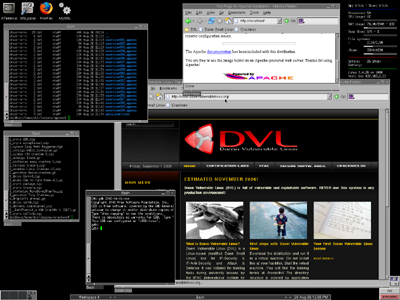
Damn Vulnerable Linux (DVL) is a testing and educational distribution. The idea for producing DVL came from Thorsten Schneider who runs the TeutoHack lab at Bielefeld University in Germany.

The main idea behind this is to access to a network and start hacking (ethical hacking such as his lecture course Ethical Hacking – Binary Auditing & RCE) to test the security against hacker attacks, malware and virus. Old versions of software including Apache, MySQL, PHP, FTP and SSH daemons are included as well as the tools needed to exploit them such as GCC, GDB, NASM, strace, ELF, Shell, DDD, LDasm, and LIDa.

DVL is free to download, but be warned this is a highly exploitable version of the Linux and use it just for educational and testing purpose not has a main computer or working computer. If you want to download it just follow the previous link, it’s only 1.8GB the ISO can be used as a Live CD, or installed as a virtual machine using a package like VirtualBox or VMWare.

Source: Damn Vulnerable Linux

Firefox “Home” Iphone

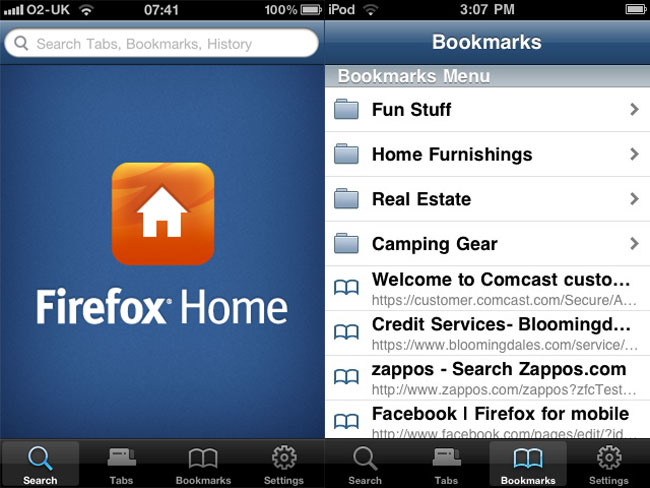
After 7 weeks Mozilla announce it, the Firefox home it’s now on the Itunes Store. The Firefox home is not a web browser, instead is a synchronization plug-in for the activity in your pc, open tabs, bookmarks, etc.

Mozilla also has no plans to make a complete browser for Apple iOS, either. The company said previously that it opted not to port Firefox to the iOS platform due to limitations it said had been imposed on iPhone applications by Apple. Still, Firefox Home does work in concert with some Apple technology: Back in May, a Mozilla spokesperson explained to InternetNews.com that the Firefox Home viewer uses the iPhone’s native WebKit rendering engine, and link information is then viewed with the Safari browser.

The Firefox Home application will work on Apple iOS versions 3.1 or higher and weighs in as a 2.4 MB download.

Source: It Management

Wine 1.2 Released

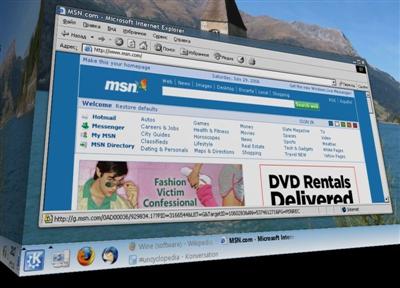
The version 1.2 of the well know wine is now released and you can download it from the next link. If you don’t know what wine is, let me explain a little and short. wine is a program (wine is not emulator) that allow you to run windows programs. Some of the new features from wine after 2 years without a stable release.

This release represents two years of development effort and over 23,000 changes. The main highlights are the support for 64-bit applications, and the new graphics based on the Tango standard.

Source: Wine Reviews

CA Unveils New Virtualization Management Apps

With release of five new virtualization-management software applications, CA is giving IT managers new tools to manage privileges access to their systems.

Read more at internetnews.com

HP PalmPad Trademark Foretells WebOS Slate

Hewlett-Packard acquires a trademark for the term “PalmPad”, which is presumably the name of their rumored tablet computer running Palm’s webOS operating system.

Read more at CNET News

Droid 2 Being Prepared for Launch, Set to Arrive August 23rd?

The Droid 2‘s been leaking out all over the place in the past few weeks, but it looks like it’ll be another month before it officially hits shelves — we just got these shots from a packaging facility that’s handling the phone, which puts it right on schedule for that rumored August 23rd launch. We’re also told that the phone will definitely ship with an 8GB microSD card, and that pricing appears to be $199 on contract and $599 standalone, although those numbers could change. Just a few short weeks left, we suppose — although give the rate at which this thing is leaking, we’re thinking Motorola and Verizon might do well to push that date up a couple weeks. We’ll see

Read more at Engadget Mobile