This third release of the CKA exam demonstrates CNCF’s ongoing commitment to grow the Kubernetes ecosystem by ensuring that developers and operations can demonstrate their skills with the latest version of Kubernetes. The latest CKA exam maps to the latest Kubernetes 1.9.1 release published last month. A number of bugs and inconsistencies in earlier versions have now been eliminated.
The online exam takes three hours to complete and consists of a set of performance-based items (problems) to be solved in a command line running Version 1.9.1. The Certification focuses on the skills required to be a successful Kubernetes Administrator.
Of all the things we expected to come out of the rise of Oculus and the still-burgeoning era of consumer virtual reality, a new fundamental unit of time was not one of them. But that’s just what Oculus and Facebook have rolled out this week in the form of the flick, a new definition that subdivides a single second into precisely 705,600,000 parts.
If you use common time units like the millisecond or nanosecond to measure how long a single frame of video appears on screen, you’re often left with a fractional remainder rather than a clean, whole integer. This can be a problem in programming and visual effects, where rounding and/or floating point representations can lead to slight imprecision or desynchronization over time. Delivering video frames with perfect timing is also pretty important to delivering a comfortable VR experience.
Spectre and Meltdown are major design flaws in modern CPUs. While they’re present in almost all recent processors, because Intel chips are so widely used, Intel is taking most of the heat for these bugs. Nowhere has the criticism been hotter than on the Linux Kernel Mailing List (LKML). That’s because unlike Apple and Microsoft operating system developers and OEMS like Dell and HP, Linux programmers do their work in the open. But, when Linux and Intel developers aren’t arguing, they are making progress.
Arpit Joshipura will serve as executive director of LFN for the Linux Foundation. Joshipura’s previous title had been general manager of networking and orchestration at the Linux Foundation. “We are going horizontal,” said Joshipura. “I will be driving the general business management of LFN.”
This is the fourth article in our series on migrating to Linux. If you missed the previous installments, we’ve covered Linux for new users, files and filesystems, and graphical environments. Linux is everywhere. It’s used to run most Internet services like web servers, email servers, and others. It’s also used in your cell phone, your car console, and a whole lot more. So, you might be curious to try out Linux and learn more about how it works.
Under Linux, the command line is very useful. On desktop Linux systems, although the command line is optional, you will often see people have a command line window open alongside other application windows. On Internet servers, and when Linux is running in a device, the command line is often the only way to interact directly with the system. So, it’s good to know at least some command line basics.
In the command line (often called a shell in Linux), everything is done by entering commands. You can list files, move files, display the contents of files, edit files, and more, even display web pages, all from the command line.
If you are already familiar with using the command line in Windows (either CMD.EXE or PowerShell), you may want to jump down to the section titled Familiar with Windows Command Line? and read that first.
Navigating
In the command line, there is the concept of the current working directory (Note: A folder and a directory are synonymous, and in Linux they’re usually called directories). Many commands will look in this directory by default if no other directory path is specified. For example, typing ls to list files, will list files in this working directory. For example:
$ lsDesktop Documents Downloads Music Pictures README.txt Videos
The command, ls Documents, will instead list files in the Documents directory:
$ ls Documentsreport.txt todo.txt EmailHowTo.pdf
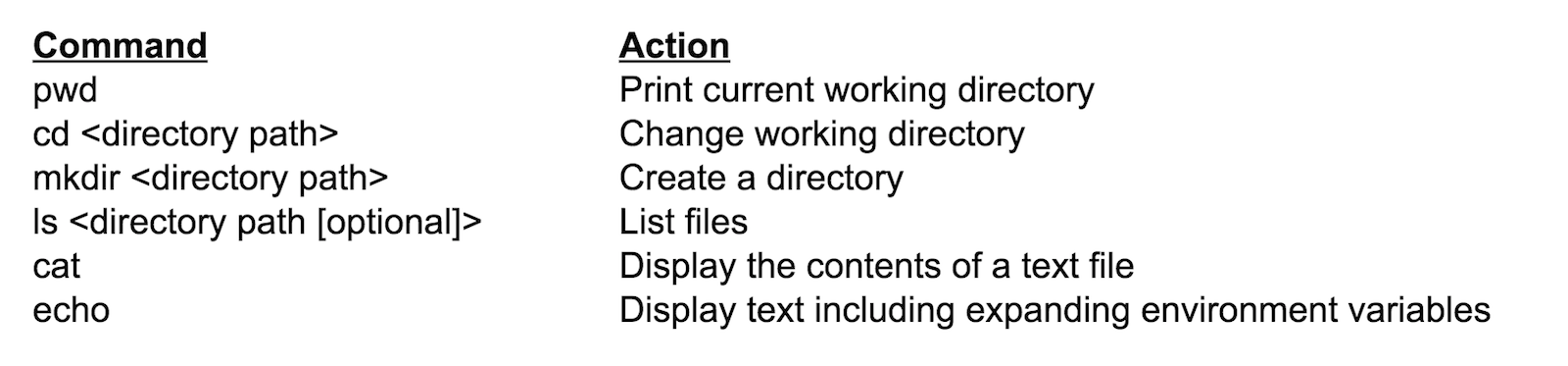
You can display the current working directory by typingpwd. For example:
$ pwd/home/student
You can change the current directory by typing cd and then the directory you want to change to. For example:
$ pwd/home/student$ cd Downloads$ pwd/home/student/Downloads
A directory path is a list of directories separated by a / (slash) character. The directories in a path have an implied hierarchy, for example, where the path /home/studentexpects there to be a directory named homein the top directory, and a directory named student to be in that directory home.
Directory paths are either absolute or relative. Absolute directory paths start with the / character.
Relative paths start with either . (dot) or .. (dot dot). In a path, a . (dot) means the current directory, and .. (dot dot) means one directory up from the current one. For example, ls ../Documents means look in the directory up one from the current one and show the contents of the directory named Documents in there:
$ pwd/home/student$ lsDesktop Documents Downloads Music Pictures README.txt Videos$ cd Downloads$ pwd/home/student/Downloads$ ls ../Documentsreport.txt todo.txt EmailHowTo.pdf
When you first open a command line window on a Linux system, your current working directory is set to your home directory, usually: /home/<your login name here>. Your home directory is dedicated to your login where you can store your own files.
The environment variable $HOME expands to the directory path to your home directory. For example:
$ echo $HOME/home/student
The following table shows a summary of some of the common commands used to navigate directories and manage simple text files.
Searching
Sometimes I forget where a file resides, or I forget the name of the file I am looking for. There are a couple of commands in the Linux command line that you can use to help you find files and search the contents of files.
The first command is find. You can usefind to search for files and directories by name or other attribute. For example, if I forgot where I kept my todo.txt file, I can run the following:
The findprogram has a lot of features and options. A simple form of the command is: find <directory to search> -name <filename>
If there is more than one file named todo.txt from the example above, it will show me all the places where it found a file by that name. The findcommand has many options to search by type (file, directory, or other), by date, newer than date, by size, and more. You can type:
man find
to get help on how to use the find command.
You can also use a command called grep to search inside files for specific contents. For example:
grep "01/02/2018" todo.txt
will show me all the lines that have the January 2, 2018 date in them.
Getting Help
There are a lot of commands in Linux, and it would be too much to describe all of them here. So the next best step to show how to get help on commands.
The command apropos helps you find commands that do certain things. Maybe you want to find out all the commands that operate on directories or get a list of open files, but you don’t know what command to run. So, you can try:
apropos directory
which will give a list of commands and have the word “directory” in their help text. Or, you can do:
apropos "list open files"
which will show one command, lsof, that you can use to list open files.
If you know the command you need to use but aren’t sure which options to use to get it to behave the way you want, you can use the command called man, which is short for manual. You would use man <command>, for example:
man ls
You can try man ls on your own. It will give several pages of information.
Themancommand explains all the options and parameters you can give to a command, and often will even give an example.
Many commands often also have a help option (e.g., ls –help), which will give information on how to use a command. The man pages are usually more detailed, while the –help option is useful for a quick lookup.
Scripts
One of the best things about the Linux command line is that the commands that are typed in can be scripted, and run over and over again. Commands can be placed as separate lines in a file. You can put #!/bin/sh as the first line in the file, followed by the commands. Then, once the file is marked as executable, you can run the script as if it were its own command. For example,
--- contents of get_todays_todos.sh ---#!/bin/shtodays_date=`date +"%m/%d/%y"`grep $todays_date $HOME/todos.txt
Scripts help automate certain tasks in a set of repeatable steps. Scripts can also get very sophisticated if needed, with loops, conditional statements, routines, and more. There’s not space here to go into detail, but you can find more information about Linux bash scripting online.
Familiar with Windows Command Line?
If you are familiar with the Windows CMD or PowerShell program, typing commands at a command prompt should feel familiar. However, several things work differently in Linux and if you don’t understand those differences, it may be confusing.
First, under Linux, the PATH environment variable works different than it does under Windows. In Windows, the current directory is assumed to be the first directory on the path, even though it’s not listed in the list of directories in PATH. Under Linux, the current directory is not assumed to be on the path, and it is not explicitly put on the path either. Putting . in the PATH environment variable is considered to be a security risk under Linux. In Linux, to run a program in the current directory, you need to prefix it with ./ (which is the file’s relative path from the current directory). This trips up a lot of CMD users. For example:
./my_program
rather than
my_program
In addition, in Windows paths are separated by a ; (semicolon) character in the PATH environment variable. On Linux, in PATH, directories are separated by a : (colon) character. Also in Linux, directories in a single path are separated by a / (slash) character while under Windows directories in a single path are separated by a (backslash) character. So a typical PATH environment variable in Windows might look like:
PATH="C:Program Files;C:Program FilesFirefox;"while on Linux it might look like:PATH="/usr/bin:/opt/mozilla/firefox"
Also note that environment variables are expanded with a $ on Linux, so $PATH expands to the contents of the PATH environment variable whereas in Windows you need to enclose the variable in percent symbols (e.g., %PATH%).
In Linux, options are commonly passed to programs using a – (dash) character in front of the option, while under Windows options are passed by preceding options with a / (slash) character. So, under Linux, you would do:
a_prog -h
rather than
a_prog /h
Under Linux, file extensions generally don’t signify anything. For example, renaming myscript to myscript.bat doesn’t make it executable. Instead to make a file executable, the file’s executable permission flag needs to be set. File permissions are covered in more detail next time.
Under Linux when file and directory names start with a . (dot) character they are hidden. So, for example, if you’re told to edit the file, .bashrc, and you don’t see it in your home directory, it probably really is there. It’s just hidden. In the command line, you can use option -a on the command ls to see hidden files. For example:
ls -a
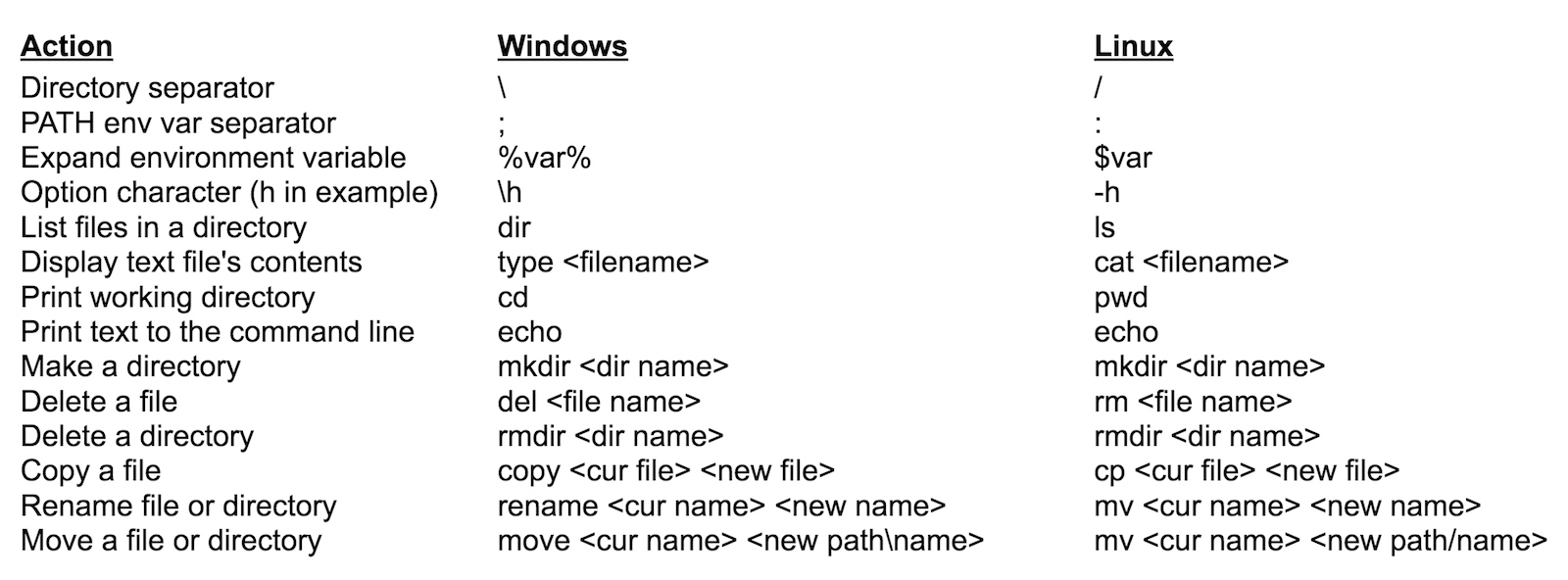
Under Linux, common commands are also different from those in the Windows command line. The following table that shows a mapping from common items used under CMD and the alternative used under Linux.
Amazon fully understand the reality of the compute spectrum, but they are also completely focused on making it easier and easier to begin new development projects on Lambda for a wide variety of scenarios. This makes perfect sense, as we noted previously Serverless is volume compute for a new generation of applications, with significant upside for the providers in usage of adjacent services, and also an efficient disruptor of established processes.
Additionally, by expanding the various entry points to the Serverless paradigm for developers, via routes such as AWS DeepLens, AWS Greengrass and so forth, Amazon are focusing minds on the end product required rather than solving for the underlying operational complexity.
The General Data Protection Regulation (GDPR) is perhaps the most sweeping data privacy law in history. Within its nearly 100 articles, it outlines new requirements for organizations that have access to the personal information of European Union (EU) citizens, giving average consumers far more power over how their data is used.
Failure to comply will mean heavy fines of approximately $24 million (€20 million), or 4% of a company’s global annual revenue — whichever is greater.
Despite the passing of this regulation in 2016, many businesses still don’t consider it a priority. This is particularly true of U.S.-based organizations, some of which don’t even realize they’re required to comply.
A kernel that has had nearly 83,000 patches applied will certainly have a few bugs introduced along with the new features, states the 2017 Linux Kernel Development Report, written by Jonathan Corbet and Greg Kroah-Hartman.
To find and report those bugs, Linux kernel developers depend on a wide community of testers. And, according to convention, when a bug-fixing patch is applied to the kernel, it should contain a “Reported-by” tag to credit the tester who found the problem. During the period covered by the most recent report, more than 4,100 patches carried such tags, and the top 21 bug reporters are shown in the table at right.
Linux users need to know how to protect their servers or personal computers from destruction, and the first step they need to take is to protect the filesystem.
In this article, we’ll look at Tripwire, an excellent tool for protecting Linux filesystems. Tripwire is an integrity checking tool that enables system administrators, security engineers, and others to detect alterations to system files. Although it’s not the only option available (AIDE and Samhain offer similar features), Tripwire is arguably the most commonly used integrity checker for Linux system files, and it is available as open
In an almost unprecedented move, Linus Torvalds has delayed the release of a final build of the Linux Kernel 4.15, instead announcing an unusual ninth release candidate, the first time he had felt he has to do so since 2011.
And you can be fairly sure that Torvalds is not happy with the release because everyone has been busy dealing with the fallout from Meltdown and Spectre, even though the impact on Linux is minimal.