Home Blog Page 441

How to Set Up Private DNS Servers with BIND on Ubuntu 16.04

BIND (Berkeley Internet Name Domain) is the most used DNS software over the Internet. The BIND package is available for all Linux distributions, which makes the installation simple and straightforward. In today’s article we will show you how to install, configure and administer BIND 9 as a private DNS server on a Ubuntu 16.04 VPS, in few steps.

Requirements:

  • Two servers (ns1 and ns2) connected to a private network
  • In this tutorial we will use the 10.20.0.0/16 subnet
  • DNS clients that will connect to your DNS servers

How to Set Up Private DNS Servers with BIND on Ubuntu 16.04
How to Set Up Private DNS Servers with BIND on Ubuntu 16.04

BIND (Berkeley Internet Name Domain) is the most used DNS software over the Internet. The BIND package is available for all Linux distributions, which makes the installation simple and straightforward. In today’s article we will show you how to install, configure and administer BIND 9 as a private DNS server on a Ubuntu 16.04 VPS, in few steps.

Requirements:

  • Two servers (ns1 and ns2) connected to a private network
  • In this tutorial we will use the 10.20.0.0/16 subnet
  • DNS clients that will connect to your DNS servers

1. Update both servers

Begin by updating the packages on both servers:

# sudo apt-get update

2. Install BIND on both servers

# sudo apt-get install bind9 bind9utils

3. Set BIND to IPv4 mode

Set BIND to IPv4 mode, we will do that by editing the “/etc/default/bind9” file and adding “-4” to the OPTIONS variable:

# sudo nano /etc/default/bind9

The edited file should look something like this:

# run resolvconf?
RESOLVCONF=no

# startup options for the server
OPTIONS="-4 -u bind"

Now let’s configure ns1, our primary DNS server.

4. Configuring the Primary DNS Server

Edit the named.conf.options file:

# sudo nano /etc/bind/named.conf.options

On top of the options block, add a new block called trusted.This list will allow the clients specified in it to send recursive DNS queries to our primary server:

acl "trusted" {
        10.20.30.13;  
        10.20.30.14;
        10.20.55.154;
        10.20.55.155;
};

5. Enable recursive queries on our ns1 server, and have the server listen on our private network

Then we will add a couple of configuration settings to enable recursive queries on our ns1 server and to have the server listen on our private network, add the configuration settings under the directory “/var/cache/bind” directive like in the example below:

options {
        directory "/var/cache/bind";

        recursion yes;
        allow-recursion { trusted; };
        listen-on { 10.20.30.13; };
        allow-transfer { none; };

        forwarders {
                8.8.8.8;
                8.8.4.4;
        };
};

If the “listen-on-v6” directive is present in the named.conf.options file, delete it as we want BIND to listen only on IPv4.
Now on ns1, open the named.conf.local file for editing:

# sudo nano /etc/bind/named.conf.local

Here we are going to add the forward zone:

zone "test.example.com" {
    type master;
    file "/etc/bind/zones/db.test.example.com";
    allow-transfer { 10.20.30.14; };
};

Our private subnet is 10.20.0.0/16, so we are going to add the reverse zone with the following lines:

zone "20.10.in-addr.arpa" {
    type master;
    file "/etc/bind/zones/db.10.20";
    allow-transfer { 10.20.30.14; };
};

If your servers are in multiple private subnets in the same physical location, you need to specify a zone and create a separate zone file for each subnet.

6. Creating the Forward Zone File

Now we’ll create the directory where we will store our zone files in:

# sudo mkdir /etc/bind/zones

We will use the sample db.local file to make our forward zone file, let’s copy the file first:

# cd /etc/bind/zones
# sudo cp ../db.local ./db.test.example.com

Now edit the forward zone file we just copied:

# sudo nano /etc/bind/zones/db.test.example.com

It should look something like the example below:

$TTL    604800
@       IN      SOA     localhost. root.localhost. (
                              2         ; Serial
                         604800         ; Refresh
                          86400         ; Retry
                        2419200         ; Expire
                         604800 )       ; Negative Cache TTL
;
@       IN      NS      localhost.      ; delete this
@       IN      A       127.0.0.1       ; delete this
@       IN      AAAA    ::1             ; delete this

Now let’s edit the SOA record. Replace localhost with your ns1 server’s FQDN, then replace “root.localhost” with “admin.test.example.com”.Every time you edit the zone file, increment the serial value before you restart named otherwise BIND won’t apply the change to the zone, we will increment the value to “3”, it should look something like this:

@       IN      SOA     ns1.test.example.com. admin.test.example.com. (
                              3         ; Serial

Then delete the last three records that are marked with “delete this” after the SOA record.

Add the nameserver records at the end of the file:

; name servers - NS records
    IN      NS      ns1.test.example.com.
    IN      NS      ns2.test.example.com.

After that add the A records for the hosts that need to be in this zone. That means any server whose name we want to end with “.test.example.com”:

; name servers - A records
ns1.test.example.com.          IN      A       10.20.30.13
ns2.test.example.com.          IN      A       10.20.30.14

; 10.20.0.0/16 - A records
host1.test.example.com.        IN      A      10.20.55.154
host2.test.example.com.        IN      A      10.20.55.155

The db.test.example.com file should look something like the following:

$TTL    604800
@       IN      SOA     ns1.test.example.com. admin.test.example.com. (
                  3       ; Serial
             604800     ; Refresh
              86400     ; Retry
            2419200     ; Expire
             604800 )   ; Negative Cache TTL
;
; name servers - NS records
     IN      NS      ns1.test.example.com.
     IN      NS      ns2.test.example.com.

; name servers - A records
ns1.test.example.com.          IN      A       10.20.30.13
ns2.test.example.com.          IN      A       10.20.30.14

; 10.20.0.0/16 - A records
host1.test.example.com.        IN      A      10.20.55.154
host2.test.example.com.        IN      A      10.20.55.155

7. Creating the Reverse Zone File

We specify the PTR records for reverse DNS lookups in the reverse zone files. When the DNS server receives a PTR lookup query for an example for IP: “10.20.55.154”, it will check the reverse zone file to retrieve the FQDN of the IP address, in our case that would be “host1.test.example.com”.

We will create a reverse zone file for every single reverse zone specified in the named.conf.local file we created on ns1. We will use the sample db.127 zone file to create our reverse zone file:

# cd /etc/bind/zones
# sudo cp ../db.127 ./db.10.20

Edit the reverse zone file so it matches the reverse zone defined in named.conf.local:

# sudo nano /etc/bind/zones/db.10.20

The original file should look something like the following:

$TTL    604800
@       IN      SOA     localhost. root.localhost. (
                              1         ; Serial
                         604800         ; Refresh
                          86400         ; Retry
                        2419200         ; Expire
                         604800 )       ; Negative Cache TTL
;
@       IN      NS      localhost.      ; delete this
1.0.0   IN      PTR     localhost.      ; delete this

You should modify the SOA record and increment the serial value. It should look something like this:

@       IN      SOA     ns1.test.example.com. admin.test.example.com. (
                              3         ; Serial

Then delete the last three records that are marked with “delete this” after the SOA record.

Add the nameserver records at the end of the file:

; name servers - NS records
      IN      NS      ns1.test.example.com.
      IN      NS      ns2.test.example.com.

Now add the PTR records for all hosts that are on the same subnet in the zone file you created. This consists of our hosts that are on the 10.20.0.0/16 subnet. In the first column we reverse the order of the last two octets from the IP address of the host we want to add:

; PTR Records
13.30  IN      PTR     ns1.test.example.com.    ; 10.20.30.13
14.30  IN      PTR     ns2.test.example.com.    ; 10.20.30.14
154.55 IN      PTR     host1.test.example.com.  ; 10.20.55.154
155.55 IN      PTR     host2.test.example.com.  ; 10.20.55.155

Save and exit the reverse zone file.

The “/etc/bind/zones/db.10.20” reverse zone file should look something like this:

$TTL    604800
@       IN      SOA     test.example.com. admin.test.example.com. (
                              3         ; Serial
                         604800         ; Refresh
                          86400         ; Retry
                        2419200         ; Expire
                         604800 )       ; Negative Cache TTL
; name servers
      IN      NS      ns1.test.example.com.
      IN      NS      ns2.test.example.com.

; PTR Records
13.30  IN      PTR     ns1.test.example.com.    ; 10.20.30.13
14.30  IN      PTR     ns2.test.example.com.    ; 10.20.30.14
154.55 IN      PTR     host1.test.example.com.  ; 10.20.55.154
155.55 IN      PTR     host2.test.example.com.  ; 10.20.55.155

8. Check the Configuration Files

Use the following command to check the configuration syntax of all the named.conf files that we configured:

# sudo named-checkconf

If your configuration files don’t have any syntax problems, the output will not contain any error messages. However if you do have problems with your configuration files, compare the settings in the “Configuring the Primary DNS Server” section with the files you have errors in and make the correct adjustment, then you can try executing the named-checkconf command again.

The named-checkzone can be used to check the proper configuration of your zone files.You can use the following command to check the forward zone “test.example.com”:

# sudo named-checkzone test.example.com db.test.example.com

And if you want to check the reverse zone configuration, execute the following command:

# sudo named-checkzone 20.10.in-addr.arpa /etc/bind/zones/db.10.20

Once you have properly configured all the configuration and zone files, restart the BIND service:

# sudo service bind9 restart

9. Configuring the Secondary DNS Server

Setting up a secondary DNS server is always a good idea as it will serve as a failover and will respond to queries if the primary server is unresponsive.

On ns2, edit the named.conf.options file:

# sudo nano /etc/bind/named.conf.options

At the top of the file, add the ACL with the private IP addresses for all your trusted servers:

acl "trusted" {
        10.20.30.13;
        10.20.30.14;
        10.128.100.101;
        10.128.200.102;
};

Just like in the named.conf.options file for ns2, add the following lines under the directory “/var/cache/bind” directive:

        recursion yes;
        allow-recursion { trusted; };
        listen-on { 10.20.30.13; };
        allow-transfer { none; };

        forwarders {
                8.8.8.8;
                8.8.4.4;
        };

Save and exit the file.

Now open the named.conf.local file for editing:

# sudo nano /etc/bind/named.conf.local

Now we should specify slave zones that match the master zones on the ns1 DNS server. The masters directive should be set to the ns1 DNS server’s private IP address:

zone "test.example.com" {
    type slave;
    file "slaves/db.test.example.com";
    masters { 10.20.30.13; };
};

zone "20.10.in-addr.arpa" {
    type slave;
    file "slaves/db.10.20";
    masters { 10.20.30.13; };
};

Now save and exit the file.

Use the following command to check the syntax of the configuration files:

# sudo named-checkconf

Then restart the BIND service:

# sudo service bind9 restart

10. Configure the DNS Clients

We will now configure the hosts in our 10.20.0.0/16 subnet to use the ns1 and ns2 servers as their primary and secondary DNS servers. This greatly depends on the OS the hosts are running but for most Linux distributions the settings that need to be changed reside in the /etc/resolv.conf file.

Generally on the Ubuntu, Debian and CentOS distributions just edit the /etc/resolv.conf file, execute the following command as root:

# nano /etc/resolv.conf

Then replace the existing nameservers with:

nameserver 10.20.30.13 #ns1
nameserver 10.20.30.14 #ns2

Now save and exit the file and your client should be configured to use the ns1 and ns2 nameservers.

Then test if your clients can send queries to the DNS servers you just configured:

# nslookup host1.test.example.com

The output from this command should be:

Output:
Server:     10.20.30.13
Address:    10.20.30.13#53

Name:   host1.test.example.com
Address: 10.20.55.154

You can also test the reverse lookup by querying the DNS server with the IP address of the host:

# nslookup 10.20.55.154

The output should look like this:

Output:
Server:     10.20.30.13
Address:    10.20.30.13#53

154.55.20.10.in-addr.arpa   name = host1.test.example.com.

Check if all of the hosts resolve correctly using the commands above, if they do that means that you’ve configured everything properly.

Adding a New Host to Your DNS Servers

If you need to add a host to your DNS servers just follow the steps below:

On the ns1 nameserver do the following:

  • Create an A record in the forward zone file for the host and increment the value of the Serial variable.
  • Create a PTR record in the reverse zone file for the host and increment the value of the Serial variable.
  • Add your host’s private IP address to the trusted ACL in named.conf.options.
  • Reload BIND using the following command: sudo service bind9 reload

On the ns2 nameserver do the following:

  • Add your host’s private IP address to the trusted ACL in named.conf.options.
  • Reload BIND using the following command: sudo service bind9 reload

On the host machine do the following:

  • Edit /etc/resolv.conf and change the nameservers to your DNS servers.
  • Use nslookup to test if the host queries your DNS servers.

Removing a Existing Host from your DNS Servers

If you want to remove the host from your DNS servers just undo the steps above.

Note: Please subsitute the names and IP addresses used in this tutorial for the names and IP addresses of the hosts in your own private network.

Linux Kernel 4.15 Gets a Slightly Bigger Second RC, Linus Torvalds Isn’t Worried

The development cycle of the upcoming Linux 4.15 kernel continues with the second Release Candidate, which was announced this past weekend by Linus Torvalds.

 Linus Torvalds kicked off the development of Linux kernel 4.15 last week when he announced the first Release Candidate milestone, which contained most of the changes that will land in the final version, due for release next year. And now he announces the second RC, which is slightly bigger that than the first one.

“It’s a slightly bigger RC2 than I would have wished for, but this early in the release process I don’t worry about it,” said Linus Torvalds in the mailing list announcement, which contains the shortlog with details on the fixes implemented in this second Release Candidate for core. 

Read more at Softpedia

How to Manage Users with Groups in Linux

When you administer a Linux machine that houses multiple users, there might be times when you need to take more control over those users than the basic user tools offer. This idea comes to the fore especially when you need to manage permissions for certain users. Say, for example, you have a directory that needs to be accessed with read/write permissions by one group of users and only read permissions for another group. With Linux, this is entirely possible. To make this happen, however, you must first understand how to work with users, via groups and access control lists (ACLs).

We’ll start from the beginning with users and work our way to the more complex ACLs. Everything you need to make this happen will be included in your Linux distribution of choice. We won’t touch on the basics of users, as the focus on this article is about groups.

For the purpose of this piece, I’m going to assume the following:

You need to create two users with usernames:

  • olivia

  • nathan

You need to create two groups:

  • readers

  • editors

Olivia needs to be a member of the group editors, while nathan needs to be a member of the group readers. The group readers needs to only have read permission to the directory /DATA, whereas the group editors needs to have both read and write permission to the /DATA directory. This, of course, is very minimal, but it will give you the basic information you need to expand the tasks to fit your much larger needs.

I’ll be demonstrating on the Ubuntu 16.04 Server platform. The commands will be universal—the only difference would be if your distribution of choice doesn’t make use of sudo. If this is the case, you’ll have to first su to the root user to issue the commands that require sudo in the demonstrations.

Creating the users

The first thing we need to do is create the two users for our experiment. User creation is handled with the useradd command. Instead of just simply creating the users we need to create them both with their own home directories and then give them passwords.

The first thing we do is create the users. To do this, issue the commands:

sudo useradd -m olivia

sudo useradd -m nathan

We have now created our users. If you look in the /home directory, you’ll find their respective homes (because we used the -m option, which creates a home directory).

Next each user must have a password. To add passwords into the mix, you’d issue the following commands:

sudo passwd olivia

sudo passwd nathan

When you run each command, you will be prompted to enter (and verify) a new password for each user.

That’s it, your users are created.

Creating groups and adding users

Now we’re going to create the groups readers and editors and then add users to them. The commands to create our groups are:

addgroup readers

addgroup editors

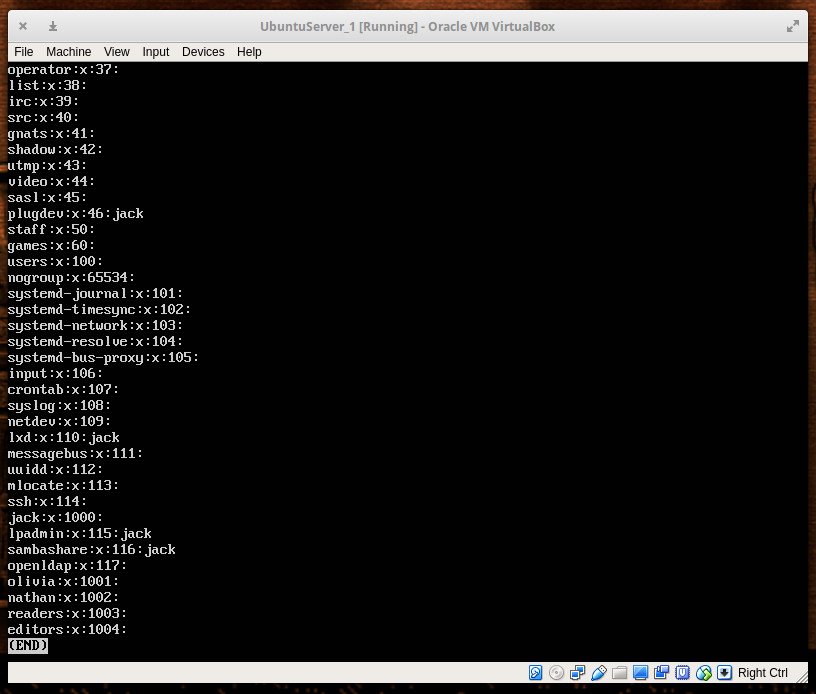
That’s it. If you issue the command less /etc/group, you’ll see our newly created groups listed (Figure 1).

Figure 1: Our new groups ready to be used.

With our groups created, we need to add our users. We’ll add user nathan to group readers with the command:

sudo usermod -a -G readers nathan

We’ll add the user olivia to the group editors with the command:

sudo usermod -a -G editors olivia

Now we’re ready to start managing the users with groups.

Giving groups permissions to directories

Let’s say you have the directory /READERS and you need to allow all members of the readers group access to that directory. First, change the group of the folder with the command:

sudo chown -R :readers /READERS 

Next, remove write permission from the group with the command:

sudo chmod -R g-w /READERS

Now we remove the others x bit from the /READERS directory (to prevent any user not in the readers group from accessing any file within) with the command:

sudo chmod -R o-x /READERS

At this point, only the owner of the directory (root) and the members of the readers group can access any file within /READERS.

Let’s say you have the directory /EDITORS and you need to give members of the editors group read and write permission to its contents. To do that, the following command would be necessary:

sudo chown -R :editors /EDITORS

sudo chmod -R g+w /EDITORS

sudo chmod -R o-x /EDITORS

At this point, any member of the editors group can access and modify files within. All others (minus root) have no access to the files and folders within /EDITORS.

The problem with using this method is you can only add one group to a directory at a time. This is where access control lists come in handy.

Using access control lists

Now, let’s get tricky. Say you have a single folder—/DATAand you want to give members of the readers group read permission and members of the group editors read/write permissions. To do that, you must take advantage of the setfacl command. The setfacl command sets file access control lists for files and folders.

The structure of this command looks like this:

setfacl OPTION X:NAME:Y /DIRECTORY

Where OPTION is the available options, X is either u (for user) or g (for group), NAME is the name of the user or group, and DIRECTORY is the directory to be used. We’ll be using the option -m for modify. So our command to add the group reader for read access to the /DATA directory would look like this:

sudo setfacl -m g:readers:rx -R /DATA

Now any member of the readers group can read the files contained within /DATA, but they cannot modify them.

To give members of the editors group read/write permissions (while retaining read permissions for the readers group), we’d issue the command;

sudo setfacl -m g:editors:rwx -R /DATA 

The above command would give any member of the editors group both read and write permission, while retaining the read-only permissions to the readers group.

All the control you need

And there you have it. You can now add members to groups and control those groups’ access to various directories with all the power and flexibility you need. To read more about the above tools, issue the commands:

  • man usradd

  • man addgroup

  • man usermod

  • man sefacl

  • man chown

  • man chmod

Learn more about Linux through the free “Introduction to Linux” course from The Linux Foundation and edX.

This Week in Open Source: Linux Foundation Events in 2018, How Linux Came to Dominate Supercomputers & More

This past week in open source, the 2018 Linux Foundation Events list is live, how Linux wound up dominating the TOP500 list, and more! Read on to stay in the know. 

1) Adrian Bridgwater breaks down what’s coming up in 2018 for Linux Foundation events.

Linux Foundation 2018 Events List– ComputerWeekly.com

2) “All 500 machines on the TOP500 supercomputer list run Linux. Here’s how the little OS that could, did.”

How Did Linux Come to Dominate Supercomputing?

3) This Fall, the kernel team extended the next version of Linux’s Long Term Support (LTS) from two to six years– but that doesn’t necessarily mean the same for future versions.

Long-Term Linux Support Future Clarified– ZDNet

4) Once hailed as the city that ran on Linux, Munich will now shell out €49.3 million to run Microsoft.

Munich Ends its Long-Running Love Affair With Linux– engadget

5) “Top technology companies are joining together on open-source license compliance and enforcement.”

Facebook, Google, IBM and Red Hat Team Up on Open-Source License Compliance

Holiday Lights that Harmonize Around the Globe

Make this festive season one to remember with a project you can build for around $25 over a weekend and share in with your your friends and family.

Grab a mince pie and a cup of coffee as we build your very own Festive Lights decoration that is powered by a Raspberry Pi Zero W and Docker containers. It’ll synchronise its colour globally across the world in real-time and is controllable through Twitter using the Cheerlights platform.

We’ll customise a small festive decoration by adding in a Raspberry Pi Zero W and colourful, low-power lights from Pimoroni, then use Docker to build, ship and run the code without any guess-work.

Read more at Alex Ellis blog

Launching an Open Source Project: A Free Guide

Increasingly, as open source programs become more pervasive at organizations of all sizes, tech and DevOps workers are choosing to or being asked to launch their own open source projects. From Google to Netflix to Facebook, companies are also releasing their open source creations to the community. It’s become common for open source projects to start from scratch internally, after which they benefit from collaboration involving external developers.

Launching a project and then rallying community support can be more complicated than you think, however. A little up-front work can help things go smoothly, and that’s exactly where the new guide to Starting an Open Source Projectcomes in.

Read more at The Linux Foundation

Find the Perfect Kubernetes Distribution

There are many different types of Kubernetes distributions in the container orchestration realm. They range from fully community produced to fully commercial and vary according to the tools and features they offer, as well as the levels of abstraction and control the provide. So which Kubernetes distribution is right for your organization?

Your needs as a user — including the working environment, the availability of expertise, and the specific use case you’re dealing with — determine whether Containers as a Service (CaaS) or an abstracted platform is the right choice. No single, straightforward framework exists to guarantee a perfect decision. Still, the two charts we present below may be a start.

Read more at The New Stack

Linux for the Industry 4.0 Era: New Distro for Factory Automation

NXP Semiconductors, a world leader in secure connectivity solutions, just announced a Linux distribution that is intended to support factory automation. It’s called Open Industrial Linux (OpenIL), and it’s promising true industrial-grade security based on trusted computing, hardened software, cryptographic operations and end-to-end security.

The fact that factory managers and industrial equipment manufacturers are turning to Linux is not surprising considering its operational stability, professional approach to system security, and its obvious low cost of ownership. The importance of the security and reliability of manufacturing security to the well being of any industrial nation is clear from the focus that DHS places on this sector.

Read more at Network World


Wake up and Shut Down Linux Automatically

Don’t be a watt-waster. If your computers don’t need to be on then shut them down. For convenience and nerd creds, you can configure your Linux computers to wake up and shut down automatically.

Precious Uptimes

Some computers need to be on all the time, which is fine as long as it’s not about satisfying an uptime compulsion. Some people are very proud of their lengthy uptimes, and now that we have kernel hot-patching that leaves only hardware failures requiring shutdowns. I think it’s better to be practical. Save electricity as well as wear on your moving parts, and shut them down when they’re not needed. For example, you can wake up a backup server at a scheduled time, run your backups, and then shut it down until it’s time for the next backup. Or, you can configure your Internet gateway to be on only at certain times. Anything that doesn’t need to be on all the time can be configured to turn on, do a job, and then shut down.

Sleepies

For computers that don’t need to be on all the time, good old cron will shut them down reliably. Use either root’s cron, or /etc/crontab. This example creates a root cron job to shut down every night at 11:15 p.m.

# crontab -e -u root
# m h  dom mon dow   command
15 23 * * * /sbin/shutdown -h now

This example runs only on weekdays.

15 23 * * 1-5 /sbin/shutdown -h now

You can create multiple cronjobs for different days and times. See man 5 cron to learn about all the time and date fields.

You may also use /etc/crontab, which is fast and easy, and everything is in one file. You have to specify the user:

15 23 * * 1-5 root shutdown -h now

Wakies

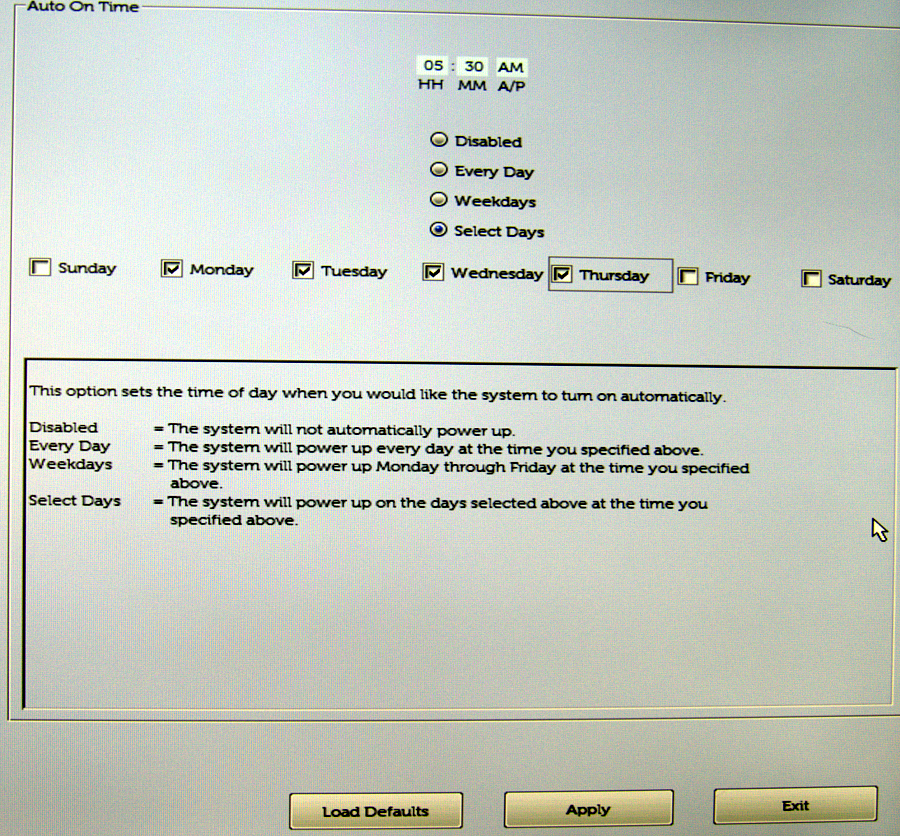
Auto-wakeups are very cool; most of my SUSE colleagues are in Nuremberg, so I am crawling out of bed at 5 a.m. to have a few hours of overlap with their schedules. My work computer turns itself on at 5:30 a.m., and then all I have to do is drag my coffee and myself to my desk to start work. It might not seem like pressing a power button is a big deal, but at that time of day every little thing looms large.

Waking up your Linux PC can be less reliable than shutting it down, so you may want to try different methods. You can use wakeonlan, RTC wakeups, or your PC’s BIOS to set scheduled wakeups. These all work because, when you power off your computer, it’s not really all the way off; it is in an extremely low-power state and can receive and respond to signals. You need to use the power supply switch to turn it off completely.

BIOS Wakeup

A BIOS wakeup is the most reliable. My system BIOS has an easy-to-use wakeup scheduler (Figure 1). Chances are yours does, too. Easy peasy.

Figure 1: My system BIOS has an easy-to-use wakeup scheduler.

wakeonlan

wakeonlan is the next most reliable method. This requires sending a signal from a second computer to the computer you want to power on. You could use an Arduino or Raspberry Pi to send the wakeup signal, a Linux-based router, or any Linux PC. First, look in your system BIOS to see if wakeonlan is supported — which it should be — and then enable it, as it should be disabled by default.

Then, you’ll need an Ethernet network adapter that supports wakeonlan; wireless adapters won’t work. You’ll need to verify that your Ethernet card supports wakeonlan:

# ethtool eth0 | grep -i wake-on
        Supports Wake-on: pumbg
        Wake-on: g

The Supports Wake-on line tells you what features are supported:

  • d — all wake ups disabled
  • p — wake up on physical activity
  • u — wake up on unicast messages
  • m — wake up on multicast messages
  • b — wake up on broadcast messages
  • a — wake up on ARP messages
  • g — wake up on magic packet
  • s — set the Secure On password for the magic packet

man ethtool is not clear on what the p switch does; it suggests that any signal will cause a wake up. In my testing, however, it doesn’t do that. The one that must be enabled is g -- wake up on magic packet, and the Wake-on line shows that it is already enabled. If it is not enabled, you can use ethtool to enable it, using your own device name, of course:

# ethtool -s eth0 wol g

This may or may not survive a restart, so to make it a sure thing, you can create a root cron job to run the enable command after every restart:

@reboot /usr/bin/ethtool -s eth0 wol g

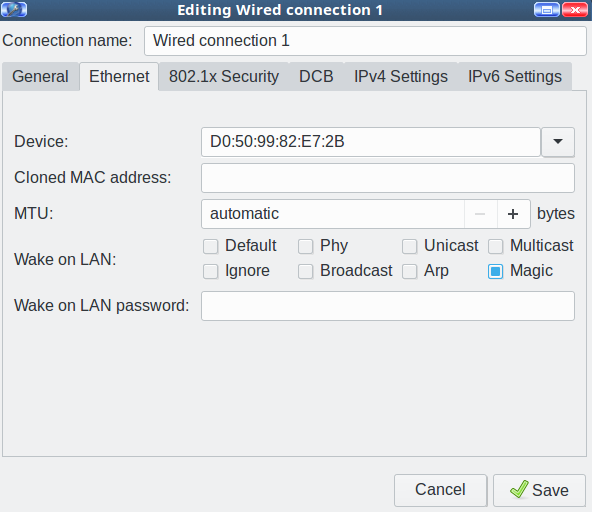
Figure 2: Enable Wake on LAN.

Another option is recent Network Manager versions have a nice little checkbox to enable wakeonlan (Figure 2).

There is a field for setting a password, but if your network interface doesn’t support the Secure On password, it won’t work.

Now you need to configure a second PC to send the wakeup signal. You don’t need root privileges, so create a cron job for your user. You need the MAC address of the network interface on the machine you’re waking up:

30 08 * * * /usr/bin/wakeonlan D0:50:99:82:E7:2B 

RTC Alarm Clock

Using the real-time clock for wakeups is the least reliable method. Check out Wake Up Linux With an RTC Alarm Clock; this is a bit outdated as most distros use systemd now. Come back next week to learn more about updated ways to use RTC wakeups.

Learn more about Linux through the free “Introduction to Linux” course from The Linux Foundation and edX.

From 0 to Kubernetes

Although you hear a lot about containers and Kubernetes these days, there’s a lot of mystery around them. In her Lightning Talk at All Things Open 2017, “From 0 to Kubernetes,” Amy Chen clears up the confusion.

Amy, a software engineer at Rancher Labs, describes containers as baby computers living inside another computer that are suffering an “existential crisis” as they try to figure out their place in the world. Kubernetes is the way all those baby computers are organized.

Read more at OpenSource.com