
Joe Brockmeier has tips for how you can build community and attract more users – which in turn, will attract more developers, make life easier, and help ensure a long life for your project.
Start exploring Essentials of OpenStack Administration by downloading the free sample chapter today. DOWNLOAD NOW
OpenStack has come a long way since 2010 when NASA approached Rackspace for a project. With 1,600 individual contributors to OpenStack and a six-month release cycle, there are a lot of changes and progress. This amount of change and progress is not without its drawbacks. In the Juno release, there were something like 10,000 bugs. In the next release, Kilo, there were 13,000 bugs. But as OpenStack is deployed in more environments, and more people are interested in it, the community grows both in users and developers.
In part 5 of our series from the Essentials of OpenStack Administration course sample chapter, we discuss the OpenStack project in more detail: its community of contributors, release cycle, and use cases. Download the full sample chapter now.
In 2010, Engineers at NASA approached some friends at Rackspace to build an open cloud for NASA and hopefully other government organizations as part of an Open Government initiative. At that time, there were only proprietary and expensive offerings available. Project Nebula was born. Rackspace was interested in moving their software toward open source and saw Nebula as a good place to begin.
Together they started working on something called Nova, known now as OpenStack Compute. At the time, Nova was the project that did everything. It did storage, and network, and virtual machines. Now, new projects have taken over some of those duties.
Since then, the number of projects has grown incredibly. If you go to the OpenStack.org website and look at the projects page, you’ll notice there are more than 35 different projects. Each project is made up of one or more services to the cloud. Each of the projects is developed separately.
Although NASA has stopped major work on OpenStack, a large and growing group of supporters still remains. Each component of OpenStack has a dedicated project. Each project has an official name, as well as a more well-known code-name. The project list has been growing with each release. Some projects are considered core, others are newer and in incubation stages. See a list of the current projects.
There are several distributions of OpenStack available as well, from large IT companies and start-ups alike. DevStack is a deployment of OpenStack available from the www.openstack.org website. It allows for easy testing of new features, but is not considered production-safe. Red Hat, Canonical, Mirantis and several other companies also provide their own deployment of OpenStack, similar to the many options to install Linux.
The first release of the project was code-named Austin, in October of 2010. Since then, a major release has been deployed every six months. There are code features and proposals that are evaluated every two months or so, as well as code sprints planned on a regular basis.
The quick release schedule and large number of developers working on code does not always lead to smooth transitions. The Kilo release was the first one to address an upgrade path, with its success yet to be known. In fact, there were approximately 10 percent more bugs in the Kilo release than the first Juno release.
The ability to deploy and redeploy various instances allows for software development at the speed of the developer, without downtime waiting for IT to handle a ticket.
Testing can be easily done in parallel with various flavors, or system configurations, and operating system configurations. These choices are also within the reach of the end user to lessen interaction with the IT team.
Using both a Browser User Interface (BUI) or a command line, much of the common IT requests can be delegated to the users. The IT staff can focus on higher-level functions and problems instead of more common requests.
The flexibility of OpenStack through various software-defined layers allows for more options, instead of fewer, as has happened with server consolidation.
The next, and final, article in this series is a tutorial on installing DevStack, a simple way for developers to test-drive OpenStack.
The Essentials of OpenStack Administration course teaches you everything you need to know to create and manage private and public clouds with OpenStack. Download a sample chapter today!
Read the other articles in the series:
Essentials of OpenStack Administration Part 1: Cloud Fundamentals
Essentials of OpenStack Administration Part 2: The Problem With Conventional Data Centers
Essentials of OpenStack Administration Part 3: Existing Cloud Solutions
Essentials of OpenStack Administration Part 4: Cloud Design, Software-Defined Networking and Storage
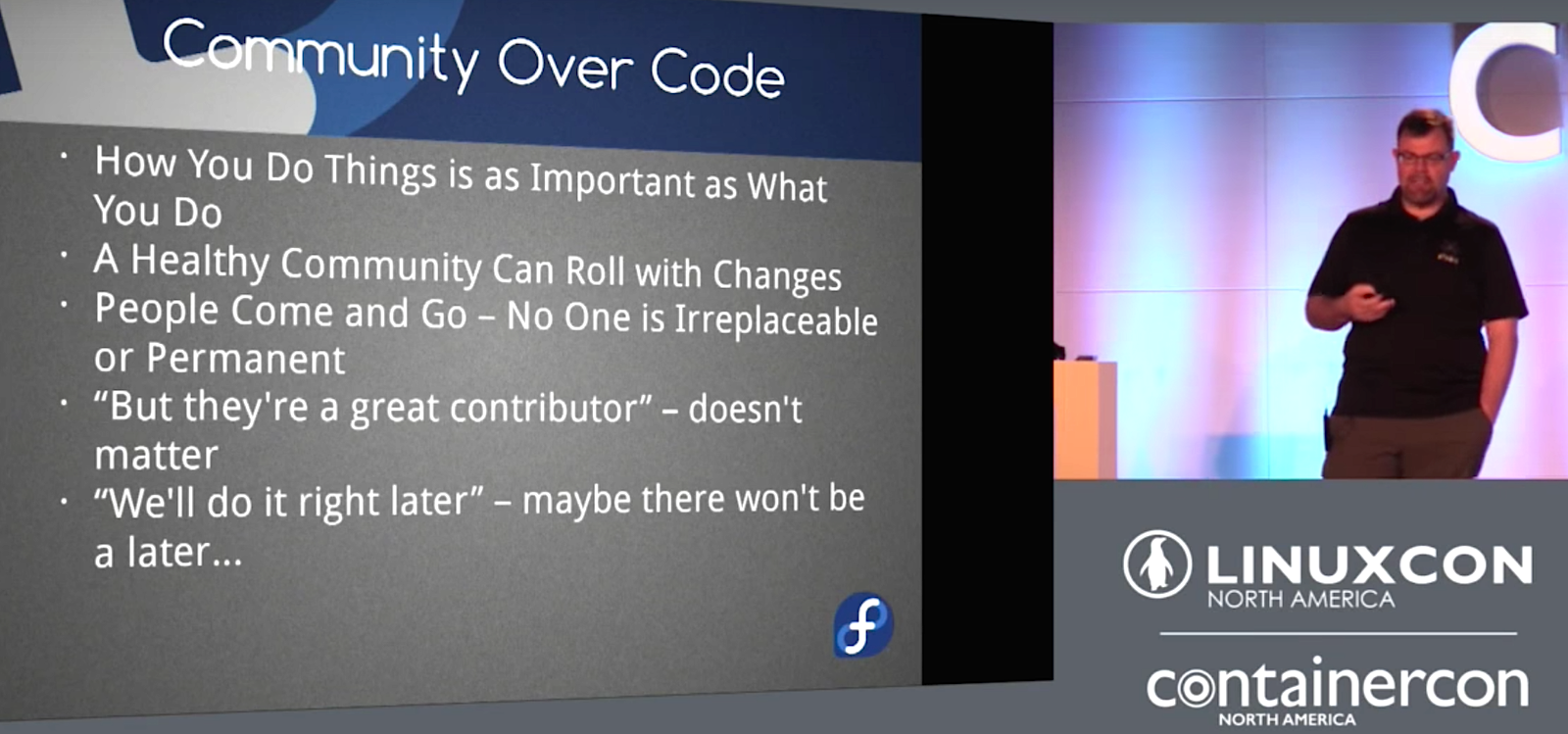
Healthy productive FOSS projects don’t just happen, but are built, and the secret ingredient is Community over code. Purpose and details are everything: If you build it will they come, and then how do you keep it going and growing? How do you set direction, attract and retain contributors, what do you do when there are conflicts, and especially conflicts with valuable contributors? Joe Brockmeier (Red Hat) shares a wealth of practical wisdom at LinuxCon North America.
We hear the word “community” bandied about all the time, and have this fuzzy notion that it’s a good thing, but what does it really mean? Brockmeier says, “I’ve worked with a number of different companies and projects…and they say, ‘Well, we want community.’ Great, what kind of community do you want? Who is important to you? What users matter to you? What developers matter to you? You need to know what success looks like. You need to know what your project goals are. These look different for different projects.”
What do you expect your community to do? “Some companies, for example, really don’t care that much about having a core contributor community outside their company, but they care deeply about having a lot of users. If you’re building a community to attract users, that’s not the same thing as building one to attract core contributors,” says Brockmeier.
Any software project, even a small one, requires dedicated contributors filling many roles beyond coding. You need code reviewers, documentation writers, bug finders, bug fixers, people who hang out on IRC and forums helping users, packagers, sysadmins, marketers, and perhaps artists and musicians. Attracting and retaining contributors really isn’t mysterious, just work. For example, having mentors to smooth the way for new contributors, recognizing all contributions from all contributors, and ensuring that all communications and decisions are open to all, and not just a small in-group. Brockmeier stresses inclusion: “My favorite with the Apache Software Foundation is if it didn’t happen on the mailing list, it didn’t happen. You don’t get to make decisions that affect the entire project in private and then just implement them.”
Recognition is essential: “You need to go out of your way to recognize contributions from people. It doesn’t matter whether it’s marketing, whether it somebody who’s on IRC every day answering user questions which is really important and usually not something the developers want to do. You need to make sure that you are recognizing all those people.”
Watch the complete talk (below) to learn about more key concepts including lazy consensus, code of conduct, setting measurable goals, governance, inclusion and diversity, and what to do about valuable but troublesome contributors. (Hint: no one is indispensible.)


SUSE supports a lot of architectures and runs on everything from IBM mainframe to x86 machines, and more. With ARM’s push in the data center, it made even more sense for SUSE to work closely with ARM to support yet another platform.
When the Raspberry Pi 3 Model B was announced, SUSE engineers found that it runs on the Broadcom BCM2837 64-bit A53 ARM processor. A lot of work has already been completed on this processor for SUSE Linux Enterprise Server, so getting SLES or openSUSE to run on Raspberry Pi 3 Model B was only a matter of time.
During SUSECon 2016, SUSE announced SLES support for Raspberry Pi 3 Model B. Due to a close and somewhat complicated relationship (openSUSE is based on source code of SLES, whereas openSUSE is touted as the upstream of SLES) between SLES and openSUSE, the announcement also means that openSUSE will also be able to run on the same device.
I have installed and used all three distributions (SLES, openSUSE Leap, and openSUSE Tumbleweed) on Raspberry Pi, and I am pretty impressed with their performance. They all run flawlessly.
You can download openSUSE Leap, openSUSE Tumbleweed, and SLES from the following links. The good news is that SUSE is also offering a self-service subscription for SLES for a year.
Download openSUSE Leap
Download openSUSE Tumbleweed
We all know that ARM is a powerhouse in the mobile and embedded space. Everything from Nexus XL to Apple Watch to iPad Pro run on ARM processors. What many of us don’t know is that ARM is moving into datacenters and the enterprise world with full force.
There is a lot of potential for ARM in enterprise, said Andrew Wafaa, an ARM engineer who mainly works on supporting SUSE on ARM in an interview. “If some people need a dense compute infrastructure, they don’t have much space within the data center. Traditionally, the biggest constraint within the data center is not floor space or rack space. It’s power and cooling. ARM moving from the mobile space into the enterprise space has a long history, a lot of experience, a lot of knowledge in the power envelope. We’re bringing a lot of that across to the enterprise space,” he said.
PayPal has deployed ARM 64 datacenter; OVH is running ARM-powered data centers; Google is considering ARM and so is Facebook.
Wafaa said that there’s a huge interest from the China region in ARM. High-performance computing is also a greenfield for ARM. One of the greatest advantages of ARM over traditional players is vendor lock-in. Any silicon vendor can license and create their own chips. And vendor lock-in, white boxes are a sensitive topic in the enterprise space as we move towards cloud. This essentially means there is going to be a huge demand for tech talent with experience in ARM.
Raspberry Pis are not just for DIY anymore. These days companies like NEC are using Raspberry Pis in their huge displays for corporate customers. There are many web hosting providers that offer Raspberry Pi servers. There are many more such cases, but even if we don’t consider direct usage of Raspberry Pi in data centers, they are extremely valuable for sysadmins, DevOps, and developers. It can be expensive to get access to ARM-based servers and data centers (not Raspberry Pi ones), to test and develop applications.
“The Raspberry Pi is an exceptionally cheap platform for people to obtain,” said Wafaa. “It’s very easy to get hold of. In addition, there’s a large ecosystem around Raspberry Pi already. The fact that it’s low cost, it’s easy for people to obtain, they can run the same software platform that they have in their data center. They can check to see whether their software workload will run.”
SLES (and openSUSE) are the only 64-bit operating systems for Raspberry Pi. While there is no clear advantage in terms of memory limit, as Pi only comes with 1GB of RAM, the real benefit comes in terms of 64-bit computations. You are able to do more in a single transaction on a 64-bit OS in 64-bit instruction set as compared to a 32-bit task.
Richard Brown, chairman of the openSUSE board gave a very good example: “Just think of basic encryption, like SSH. There is a large amount of encryption going on behind SSH. In 32-bit what the CPU is having to do is quite often, do three or four different transactions to handle that initial handshake for SSH. In the 64-bit OS, it can do it in a lot less commands. Therefore, it does it a lot faster. That’s where you get this, somewhere between 15 to 20 percent improvement, straight out of performance on, even basic stuff.”
Currently, SLES is the only enterprise distribution that’s fully supported on Raspberry Pi. Wafaa said, “It has that pedigree of secure timely updates. It has that longevity. A default support lifecycle for SUSE Enterprises is 10 years. If you are developing for a home gateway where it’s a device that you don’t want to have to continuously fiddle with and check for the updates all the time, you want to know that you can fire it up, it’s secure. There’s all the security certifications, like FIPS, that are crucial from a security and validation perspective. That’s something that SUSE brings to the table, rather than using an open embedded-based or community-based distribution.”
You can head over to SUSE’s download page and click SLES SP2 for Raspberry Pi. If you already have an account with SUSE, log into your account and download SLES SP2 image for Raspberry Pi 3. If you don’t have an account, then you can create one for free. Once you download the image, use the following command to write the image to a Micro SD card:
sudo xzcat <path_of_SLES_image.raw.xz> | sudo dd bs=4M of=<path_of_microsd_card> iflag=fullblock oflag=direct; sync
I downloaded SLES in the Downloads folder of my openSUSE system. Here is the command that I ran on my system, please change accordingly:
sudo xzcat /home/swapnil/Downloads/SLES-12-SP2-ARM-X11-raspberrypi3_aarch64.aarch64-2016.10.04-GM.raw.xz |
sudo dd bs=4M of=/dev/mmcblk0 iflag=fullblock oflag=direct; sync
Once the image is written to the card, insert the card into Raspberry Pi, plug in a monitor, keyboard and mouse, then power up the device. Once SLES is booted, go ahead and connect to the network and start using SLES on your system!
Learn more about Linux through the free “Introduction to Linux” course from The Linux Foundation and edX.
Both large companies and small business tend to accumulate a large and ever-growing pile of documents in paper form. In time, this may make it somewhat difficult to locate and preserve a given record and cause continuing expenses in printing materials. To overcome these challenges (and all others you can think of), in this article we will introduce you to LogicalDOC, a Document Management System (DMS). This solution not only provides an organized, centralized way to maintain your digital documents but also allows for easy team collaboration and flexible business automation. In addition, this document management software helps you to perform periodic backups to safeguard your data very easily and integrates seamlessly with Office suites such as LibreOffice or Microsoft Office. On top of this, LogicalDOC allows you to import files from a Dropbox account.
LogicalDOC is offered in 4 editions: Enterprise, Business, Cloud and Community. Although the first three require a paid contract, the last one is open source software released under the Lesser General Public License (LGPL). For the Enterprise, Business and Cloud editions a 30-day trial is available. To request it, fill out the form here and wait ~15-30 minutes for the activation code to reach your email Inbox. You will need this activation code when installing this outstanding document management system later. For a feature comparison of these 4 LogicalDOC editions, refer to the Product Features page in the official website.
In a production environment, setting up LogicalDOC in a client-server environment requires a 2.4 GHz 32-bit (x86) or a 64-bit (x64) dual core processor and 6 GB of RAM. However, we will install the software on a machine with 2 GB for illustration purposes. Keep in mind that this environment is only suitable for testing and not for production.
In this article we will explain how to install LogicalDOC Enterprise in Linux. The required steps to install the Community Edition (CE) are identical and only differ in that you will not be asked to request and enter an activation code.
Note that installing either version of this document management software will not require to install any kind of software on client workstations. We will install LogicalDOC CE in a CentOS 7 Linux server (IP 192.168.0.29) and we will access the DMS interface through a web browser from a computer in the same network. We will assume that all commands will be executed as root. If you are using a distribution that requires the use of sudo instead (Ubuntu for example), make sure to prepend it to the command.
Note: Step 1 below deals with the installation of the prerequisites whereas the rest refers to the installation of LogicalDOC itself.
Step 1 – Install the latest Java Development Kit and MySQL or MariaDB
To begin, go to the Oracle Downloads page and grab the URL for the latest JDK installation file (jdk-8u112-linux-x64.rpm at the time of this writing) and use wget as follows to download it. It is important to note that some Linux distributions may come with the OpenJDK package installed. Since it is incompatible with LogicalDOC, it must be removed from your system BEFORE proceeding:
yum remove *openjdk*
cd /opt
wget —no–cookies —no–check–certificate —header “Cookie:oraclelicense=accept-securebackup-cookie” http://download.oracle.com/otn-pub/java/jdk/8u112-b15/jdk-8u112-linux-x64.rpm
rpm –Uvh jdk–8u112–linux–x64.rpm
Then install MySQL or MariaDB:
yum install mariadb–server
You may also want to install additional packages that will allow you to better leverage LogicalDOC:
ImageMagick to manipulate images for preview.
Tesseract, an Open Source OCR, only if you want to extract text from images.
Xpdf to generate html files from PDF documents.
In the next step we will download LogicalDOC and the Apache Tomcat web server, its core dependency.
Step 2 – Download and install the LogicalDOC and Tomcat bundle
LogicalDOC depends on the Apache Tomcat web server to display its user interface and make it accessible using a browser inside a network. Both components of the document management system are available at the Downloads page.
wget https://s3.amazonaws.com/logicaldoc-dist/logicaldoc/installers/logicaldoc-installer-7.6.zip
Uncompress it as follows:
unzip logicaldoc-installer-7.6.zip
Then type the command
java –jar logicaldoc–installer.jar
and follow the installation instructions.
Step 2a – Choose the installation language
Type the number that corresponds to the desired installation language as shown in Fig. 1 (0 for English) and type Enter:
Step 2b – Accept license agreement and choose installation path
You will now be prompted to accept the license agreement (press 1 and Enter). After that, As in 2a, type the desired option or press Enter directly to go with the default one, as seen in Fig. 2:
Step 3 – Enter the registration information
Next, you will be asked to enter the activation code you must have received via email earlier. Next, enter the registration name, your organization, a contact email address, and optionally your website, as seen in Fig. 3:
Step 4 – Choose the database engine
Although LogicalDOC can integrate seamlessly with several database engines, MySQL or MariaDB are recommended for production environments. Since the installation and user creation are outside the scope of this article, we will use the root MySQL user and its corresponding password. This also assumes that a database named logicaldoc has been previously created. When you are prompted for a manual specification for the database configuration URL, type 0 to disregard it and use the settings entered previously. From now on, you are safe to choose the default settings as shown in Fig. 4. Please note you will be asked to confirm the location path of additional software (LibreOffice, ImageMagick, and so forth). Press Enter to dismiss these promptings if you have not installed such software on your system.
Once all the required settings have been entered, the configuration will continue automatically. You will then be presented with the login credentials (which you should change immediately after logging in for the first time via the Personal → Change Password menu). To access the web interface, launch a browser and go to 192.168.0.29:8080 (change IP address or server name to suit your environment). Refer to Fig. 5 for more details:
Important: Before you can launch the web-based interface, you will need to make sure that port TCP 8080 is open on your firewall. In CentOS 7 use the following commands to do so:
firewall–cmd —add–port=8080/tcp —permanent
firewall–cmd —reload
If your distribution uses a different firewall, consult the documentation on how to open the above port.
Once you’ve logged in, go to the Documents tab and click on Add documents. This will open a dialog that will allow you to select documents from your local computer. Fig. 6 shows a file named PagoVisa.pdf in the document list. Particularly, the Versions and Preview tabs will -once you’ve selected a file- show the versions of the document and display a preview of it:
Want to send the document by email? Just right click on the file and choose Send by email. A webmail-like built-in messaging window will pop-up and allow you to either attach the file or send a download ticket. (Of course, this requires an outgoing mail server to be configured under Administration tab → Outgoing email).
Last, but not least, add the following crontab entry in order for LogicalDOC to be available on system boot:
@reboot /LogicalDOC/bin/logicaldoc.sh start
If you want to stop the service at any time, you can do
/LogicalDOC/bin/logicaldoc.sh stop
Want to explore other LogicalDOC features? Go to Help → Documentation.
Using LogicalDOC is as easy as this. Don’t wait any longer and give it a try now. If you decide to buy a commercial license, you may contact the same sales representative that sent you the trial activation code. Then, you will be able to apply the new license to your LogicalDOC installation via AAA.BBB.CCC.DDD:8080/license, where AAA.BBB.CCC.DDD is the IP address or hostname of your server.
As always, feel free to let us know if you have questions or suggestions about this article. We look forward to hearing from you.


