
Docker is celebrating its third birthday this week, on March 23, but some of you may still not know about all the tools that come with Docker. In this blog we will introduce you to Docker Compose, one of the tools, which with the Docker Engine, Docker Machine and Docker Swarm, empowers developers to develop distributed applications.
If you have started working with Docker and are building container images for your application services, you most likely have noticed that after a while you may end up writing long `docker run` commands. These commands while very intuitive can become cumbersome to write, especially if you are developing a multi-container applications and spinning up containers quickly.
Docker Compose is a “tool for defining and running your multi-container Docker applications”. Your applications can be defined in a YAML file where all the options that you used in `docker run` are now defined. Compose also allows you to manage your application as a single entity rather than dealing with individual containers.
In this tutorial we give you a brief introduction to Docker Compose, by building, you may have guessed…a Blog site.
Installing Docker Compose
Just like the Docker engine, Compose is extremely easy to install. First verify that you have the Docker engine installed, since Compose will use it. Then if you are comfortable with it you can simply use `curl` to download the Compose binary. If you struggle with the following commands or need additional details, check the very good documentation.
$ docker version
$ curl -L https://github.com/docker/compose/releases/download/1.6.2/docker-compose-`uname -s`-`uname -m` > /usr/local/bin/docker-compose
$ docker-compose version
Running a Ghost blog
While you can read the entire documentation and go through the compose reference manual. Nothing beats trying this out to discover a new tool. To dive straight into using Compose we are going to run a Ghost blog using containers.
You can run Ghost in a standalone mode which uses an embedded SQlite database in a single container. It is simple, and you do not need Compose for this, but it breaks the principles of single service functionality per container and will not allow you to scale any components of your blog if you need to. Let’s see how to do it anyway:
$ docker pull ghost
$ docker run -d --name ghost -p 80:2368 ghost
Once the above commands are successful, you should be able to access Ghost with your browser on port 80 of the Docker host you are using. Using a small trick, we will use this single container deployment to get the Ghost configuration file and modify it for a multi-container setup. Copy the Ghost configuration file located in the container to your local file system using the `docker cp` command like so:
$ docker cp -L ghost:/usr/src/ghost/config.js ./config.js
$ cat config.js
Edit the development section of the config.js file, to point to a Mysql database. We will assume that you can reach a Mysql database with a DNS name of `mysql`. We will setup a ghost database, with a Ghost user and a password set to `password`. You could also use a config file that takes advantage of environment variable. For simplicity, in this blog, we override the Ghost config file like so:
[config.js]
database: {
           client: 'mysql',
           connection: {
               host     : 'mysql',
               user     : 'ghost',
               password : 'password',
               database : 'ghost',
               charset  : 'utf8'
           }
       },
For that new configuration to be used, you need to create a Dockerfile that will be used to build your own local image of Ghost using your custom config file. You could do this several different ways, but building your own image with a two line Dockerfile is as easy as it gets. Here is the Dockerfile:
FROM ghost
COPY ./config.js /var/lib/ghost/config.js
This new Docker image will be built automatically in your Docker Compose file using the `build` argument.
Your Compose file takes the following form. Two services are defined, a Mysql service and a Ghost service. The Mysql service is configured via environment variables set in the docker-compose file. We use the official Mysql Docker image that Compose will automatically pull from the Docker hub. Port 3306 is exposed to other containers in the same network. The Ghost service is based on our custom image; it depends on the Mysql service to ensure that the database will start first. We expose the default port of Ghost `2368` to port 80 of our Docker host.
[yaml]
version: '2'
services:
 mysql:
  image: mysql
  container_name: mysql
  ports:
   - "3306"
  environment:
   - MYSQL_ROOT_PASSWORD=root
   - MYSQL_DATABASE=ghost
   - MYSQL_USER=ghost
   - MYSQL_PASSWORD=password
 ghost:
  build: ./ghost
  container_name: ghost
  depends_on:
    - mysql
  ports:
    - "80:2368"
This would be the equivalent of running the following `docker run` commands:
$ docker run -d --name mysql -e MYSQL_ROOT_PASSWORD=root -e MYSQL_DATABASE=ghost -e MYSQL_PASSWORD=password -e MYSQL_USER=ghost -p 3306 mysql
$ docker build -t myghost .
$ docker run -d --name ghost -p 80:2368 myghost
Keeping all these steps in a single YAML configuration file will be easier to maintain and evolve than writing your own Docker commands wrapper in bash scripts. Plus compose allows you to manage the entire app and individual services.
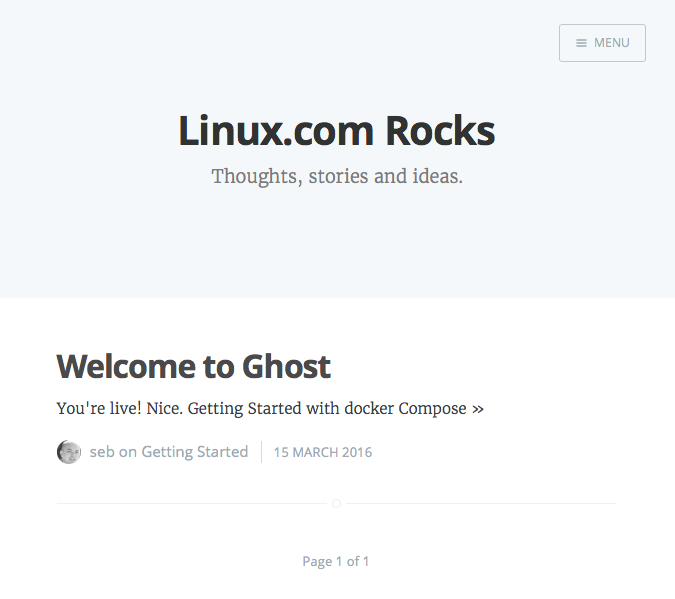
To start your Compose application, you just need to run `docker-compose up -d`. The two containers will get started and will be properly connected to each other on the network. You can then open your browser at `http://localhost>` and start using Ghost. To create new posts go to `http://localhost/ghost/setup>` create an account and start editing your posts. Once the containers have started you can view the state of your application as simply as with `docker-compose ps`.
[bash]
$ docker-compose up -d
Starting mysql
Starting ghost
$ docker-compose ps
Name            Command            State            Ports
------------------------------------------------------------------
ghost   /entrypoint.sh npm start   Up      0.0.0.0:80->2368/tcp
mysql   /entrypoint.sh mysqld      Up      0.0.0.0:32770->3306/tcp
Note that if you have used Compose before, in this example we use version ‘2’ of Compose. Hence we do not need links. The two services will take advantage of the embedded DNS server now running on Docker engine 1.10 and will be able to find each other using their service name. Hence if you want to ping ‘ghost’ from the mysql container you can and vice versa:
[bash]
$ docker exec -ti mysql bash
root@b1e66140ddb3:/# ping ghost
PING ghost (172.18.0.3): 56 data bytes
64 bytes from 172.18.0.3: icmp_seq=0 ttl=64 time=0.074 ms
64 bytes from 172.18.0.3: icmp_seq=1 ttl=64 time=0.222 ms
And voila! Docker Compose is a very handy tool that helps you write a distributed application definition in a single YAML file. It can handle most of the `docker run` options and since the last release also supports Docker networks and volumes. In following posts, we will dive into more advanced setup and use cases using Compose as well as the use of Docker Swarm to distribute your containers across a cluster of Docker hosts.

 The Qt Company released version 5.6 of its cross-platform application and UI development framework, bringing Qt’s Boot to Qt embedded Linux platform in greater alignment with Yocto Project tools. As a result, “developers can easily pull in the full Qt offering to their own Yocto-based software stacks or customize Qt’s Yocto-compliant software stack to meet their production needs,” says the Qt Company.
 This week in Linux news, Software Defined Networking takes the sportlight at the Open Networking Summit, The White House will require agencies using third-party vendors to share their code, and more! Get up to speed on the latest news in Linux/open source with this weekly digest.
 Gordon Lyon from the Nmap project, one of the most acclaimed network and security scanner open-source software used by millions of hackers and security experts worldwide, today, March 17, 2016, announced the release of Nmap 7.10.