 In Getting Started With Docker, I described the basics of downloading and running a Docker image. In this article, I’ll show how to build a LAMP server as an exercise for learning the basics of creating your own custom Docker spins.
There are two key elements in making your own Docker images: the Dockerfile, and using an official image from the public repository on the Docker hub as your base. Yes, you can roll your own from your favorite Linux distribution, and it would be a marvelous learning experience. And a long one, because running Linux inside a container is very different from running it in the usual way, installed directly on your hardware, or in a virtual machine. It is not a small task to make a Docker-friendly base image from scratch. So, I recommend taking advantage of the nice free images built by people who know what they’re doing.
The Dockerfile
I’ll pick up where left I off in Getting Started With Docker and recycle the example Dockerfile. Re-using images is fast and efficient, as you don’t have to keep downloading them.
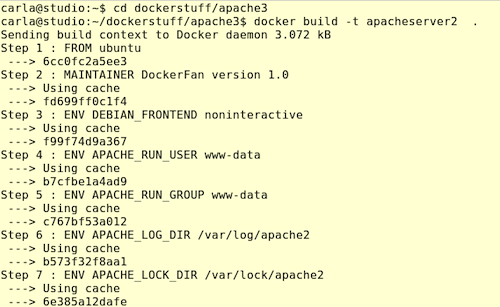
It’s best to put your Dockerfiles in their own directories, to keep your little herd of Docker images all properly separated and to avoid errors like accidentally building the entire contents of your hard drive into your Docker image. The following example Dockerfile is in my dockerstuff/apache directory.
# Barebones Apache installation on Ubuntu

FROM ubuntu

MAINTAINER DockerFan version 1.0

ENV DEBIAN_FRONTEND noninteractive

ENV APACHE_RUN_USER www-data
ENV APACHE_RUN_GROUP www-data
ENV APACHE_LOG_DIR /var/log/apache2
ENV APACHE_LOCK_DIR /var/lock/apache2
ENV APACHE_PID_FILE /var/run/apache2.pid

RUN apt-get update && apt-get install -y apache2

EXPOSE 8080

CMD ["/usr/sbin/apache2ctl", "-D", "FOREGROUND"]
This is a simple setup that installs and starts a barebones Apache server into the official Ubuntu image. Let’s take a look at what the entries in the file mean. Docker processes each line in order. The format of a Dockerfile is:
# Comment
INSTRUCTION arguments
Comments are just like any comments in a configuration file; any line prefaced with a hash mark is ignored by Docker, and you can put them anywhere in your Dockerfile on their own lines, and at the ends of instruction lines:
# Comment
INSTRUCTION arguments
# Comment
INSTRUCTION arguments #Comment
INSTRUCTIONS are not case-sensitive, but they are capitalized to make them stand out from your arguments. Arguments are whatever commands and settings are needed to set up your image the way you want, such as environment variables, installing packages, setting up configuration files, usernames and passwords, starting services. In other words, any command you can run on a Linux system.
Here’s what the instructions do:
-
ENV sets environment variables, in the form ENV [key] [value]. This assigns a single value to the key, as in our example Dockerfile. The value can be any string, including spaces and punctuation, so you can configure values like IP addresses, URLs, and passphrases. Note that when you set DEBIAN_FRONTEND noninteractive (for an unattended installation) in your Dockerfile there is no equals sign, as there is when you script a standard Debian or Ubuntu installation with export DEBIAN_FRONTEND=noninteractive.
-
There are multiple instructions for setting environment variables: ADD, COPY, ENV, EXPOSE, LABEL, USER, WORKDIR, VOLUME, STOPSIGNAL, and ONBUILD.
-
RUN executes commands. The example above, RUN apt-get update && apt-get install -y apache2, demonstrates two important steps. It is a good practice to use apt-get update && apt-get install foo together to ensure that an updated packaged will be installed. Docker makes generous use of caching, so this prevents a cached packaged from being installed. If you’re sure your cached packages are fresh enough then it’s not necessary, and will save you some download time. apt-get install -y must be used together with ENV DEBIAN_FRONTEND noninteractive; it means answer Yes to all prompts and run non-interactively.
-
CMD can be used only once in your Dockerfile. If you have more than one, only the last one will run. The preferred syntax is CMD [“executable”,”param1″,”param2″]. The parameters are optional and comma-separated if you have more than one.
Adding MP and SSL
We have the LA parts of our LAMP stack, so let’s add the M and P: MariaDB and PHP, and OpenSSL. The whole Dockerfile looks like this:
# Ubuntu LAMP stack with Apache, MariaDB, PHP, and SSL

FROM ubuntu

MAINTAINER DockerFan version 1.0

ENV DEBIAN_FRONTEND noninteractive

ENV APACHE_RUN_USER www-data
ENV APACHE_RUN_GROUP www-data
ENV APACHE_LOG_DIR /var/log/apache2
ENV APACHE_LOCK_DIR /var/lock/apache2
ENV APACHE_PID_FILE /var/run/apache2.pid

# Install Apache, SSL, PHP, and some PHP modules

RUN apt-get update && apt-get install -y apache2
 openssl
 php5
 php5-cli
 php5-apcu

# Install MariaDB and set default root password

RUN echo 'mariadb-server mariadb-server/root_password  password mypassword' | debconf-set-selections
RUN echo 'mariadb-server mariadb-server/root_password_again password mypassword' | debconf-set-selections
RUN apt-get install mariadb-server -y

# Disable the default Apache site config
# Install your site's Apache configuration and activate SSL

ADD my_apache.conf /etc/apache2/sites-available/
RUN a2dissite 000-default
RUN a2ensite my_apache
RUN a2enmod ssl

# Remove APT files
RUN apt-get clean && rm -rf /var/lib/apt/lists/* /tmp/* /var/tmp/*

EXPOSE 443 8080

CMD ["/usr/sbin/apache2ctl", "-D", "FOREGROUND"]
The section that installs Apache, SSL, and PHP shows the proper Docker way to install multiple packages at once, with each package on its own line ending in a backslash. The MariaDB installation sections shows how to use debconf to automatically set the root DB password.
You will need your own Apache virtual host configuration file, and it should be in the same directory as your Dockerfile. Use the ADD instruction to build it into your image. I like to do a little housecleaning to keep my image as small as possible by running apt-get clean, and removing temp files.
Since we are using SSL, we’ll need port 443 available. On a production system, you would probably want only port 443 enabled, and use mod_rewrite to automatically redirect HTTP requests to HTTPS.
What Next?
I encourage you to practice a lot on test systems, and do not deploy your images to production systems until you have had a lot of practice and testing. The neat thing about Docker is its speed: You can build, tear down, change, and build new images very quickly. The nice Docker people teach that building super-simple specialized images running a single process is a best practice, which is a good practice when you’re running services.
But, Docker is also a great tool for building custom Linux distributions for your test lab very quickly, which is how I use it. You can build and test all kinds of crazy variations and run multiples at the same time with far fewer system resources than in virtual machines. Study the excellent Docker documentation to learn some of the subtle pitfalls and best practices.

 Just before the holidays, we announced a
  Mentor Graphics has updated Mentor Embedded Linux (MEL) with Yocto Project 2.0 code, SMACK security, and support for CANopen, BACNet, and 6LoWPAN. Mentor Graphics has spun a more secure and industrial IoT-ready version of its commercial
  Today, February 10,