There are a lot of websites out there—websites offering content you might not want the users on your home (or home office) network seeing, whether they’re children or adults. To avoid this, you can employ content filtering. Many content filtering systems do a good job of preventing users from stumbling onto nefarious sites by using pure URL-driven blacklists; if a site is on the blacklist, a browser on your network won’t be able to reach said site.
That’s all fine and good if you only want to blacklist by URL. What if, however, you want to blacklist by keyword? If you want true content filtering—and you want to support open source—you can turn to a fork of the now-defunct Dans Guardian, E2guardian.
E2guardian works in conjunction with another caching proxy (e.g., Squid) and offers all the features you’d need in a home network content filter:
-
Built-in content scanner plugin system, which includes AV scanning
-
Whitelist domains and URLs
-
Blacklist domains and URLs
-
Greylist domains and URLs
-
Deny regular expressions on URLs, body content, and headers (also in greylist mode)
-
URL regular expression replacement so you can, for example, force safe search in search engines
-
Deep URL scanning to spot URLs within URLs to, for example, block images in Google images
-
Advanced advert blocking
-
Updates to handle all current web technology trends
-
Blanket SSL blocking
-
Limit POST size (upload)
-
Temporary bypass provides a “click to acknowledge” capability
-
Referrer exceptions based on URL in referring URL
-
Time-based blocking
For the purposes of this article, I want to make everything as simple as possible—to show that anyone can get reliable content filtering for their home network, without having to jump through a ton of hoops or master the Linux command line. You will be quite surprised at how easy it is to set this up.
Before we get into the setup, understand that you must use one machine as the content filter and all other machines will use the IP address of that machine as their proxy (I’ll show how this is done later). This, of course, means that all machines must be on the same network. Of course, with the widespread use of smartphones and tablets, you’ll also have to set up the proxy on those devices as well.
Installation
As I mentioned, I want to make this as painless as possible. To that end, I’ll be installing on a Ubuntu 15.10 release. To install E2guardian, you must first download the installation file from the project Git page. At the bottom of that page, you’ll find the 64-bit .deb file that can be used for the installation. Download that file into your ~/Downloads directory.
Before you install E2guardian, you must first install a caching server. I prefer Squid. Install Squid with the command sudo apt-get install squid. You’ll need to accept the dependencies before the installation will continue. Once that installation completes, Squid will be running and you can move on to installing E2guardian. Here’s how:
-
Open up a terminal window
-
Change into the ~/Downloads directory with the command cd ~/Downloads
-
Issue the command sudo dpkg -i e2guardian_XXX_amd64.deb (Where XXX is the release number)
-
Allow the installation to finish (and error out)
The installation of this .deb file will finish with errors. To fix those errors, you simply issue the command sudo apt-get install -f. That command will install all the missing dependencies for E2guardian.
Configuration
The nice thing about E2guardian is that, out of the box, it’s already set up to work with Squid—so you don’t have to do anything on that end (or configure Squid—for the basic needs we have here). For E2guardian, there’s no need to mess with the server configuration. The only thing you have to do is configure your blacklists.
In the /etc/e2guardian/lists directory, you will find several lists that can be configured to perfectly meet your needs. These lists include:
-
bannedextensionlist
-
bannediplist
-
bannedphraselist
-
bannedsitelist (block part of a site)
-
bannedurllist (block an entire site)
-
exceptionlist (overrides the banned lists)
-
greysitelist (overrides the banned lists)
…and much more.
NOTE: The difference between grey lists and exception lists is that the exception list completely switches off all other filtering for a match.
Let’s say, for whatever reason, you want to ban Facebook on your home network. Open up /etc/e2guardian/lists/bannedsitelist file and enter the following in the Blanket SSL/CONNECT Block section (because Facebook uses https and not http) and save the file:
www.facebook.com
m.facebook.com
Restart E2guardian with the following command:
sudo service e2guardian restart
Your content filtering will begin.
Or, suppose you want to filter out content that contains the string “fuzzy banana” (why? I don’t know). To do this, open up /etc/e2guardian/lists/bannedphraselist and add the following:
<fuzzy banana>
Restart E2guardian, and sites with the phrase “fuzzy banana” will be blocked. But, suppose you want to block phrases that may contain the words “fuzzy” and “banana”. To do this, you would add the following:
<fuzzy>,<banana>
Restart E2guardian, and any site containing a string the includes “fuzzy” and “banana” will now be blocked.
Now, say you want to block access to Facebook on a time-limited basis (e.g., you want to ban Facebook from 9 am until 5 pm Monday through Friday. In the bannedsitelist file, you’ll find a section for time-limiting syntax. To limit banned sites for that time frame, you’d enter:
time: 9 0 17 0 01234
The breakdown of that line is:
Configuring the Clients
This gets a bit complicated, due to the fact that every browser deals with the configuration of a proxy differently. To that end, I will show you how to set up Firefox and Android to use your newly configured content filtering system. Before you do this, you must know the IP address of your machine hosting E2guardian. You can find that out by opening a terminal window and issuing the command ip a.
I’ll start with Firefox.
You’ll have to do this on every desktop or laptop you have on your network. Here are the steps:
-
Open up Firefox
-
Click on the menu button (three vertical lines in the upper right corner)
-
Click Preferences > Advanced > Network
-
Click the Settings button associated with Connection
-
Click to select “Manual proxy configuration”
-
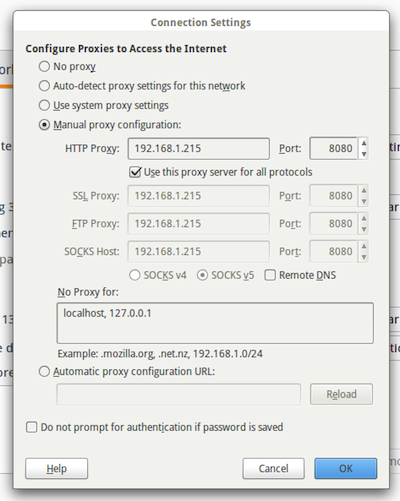
In the HTTP Proxy line, enter the IP address of your server hosting E2guardian (see Figure 1 above)
-
In the Port section, enter 8080
-
Click to select “Use this proxy for all protocols”
Now Firefox will fall under the rules set in place by E2Guardian.
To do this with Android, follow these steps: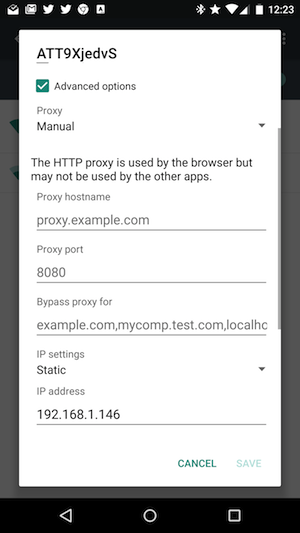
-
Open up Settings
-
Tap on Wi-Fi
-
Long press on the wireless network to be used
-
Tap Modify network
-
Tap Advanced options
-
Tap the drop-down for Proxy
-
Tap Manual
-
Enter the IP address of the proxy (Figure 2)
-
Enter 8080 for the Proxy Port
-
Tap Save
That’s it. Your mobile device will honor E2guardian—as long as it is on the wireless network (which is the one caveat).
NOTE: For content filtering while mobile devices are on your carrier network, you’ll have to turn to one of the many content filtering apps (such as those found in the Google Play Store).
At this point, your content filtering system is up and running and your clients working through it. I highly recommend becoming familiar with the different lists under /etc/e2guardian/lists, so you know how to make the most out of your content filtering system.
If you’re looking for one of the most reliable, open source content filtering systems for your home (or small office) network, you can’t go wrong with the easy-to-use, cost-effective E2guardian.

 Jigish Gohil had the great pleasure of announcing the release and immediate availability for download of the openSUSE Edu Li-f-e 42.1 operating system targeted at schools and educational institutions.
 Compulab launched its fastest Fitlet mini-PC yet with a quad-core, 2.4GHz AMD G-Series “Fitlet-T,” plus two Intense PC mini-PCs using Intel’s 5th Gen Cores. Compulab added to two of its Linux-ready mini-PC families with a Fitlet-T starting at $386, and two new Intense PC (IPC) models starting at $638.
  The SUSE team has announced the availability of the first service pack for SUSE Linux Enterprise 12. The new release, SUSE Linux Enterprise SP1, features rollback functionality through Btrfs, the GNOME 3.10 desktop environment and the ability to download software updates during the installation process. The new release is available in Desktop and Server editions. The Desktop offering includes seven years of support while the Server edition features a thirteen year life cycle.