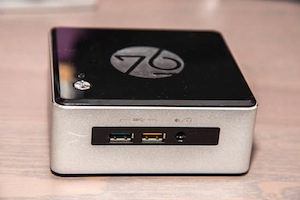
 I run a local file and media server, which is a very important part of my digital life — it hosts all of my files. Everything. I have been using an Ubuntu 14.04 server running on a self-assembled PC. But, it’s a big, noisy system and generates too much heat. So, I planned to move to smaller form factor, such as System76’s Meerkat.
Because I was moving to a new hardware, I decided to give openSUSE Leap a shot at running my servers. I have nothing against Ubuntu: I love Ubuntu on servers. But, I wanted to try Leap because this is the distro that runs on my main system.
I was skeptical of investing in Intel-powered Meerkat, but System76 were kind enough to send me a review unit which allowed me to test it. And, after I used it for a while, it had my trust (Figure 1).
Meerkat came with Ubuntu, but I wiped it and installed openSUSE Leap instead. The company made it clear that doing so does not void the warranty. There are two ways of installing Leap on a system — through net-install image or with the regular DVD image. Despite being an Arch Linux user, I faced some issues with net-install and I recommend the DVD image to keep things simple. I downloaded the openSUSE DVD from this page and then created a bootable USB drive using the dd command:
sudo dd if=/path_to_opensuse_iso of=/dev/device_block bs=1M
If you don’t know the device name, plug in the USB drive that you want to use as the installation image and run the lsblk command in the terminal. There you will see the name of the device.
Next, go ahead and install openSUSE on the system in the regular way. You can choose either the Plasma or Gnome desktop environment.
Let’s Get Started
One difference between openSUSE and Ubuntu is that you have to do some extra work on openSUSE to get things right. Once openSUSE is installed and you have booted into your new system, the first thing you need to do is get the network to work.
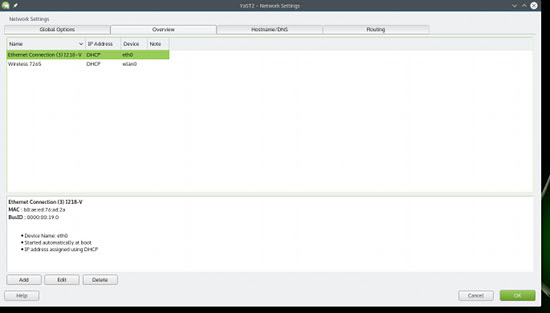
Open YaST and go to Network Settings. If you are using the Ethernet cable (Figure 2), then select the Ethernet Connection, and click on the Edit button. Then, select Dynamic Address (DHCP) option. Click next, and you are all set.
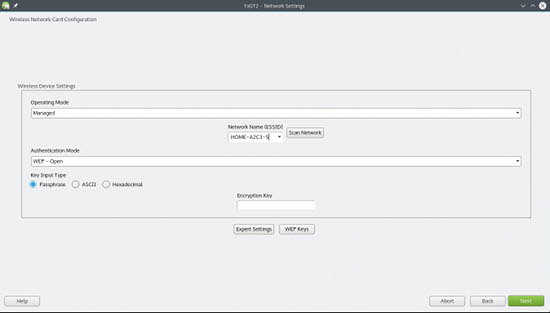
If you are using Wireless (Figure 3), then follow the same steps. In this case, after clicking Next, you will see a window showing Wireless Device Settings. Click on the Scan Network button and choose your WiFi from the list. Then, provide the password for the network in the Encryption Key box. Click Next, and you are all set.
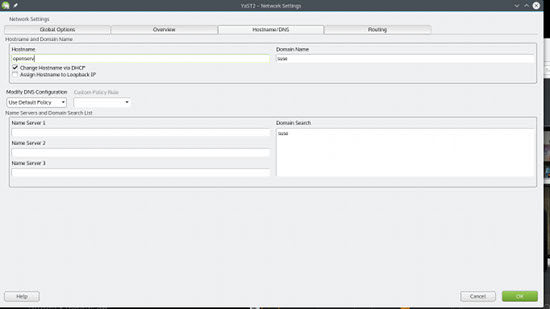
While you are still in Network Settings window, go to the Hostnames/DNS tab and change the Hostname to something more friendly (Figure 4).
Once the network is connected, you should run system update:
sudo zypper up
Because this machine is going to be a server, I am refraining from installing any additional packages or enabling any repositories. To keep it robust and lean, I will install only what I need.
Configure Firewall
The next thing to do is open some ports in the firewall and allow some services that we are going to need. Go to YaST and open Firewall settings (Figure 5). Then, go to Allowed Services and add these services: Samba Client, Samba Server, Secure Shell Server.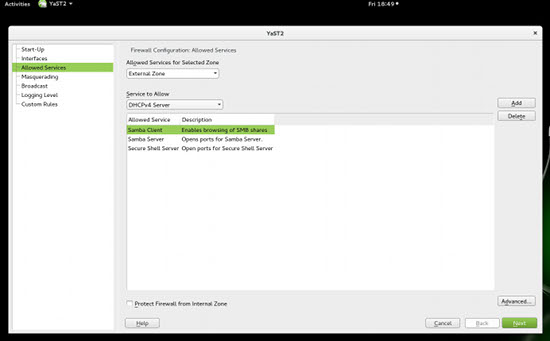
If you are going to install the Plex Media Server, then you need to open the port used by Plex — click on the Advanced button and add port 32400 to both TCP and UDP (Figure 6). Click on OK and then Next. Your firewall is all set.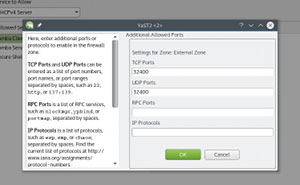
Configure SSH and Remote Login
I will be using this system as a headless server so that I can manage it from other devices through SSH. Before you do that, I will also suggest using Zsh shell instead of Bash, because it has better autocompletion than Bash. Open the terminal app and install Zsh, if it’s not already installed (I am also installing nano editor as I prefer it over vi and vim):
sudo zypper install zsh nano
sudo zypper install nano
Then, open the passwd file:
sudo nano /etc/passwd
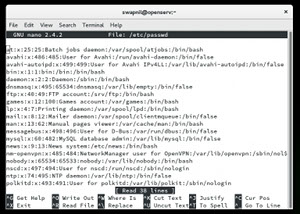
There, you can change entries for root and your user from Bash to Zsh (Figure 7).
 Now it’s time to get SSH to work. Open the sshd_config file:
sudo nano /etc/sshd_config
You will see that the port 22 is commented out; un-comment it. Because it’s a local server, I don’t care about adding extra layers of security, which I will do on my live server. If you are interested in adding security your local machine, check out this article.
Save and close the file and then restart sshd by running this command:
sudo rcsshd restart
Next, you can ssh into the system from any machine on the local network, which also means that you can now unplug the monitor, keyboard, and the mouse and use it as headless server. You will need the IP address of this machine so that you can manage it remotely. To find the IP address of your Leap machine, run this command:
sudo ifconfig
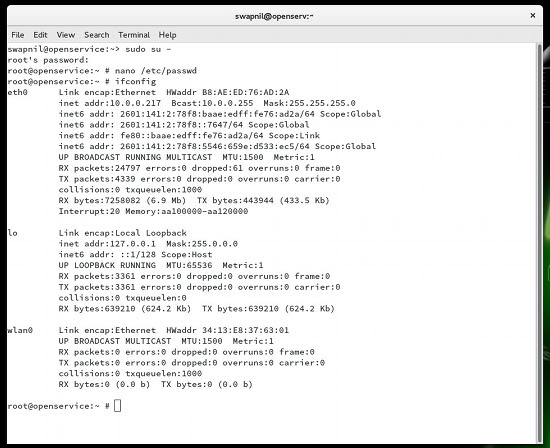
Take note of the IP address for the connected network (Figure 8). As you can see in the screenshot, my Meerkat system is connected via Ethernet and the system IP is:
inet addr: 10.0.0.217
If you want to ssh into the system from a remote machine, run the following command:
ssh user_name@system_IP>
Example:
ssh
This e-mail address is being protected from spambots. You need JavaScript enabled to view it
Provide it with the user password, and now you can manage your system remotely.
Mount Hard Drives
Because am using Meerkat, which doesn’t have space for more than one 2.5” SSD, I have to use external drives connected via 3.0 USB. First of all, I need the universally unique identifiers (UUIDs) for hardware that I wanted to mount. Run the blkid command as root and note the UUID for the devices.
Here is the output of blkid on my system:
[root@leapoffaith]# blkid
/dev/sda2: UUID="5ef7869b-ec30-450b-ba2a-78ba83f5e8d9" TYPE="ext4" PARTUUID="40fd9e79-301e-4aa6-a5f0-3ab29e09db63"
/dev/sdb1: LABEL="drive1" UUID="a40e4d9b-6032-48df-883c-6112297f531c" TYPE="ext4" PARTUUID="000b8c27-01"
/dev/sdc1: LABEL="drive2" UUID="1d766512-0daa-47c1-999c-3bacbd2e9432" TYPE="ext4" PARTLABEL="primary" PARTUUID="b2ffa5c5-9497-4fb6-aadd-29efc49eb576"
/dev/sdd1: LABEL="Internal" UUID="1d17fde4-0448-4529-b27f-e0ecdb629dce" TYPE="ext4" PARTUUID="000e2f6d-01"
Here I am going to mount two partitions: drive1 and drive2, so I noted their UUID. Next, you have to create mount points for these devices using the following command:
mkdir -p /media/device_name
The device name should be a simple name in lowercase. Create unique mount point of each device that you are going to mount. In my case, I used:
mkdir -p /media/drive1
mkdir -p /media/drive2
Next, mount the drive with this command:
mount /dev/sdb1 /media/drive1
mount /dev/sdc1 /media/drive2
Here /dev/sdb1 is the block device — from the blkid command — and mount point is unique for each device. Repeat the procedure for every drive that you want to mount.
To make this persistent between reboots, edit the fstab file and add an entry for each device using UUID. This is how entries looked on my fstab file. Just keep in mind that these are ext4 filesystems, if you are using NTFS or another filesystem, please change it accordingly.
UUID=a40e4d9b-6032-48df-883c-6112297f531c       /media/drive1        ext4    defaults,noatime        0       2
UUID=1d766512-0daa-47c1-999c-3bacbd2e9432       /media/drive2        ext4    defaults,noatime        0       2
Create a File Server with Samba
There are many ways to set up a file server; you can use NFS or Samba. I prefer Samba because it allows me to access my files from any device, whether it’s a Windows system, Mac OS X machine, iOS device, Chromebook, or Android device. It’s also much easier to set up.
Now it’s time to set up Samba share to make these drives — or directories on these drives — available over the network. You need to create a Samba group in openSUSE and add the user to that group (you can create more users if you want to restrict access to certain directories).
sudo groupadd smbgroup
sudo usermod -a -G smbgroup name_of_user
sudo smbpasswd -a name_of_user
Next, edit the Samba configuration files to tell Samba which directories are shared.
sudo nano /etc/samba/smb.conf
In this file, leave the entire [global] section intact and comment everything below it. Right after the end of the [global] section, add a few lines using the following pattern:
[Drive 1] -> The name of the shared directory
path = /media/drive1/ -> The path of the shared directory
read only = No -> Ensures that it's not read only
browsable = yes -> Ensures that the subfolder of the directory are browsable
writeable = yes -> Ensures that user can write to it from networked device
valid users = swapnil -> The system user
In my case, it looks something like this:
[Drive 1]
path = /media/drive1/
read only = No
browsable = yes
writeable = yes
valid users = swapnil
Add a new section for each directory that you want to share over the network. If you share your file server with other users and want to restrict access, then you can create entries for those users and provide a path to the directories that these user can access.
Our file server has been successfully created. Now it’s time to set up private Netflix — aka the Plex Media Server.
Plex Media Server
Unfortunately, Plex Media Server is not available through OBS or the main repositories of openSUSE, so visit the download page of Plex and grab the .rpm files for either Fedora or CentOS. Then, install the .rpm file from the command line:
sudo zypper install PATH_TO_PLEX.rpm
Once installed, open the terminal and configure Plex to start automatically when the system boots up:
sudo systemctl start plexmediaserver.service
sudo systemctl enable plexmediaserver.service
Next, open the web browser and visit this address, if you are on the same machine:
localhost:32400/web/index.html
If you are working from a different machine, via ssh then replace localhost with the machine IP of your openSUSE server. In my case, it was 10.0.0.217, so I will use this address:
10.0.0.217:32400/web/index.html
You will see the Plex Media Server interface (Figure 9). Click on the + button to add Libraries, such as movies, music, images, etc. Remember to use the correct library type for your media type, meaning you need to create a Movies/Home Videos library for videos, Music library for audio, Photo library for images, and so on.
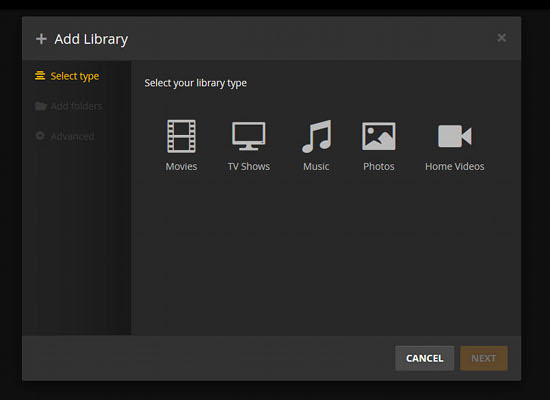
Once the library is created, browse the directory where the media is saved. Plex will scan all the files stored in those directories.
That’s all; your Plex Media Server is all set up. If you want to access Plex from outside your local network, you can subscribe to the Plex Pass service.
Conclusion
I have been running openSUSE Leap on my Meerkat for more than a week now and have not faced any issue other than being stuck at boot because I made a mistake in the fstab file. I must admit that openSUSE does need a bit more work than Ubuntu server, but I am taking a leap of faith, and that’s what Linux is all about. Isn’t it?

 Today, December 22, Canonical’s Łukasz Zemczak sent his last daily report for 2015, informing us all about the latest work done by the Ubuntu Touch developers for the mobile operating system that powers the Ubuntu Phone devices.
 Amazon Web Services makes its EC2 Container Registry for hosting and deploying Docker application images generally available.
  Wearable electronics have exploded in the past year. Countless small devices are now on the market for not only fitness tracking, but posture improvement, sunscreen reminders, muscle-sensing gesture control, and much more. As technology on the body becomes more pervasive than ever, having open source tools for developing wearable technology is more important than ever, so that we can create the future of fashion tech while maintaining data privacy of biometric sensor data.
 We’ve just been informed by Martin Wimpress, the main developer and leader of Ubuntu MATE, about the general availability of a spin off project from Ubuntu MATE, called Ubuntu Pi Flavour Maker.
 The Linux Foundation hosts numerous
  Noah and his long-time friend, James Kane, first became interested in developing around these emerging capabilities in 2008. The following year, they founded
  Containers allow for rapid deployment of applications. Keith Townsend highlights monitoring as an operational challenge to consider prior to deployment.