 I have been a Chromebook user for a while now. I find their ease of use, simplicity, and reliability something that is unmatched by most standard laptops or desktops. As someone who spends a vast amount of their PC time writing words, Chrome OS makes perfect sense. The added bonus of Chrome OS being powered by the Linux kernel makes it all the better.
Point in fact… I like the Chrome OS platform so much, I became the proud owner of a Pixel—probably the single most amazing piece of mobile hardware I have ever experienced. But not everyone wants to shell out the cash for such a machine. In fact, some would rather make use of the hardware they already have.
That’s where the likes of Neverware’s CloudReady comes into play. However, this relatively new platform isn’t just a tinker’s toy. Yes, the claim that CloudReady will turn any hardware into a Chromebook is spot on. However, CloudReady isn’t just for individual users. Neverware is putting this platform to good use for educators, individuals, and even enterprises. That Neverware is taking on the educational system is telling. Primary and secondary school systems across the globe are staring down financial burdens that don’t allow them to purchase new hardware or operating systems. By allowing those same institutions to repurpose aging hardware and turn them into efficient, reliable machines, educators are able to squeeze far more out of less.
CloudReady has already found major success in over 100 U.S. school districts with thousands of deployments.
But before you make the connection between your educational district and Neverware, you probably will want to kick the tires first. Or maybe you’re a single user that wants to take an aging piece of hardware and get a bit more use of it. Or… maybe you love the idea of having a Pixel-like machine, but don’t want to shell out the premium for the hardware (and you happen to have an ultrabook lying around, ready to take on the task).
Regardless of why, CloudReady is there to serve. It’s incredibly easy to install and even easier to use. For those individuals who want to run a Chromium-based Chrome OS-like platform on standard hardware (or educators/enterprise users who want to kick the tires and see if it’s the right fit), here’s what you’ll need:
-
Laptop or desktop machine (NOTE: There are over 125 certified models, guaranteed to run CloudReady, listed here*)
-
A USB flash drive of 5 Gb or greater capacity (NOTE: All contents of the USB drive will be erased…so make sure you have all data backed up)
-
The CloudReady free image (download link)
-
A Google account
-
Either a Chromebook running Chrome OS or a machine running Linux.
*I successfully installed CloudReady on a Sony Vaio, which is not listed in the certified hardware. Chances are, CloudReady will run on your machine. The good news is you can fire it up and run it live, so it’s pretty easy to tell if it will work on your configuration.
Copying the image
There are two ways to copy the CloudReady image onto your USB drive:
-
With the Chromebook Recovery Utility
-
Using the Linux dd command.
Since we’re coming at this from a Linux perspective, let’s copy the image to the flash driving using the dd command. Here are the steps:
-
Download the CloudReady image and save it to your ~/Downloads directory
-
Open a terminal window
-
Change into the ~/Downloads directory with the command cd ~/Downloads
-
Unzip the image with the command unzip cloudready-free-XXX.bin.zip (Where XXX is the release number)
-
Plug in your USB device
-
Issue the command sudo fdisk -l to determine the device name of your USB (It will be listed as /dev/sdX where X is the unique identifier)
-
DOUBLE CHECK THE ABOVE, ELSE YOU COULD ERASE THE WRONG DEVICE
-
Once you are certain you have the correct device, issue the command sudo dd if=cloudready.bin of=/dev/sdX bs=4M (Where X is the identifier for your USB drive)
-
Wait for the command to complete
-
Unmount the device when the copy completes.
NOTE: If you are using a Linux distribution that doesn’t require sudo, you will have to su to the root user and then issue the dd command, minus sudo. You now have a bootable USB drive, ready to fire up CloudReady.
Installing CloudReady
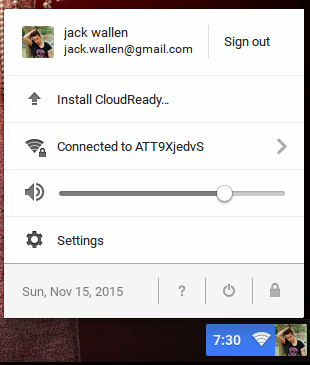
When you boot your system with the CloudReady USB flash drive, you will first find yourself staring at a very Google-like network connection tool. Connect to your network and then, when prompted, log into your Google account on the CloudReady desktop. What you need to do, while logged in, is check to make sure everything works (video, sound, bluetooth, etc). Once you’ve discerned if the hardware works, log out and then click the system tray. You should now see an entry labelled Install CloudReady (Figure A, above). Click that and the installation will begin. If you attempt to install CloudReady while logged into your Google account, the install will fail.
The installation should take roughly twenty(ish) minutes (depending upon your hardware). Once it is complete, the machine will automatically shut down. Remove the USB device and boot the machine. You should then be prompted to log into your CloudReady device and enjoy the full-blown Chrome OS experience, thanks to Neverware and Chromium (Figure B).
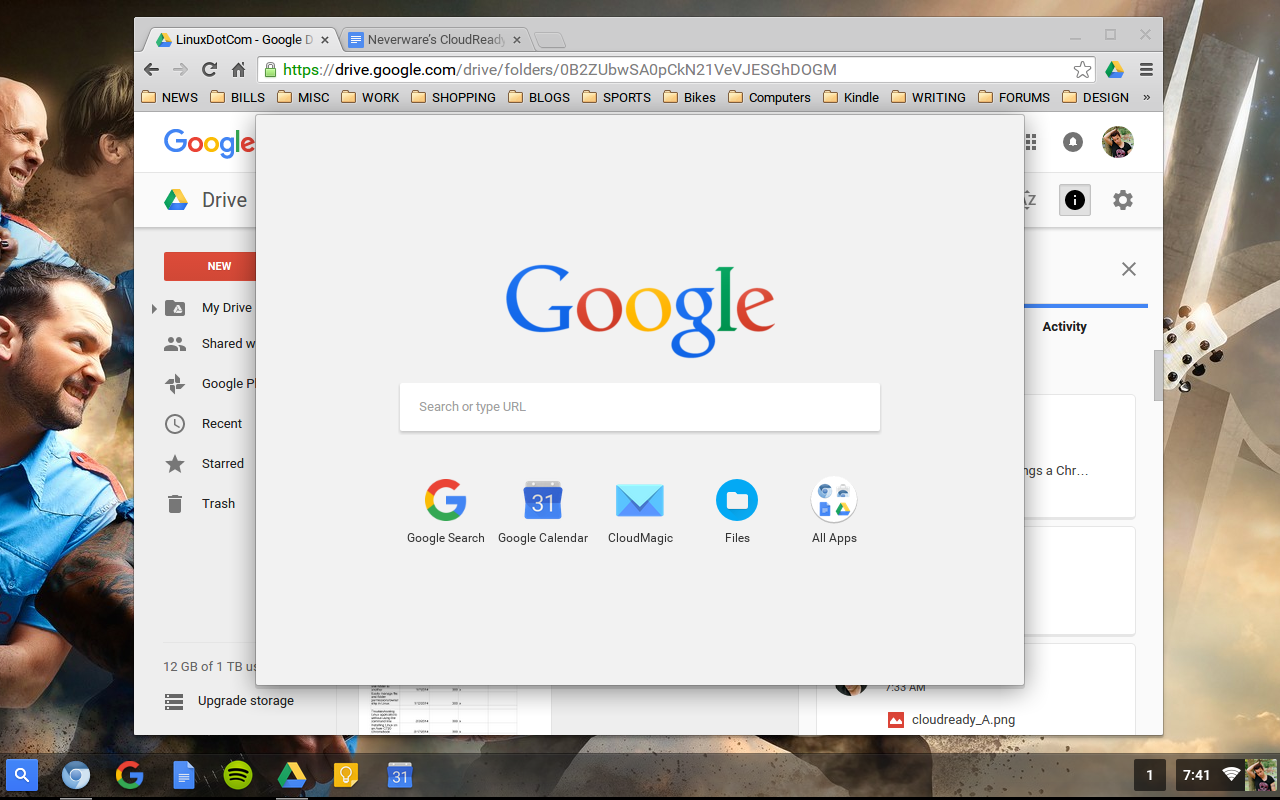
At this point, everything will behave exactly as you would expect from a Chromebook. You can also take the USB drive with you and always have a CloudReady desktop ready to boot.
So long as you don’t expect Chromebook-like boot times, you will find the CloudReady experience to be a fantastic replica of the official Google Chrome OS. This is, without a doubt, the closest take on Chrome OS, for standard hardware, that you will ever experience. If you want a Chrome OS platform for your aging laptops and desktops, CloudReady is what you want. And any educational institution looking to keep hardware relevant for as long as possible, this might well be the solution you need.
 Minibian “Jessie,” a Linux distribution developed for all the available Raspberry Pi devices, has arrived and is now ready for download.