 When you think of Linux and graphic art tools, you probably consider Gimp or Blender to be the only available software. With that thought, you’d be very wrong. Yes, Gimp and Blender are the de facto standard tools for either image manipulation (Gimp) or Blender (3D graphics and animation), but what if you need a tool to create images from scratch?
Naturally, a program like MyPaint requires a certain skillset. Just because you are a master of Gimp, doesn’t mean you’ll run MyPaint and start creating masterpieces. With an application like MyPaint, you really need drawing/painting skills in order get the most out of the tool. you will also need a pressure-sensitive graphics tablet—as neither a mouse nor a trackpad is up to the task at hand.
The basic features of MyPaint are:
-
Available for Windows and GNU/Linux
-
Designed for pressure-sensitive graphics tablets
-
Simple and minimalistic user interface
-
Extensive brush creation and configuration options
-
Unlimited canvas (you never have to resize)
-
Basic layer support
Where MyPaint truly excels is in the area of the brush collection. Not only does MyPaint already offer an outstanding (and very usable) set of brushes, it includes an amazingly simple brush import tool (more on that later).
With that said, let’s install MyPaint on Elementary OS Freya and kick the tires.
Installation
Many standard repositories contain the stable version of MyPaint. However, I would suggest installing from the testing PPA (which is a rolling release PPA), so you are getting the most recent fixes and features.
If you want to install from that PPA, here are the steps:
-
Open up a terminal window
-
Add the PPA with the command sudo apt-add-repository ppa:achadwick/mypaint-testing
-
Update apt with the command sudo apt-get update
-
Install MyPaint with the command sudo apt-get install mypaint mypaint-data-extras
You should now see MyPaint within your distribution’s desktop menu. Plug in your pressure-sensitive graphics tablet (I use a Wacom Bamboo) and prepare to be impressed with what the software offers.
Usage
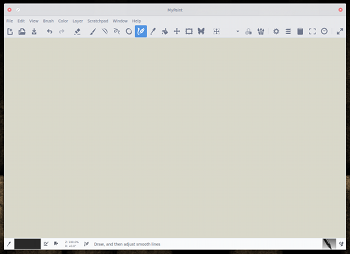
When you open up MyPaint, the first thing you should notice is the simplistic interface (see Figure 1 above).
The developers/designers of MyPaint did an outstanding job of keeping the interface out of the way. You can easily select your brush from the either the menu bar or the toolbar. But what happens when you want to adjust a brush, work with layers, or even see a preview? For that you have to open the various available panels. These panels appear in the right side of the main window and allow you to either adjust various elements or see a small-scale preview of your working drawing.
To add one of the panels, click Window and then select which panel you want. If you work a lot with layers, you might want to include the layer panel (Figure 2).
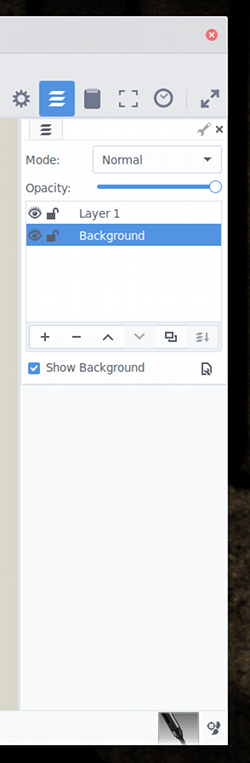
You can add layers in MyPaint in similar fashion to that of Gimp. You can:
-
Add a layer
-
Select the layer mode
-
Lock a layer
-
Hide a layer
-
Adjust the layer opacity
-
Move/copy/delete layers
-
Rename layers
Brushes
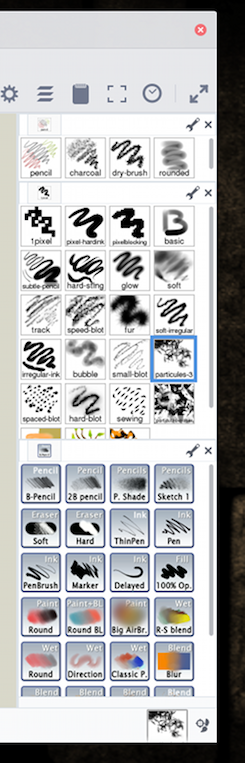
Of all the tools MyPaint has to offer, it’s the brushes that make or break the software. In this case, they definitely make it. If you click on Window > Brush Groups you’ll see seven different brush groups. Select from one of those groups and that brush group panel will appear in the right side of the window (Figure 3).
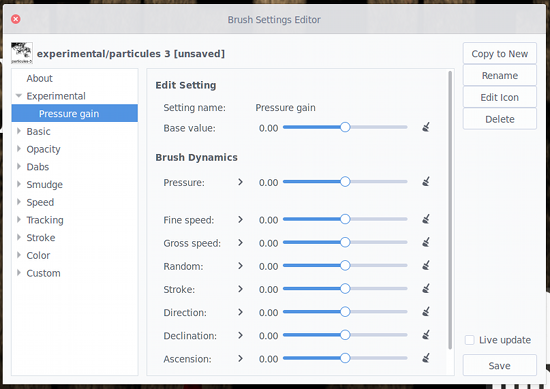
Once you’ve added a brush group panel, you can then select from the many brushes available to that group. Or, if you want to fine-tune a particular brush, you can click Window > Brush Settings Editor. When this window opens (it’s not a panel), you can go through every setting of a particular brush and make adjustments (Figure 4).
But, what if you don’t find the brush you’re looking for? Fortunately, the developers have included a brush import tool. To import a new brush pack, click Brush > Get More Brushes and your browser will open to a page where there is a small selection of available brushes. Locate the brush pack you want and do the following:
-
Download the zip file for the brush pack
-
Go back to MyPaint
-
Click on Brush > Import Brushes
-
Locate and select the downloaded zip file in your file manager
-
Click Open (in your file manager)
-
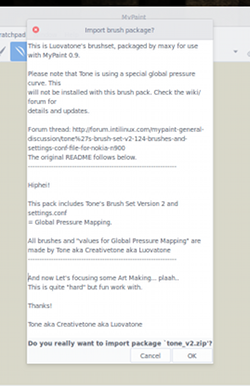
When prompted, okay the installation (Figure 5)
 To open the new brush pack, click Window > Brush Groups, and select it from the list.
Canvas
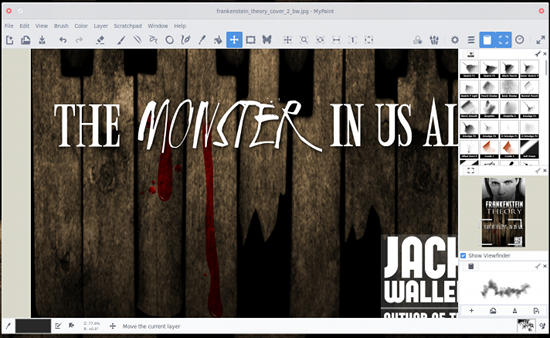
As mentioned in the feature list, MyPaint includes an unlimited canvas. This means that you don’t have to guess the size of the image you are about to create. Every image begins with an infinite canvas. But, what do you do when you need to move the canvas around (to work on other parts of your drawing)? If your graphics tablet pencil has a control button, you can press that and then move the canvas about as needed. If you can’t get the hang of that, you can always use your mouse by pressing and holding the middle mouse button (scroll wheel) and moving the canvas around as needed.
To make these actions even easier, MyPaint also allows you to zoom in and out of the canvas. This way you can zoom out to see the entire image, position it such that the portion you want to work on is centered, and then zoom back in.
Scratchpad
A really handy tool called the Scratchpad Panel lets you select a brush, test it on the scratchpad, and then use it on your image. This approach will prevent you from mistakenly using the wrong brush on your work and having to undo the mistake. You can even save scratch pads (if you come up with an idea and want to use it later) by clicking the Save button in the Scratchpad Panel (Figure 6), or by clicking Scratchpad > Save Scratchpad.
If you’re looking for the missing piece to the graphics art puzzle in Linux, MyPaint will do an outstanding job of lining up with Gimp and Blender as your go-to tools for the creation of your masterpieces. Install it and give it a try and see if it stands up to your needs and talents.

 After one and a half years of development, the developers of the UNIGINE real-time 3D engine were proud to announce this past weekend the general availability of the final release of UNIGINE 2.0.
 Google has a plan to speed up mobile Web browsing. The
  But the famed Linux developer is putting his security work into his own Linux tree without Linus Torvalds’ approval. When Matthew Garrett, well-known Linux kernel developer and ‎