Home Blog Page 1009

Tech Allies Lobby to Keep U.S. Rule From Fettering Security Research

Criticism from a coalition of technology companies caused the U.S. government to delay implementing rules that could have hobbled security research, but the battle is far from over.

When the U.S. Department of Commerce proposed a rule to regulate the international trade and sharing of “intrusion software,” worried security firms immediately went on the defense. Industry giants, such as Symantec and FireEye, teamed up with well-known technology firms, such as Cisco and Google, to criticize the regulations. The proposed rules, published in May, would cause “significant unintended consequences” that would “negatively impact—rather than to improve—the state of cyber-security,” Cisco stated in a letter to the Commerce Dept.’s Bureau of Industry and Security (BIS).

Read more at eWeek

Wireless Touchscreen Kits Run Android or Yocto on TI Sitara

Gumstix unveiled a pair of $329, 4.3-inch, wireless, battery-powered “Pepper” touchscreen kits that run Android or Yocto on an 800MHz TI Sitara SoC. Gumstix launched its original Pepper SBC kit in 2013, and is now following up with two new models featuring the Texas Instruments Sitara AM3354 instead of AM3359 system-on-chip. They also add Android support in addition to the previous Yocto Linux build.

Read more at LinuxGizmos

Qualcomm Goes Ubuntu for Drone Reference Platform

Qualcomm Snapdragon logoUbuntu got a big boost as a competitive operating system for drones with an Unmanned Aerial Vehicle (UAV) reference platform announced by Qualcomm last week called Snapdragon Flight. The Snapdragon 801 based development platform supports Linaro’s version of Ubuntu, as well as OpenCV, according to an email to Linux.com from a Qualcomm representative. The rep went on the call it “an open platform for companies to port their own existing drone software.”

The 58x40mm SBC supports 4K stereo VGA video cameras and optic flow cameras, and it offers dual-band 802.11n WiFi, Bluetooth 4.0, and 5Hz GNSS (GPS). It provides a variety of sensors, including inertial measurement unit (IMU) and barometer sensors and offers ports for additional sensors. It will also support “advanced real-time flight control” with the help of the Snapdragon 801 system-on-chip’s Hexagon DSP.

“The Qualcomm Snapdragon Flight brings together the technologies that have defined the mobile industry onto a single board, enabling OEMs to build drones that are lighter, smaller, easy to use and affordable with long battery life and superior functionalities,” stated Raj Talluri, Qualcomm Technologies’ SVP of product management, in the Qualcomm announcement.

Snapdragon Flight targets a variety of robotics applications but is primarily focused on consumer drones that are cheaper than the prosumer DJI Phantom, 3DR Solo, or Yuneec Typhoon, which range from $1,000 to $1,450. These include high-end Phantom and Typhoon quadcopters that offer 4K cameras.

Qualcomm says that Yuneec will be one of the first companies to use Snapdragon Flight, which it will adopt for a drone due in 2016. Last week, Intel announced it was investing more than $60 million in the Hong Kong based company, which appears to follow only China’s DJI in market share in the prosumer drone space.

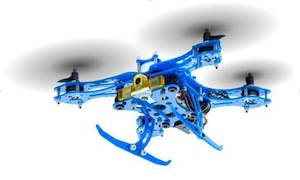
eagledrone sized copy

There were few details about the Intel partnership, but Intel CEO Brian Krzanich stated at the time that “We’ve got drones on our road map that are going to truly change the world and revolutionize the industry.” Yuneec’s choice of Snapdragon Flight suggests that Yuneec won’t be using Intel processors but rather its RealSense 3D cameras. It’s possible, however, that they may be testing a variety of models using different processor platforms.

Yuneec doesn’t say what OS runs on the current Typhoon models, although the drones’ touchscreen-enabled controllers run Android. Yuneec was a founding member of the Linux Foundation’s open source Dronecode platform. Another founding member was 3DR, which contributed its APM platform for UAV autopilots (formerly called “ArduPilot”) as the basis for Droneocde. Earlier this year, 3DR launched the Linux-based Solo quadcopter.

Qualcomm’s Snapdragon 801 has appeared in several high-end Android devices including the Samsung Galaxy S5. Like other high-end Snapdragon SoCs, however, it also supports Linaro’s version of Ubuntu, which will run on the Snapdragon Flight.

The Snapdragon 801 supplies four Krait cores that are roughly equivalent to Cortex-A15 cores clocked to 2.26GHz. Other features include an Adreno 330 GPU, the Hexagon DSP, a dedicated video encode engine, and dual image signal processors (ISPs). These features will combine on drones running Snapdragon Flight to provide “advanced drone features such as obstacle avoidance and video stabilization,” says the chipmaker.

The consolidation of features in the Snapdragon 801 and Snapdragon Flight board will enable cheaper, lighter 4K ready consumer drones, says Qualcomm. A Wired report suggests Snapdragon Flight-based UAVs will aim for a mid-range consumer price similar to Parrot’s $300, Linux-based AR.Drone. France-based Parrot also sells a more advanced, Linux-based Bebop quadcopter, which sells for $500 to $800.

The only other drones we know that have publicly acknowledged running Ubuntu are the Erle-Robotics Erle-Copter and similar models, which run both standard Ubuntu as well as the new, lightweight Snappy Ubuntu. Both also depend on Robot Operating System (ROS) and APM autopilot firmware. The first Linux reference platform for the open source ROS was a Snapdragon 600.

Earlier this week, Erle Robotics launched an Indiegogo campaign for a six-legged Erle-Spider robot running Snappy Ubuntu Core on a Raspberry Pi 2 Model B board. Packages start at $400. The embedded-oriented Snappy provides features like secure, transactional updates, as well as an open source app development platform and an app store.

Snapdragon Flight will instead run the more robust standard Linaro version of Ubuntu, according to the Qualcomm rep. This should still enable app downloads, although without the secure, transactional updates.

If the claims of much longer battery life are true, this would be a major selling point, considering that most drones last only about 20 minutes before they need to return to home base. Because recharges tend to take about an hour, many drone owners buy at least one more battery, adding to the overall cost. The announcement mentions a Qualcomm Quick Charge technology, which should address that limitation, as well.

Snapdragon Flight is available today for select OEMs and is expected to be available in commercially available drones by the first half of 2016, says Qualcomm.

How To Convert Media Files in Linux

swap-1-vlcOnce in a while, you need to convert media from one format to another, even in a cloud-centric world where everything is a “stream.” There can be different reasons for doing so. In most cases, I have to convert videos that I shoot or purchase so that I can play them on my mobile devices or other players, which support only certain formats.

Converting media files or transcoding is extremely easy in Linux, thanks to many open source projects.

Transcoding Videos

I have a heterogeneous environment at home, a mix of Mac OS X, Linux desktops, Chrome OS devices, Android phones and tablets, Yamaha music system, and car infotainment. So, I always convert my videos in a format that is supported on all these platforms and, in most cases, the supported format is .mp4.

There are two ways you can convert your videos to mp4: either using a less-known feature of VLC or with the standalone app Handbrake.

Use VLC to Convert Videos

VLC is known as the media playback Swiss army knife because it can play virtually every media format out there. However, many features of VLC are less known, and transcoding is one of them.

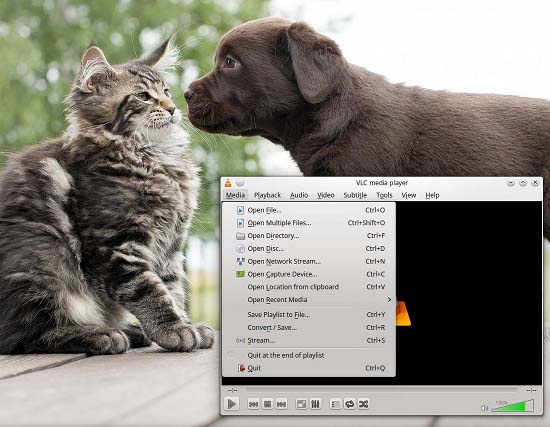
To get started, open VLC and, from the main menu, choose Media > Convert/Save (see Figure 1 above).

Then, click on the Add button and browse the video file that you want to transcode. Click on the Convert/Save button at the bottom and it will open another window. Here you will see the source file, and under Settings, you can choose what format do you want to convert it into.

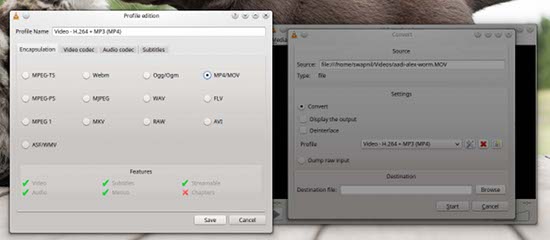
You can also click on the wrench/screwdriver icon, which will allow you to fine-tune your transcoding as you can choose the appropriate container, codecs for your video (Figure 2).
swap-4-vlc

If you are transcoding for a particular device or platform, for example YouTube, you can choose appropriate format from the drop-down menu (Figure 3)
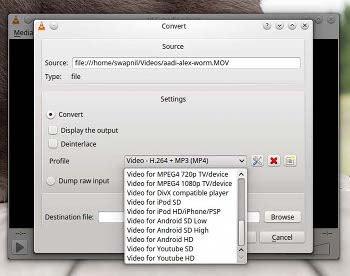
swap-5-vlcOnce you have chosen the desired output format, it’s time to choose the destination. Click on the Browse button and choose the location where you want the converted file to be saved. At this point, you need to give a name to the file you are going to convert. (I wish it used the current name of the file.) Give it a name and then click on Save.

Once everything looks good, hit the Start button and VLC will start transcoding your video.

Handbrake for Batch Transcoding

Although VLC does an excellent job of transcoding, Handbrake is the open source app that was created just to do this. And, it can also do batch conversion. If you are on an Ubuntu-based system, you need to install two packages in order to get .mp4 support. Add the handbrake repository to your system and install those packages:

sudo add-apt-repository ppa:stebbins/handbrake-git-snapshots
sudo apt-get update
sudo apt-get install handbrake-cli handbrake-gtk

Open Handbrake and click on Source. Then, select the file you want to convert; once it’s loaded, click on the Enqueue button, and it will add the file to the queue. Click on Source again, select the next file, and add it to the queue. Repeat the process to add all the files that you want to convert (Figure 4).
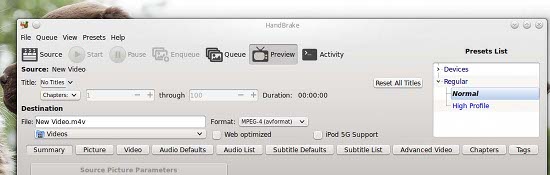
swap-7-handbrakeAlternatively, if you want to make it easier, create a folder and copy all the files that you want to convert into that folder. Then select that entire folder — instead of a file — from Source. Once Handbrake scans all files, click on Queue from main menu and choose Add Multiple. Handbrake will then add all the files from that directory to the conversion queue.

Once all the files are added to the queue, choose the desired output format from the Preset List. You can further fine-tune it by adjusting the settings from the options on the main window.

Next, choose the destination for the exported/converted files. If everything looks good, go ahead and start conversion either from Queue > Start Queue or by hitting the Start button.

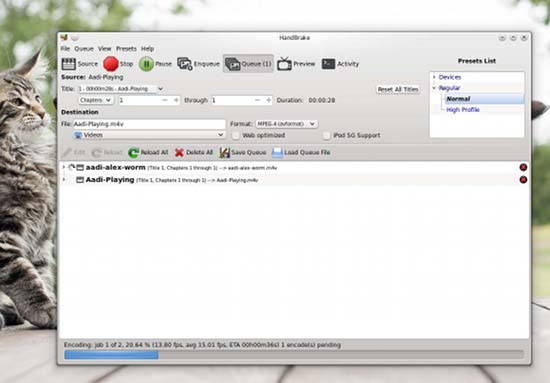
Handbrake will start converting your files (Figure 5).
swap-10-handbrake

Audio Conversion with Sound Converter
swap-13-lf-soundVLC can convert audio files as well, just follow the instructions above and choose audio files instead of videos files. But if you are looking for batch processing or a simpler app, then you can install the Sound Converter application on your Linux box; it’s available in the main repo of major distributions. The app has a very simple interface.

If you want to convert only one audio track, choose Add File, if you have more than one file, then choose Add Folder option.

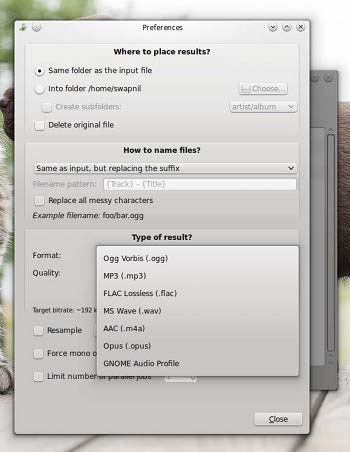
Once all files are added, click on Preferences and change the destination in the Where to place results option. You can also choose how to rename files (if you want to).

The third and the most important option is output format. Most players support .mp3 format, so that’s the one I would prefer. Adjust the bitrate and quality, if you want to, and close the window (Figure 6).
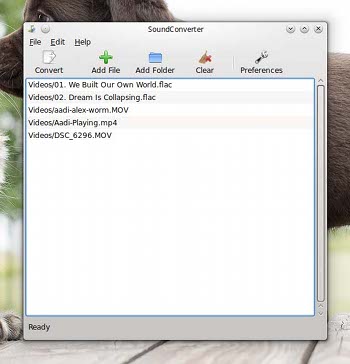
swap-14-soundYou will see the list of all the files you added; select them all and click on Convert; Sound Convert will transcode all your files in the desired audio format.

One of the greatest features of Sound Converter is that it can also “extract” audio from video files. So, if you need to rip just the audio, this is the app for you. Just add the video files and convert them to the desired audio format. As you can see in Figure 7, there are three video files that I am converting to audio files.

That’s pretty much what you need to convert media in Linux. It’s Linux, so there’s more than three ways to do it; tell us how do you do it.


Debian 8 Comes to Creator Ci20

We’re delighted to announce that after several months of work, a Debian 8 release candidate is finally ready for the Creator Ci20 microcomputer.

Debian 8 for Ci20 is based on a stable version of the Linux 3.18 kernel for MIPS CPUs. Included in this new release are major driver updates to the PowerVR graphics and Wi-Fi firmware, along with changes to the NAND memory driver which will improve overall system speed and stability. Shipping of the new Creator Ci20 boards will begin next week for customers who’ve pre-ordered the board from our online stores in Europe and North America.

Read more at Imagination Technologies

Intel Launches Automotive Security Board to Tackle Connected Car Security Risks

Intel has announced the launch of the Automotive Security Review Board (ASRB) to mitigate future cybersecurity risks to vehicles and drivers. It is hoped the review board will prompt the inclusion of better defenses in today’s connected vehicles. 

Announced on Sunday, the semiconductor firm said the ASRB will encompass “top security talent” worldwide with a particular bent towards physical system security. Members of the board will perform ongoing security tests and audits to formulate both best practice recommendations

Read more at ZDNet News

Distribution Release: Parsix GNU/Linux 8.0

Parsix GNU/Linux 8.0 has been released. Parsix is a desktop Linux distribution based on the latest stable Debian release, but shipping with the latest stable GNOME build. From the release announcement: “We are happy to announce the immediate availability of Parsix GNU/Linux 8.0, code name ‘Mumble’. 

Read more at DistroWatch

Ubuntu Phone Aquaris E4.5 And E5 Launched In India, Available On Sale At Snapdeal


Ubuntu Phone Aquaris E4.5 And E5 Launched In India

Ubuntu Phones have been the talk of the town since the first launch ofAquaris E4.5 And E5. This is the step of Canonical toward bringing Ubuntu on smartphones. The first launch was in Europe, more about that post here. Now Aquaris E4.5 and E5 has been launched in India. Let’s take a look at the specifications, features and ofcourse prices. Don’t forget to take the poll below and tell how Ubuntu phone is going to perform in Indian smartphones market.

Read At LinuxAndUbuntu

Samsung Begins 12-Gigabit LPDDR4 Mass Production

The world’s second largest semiconductor company by revenue is increasing its production of memory chips that use the 20-nanometer process to stay head of its rivals. 

Samsung will begin mass production of 12-gigabit LPDDR4 (low-power, double-data rate 4) mobile DRAM memory chips, the South Korean tech giant announced last week. Based on its 20-nanometer process, the decision will likely further boost Samsung’s dominance in the lucrative memory market for mobiles. The chip will likely be used in next-generation phones by manufacturers at the end of this year.

Read more at ZDNet News

How To: Install/Upgrade to Linux Kernel 4.1.7 in Ubuntu/Linux Mint Systems

The Linux Kernel 4.1.7 is now available for the users, announced Linus Torvalds. This Linux Kernel version comes with plenty of fixes and improvements. This article will guide you to install or upgrade to Linux Kernel 4.1.7 in your Ubuntu or Linux Mint system.

Installation

For 32-Bit Systems

Download the .deb packages.

$ wget http://kernel.ubuntu.com/~kernel-ppa/mainline/v4.1.7-unstable/linux-headers-4.1.7-040107_4.1.7-040107.201509131330_all.deb
$ wget http://kernel.ubuntu.com/~kernel-ppa/mainline/v4.1.7-unstable/linux-headers-4.1.7-040107-generic_4.1.7-040107.201509131330_i386.deb
$ wget http://kernel.ubuntu.com/~kernel-ppa/mainline/v4.1.7-unstable/linux-image-4.1.7-040107-generic_4.1.7-040107.201509131330_i386.deb

Install them.

$ sudo dpkg -i linux-headers-4.1.7*.deb linux-image-4.1.7*.deb

Reboot the system.

sudo reboot

Read full article here