I must admit I haven’t been a huge fan of virtual machines for personal use until recently. As a Linux advocate who would take pains to convert users to Linux, virtual machines served no purpose for me.
Back in 2005, the greatest challenge for Linux was hardware: wireless wouldn’t work; Bluetooth might not work, graphics would give glitches and even USB devices like tablet pens refused to talk. Every time you came across a new device, you had to find drivers and wrappers to make things work. A Linux user needed to interact with “real” hardware to find solution; a virtual machine was out of question. As a Linux journalist, I could not rely on a virtual machine to review a distro and recommend it. I needed to know how well it worked with “real” metal.
Things have changed, however. Thanks to work done by kernel developers like Greg Kroah-Hartman, most hardware works out of the box on Linux. Hardware support has become less and less important and the focus has shifted to the unique features of distros. Of late, I have become a heavy user of virtual machines, which allows me to safely play with multiple distros on the same machine and write about them.
Virtual machines are used heavily in the enterprise segment, but in this article I am going to talk about advantages of virtual machines for new Linux users and how they can benefit from them.
Who Needs a Virtual Machine?
Many Linux users have to dual boot because they need certain proprietary software or services that are not yet available for Linux. In many countries, software needed for tax filing and other government related work is supported only on Windows. Instead of going through the complexity and pain of dual booting, you can easily use virtual machine to run Windows software.
Looking at the vulnerabilities found in Microsoft Windows, I would be extremely careful with it running on my main system. I am much more comfortable keeping Windows in a contained virtual environment. That way, even if it is compromised, it will not damage my entire system or data and will only affect the limited set of files it was accessing. I run a Windows 8.1 machine in virtual environment to perform certain tasks that couldn’t be done under Linux — although I rarely use that machine.
One area where virtual machines won’t work are gaming. You need to talk to real CPU, GPU, and RAM to get the gaming experience you want — especially if you are playing resource hungry games like Crysis. Audio and video editing won’t work either, as you don’t want a virtual layer between the application and the hardware. Beyond these and some other areas, virtual machines work great.
VMs also can be useful for those non-Linux users who want to play with Linux or who want to migrate to it but don’t want to jump shark by formatting the OS they were used to and switching to Linux. Virtual machines get these users comfortable with Linux, so they can make the switch with confidence when they are ready. And, you can be running Linux “inside” your shiny Mac OS X or Windows 10.
The best thing about virtual machines is that I can run multiple Linux distributions on the same hardware, without having to reboot to switch between distros. As a Linux journalist, it’s extremely important for me to run various distros and keep an eye on them. And, as a Linux user, it’s even more important to be well versed with all major distros instead of being “vendor-locked” or totally dependent on any one. Using VMs, I can also run different desktop environments on the same system without having to log out to change the environment.
If you are aspiring to become a system admin or developer, you certainly don’t want to know only one distro; you must be an expert in any Linux; you never know which OS your employer or client would be using. You can’t say “sorry, I know only Ubuntu.” If you are a developer, you need different distributions to test your applications.
You can clearly see that there are many advantages of using virtual machines. The biggest advantages of using virtualization instead of multi-booting is efficiency. I used to waste way too much time in formatting hard drives and switching between distros. With virtual machines, you can start a new virtual machine for a distro without affecting your work; it’s as easy as opening a new application.
If you are a distro-hopper or enthusiast like me then a virtual machine is bliss. I am an Arch Linux user, but I keep an eye on half a dozen other distros including openSUSE, Kubuntu, Ubuntu, Fedora, Linux Mint, etc. It’s “virtually” impossible for me to have six physical machines, which waste financial resources and electricity and take up space. Instead of buying six physical machines, I would rather invest in more RAM and a multicore processor that can handle more virtual machines. Now I run almost a dozen distros (including Windows) on the same machine; and there is no downtime.
Which Virtual Machine to Use
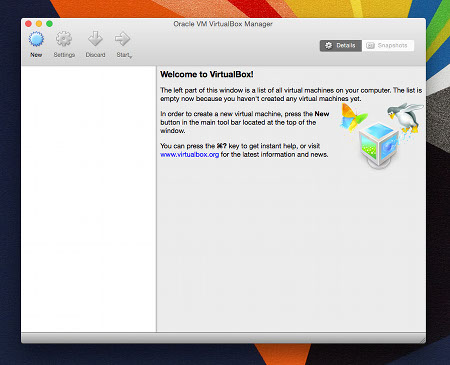
Because we are talking about Linux here, you have several options, such as VMware, Qemu, KVM, Xen, and VirtualBox, among many others; each with their own pros and cons. Of these, I prefer VirtualBox (see Figure 1 above), even though solutions like KVM can be more powerful and efficient. The reason I chose VirtualBox is that it’s extremely easy to use even by a new Linux user. It has tons of features and functionalities that can be easily accessed without any hard-core technical knowledge. The biggest advantage is its cross-platform support — you can install VirtualBox on Linux, Windows, and Mac OS X.
How to Use VirtualBox
You can download VirtualBox and install it on your system like a regular application. For this story, I installed VirtualBox on a MacBook Pro so that I can use Linux on the same machine. Open the VirtualBox app and click on the New button to create a new virtual machine. Give the machine a name (which should be the name of the distro). Then, enter the amount of RAM you want to allocate to the virtual machine.
Now you have to create virtual hard drive for the system; I would suggest VDI format. Here you can choose dynamically allocated size, because it won’t reserve all the allocated space and will grow as it uses more space. However, it can’t exceed the space you allocated. In the next step, you can choose the amount of space you want to allocate to the virtual hard drive. At this stage, you can also choose the location of the drive on the physical hard drive.
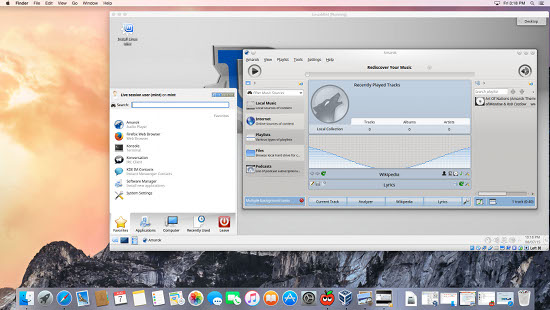
You are almost there; you will see the name of the newly created virtual machine in the left pane. When you click on it to start the system, in the first run, it will ask for the .iso image of the distro that you want to install on the system. Just browse to the .iso image of your desired distro and there you have a Linux distro running inside the Mac OS X (Figure 2).
One advantage is that, once you have a virtual machine up and running, you can just move the vdi file around and get the same distro up and running with all settings and data. This comes in handy if you are migrating from one host (host is the system where you install VirtualBox software and guest is the OS that runs inside VirtualBox) system to another.
Customizing Virtual Machines
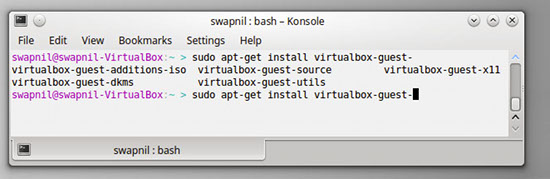
Depending on your distribution, you may or may not be able to get full screen resolution. In such cases, you will have to install some virtualbox packages inside the guest OS. The most common packages are virtualbox-guest-additions-iso, virtualbox-guest-x11, virtualbox-guest-dkms, and virtualbox-guest-utils (Figure 3).
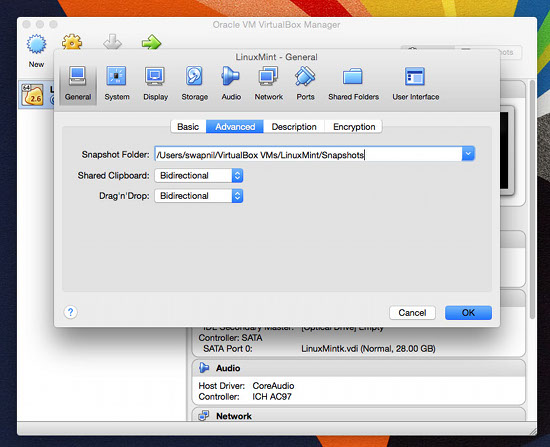
You can further tweak the VirtualBox settings to bring the guest and host OS closer. Shut down the virtual machine and click on Settings for that machine. In the General tab, go to Advanced and select Bidirectional for Shared Clipboard and Drag and Drop. Now you can copy and paste text between guest and host machines. You will also be easily drag and drop files between the two machines.
In some cases, you may have to also change the default network from NAT to Bridged Adapter to access the local network (Figure 5). I run a local file server, so I always switch to Bridged Adapter (more about file sharing later).
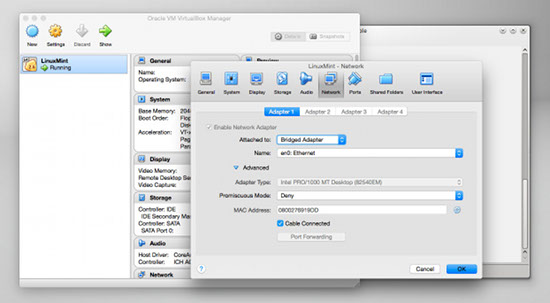
You can also change the amount of RAM allocated to the virtual machine, just open the System from the settings and modify RAM from the Motherboard tab; if you need to increase CPU capacity of the VM, you can easily do that from the Processor tab. What you can’t easily change is the storage space; that needs extra work, so be thoughtful with hard drive space when you create a virtual machine.
How to Share Directories Between Host and Guest
In Settings, you will find an option where you can add “shared” folders from the host machine to the guest system. However, because I run a local file server that keeps all my files, I simply mount the file server on the VM and then gain access to all my files. You can also enable access to USB ports so you can use the USB devices plugged into the system. Just go to the ports tab and add any USB devices connected to the system.
That’s pretty much what I do on my VirtualBox. If you haven’t tried VirtualBox before and have been multi-booting, you should give virtual machines a try. If you are a VirtualBox user, let us know in the comments what all you use it for.


 Plex Media Server, a piece of software that allows users to play movies and TV shows on the computer and to connect to devices like smart TVs or tablets, has been upgraded to version 0.9.12.8 and is available for download.