Home Blog Page 1106

The Five Best Linux-Powered Mini Computers

Linux mini PCsWhy should you be lugging around a bulky PC when you can get a decent computing power in a box no wider than 5 inch or a stick as big (or small) as the Chromecast?

Linux has become a dominant force in the consumer space, thanks to Google’s Chrome OS and Android. While both Android and Chrome OS are Linux-based distributions, they can’t run a majority of applications written for the traditional Linux-based distributions such openSUSE, Fedora or Ubuntu.

There are times when we do need the power of the traditional desktop-Linux. It’s easy to buy Chrome OS or Android powered devices but one may struggle to get devices which come with distros like Ubuntu or Fedora pre-installed.

And that’s where these mini-desktops enter the picture. I like these mini devices because they don’t claim much real estate in the office or living room. They sit quietly in a corner yet do the job very well.

These can be handy for classrooms, businesses (why should you have bulky PCs when you can have these beautiful mini devices), and many other set-ups. If I have to buy a PC for my son I will definitely get one of these Linux-powered mini devices; his room is full of penguins either way!

There is another important reason behind purchasing these devices. Every time you buy any Linux pre-installed system you send across a message that there is a demand for such devices. In addition to sending the message you also giving your dollars to those businesses who support Linux.

So without further ado, let’s get started. The devices are listed in no particular order so don’t assume that the one listed at #1 is the best device and the one at #5 is the worst one!

1. System76 Meerkat

System76 is one of the most Linux-committed companies around. They work closely on Canonical’s Ubuntu operating system. All of their systems come with Ubuntu pre-installed and Meerkat is no exception.

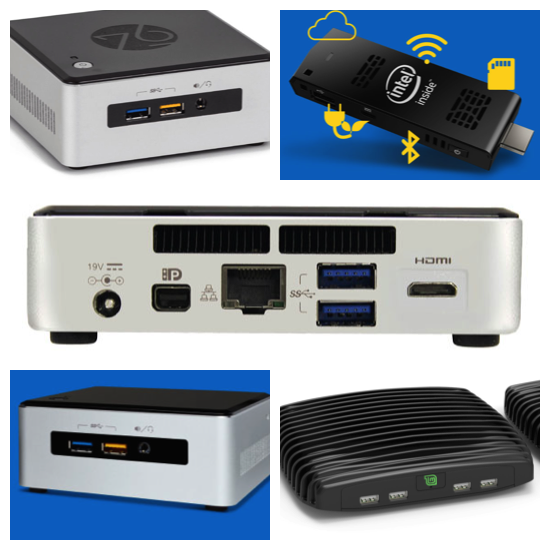
Meerkat is a Mac Mini-like device and is a mere 1.9″ × 4.5″ × 4.4″ big (or small). It’s powered by the 5th gen Intel processors i3 or i5. They have taken some pages from the books of Dell and offer complete customization of hardware.

You can choose the processor (2.1 GHz, i3 or 2.7GHz i5), RAM (from 4GB to 16GB), and storage – from 32GB SSD to 1TB SSD.

The box comes with four USB 3.0 ports, Gigabit Ethernet, Intel® Wireless-AC, Bluetooth 4, Mini HDMI 1.4a, Mini DisplayPort 1.2 Audio.

Just plug it to an HDMI monitor, connect peripherals like a keyboard and mouse and you have a full-fledged desktop within $500 (for the base unit).

2. Intel NCU

Intel is a good friend of Linux and open source; not only do they open source their drivers but they also actively sponsor and support many Linux and open source events and projects.

The company recently released a new family of their computers called NUC (Next Unit of Computing). Since it’s a ‘family’ of these Mac Mini-like devices there is more than one unit to select from. The latest NUC to come out is NUC Kit NUC5i7RYH which is powered by the 5th gen 3.1GHz Core i7-5557U processor. It has Intel Iris 6100 graphics; two USB 3.0 ports and two USB 2.0 ports; and two internal USB connectors which can be accessed through headers. It also has an infrared sensor on the front panel for consumers.

The devices fully support Linux and any distribution of choice can be installed on it. The estimated price is $526.

3. MintBox 2

These small devices are becoming all the rage, and smaller companies are offering Linux powered mini desktops.

Mint Box is a fanless, miniature PC which is powered by one of the most popular Linux-based distributions, Linux Mint. The product is the result of a collaboration between the Linux Mint team and Compulab. There are two models of Mint Box available: MintBox Mini and MintBox 2.

MintBox 2 is powered by a 3rd generation Intel i5-3337U dual core processor. It comes with 4GB of RAM (supports up to 16GB), 500 GB of HDD. It has HDMI and DisplayPort for monitor connectivity. It comes with six USB 2.0 ports and two USB 3.0 ports.

MintBox 2 is available for $599.

4. ZaReason Zini

ZaReason is another company which sells Linux pre-installed computers. ZaReason Zini is a ‘mini’ desktop similar to Intel NCU and MintBox. It’s available with Intel i3 and i5 chips. However, unlike its Intel and Mint counterparts, a user can choose the desired Linux distro from a list which includes the Ubuntu family as well as Fedora and openSUSE.

The base model comes with 8GB of RAM but it can be upgraded up to 16GB. It comes with 12GB of SSD and six USB 3.0 ports in addition to built-in WiFi, Bluetooth and mini-HDMI and mini-Displayport.

The base model is available for $549

5. Compute Stick

Google popularized the concept of an ‘HDMI’ computer with Chromecast. Though there was already a full-fledged computer on an HDMI dongle by FXI Technologies called Cotton Candy.

I saw a demo of the stick and talked to the FXI team at CeBIT in Hannover, Germany back in 2010. It was an extremely powerful and promising device. However, back then FXI didn’t have the same influence or aspirations as Google. The device, which could have started a revolution similar to Raspberry Pi never splashed on the scene again.

Intel picked up where FXI left off and the company added yet another class of devices to its family of miniature computers. Intel Compute stick was announced recently and comes in two versions: one powered by Windows and another powered by Ubuntu.

The Ubuntu variant comes with a Z3735F Atom Processor and 1GB of RAM. It has 8GB of storage capacity (unlike the Windows model which comes with 32GB of storage). It has integrated 802.11bgn WiFi, one USB 2.0 port, Bluetooth 4.0 and a slot for a Micro SD Card.

While the Windows variant is already available for $149 on Amazon.com, the Ubuntu-powered stick will be made available in June this year.

It’s certainly a great device as you can plug it into your monitor or TV, connect a wireless keyboard and mouse through bluetooth and start using it.

Conclusion

These are the top five Linux-powered mini-desktops that you can buy today, except for the Intel Compute Stick which will be made available in June.

All of these devices are ‘hackable’ so even if one comes with Ubuntu or Linux Mint pre-installed, you can easily format them to run Arch Linux, Fedora, openSUSE, etc

I am seriously considering getting the Intel NUC and retiring a bulk desktop PC that I use as headless file server. It takes way too much space for the job that it does. I wish they offered a 32GB model for Linux; though I will be running a minimal headless server, probably Debian, Ubuntu or Arch Linux so I don’t really need much space for root.

I am interested in your use case, what will you use these mini-desktops for?
Getting Started with Docker on Oracle Linux

Learn how to customize a Docker container image and use it to instantiate application instances across different Linux servers. This article describes how to create a Dockerfile, how to allocate runtime resources to containers, and how to establish a communication channel between two containers (for example, between web server and database containers).

Introduction

The best system administrators I know are downright lazy. I mean “lazy” in a good way, though—they’re experts at finding ways to work smarter, not harder. They’re skilled at discovering new techniques and technologies that help them efficiently manage operations. It’s no surprise that many of them are excited about Docker, an open source virtualization technology that creates lightweight Linux application containers.

Docker is exciting because it can easily capture a full application environment into a virtual container that can be deployed across different Linux servers. System administrators and software developers are learning that Docker can help them deploy application images on Linux quickly, reliably, and consistently—without dependency and portability problems that can inject delays into planned deployment schedules. Docker containers can define an application and its dependencies using a small text file (a Dockerfile) that can be moved to different Linux releases and quickly rebuilt, simplifying application portability. In this way, “Dockerized” applications are easily migrated to different Linux servers where they can execute on bare metal, in a virtual machine, or on Linux instances in the cloud.

Read more at Oracle Linux Blog.

Master and Protect PDF Documents with PDFChain on Linux

pdfchain catenate

 If you’re a user of the Linux platform, you know there are a lot of tools at your disposal. For those that work with PDF documents, you may feel as if the open source ecosystem has fallen a bit short in the PDF productivity category. Fortunately, you’d be wrong with that line of thought. In fact, Linux has a number of outstanding PDF tools. From a full-fledged, pro-quality DTP tool in Scribus all the way down to command line tools (such as pdftotext).

Between Scribus and pdftotext lie some outstanding PDF tools, ready to serve. One such tool is PDFChain—a graphical user interface for the PDF Toolkit. With this piece of user-friendly software you can master your PDF documents (catenate, watermark, add attachments, split a document into single pages), password protect documents, and even control permissions of a document. It is the last feature which might be of most interest to users. Why? Imagine creating a PDF document and being able to control whether or not a user can:

  • Print

  • Copy contents

  • Modify contents

  • Modify annotations

  • Use degraded printing

  • Use screen recorders

  • and more.

Let’s walk through the process of piecing together a single PDF document (using multiple .pdf files), breaking apart a single PDF document, as well as adding a background watermark, and altering the permissions to prevent users from having complete access to the document and its features.

Installing PDFChain

Before you begin working with the tool, it must be installed. Fortunately, PDFChain can be found in most standard repositories. Open up your package manager (such as the Ubuntu Software Center or Synaptic) and search for PDFChain. You should see it listed and ready to be installed. If not, you can always download and install from source.

To install from source, follow these steps:

  1. Download the file into your Downloads directory

  2. Open up a terminal window and change into the Downloads directory with the command cd ~/Downloads

  3. Unpack the file with the command tar xvzf pdfchain-XXX.tar.gz (Where XXX is the release number)

  4. Change into the newly-created directory with the command cd pdfchain-XXX (Again, where XXX is the release number)

  5. Issue the command ./configure

  6. Compile the software with the command make

  7. Install the software with the command make install

You should now be able to start the software either from your desktop menu or with the command pdfchain.

Mastering a document

Clearly, the first thing you will want to do is to start mastering a PDF document. One thing you must understand is that PDFChain is not a tool that allows you to create a PDF document from scratch (for that, you will want to give Scribus a try or export from LibreOffice). With this tool you are mastering other PDF documents into a single document (or breaking a multi-page PDF document into single page documents).

How do you catenate with PDFChain? Easy. Here’s how.

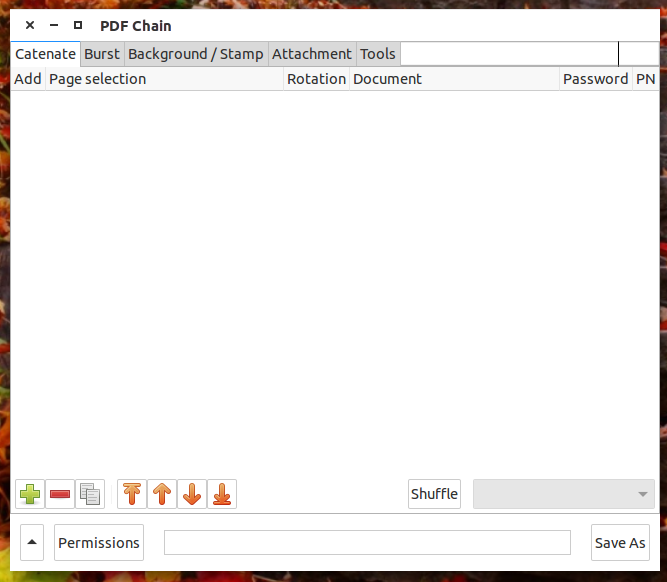
  1. Open up the PDFChain tool

  2. From the Catenate tab in the main window (Figure 1), click the + button

  3. In your file manager, locate the files you want to use and add them

  4. Arrange the files in the correct order by selecting them (individually) and moving them up or down with the arrows

  5. Click the Save As button

  6. Give the file a new name

  7. Click Save.

You should now have a full document made up of your constituent pieces. The one caveat to this is that each of the original documents will begin on its own new page of the master document. You cannot make this a continuous document (with Page Z beginning right where Page Y left off).

Add as many pages for the master as you need. You can also remove and duplicate pages for the creation of the master document.

What about the opposite direction? Say you have a long PDF document and you want to break it up into individual pages. With PDFChain, you can do that. Here’s how:

  1. Open PDFChain

  2. Click the Burst tab

  3. Click the Document Browse button

  4. Locate the document to be separated

  5. If necessary, change the Prefix label

  6. Click the Save As button

  7. In your file manager, locate the folder to house the individual files

  8. Click Open.

You should now find individual .pdf files in the folder.

Adding a watermark

Say you want to add a watermark (background stamp) to your document. This is often used to place a company logo in the background of a document. To do this, you will need two things:

  • Master PDF document

  • Watermark image as PDF.

NOTE: If you don’t already have your watermark image as a PDF document, you can always open up the image in The Gimp and export the file as a PDF.

Once you have everything necessary for the watermark, here’s how you master the document:

  1. Open up PDFChain

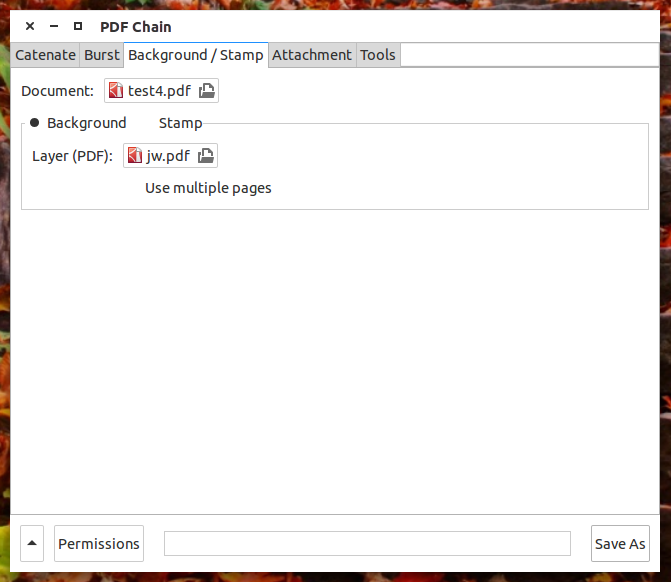
  2. Click on the Background/Stamp tab (Figure 2)

  3. Click on the Document Browse button

  4. In your file manager, locate the file that will serve as the document

  5. Click on the Background/Stamp Browse button

  6. Locate the file that will serve as the watermark

  7. Click Save As

  8. Give the new master document a file name

  9. Click Save.

pdfchain 2

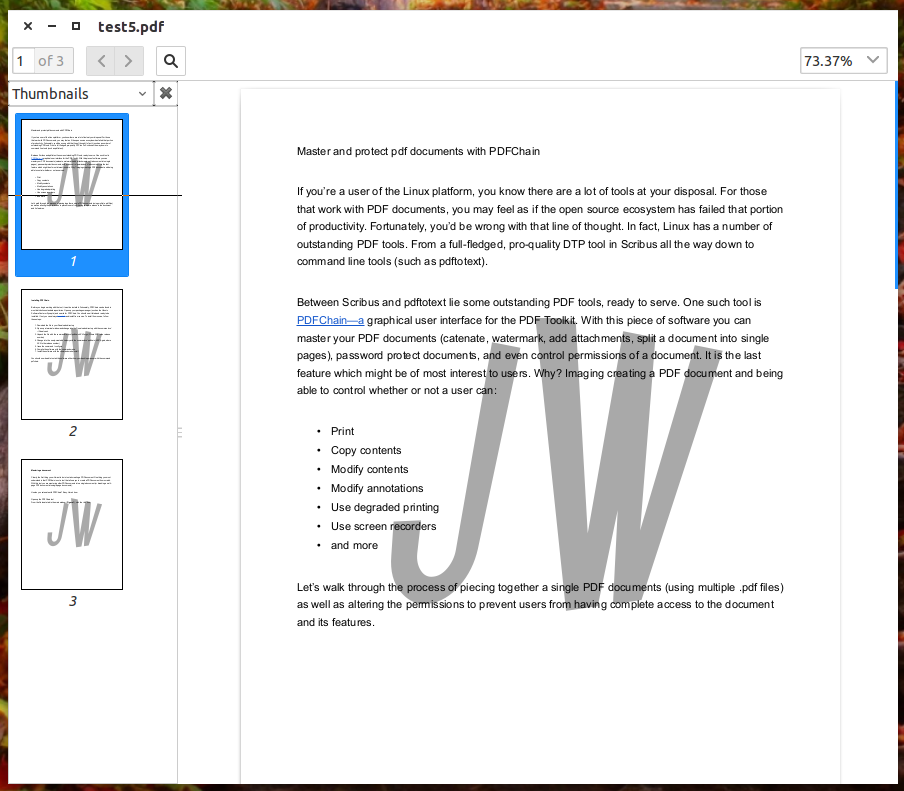
Open the newly mastered document to see the watermark on each page (Figure 3).

pdfchain 3

Permissions

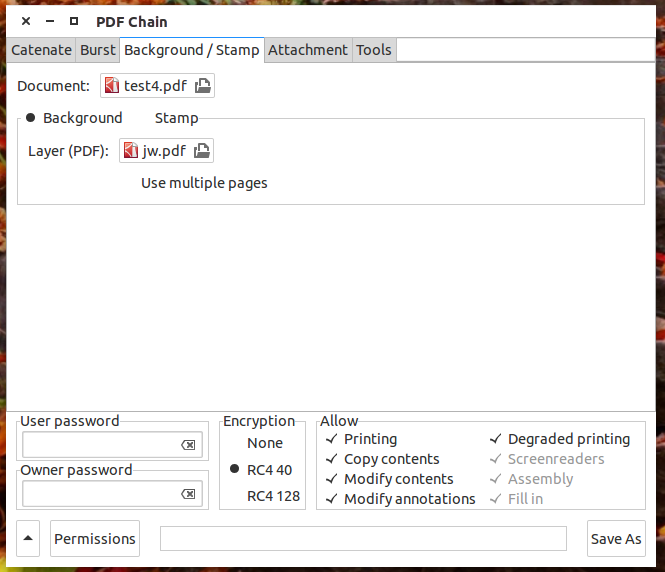
Now for the fun part. Before you save your master document, click on the Permissions button to reveal the Permissions pane (Figure 4).

pdfchain 4

In this pane you can add an owner and/or a user password as well as add/remove permissions for each of the various options. Say, for example, you don’t want to allow the contents of the PDF to be modified. For this, de-select the Modify contents check to disable the feature (if there’s a check by the option, it’s enabled). You can also select the encryption level for the document (None, RC4 40, or RC4 128).

Once you’ve set the options for the master document, click Save As, give the file a name, and click Save. Your new PDF will be ready with all the bells and whistles you just added/created.

Within the realm of productivity, Linux doesn’t disappoint. Tools like PDFChain not only make your office life easier, but give you more power and flexibility than you might have thought you had. Once you get the hang of PDFChain, you’ll be mastering new PDF documents like a pro.


How to Install Prestashop with Apache2 + MySQl 5.5 + PHP 5.5 on Ubuntu Server 14.04

Prestashop is an free and open source shopping cart which has many features that make it compatible with any web server (Apache, NginX and Microsoft IIS). It is well know for its vast collection of themes as well as custom store design. Multiple payment gateways can be integrated which makes it reliable and secured. It is fully supported with SSL certificates.

Prestashop supports more than 65 languages which keeps the e-commerce site to more flexible. It has about 3,500+ free and paid modules that has multiple functionalities.

In this tutorial, we will cover How to Install Prestashop with LAMP (Linux, Apache, MySQL, PHP) server on Ubuntu Server 14.04

Read More at How to Install Prestashop with LAMP on Ubuntu Server 14.04

Developer Implements Netflix in SteamOS

A developer has put together some tools (still under construction) that would allow users to use SteamOS to play Netflix. It’s in its early stages, but the developer has made something that Valve hasn’t even thought about until now.
SteamOS is an operating system based on Debian that will power the upcoming SteamMachines, a console / PC hybrid. Users basically get a Linux distribution that boots straight to Steam Big Picture, which is optimized to work with controllers and … (read more)

Zapcc Claims To Be A “Much Faster C++ Compiler”

Zapcc is the latest compiler I heard about this morning… Zapcc is based on LLVM’s Clang C/C++ compiler but claims to be much faster than it…

Read more at Phoronix

Canonical Partnership with Cloudbase Provides Windows Hyper-V Support for OpenStack

Canonical has just announced a new partnership with Cloudbase Solutions, a company that develops Windows components in OpenStack, which will allow customers to run KVM and Hyper-V environments side by side in the same cloud.

Canonical has been making a lot of headway into the cloud business, and it’s really showing. It was recently revealed that the 55% of the tasks in OpenStack are done in Ubuntu systems, which is actually a huge number. OpenStack is being used by huge com… (read more)

Surprise Attack Ultra Mega Pack Offers 12 Linux Games at Ridiculous Price

A new collection called “Surprise Attack Ultra Mega Pack” has been released on the Humble Bundle website, and it includes 12 Linux games.

The Humble Bundle website usually lists a collection of games, but they also have a regular store. Now, a new type of collections has been posted, but not as a regular Humble Bundle, but as a collection in normal store. This is a new type of offering, but it’s an interesting choice. It provides all the titles in the Surprise Attack Games … (read more)

Here Comes the Future of Application Development: Treating Infrastructure as Code

It’s time to fundamentally rethink the way we build and deliver applications, for a world of clouds and containers.

Read more at ZDNet News

IT Innovation’s Four Horsemen: Google, Apple, Amazon, Microsoft

A TechPro Research survey shows how large enterprises have little innovation faith in the business tech market. The IT pecking order is shifting, but the game isn’t over.

Read more at ZDNet News