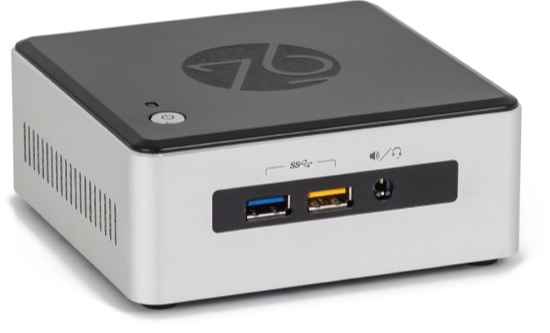
Every so often I get the pleasure of writing a review where the biggest challenge is finding something, anything, to nitpick in order to ensure I don’t sound like I’ve been bought off by the company. Such is the case with the Meerkat, by System76. A small device that, at first blush, one might think a toy. I can assure you, this 4.5” by 4.5” device performs with the power of a machine three or four times its size.
When I first unboxed the Meerkat, I have to admit I was somewhat skeptical. Not because of System76. In fact, the fact that the device was developed by System76 ensured my skepticism was full blown denial. I’ve placed my trust in the company enough that I purchase my personal machines from them. A massive Leopard Extreme serves as my main production machine. That particular machine performs better than any desktop I have ever had the pleasure of using. With that in mind, seeing the miniscule Meerkat gave me reason to doubt that such a small machine could even remotely live up to what I’ve grown accustomed to using.
Boy was I wrong. The Meerkat blew me away on every possible level. Let me break this down for you into a review that you can actually use. Instead of simply praising System76’s device for a thousand words, I’ll make this worth your time.
Specs
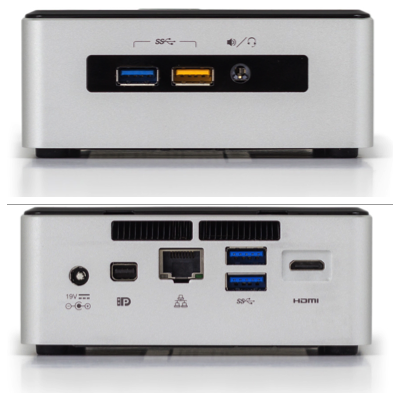 Before I get into the thrust of the review, I must list out the specs. Of course, with any System76 machine, you can spec it how you want it. Here are the listed specs (NOTE: System76 now ships all Meerkats with the i5 processor):
-
Processor 5th Gen Intel® Core i3-5010U or i5-5250U (2.10GHz or 2.7GHz – 3MB cache – 2 Cores – 4 Threads)
-
Graphics Intel® HD 5500
-
Memory Up to 16GB Dual Channel DDR3 @ 1600MHz
-
Storage M.2 SATA SSD, 2.5″ drive. Up to 2.5TB total.
-
Data Ports Front: 2× USB 3.0 (one powered), Rear: 2× USB 3.0
-
Networking Gigabit Ethernet, Intel® Wireless-AC, Bluetooth 4
-
Video Ports Mini HDMI 1.4a, Mini DisplayPort 1.
-
Audio 5.1 channel (Mini HDMI, Mini DisplayPort), 3.5mm headphone/mic jack
-
Security Kensington® Lock
-
Power Supply 19V, 65W AC-DC Power Adapter
-
Multi-country plugs (IEC types A/C/G/I)
-
Dimensions 1.9″ × 4.5″ × 4.4″ (H × W × D)
-
Weight 1.2 lbs. (0.544 kg.)
Clearly, by spec alone, we are not dealing with a toy. But does the reality match what’s on paper? Why yes, yes it does.
First impression
I’ll skip the unboxing and go straight to firing the device up. When you first run a System76 machine, you must finalize the installation by choosing your location, username/password, and a few other small details. Once you’ve done that, the machine will present you with the login screen and you’re ready to go.
The Meerkat greeted me with Ubuntu 15.04. I immediately set about tweaking the device to fit my tastes and needs. The first step: installing my usual lineup of software. As soon as I began the process, I fell in love with the device. Why? The Meerkat is fast … much faster than a device this size should be. Click to launch Firefox and, before you can say “Meerkat”, the app is open and ready to go. That holds true with almost any app you can install. Even LibreOffice opens in the blink of an eye. Much to my surprise, the Ubuntu Software Center responded faster on the Meerkat than on my Leopard Extreme. If there is a testament to the speed of the Meerkat, it’s that.
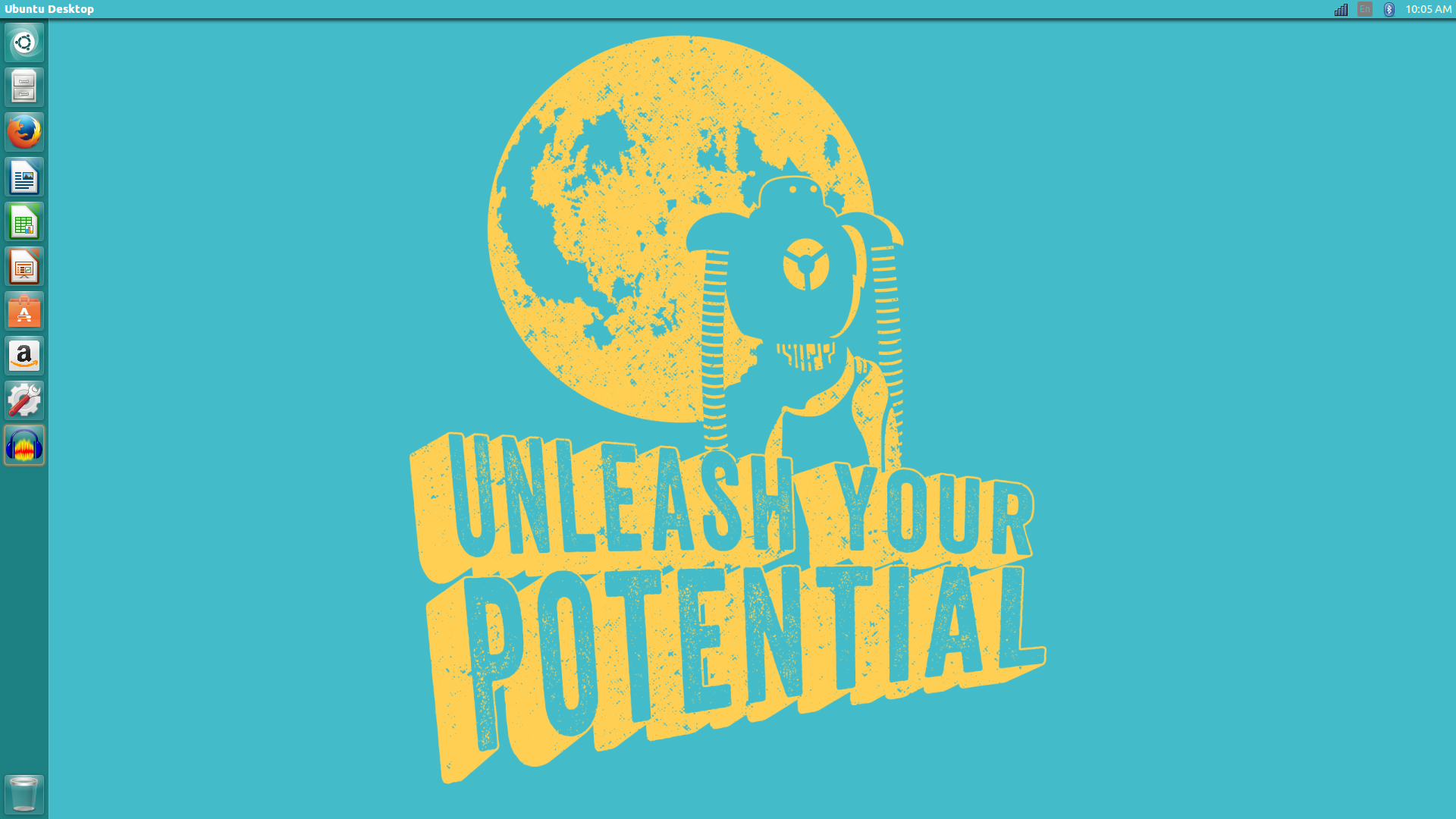
During my tweaking of the Meerkat, I even came across a few System76-specific wallpapers that I loved (Figure 1).
Once I had the device up and running to my specifications, I realized the possible limitation of the two USB ports. Oh wait, never mind, System76 integrated Bluetooth. Thanks to that tiny addition, I quickly had a bluetooth keyboard and mouse connected, freeing up both ports.
I moved the Meerkat over to my 60” LED television, sat on the couch, and turned the tiny PC into the ideal multimedia device. Netflix? No problem. Spotify? I think I will. Youtube? Yes please. The Meerkat handled anything and everything I could give it without a single hiccup. Even rendering a video in OpenShot was blazing fast. And because the connection to the TV was handled via mini HDMI to HDMI there was no need to run a second cable for sound. It’s all there and it’s all good.
Best uses for the Meerkat
When most consider a PC unit of such miniscule size, the general conclusion would relegate the Meerkat to kiosks or multimedia PCs. Although the Meerkat fits those bills to perfection, you would be remiss in not considering this device as a standard PC. Yes, you would need to either bump up the internal storage (when purchasing the device), or attach an external drive (make sure it’s a solid state drive for speed); but the Meerkat has enough power to spare for most average PC users. And considering its size, this baby is going to leave your desktop space uncluttered.
The Meerkat is not an underpowered, ARM-based piece of hardware. Tucked within the diminutive box lies the heart of a giant. Don’t be fooled, this machine can, without hesitation or hiccup, get the job done.
But don’t let my protestations of the Meerkat being an ideal desktop for a lot of users misguide you. This baby would perform perfectly as a multimedia device. This is especially true for anyone who has “cut the cord” from cable TV. If you are an avid streamer of Netflix, Hulu, Spotify, and other services, the Meerkat will sit perfectly on your entertainment stand and serve as an ideal interface for your video and music enjoyment.
Where’s the downside?
If there is a downside to the Meerkat (and that’s a huge if) it’s in the two USB ports. I tend to use a lot of USB, and that limitation puts a hurt on my ability to make the Meerkat my default desktop machine. Not every device you use will be bluetooth-enabled and the last thing you want to do is slap a USB hub on this and have a ton of cables running into the device.
But that’s it. Outside of something that is part and parcel to the small form factor, there is absolutely nothing wrong with the Meerkat. This mini PC is as well designed and realized as any small device I have ever used. It’s powerful, convenient, perfectly silent, and runs like a champ.
Pricing starts at $499
If you’re looking for a “bang for your buck” mini PC ─ one that doesn’t behave like a mini PC ─ the Meerkat is exactly what you want. You’ll get plenty of power, a tiny form factor, and purchasing from System76 ensures you are supporting a company that, in turn, supports open source. Win-win-win.
The cost for the Meerkat? The devices start at $499 for the basic unit. You can quickly shoot that price into the near 1K range by bumping the RAM to 16 GB and the internal storage to 500 GB. The device shipped to me had the default storage size, and an additional 4 GB of RAM. That RAM upgrade took the price to $548 and is an upgrade I would highly recommend. That may seem like a lot for such a small package, but it’s worth every penny … even if the Meerkat will only serve as your go-to multimedia PC.

