One of the biggest assets of the Linux desktop is its flexibility. Because of it, you can bend and twist that desktop to do what you want. This same holds true for many of the applications found on the Linux operating system—don’t like it, change it. One area that often gets overlooked with this regard is the file manager.
Now, before we continue on, let it be known that the default file manager for Ubuntu Unity and GNOME Shell isn’t nearly as customizable as its predecessor, Nautilus. But because this is Linux, we can easily install a replacement that does include a host of customization options that will extend the standard feature set.
With that said, let’s dive into a few of the more popular file managers and see just how we can extend their feature sets.
Files
I want to begin with Files. This is the default file manager for Ubuntu Unity and GNOME Shell. This particular file manager doesn’t offer much in the way of customization. In fact, there is only one customization worth mentioning ─ Templates. I find this Files feature to be one of the most overlooked, yet one of the most handy. What you can do is create Templates which can be used from within Files to quickly create a document (or file).
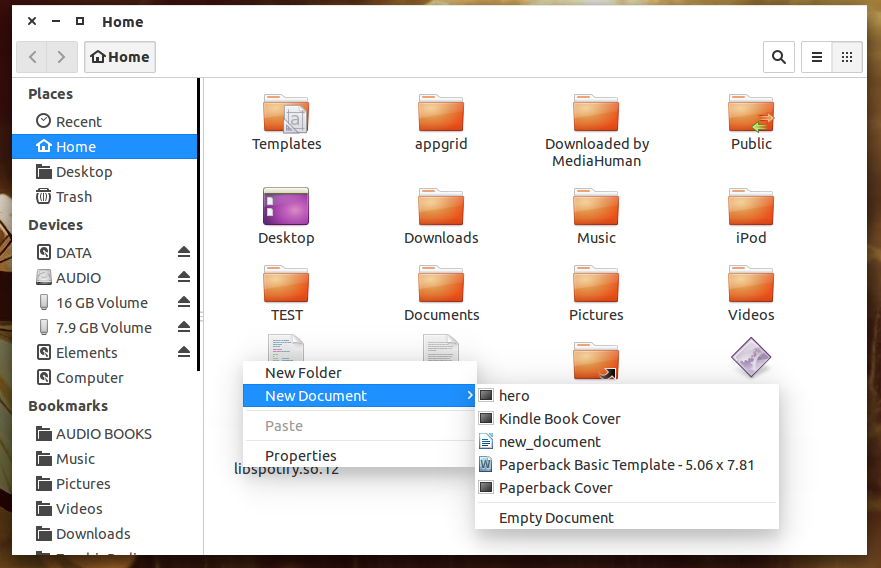
For example, say you have a specific text document template that you frequently use that includes numerous formatting options. Instead of opening up LibreOffice, clicking File > Open or File > Templates > Manage, you could simply right-click within Files, select New Document, and then select from the templates. This would create a new file within the current working folder. Give that file a name and then double-click it to begin working.
But how do you add templates to extend this feature? This couldn’t be any easier. Open up your application of choice (be it LibreOffice, The Gimp, etc), create (or open) the file to serve as a template, and then save it in the ~/Templates folder. If you already have a number of template files created, you could just either move or copy them into the ~/Templates folder. Once you’ve done that, right-click a blank spot in Files (in the folder you want the new file) and, from within the Templates menu, select the new file type to be created (Figure 1).
Thunar
If you’re looking for a file manager with a bit more flexibility, you need not look much further than the Xfce default tool, Thunar. One of the best features of Thunar is the Custom Actions feature. Custom Actions are user-defined commands that act upon files/folders from within the Thunar GUI. This feature is incredibly powerful and only limited by your imagination and basic Linux skills. With Custom Actions you can extend Thunar into one of the single most powerful file managers available.
I’ve covered the creation/use of Custom Actions in a Linux.com piece from 2011 which still applies. Check out Extend Xfce’s Thunar File Manager with Custom Actions for a how-to on creating a number of customized actions for Thunar.
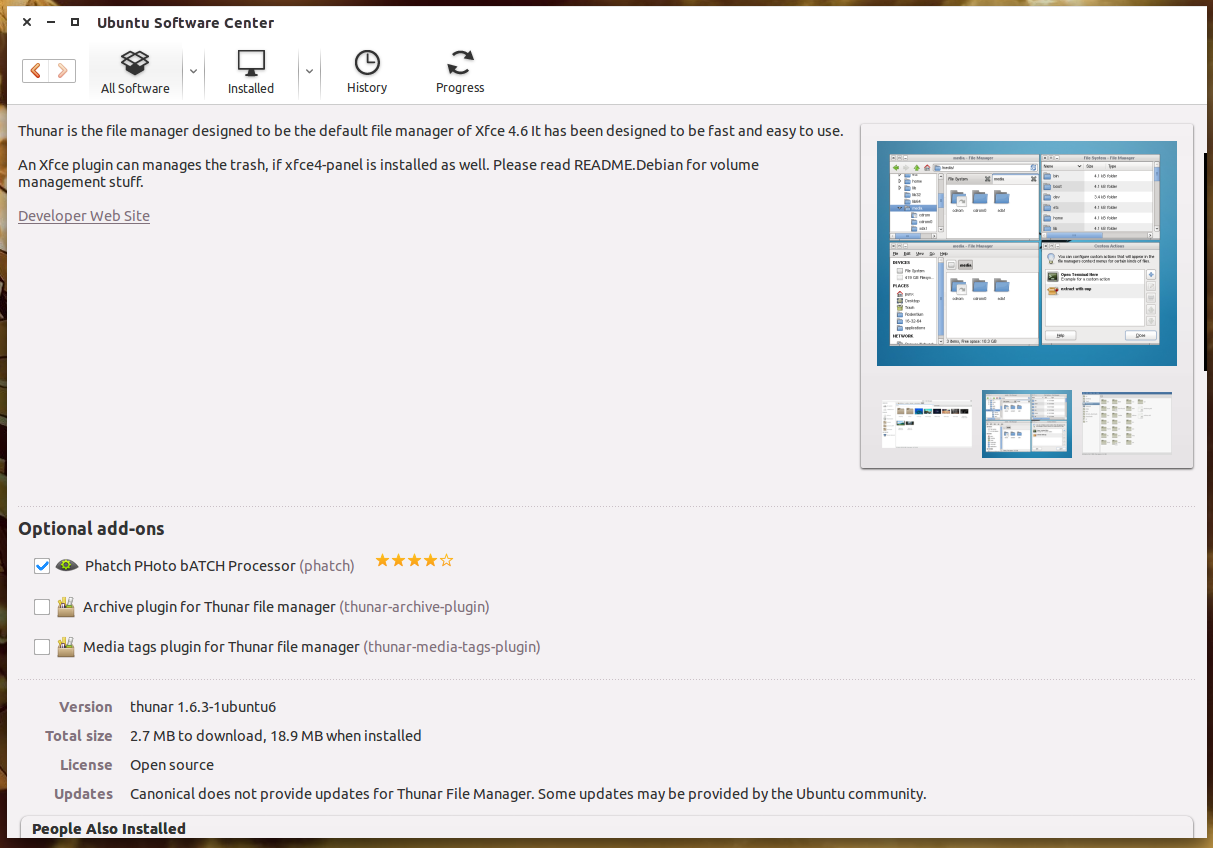
This isn’t the only way to extend Thunar’s capabilities. If you install Thunar from the Ubuntu Software Center, you can click on More Info to find a few plugins available (Figure 2). You won’t find many plugins because most extra features are handled through Custom Actions. I do, however, highly recommend installing the Archive plugin and the Media tags plugin. The Archive plugin allows you to compress and uncompress files/folders with a single right-click of a folder (Figure 3).
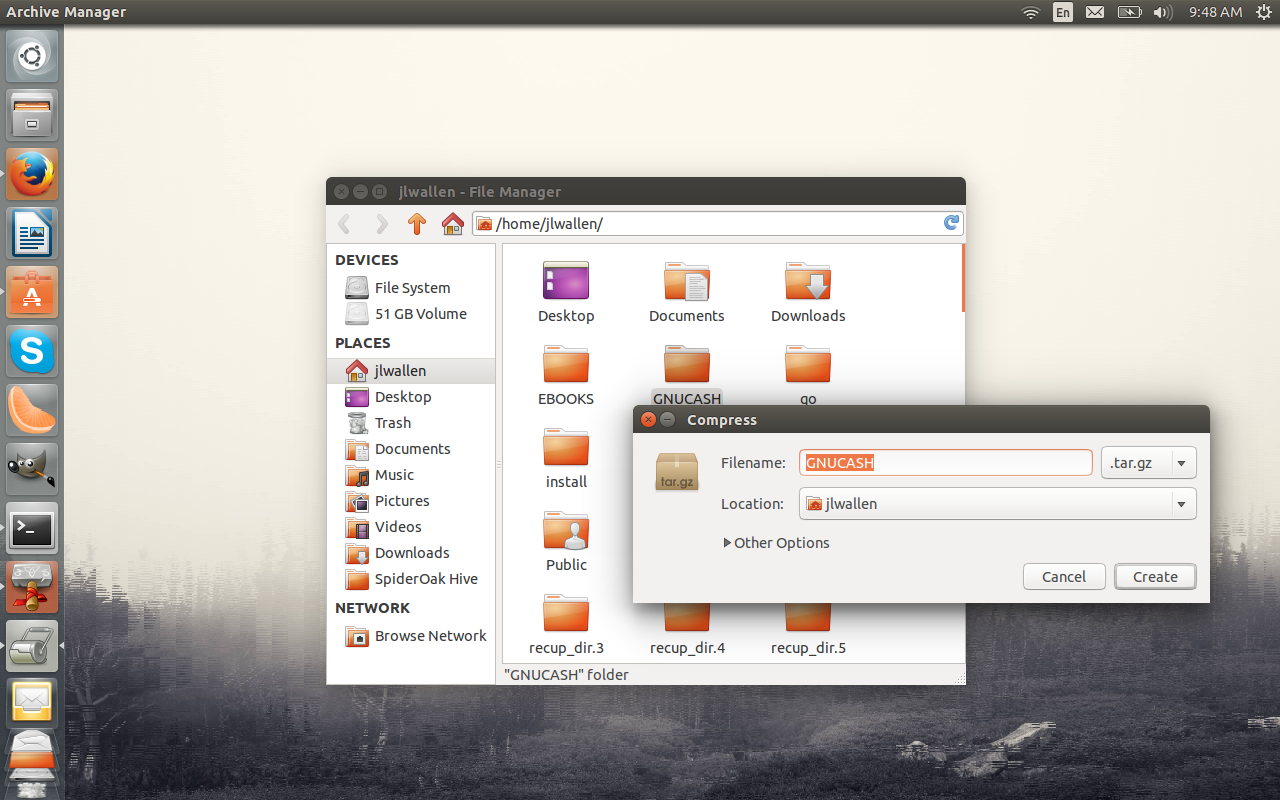
Once you select Create Archive, you’ll be asked to give the archive a name and select the archive type (there are a number of types, such as .zip, tar.gz, etc). Click Create and the archive is ready.
Nemo
This is a fork of the Nautilus file manager and is the default for the Cinnamon desktop. If you were a fan of Nautilus, you’ll be happy to know that it lives on with much of the same outstanding functionality. Even though you’ll find plenty of default functionality within Nemo, there are some extensions you will want to install. With a few commands, you can install extensions for:
-
Comparing files/folders
-
Dropbox integration
-
Columns to list/view media types
-
Pastebin integration
-
Seahorse integration (encryption/decryption of files/folders)
-
Samba share integration
-
Emblems (assign an icon for a file/folder)
-
Image converter (resize or rotate images quickly).
To install the above features, you first must add a PPA (personal package archive) to apt. Here are the steps for adding the repository and then for installing the extensions:
-
Open a terminal window.
-
Add the repository with the command sudo add-apt-repository ppa:webupd8team/nemo
-
Hit Enter when prompted.
-
Update apt with the command sudo apt-get update
-
Install the extensions with the command sudo apt-get install nemo-compare nemo-dropbox nemo-media-columns nemo-pastebin nemo-seahorse nemo-share nemo-emblems nemo-image-converter
After the installation, the official Dropbox daemon will download and install. You will then be prompted to log in with your Dropbox credentials. After successful authentication to your Dropbox account, you’ll want to logout of your desktop and then back in. Nemo should now include more features.
If you’re using Ubuntu, you will find many (if not all) of these extensions don’t work well with Ubuntu Unity. If you install them on the Cinnamon desktop, they will all function as expected. However, if you run Ubuntu and you want the full functionality of Nemo (and its extensions), you can fix this issue by installing the full Cinnamon desktop. You don’t have to use Cinnamon, but the installation of that desktop will resolve the issues with the extensions not working.
To install Cinnamon, follow these steps:
-
Open a terminal window
-
Add the necessary PPA with the command sudo add-apt-repository ppa:gwendal-lebihan-dev/cinnamon-nightly
-
Hit Enter when prompted
-
Update apt with the command sudo apt-get update
-
Install Cinnamon with the command sudo apt-get install cinnamon
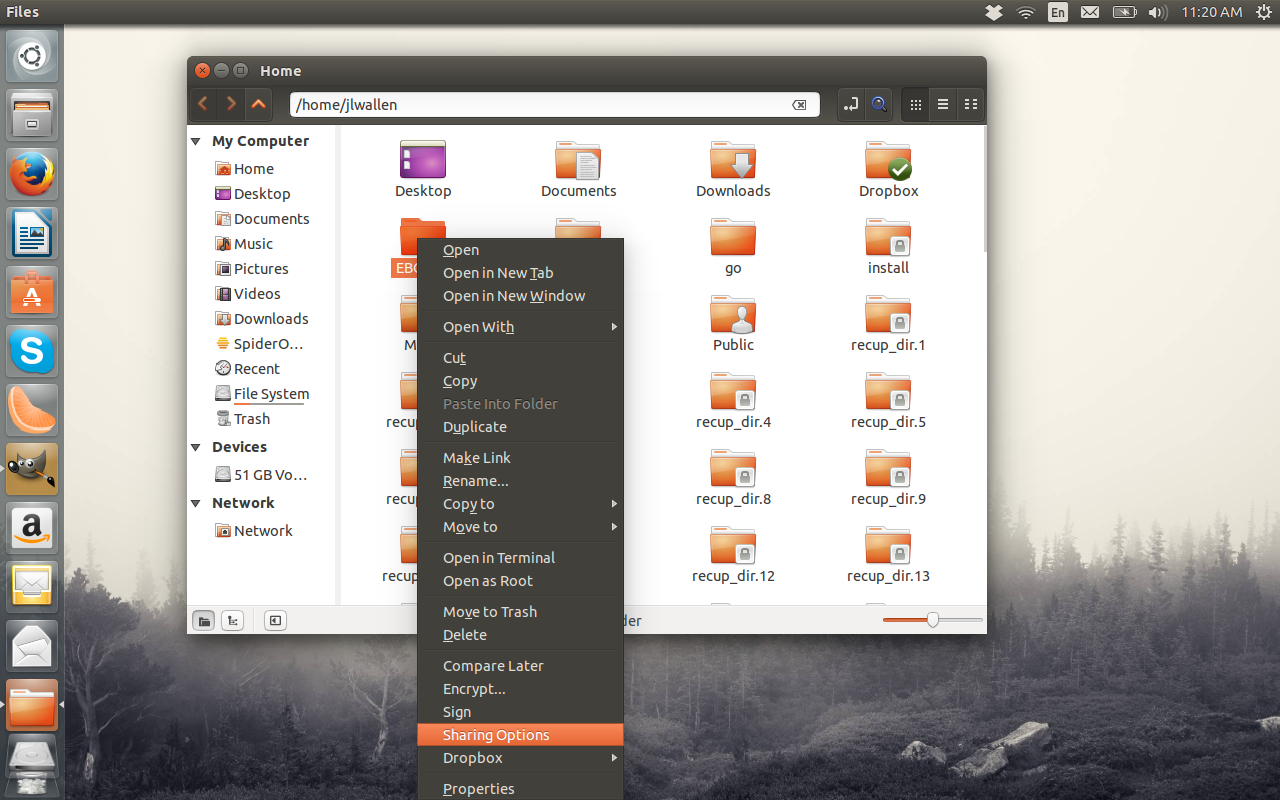
Now you can do things like sharing a folder by right-clicking it and selecting Sharing options. (Figure 4).
There are plenty of other file managers for the Linux desktop—some of which are desktop dependent and some are not. Not all file managers are created equal, so if you find the default tool on your desktop not meeting your demands, open up your package manager tool and search for a replacement. With a file manager like Thunar (and a bit of creativity), you can do just about anything you like. With Nemo, you can add some of the old Nautilus functionality back. With Files, you’re limited, but you can take advantage of Templates to make your daily work a bit easier.
What is your file manager of choice? Have you found clever ways to extend the feature set? If so, share with your fellow Linux.com readers.

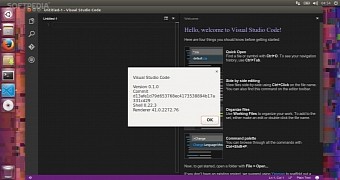 Microsoft had the pleasure of announcing the Preview of its Visual Studio Code tool for Linux, OS X, and Windows operating systems during the BUILD 2015 event that took place on April 29, 2015.
  This week in Linux news, open source projects respond to humanitarian needs, Microsoft opens up, and more. Read on for the top stories from this week.
  The 11th release of OpenStack is available for download today, and the event is being billed as “a turning point” for the open source project with contributions from nearly 1,500 developers and 169 organizations worldwide. Indeed, it’s only been a few short years since there was early
  Simplicity Linux, a Linux distribution based on LXPup and that uses the LXDE desktop, has been upgraded to version 15.4 and is now available for download and testing.
 Canonical has announced that a few vulnerabilities were found in the Linux kernel packages, affecting the kernel for Ubuntu 14.10 (Utopic Unicon) operating system, and they have been corrected.