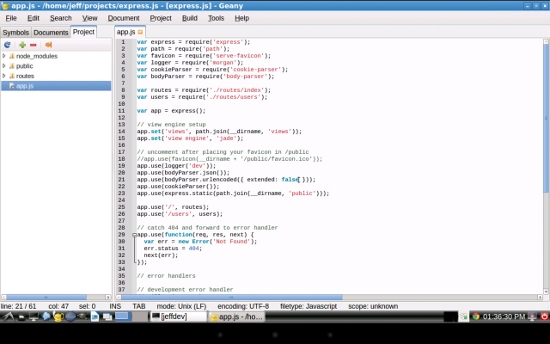
In the previous article, I gave an overview of how I’ve managed to go mobile. In this installment, I’m going to talk about the software I’m using on my different devices. Then in the third and final installment, I’ll explain how I set up my Linux servers, what software I’m using, and how I set up the security. Before getting started, however, I want to address one important point: While downtime and family time are necessary (as some of you wisely pointed out in the comments!) one great use for this is if you have to do a lot of business traveling, and if you’re on call. So continuing our story…
There are two aspects to working with my devices: file management and remoting software. The file management, in turn, has two parts to it: cloud storage and version control. I’m going to describe this chronologically, as I began setting up the software in the cloud on on mobile, what problems I hit, and how I came to a solution that works for now.
Initial Setup and the Cloud
When I got started with this, I had decided to keep my files in a cloud-based server. I tried a few different ones and came to a very odd decision, which proved to be only temporary before settling on Dropbox. At the time I was doing a lot of writing for a client who was using Windows. They needed many documents and they used Microsoft’s cloud server called SkyDrive (which has since been renamed to OneDrive). I started using that and even found a third-party Linux driver called Storage Made Easy. Although the Storage Made Easy driver worked great, the Microsoft service was far from great. Important files would just disappear. This was unacceptable, of course. So I started exploring other options. I temporarily switched to a version control system for my writing files and general work, but that proved to be overkill for just documents. Plus, I wanted to share some of the documents with my wife and other non-techies, and she wasn’t up to learning git or svn.
I had one main requirement for whatever cloud system I found: It had to automatically save files that changed to the cloud storage. While working with source code requires a thought-out process of finishing up and checking in files, I didn’t want to have to remember to upload the files for just everyday documents.
Google Drive sounded great… if you’re not using Linux (grrrr! Seriously, Google?). There are some third-party solutions for using Google Drive on Linux. But before I tried out the third-party solution, I came across UbuntuOne. This proved to be perfect. It had a nice amount of storage for my documents (5 gigabytes) and it did exactly as I needed. And it was free! Files would automatically get saved to the server, and when I accessed them from another computer they would automatically get pulled down. I could also access my files from a nice web interface, which was a handy bonus. And for those times I had to use Windows, they even had a client for Windows.
Except UbuntuOne shut down. Grrr again!
Back to the drawing board. I had occasionally used Dropbox when they were still new, and didn’t recall it being all that great, but I decided to give it another go. Turns out it’s greatly improved. You have to do some silly stuff to get free additional space (like download their Android mail client), but I’m game if it gets me more space without paying. And so now I’m using Dropbox and so far it’s working mostly well, except for one gripe: While files automatically synchronize on desktop computers (including Linux and Windows), the Android client doesn’t work that way. I understand the rationale; Android devices don’t have nearly the space and if you’re using 4 or 5 GB of storage, you don’t really want or need to have all those files copied to your device. But it would have to do for now. But one reader of the previous article did point out I should try Syncthing. I will do so. There are lots of options that work if you want to keep it on your own server, which is a great idea.
My source code is a different story. That one is easy: I use git. Some of my clients use SVN, and that works well too. Slowly I was getting somewhere. My data was going with me. (But some of it was being stored in third-party servers owned by Dropbox, which I had to accept.) Now onto the device apps.
Mobile Apps
Initially, I really wanted to find native Android applications. This all comes down to one reason: At the time, I only had one tablet, a 7-inch Nexus 7 2013, and the screen isn’t huge. Trying to remote into a server using VNC or RDP is cumbersome on such a tiny screen. But worse, trying to point and click using VNC was quickly becoming a nightmare. Many of the VNC apps required I tap in just the right position to click a tiny little button on the screen. It just didn’t work. I did ultimately find a good remoting solution, but at first I really wanted to use native apps because they simply worked better on the tablet in terms of interacting through tapping and gestures.
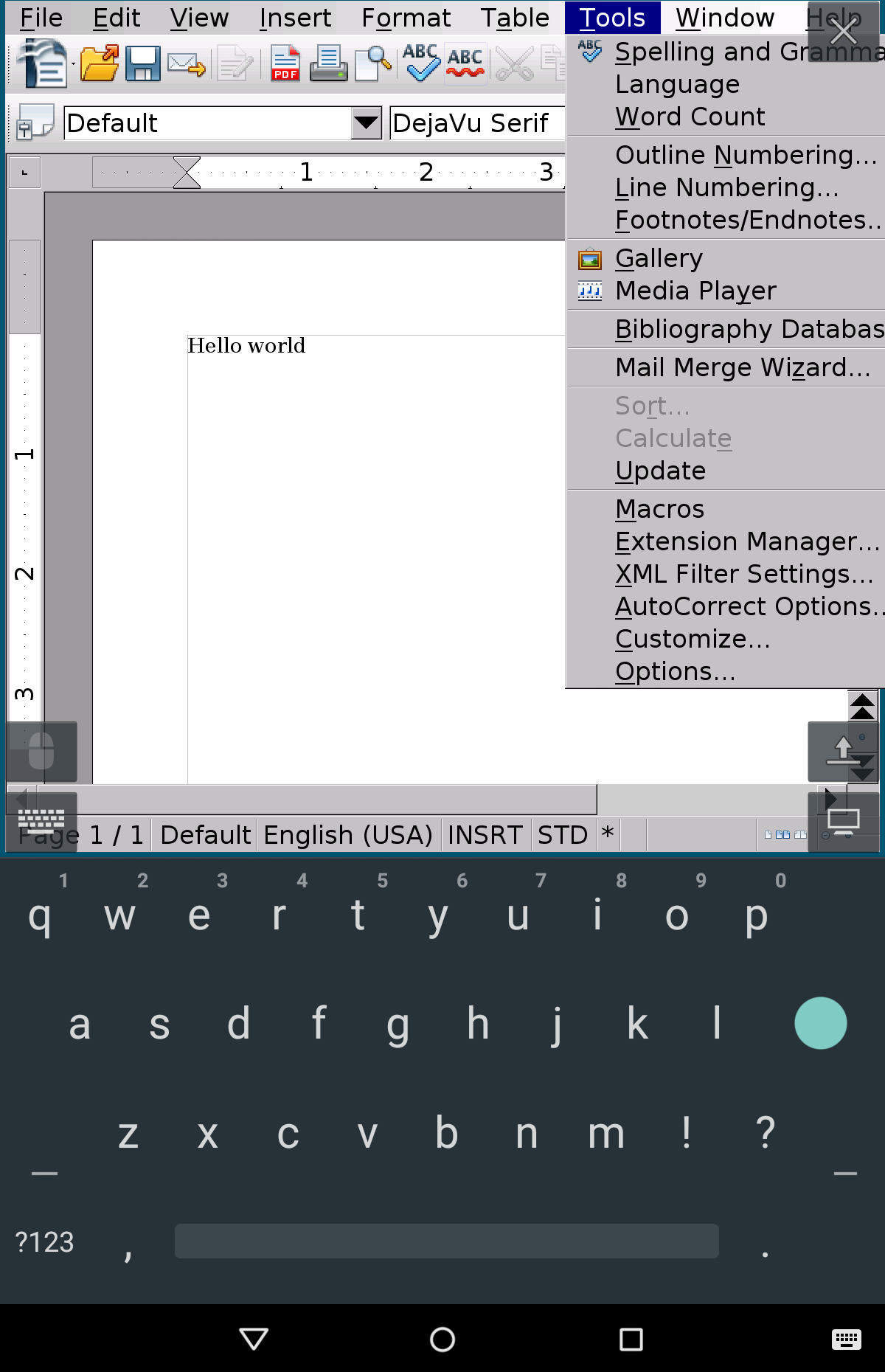 But while usability was good, there were other problems. First, the word processing apps didn’t support the Open Office formats, only the Microsoft formats, even though many of them are actually quite good apps in general. For a lot of work, that’s not a problem as many of my clients were using Microsoft formats.
I did manage to find one app called AndrOpen Office. This app had only recently been released, and at the time it was kind of clunky. Since then, the developer has made great progress and it’s quite impressive. It’s a full port of OpenOffice to Android. It runs on a virtual machine ported to the ARM processor, and the concept works very nicely. But regardless of how good it is, using it on my little 7-inch tablet was difficult for the same reason using VNC was: The app uses the traditional drop-down desktop menus and that’s extremely difficult on a little tablet. But on a larger tablet with a keyboard and mouse, that’s not a problem at all. And now that I’ve upgraded to just such a tablet, I might start using it again, provided I can get Dropbox to cooperate.
Remember what I said earlier about Dropbox not automatically synchronizing on Android? That proves to be a royal pain when using an Android device all day. You have to first download the files and then save them to a local area, and then open them. Then when you’re done editing them, you have to go back to Dropbox, and re-upload them. That might work for some people, but with my new lifestyle of bouncing between devices, that just doesn’t cut it. As such, that pretty much ruins my efforts of using the different native office software on my tablet.
At this point, I was stuck. Using VNC didn’t really work because of the tiny screen. But the combination of native word processors and the Dropbox client on the tablet didn’t work either. I realized then, that the only way to make this work would be to go the VNC route anyway, and do two things: First, set up a Linux server that I can VNC into from anywhere. And second, find a good Android VNC client even if it kills me.
Trying to tap on a small screen and position a mouse was too hard for me. (Maybe it works for you, but as I get closer to my 50th birthday, I find it’s just not that easy for me anymore.) Instead, I needed a different way to be able to control the mouse from my tablet. It turns out, after I looked harder, there were other options. Several Android VNC clients use a trackpad style for mousing, as I briefly mentioned in the previous installment. Here’s more about that.
As you drag your finger left on the screen, the mouse moves left. Moving your finger around determines the direction the mouse moves, not the location, just like a trackpad on a laptop. And an added bonus: You can pinch-and-zoom on the VNC screen. But one annoying thing I found was that some VNC apps would do strange things with annoying popups for accessing controls, or they didn’t give you control over the compression and the screen would look messy. And with some, the only time you could type was when you opened up a little popup window for entering keystrokes; you would type the keystroke and click a button and then it would send the keystrokes to the VNC server. For typing code and documents, that was a definite NO.
But I found a few that worked great. My favorite is Remotix. There’s a free version and several paid versions depending on the type of servers you’re logging into. I ended up getting the one for logging into both Linux via VNC and Windows via RDP.
If you’re using iOS, one really nice one is JumpDesktop. I actually liked that one better on iOS, except the Linux version doesn’t have the trackpad style mouse control, even though the iOS version does. Make sure to try out different ones based on your needs. Maybe you’re okay tapping instead of “trackpadding” as I do. But you’ll likely want one that does SSH tunneling. (There’s a way around that, though: JuiceSSH, which I mention later, lets you set up an SSH tunnel right on your device. But Remotix, which I use, can do SSH tunneling itself.)
So at this point I realized I needed to use my Linux servers from my tablet. To test this out, I spent all day working, hunched over my 7-inch tablet and a tiny bluetooth keyboard made specifically for the tablet. That was a disaster. I had a horrible headache at the end of the day from the eye-strain (see my note earlier about my age) and the keyboard was so small I could barely type on it.
So I bought a newer keyboard, a bluetooth one from Logitech made specifically for Android devices. The keyboard worked great, but the screen was still too small. My idea was that if I have to go out of town for a few days, I’d like to be able to leave my laptop at home and only take a tablet and keyboard, and this screen just wouldn’t cut it. So I upgraded to a 10-inch tablet, and that worked for me. The tablet I got came with a chiclet keyboard, which I’ve gotten used to, although my bluetooth keyboard also works. I can also use a bluetooth mouse (make sure the VNC client you choose includes that), or use the trackpad built into the chiclet keyboard, or I can touch the screen as I described earlier. And this setup is lightweight and easy to travel with, and something I can stare at all day. And I get 10 hours out of the battery. Pretty good. And if I don’t want to take this setup with me (like out to dinner if there’s something urgent from a client), I can just take my smaller Nexus 7, and use the on-screen keyboard and VNC in. It’s not great, but it lets me do some work if I need to.
Looks and feels like a powerful Linux machine
So VNC it is, with Dropbox for my documents, and git for my source code. In the next installment, I’ll show you how I configured my Linux servers for easily logging in from anywhere, even from my desktop workstation. I’ll also mention how I explored an unusual option of installing Ubuntu right on my tablet (that didn’t work – too slow!). And I’ll share how I easily deal with different device and screen sizes. Everything runs fast, even on my 4G mifi device.
When I’m logged into my Linux server on the tablet with the attached keyboard, it looks and feels like I’m running a powerful Linux machine, not a simple Android tablet! One guy was chatting with me somewhere and he said he’s an IT guru, and asked what my computer was. I told him it was an Android tablet. He glanced at the screen and walked away, mumbling that I was obviously confused and that it was a Chrome netbook. I just laughed. Little does he know that I have a client who needs some heavy-duty parallel multicore programming and for that I run a 32-core Intel Xeon server all from my 10-inch Android screen, and it feels like it’s right there, local, when in fact it’s running on Amazon Web Services.
And I haven’t given up completely on the native apps. I occasionally use them for editing files. There are some pretty good source code editors available. In the previous article I mentioned DroidEdit. I’ve been using that for a couple years now, but with one frustration: It doesn’t do well with huge files such as those over 10,000 lines. It takes forever to load the files, and then scrolling through them is slow. My Nexus 7 has a pretty good processor and graphics capabilities, but that didn’t matter. These huge files just took forever, even when I turned off syntax coloring. But since my previous article came out a couple weeks ago, I discovered another Android editor that works great. It’s written by a guy who also noticed that the editors out there tended to be slow and resolved to write his own, better editor. He did, and it’s called QuickEdit. There’s both a free version with ads, and a paid version without ads. I went ahead and bought the paid one considering it costs less than milkshake from McD’s.
If you’re going to go the native text editor route, though, you’ll want to consider whether it fits in with your own source code control. There are a few different options here, and you’ll have to search through the app stores and try different ones depending on your needs. Some have SSH access whereby they can remote into a server, read the files, let you edit them, and then save them back to that server via SSH. DroidEdit has this, as well as git capabilities. (But I couldn’t get it to work with a git server running on one of my servers, even though I can access it from other computers. I’m not sure why, but people have reported it works well with github.)
Another native mobile app I use regularly is JuiceSSH. Really, there are lots of options for native SSH tools; this is just one of many. Whichever one you go with, make sure it handles SSH keys. (If you’re new to all this, including Linux servers, you really should configure your servers to require SSH key-based authentication. This article from DigitalOcean’s blog is a good intro on setting it up.) The SSH app is handy when I have a slow connection. Then I just connect over SSH and use my beloved vi editor. All command-line, no GUI, like the old days when I was young.
Finally There
That’s it for now. I finally have a setup that works. And the amazing part is that almost everything I use doesn’t require a rooted device. I did root my device because I use other apps that require root, but this setup doesn’t. In the third and final installment, I’ll explain exactly how I configured my servers. I use two different cloud hosts: Amazon and DigitalOcean, and occasionally a third, Rackspace. Until then, share with us your ideas here.
I would still like to be able to use a native word processing app; my bandwidth on my 4G isn’t unlimited and when I travel, VNC uses a lot. My solution is still far from perfect and I’d love to hear your ideas on how we can improve this together. And for those who offered concern, I do include down-time and family time. (My wife and I get to sleep until noon every day and I jog three miles three times a week.) It’s a matter of balance. With great power comes great responsibility.
Continue to Part 3: How to Configure Your Dev Machine to Work From Anywhere
Go back to Part 1: How to Set Up Your Linux Dev Station to Work From Anywhere

 Mirantis is joining the Cloud Foundry Foundation to help allow developers to run best-of-breed tools on top of OpenStack. The company has announced that it will integrate its cloud platform with the app-development framework from Cloud Foundry. We talked about Cloud Foundry’s impactful work with open source cloud applications and tools in our recent interview with Cloud Foundry Foundation CEO Sam Ramji.
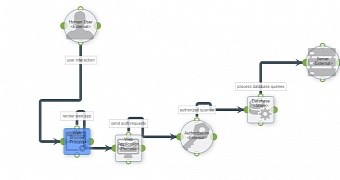 A web-based threat modeling tool was developed by undergraduate students at St. Mary’s University in Nova Scotia, Canada, as part of Mozilla’s Winter of Security project in 2014.
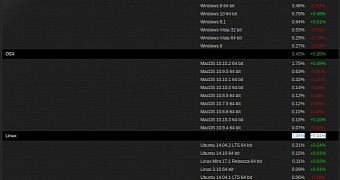 Valve has published the results of the Steam Hardware Survey for March, and it looks like Steam for Linux is again rising, although it is difficult to say if it’s something permanent or just a simple spike up the graph.
 In preparation for the Linux kernel 4.0 release, the project’s official website Kernel.org has been renamed
 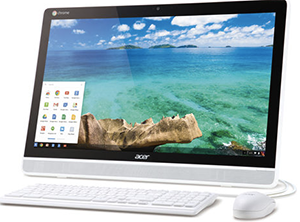 Although many people think of them as older participants in the portable computing market, the fact is that Chromebooks based on Google’s Chrome OS first went on sale in June of 2011–not long ago. Since then, portable systems based on Chrome OS have done fairly well, selling particularly well over the holidays, and helping to introduce many consumers to the basics of cloud computing.