Home Blog Page 1161

A Linux Paradox Needs Explanation: Making Your Linux OS Look like Windows

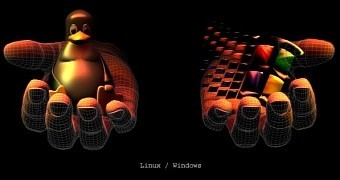
The Linux platform is extremely flexible, and it can be implemented pretty much anywhere, either as a server, a firewall or as an OS for your heating system at home. The same flexibility allows users to customize their operating systems to look like Windows, and that is somewhat of a paradox.

The Linux community has always belittled Microsoft and its effort of making Windows secure. Security has been one of the major advantages of Linux over time, and that hasn’t changed un… (read more)

Read more at Softpedia News

How to Install Linux on a Windows Machine With UEFI Secure Boot

secure boot utility

When Windows 8 rolled up to the curb, Microsoft did its best to enforce a protocol known as Unified Extensible Firmware Interface (UEFI) Secure Boot. This was to be a modern replacement for the aging BIOS system and would help ensure boot-time malware couldn’t be injected into a system. For the most part, Linux has overcome those UEFI hurdles. However, with Windows 10, those hurdles could be returning.

This BIOS replacement, UEFI, caused some serious problems with “alternative” platforms. For some time, it was thought UEFI would render Linux uninstallable on any system certified for Windows 8 and up. Eventually Microsoft saw fit to require vendors to include a switch that allowed users to disable UEFI, so that their favorite Linux distribution could be installed. And then some Linux distributions set out to fully support Secure Boot (Red Hat, Ubuntu, SUSE, to name a few). This was accomplished by these particular companies purchasing digital key that would then allow their bootloaders to pass the UEFI firmware check. With that, those distributions have no problems dealing with Secure Boot.

So what are you to do when you have a new system and you want to install Linux? The answer isn’t always simple. This isn’t going to serve as a definitive how-to on booting Linux with UEFI Secure Boot. Because every distribution and every piece of hardware is different, your mileage will vary. This will, however, give you enough information that should start you off on the right foot with Linux and Secure boot.

Your best bet

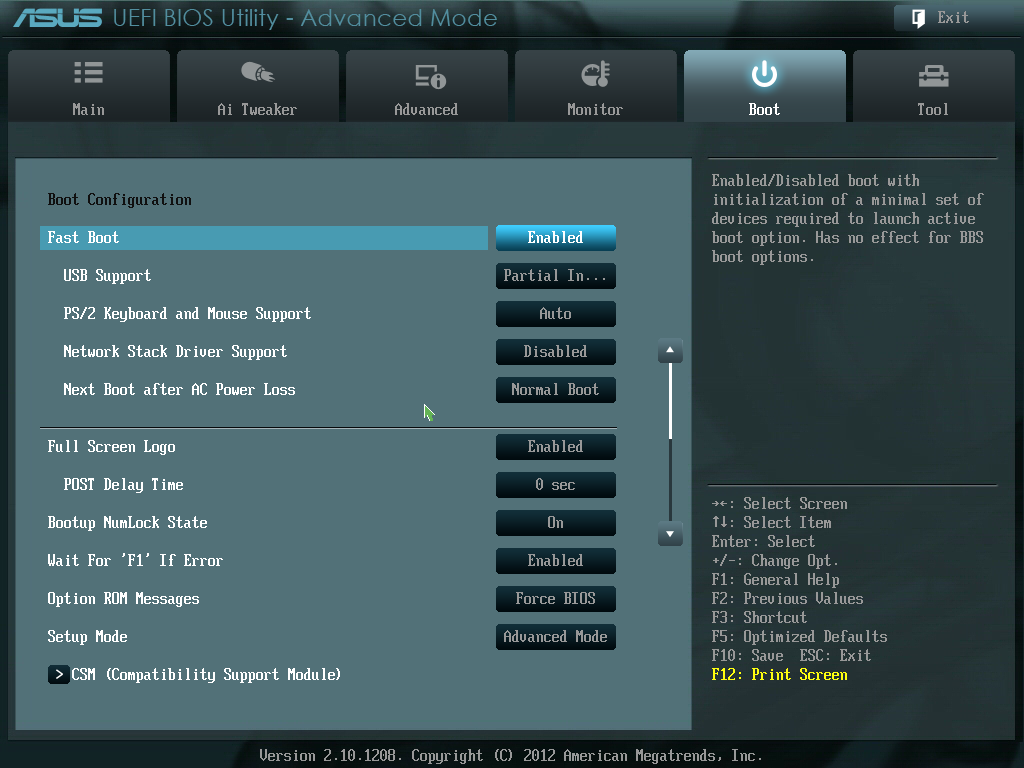
There is one sure-fire way around this issue and that is to simply disable certain components within your BIOS. From within the BIOS, you will want to disable the following:

  • Quickboot/Fastboot

  • Intel Smart Response Technology (ISRT)

  • FastStartUp (if you have Windows 8).

With that done, you should be able to boot your distribution without problems. If, however, you get a Secure boot or signature error, it’s time to disable Secure Boot. If your machine has Windows 7, you can simply enter the BIOS in the standard fashion (by hitting the proper keyboard key associated with your motherboard BIOS settings) and disable Secure Boot. If, however, your machine runs Windows 8, getting to the Secure Boot toggle isn’t quite that simple. To do this you must:

  1. Boot Windows 8

  2. Press the Windows+I keys

  3. Click Change PC Settings

  4. Click General and then Advanced Startup

  5. Click Restart now

  6. Click UEFI Firmware settings.

In Windows 8.1, do the following:

  1. From the left sidebar, go to Update and recovery

  2. Click Advanced startup

  3. Click Restart now.

The machine should then reboot and enter the BIOS where you can disable Secure Boot.

NOTE: Some BIOSes are equipped to run in what is called EFI or “legacy” mode. If your BIOS does allow this mode, set it and you should have zero issues with Linux. Certain motherboard manufacturers label this as Compatibility Support Module.

With Secure Boot off, run your live disk and see if the boot issue has vanished. If so, install Linux and do your happy dance.

The next simple solution

If disabling Secure Boot isn’t an option for you, the next easiest route to success is to choose a Linux distribution that fully supports Secure Boot. If you’re using Ubuntu >=  12.04.2 (or any of its official “flavors”) or Linux Mint >=16, you can rest assured these distributions support Secure Boot because both distributions (and their “flavors”) share a legitimate Intel UEFI/SecureBoot code. As well, both enterprise-ready distributions Red Hat and SUSE have paid the piper to gain access to an official key. With these particular distributions, Secure Boot should not be an issue. I’ve booted plenty of Secure Boot-enabled machines with Ubuntu and had nary an issue.

If you have a particular Linux distribution that you are fond of, and you are having trouble getting around Secure Boot, contact the developers of said distribution and see what they recommend.

Dual booting

But what about dual booting Windows and Linux? Considering Windows makes use of Secure Boot, won’t that hamper your ability to boot both platforms? Not if you’re using Windows 8 or 8.1. With these particular iterations of Windows, you can actually disable Secure Boot and still boot the OS. There is one major glitch in this approach.

Say you have Windows 8, you disable Secure Boot, and then you install your favorite flavor of Linux for dual booting purposes. One day you boot up Windows to discover the 8.1 update is available. You install it and reboot to discover Linux is no longer an option. What do you do? The easiest solution for this problem is to upgrade Windows to 8.1 before you install Linux. Once that update is complete, then install Linux as a dual booting solution and you should be good to go. If, however, you’ve already installed Linux and your Windows partition upgrades to 8.1, you’ll need to boot from your Linux live disk and run its boot repair tool. The repair should fix the issue and dual booting will return.

The Windows 10 problem

This is where it all gets a bit frustrating. Microsoft has announced that, with Windows 10, they will no longer require manufacturers to include the ability to toggle off Secure Boot. This means PC vendors will have the power to further raise the hurdles for alternative operating systems to be installed. The official decision has not been handed down yet. Even if it does take effect, this will not cause problems with older systems. And even if it does become a reality, distributions such as Ubuntu, Fedora, Red Hat, and SUSE won’t have any issues as they are already using official digital keys to meet the UEFI requirements. For smaller distributions (created by developers who cannot afford to purchase the keys), this could be a big issue.

Fortunately, it’s not totally insurmountable. How? Because there are vendors out there selling modern hardware that is specifically geared toward Linux. System76 has grown into one of the biggest vendors of Linux desktops and laptops. ZaReason is another, similar solution. Both companies not only offer outstanding hardware, they give back to the open source community and serve as a means for Linux users to always have hardware that will work with Linux. Besides, supporting companies that are geared specifically for Linux and open source software is a win-win on every level.

Also, if you happen to be a developer, working on a Linux distribution, check out this Linux Foundation publication on Making UEFI Secure Boot Work With Open Platforms.

UEFI proved to not be nearly the impossibility we thought it would present. But with Windows 10, impossibility could become a reality. How will you deal with purchasing new hardware should manufacturers start removing the ability to disable Secure Boot?

10 Truly Amusing Easter Eggs in Linux

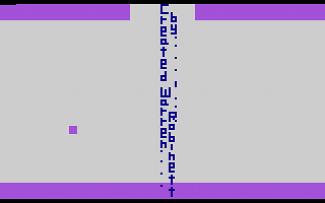
Adventure EastereggBack in 1979, a video game was being developed for the Atari 2600 — Adventure.

The programmer working on Adventure slipped a secret feature into the game which, when the user moved an “invisible square” to a particular wall, allowed entry into a “secret room”. That room contained a simple phrase: “Created by WarrenRobinett”. 

Atari had a policy against putting author credits in their games, so this intrepid programmer put his John Hancock on the game by being, well, sneaky. Atari only found out about the “secret room” after Warren Robinett had left the company. Instead of getting upset about it, Atari decided to give these sorts of “secret features” a name — “Easter Eggs” because… you know… you hunt for them — and declared that they would be putting more of these “Easter Eggs” in future games.

This wasn’t the first such “hidden feature” built into a piece of software (that distinction goes to an operating system for the PDP-10 from 1966, but this was the first time it was given a name. And it was the first time it really grabbed the attention of most computer users and gamers.

Linux (and Linux related software) has not been left out. Some truly amusing Easter Eggs have been created for our beloved operating system over the years. Here are some of my personal favorites — with how to achieve them.

You’ll notice, rather quickly, that most of these are experienced via a terminal. That’s on purpose. Because terminals are cool. [I should also take this moment to say that if you try to run an application I list, and you do not have it installed, it will not work. You should install it first. Because… computers.]

Arch : Pac-Man in pacman

We’re going to start with one just for the ArchLinux fans out there. You can add a PacMan-esque character to your progress bars in “pacman” (the Arch package manager). Why this isn’t enabled by default is beyond me.

To do this you’ll want to edit “/etc/pacman.conf” in your favorite text editor. Under the “# Misc options” section, remove the “#” in front of “Color” and add the line “ILoveCandy”. Because Pac-Man loves candy.

That’s it! Next time you fire up a terminal and run pacman, you’ll help the little yellow guy get some lunch (or at least some candy).

GNU Emacs : Tetris and such
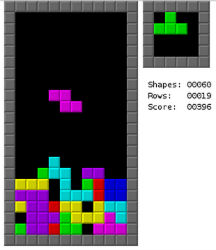
emacs TetrisI have a confession to make: I don’t like emacs. Not even a little bit.

Some things fill my heart with gladness. Some things take away all my sadness. Some things ease my troubles. That’s notwhatemacsdoes.

But it does play Tetris. And that’s not nothing. Here’s how: 

Step 1) Launch emacs. (When in doubt, type “emacs”.)

Step 2) Hit Escape then X on your keyboard.

Step 3) Type “tetris” and hit Enter.

Bored of Tetris? Try “pong”, “snake” and a whole host of other little games (and novelties). Take a look in “/usr/share/emacs/*/lisp/play” for the full list.

Animals Saying Things

The Linux world has a long and glorious history of animals saying things in a terminal. Here are the ones that are the most important to know by heart.

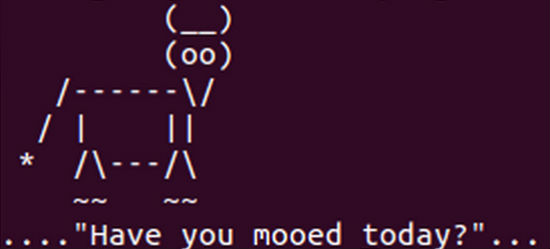
On a Debian-based distro? Try typing “apt-get moo”.
AptGetMoo

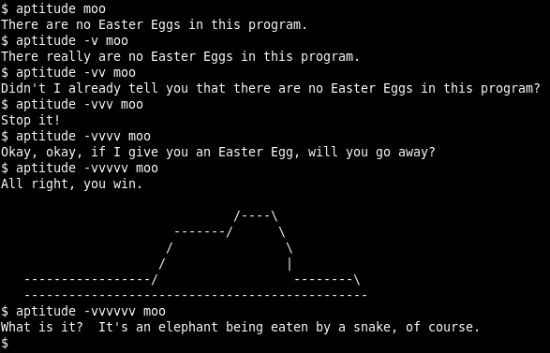
Simple, sure. But it’s a talking cow. So we like it. Then try “aptitude moo”. It will inform you that “There are no Easter Eggs in this program”.

If there’s one thing you should know about aptitude, it’s that it’s a dirty, filthy liar. If aptitude were wearing pants, the fire could be seen from space. Add a “-v” option to that same command. Keep adding more v’s until you force aptitude to come clean.
Aptitude Moo

I think we can all agree, that this is probably the most important feature in aptitude. But what if you want to put your own words into the mouth of a cow? That’s where “cowsay” comes in.

And, don’t let the name “cowsay” fool you. You can put words into so much more than just a cow. Like an elephant, Calvin, Beavis and even the Ghostbusters logo. Just do a “cowsay -l” from the terminal to get a complete list of options.
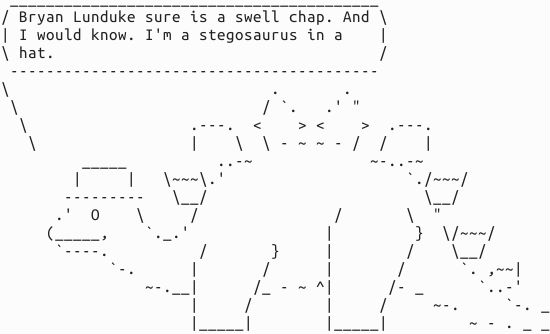
cowsay

Want to get really tricky? You can pipe the output of other applications into cowsay. Try “fortune | cowsay”. Lots of fun can be had.

Sudo Insult Me Please

Raise your hand if you’ve always wanted your computer to insult you when you do something wrong. Hell. I know I have. Try this:

Type “sudo visudo” to open the “sudoers” file. In the top of that file you’ll likely see a few lines that start with “Defaults”. At the bottom of that list add “Defaults insults” and save the file.

Now, whenever you mistype your sudo password, your system will lob insults at you. Confidence boosting phrases such as “Listen, burrito brains, I don’t have time to listen to this trash.”, “Are you on drugs?” and “You’re mind just hasn’t been the same since the electro-shocks, has it?”.

This one has the side-effect of being a rather fun thing to set on a co-worker’s computer.

Firefox is cheeky

Here’s one that isn’t done from the Terminal! Huzzah!

Open up Firefox. In the URL bar type “about:about”. That will give you a list of all of the “about” pages in Firefox. Nothing too fancy there, right?

Now try “about:mozilla” and you’ll be greeted with a quote from the “BookofMozilla” — the holy book of web browsing. One of my other favorites, “about:robots”, is also quite excellent.
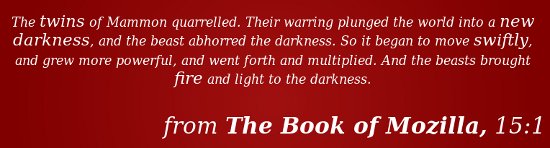
About Mozilla550

Carefully Crafted Calendar Concoctions

Tired of the boring old GregorianCalendar? Ready to mix things up a little bit? Try typing “ddate”. This will print the current date on the DiscordianCalendar. You will be greeted by something that looks like this:

“Today is Sweetmorn, the 18th day of Discord in the YOLD 3181”

I hear what you’re saying, “But, this isn’t an Easter Egg!” Shush. I’ll call it an Easter Egg if I want to. 

Instant l33t Hacker Mode

Want to feel like you’re a super-hacker from a movie? Try setting nmap into “ScriptKiddie” mode (by adding “-oS”) and all of the output will be rendered in the most 3l33t h@x0r-y way possible.

Example: “nmap -oS – google.com”

Do it. You know you want to. Angelina Jolie would be superimpressed

The lolcat Rainbow 

Having awesome Easter Eggs and goodies in your Linux terminal is fine and dandy… but what if you want it to have a little more… pizazz? Enter: lolcat. Take the text output of any program and pipe it through lolcat to super-duper-rainbow-ize it. 
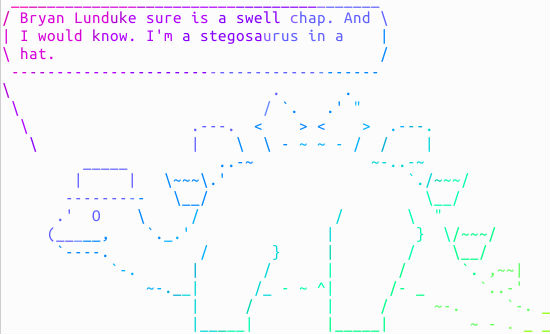
lolcat

Cursor Chasing Critter

oneko catAnd that brings us to “oneko” — the Linux port of the classic “Neko”. Basically a little cat that chases your cursor around the screen.

While this may not qualify as an “Easter Egg” in the strictest sense of the word, it’s still fun. And it feels Easter Egg-y.

You can also use different options (such as “oneko -dog”) to use a little dog instead of a cat and a few other tweaks and options. Lots of possibilities for annoying co-workers with this one.

There you have it! A list of my favorite Linux Easter Eggs (and things of that ilk). Feel free to add your own favorite in the comments section below. Because this is the Internet. And you can do that sort of thing.

Bryan Lunduke is a Social Media Marketing Manager at SUSE. 

A Linux User Tries Out Windows 10

 Every now and then, it’s nice to break out of your bubble, to really get outside your comfort zone and see how things are “on the other side of the fence.”

I love Chinese food. Could eat Chinese food every day of the week. But, once in a while, it’s a good idea to mix things up. You know. And order a pizza.

This is that time for me. Only instead of Chinese food, it’s Linux. Instead of pizza, Windows 10 (Technical Preview). That’s right. I’m a full time Linux user, and I just spent a few days trying to live in the preview edition of Windows 10.

Read more at Network World.

Linux Job Market Booms Even as the Server Market Disappears

 According to a new Dice report, the Linux job market remains sizzling hot. Nearly every single hiring manager surveyed (97%) expects to hire more Linux talent relative to other skills areas in the next six months.

In fact, Linux jobs growth outpaces Linux server growth.

Read more at Tech Republic.

Continuous Deployment with Mesos, Marathon and Docker

 Datacenter automation is one of the strongest features offered by the Mesosphere technology. This post is a follow on from our recent presentation at the Bay Area Infracoders meetup where we demonstrated how an organization can use Mesosphere to easily construct a simple continuous deployment pipeline from source code repository to your datacenter.

Continuous deployment is the holy grail of datacenter automation. In this post, we demonstrate a simplified example of how we use Mesos, Marathon, TeamCity, and Docker internally to deploy applications automatically to our internal staging environment. The team is automatically notified of new deployments by using Slack.

Read more at Mesosphere Blog.

Google’s ARC Beta Runs Android Apps on Chrome OS, Windows, Mac, and Linux

In September, Google launched ARC—the “App Runtime for Chrome,”—a project that allowed Android apps to run on Chrome OS. A few days later, a hack revealed the project’s full potential: it enabled ARC on every “desktop” version of Chrome, meaning you could unofficially run Android apps on Chrome OS, Windows, Mac OS X, and Linux. ARC made Android apps run on nearly every computing platform (save iOS).

ARC is an early beta though so Google has kept the project’s reach very limited—only a handful of apps have been ported to ARC, which have all been the result of close collaborations between Google and the app developer. Now though, Google is taking two big steps forward with the latest developer preview: it’s allowing any developer to run their app on ARC via a new Chrome app packager, and it’s allowing ARC to run on any desktop OS with a Chrome browser.

Read more at ArsTechnica.

Black Lab Linux Desktop 6.5 RC1 Switches to MATE – Screenshot Tour

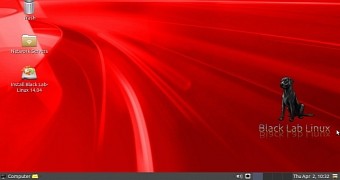
Black Lab Linux Desktop, a distribution based on Ubuntu 14.04 LTS that is now using the MATE desktop environment, has been upgraded to version 6.5 RC1 and is now available for download and testing.

The Black Lab Linux distros have expanded the choice of desktop, and they now come with all sorts of environments, including MATE. Interestingly enough, the previous Beta version in this branch was using GNOME Classic, but the developers decided to change it.

Now, the distribu… (read more)

Read more at Softpedia News

Nebula Folds as Consolidation Looms for OpenStack Scene

It’s a big week on the OpenStack front. Mirantis has joined the Cloud Foundry Foundation, focusing on OpenStack and PaaS, and Nebula startup company that sold data center hardware tools for deploying OpenStack clouds has announced that it is shutting down. Nebula took shape in 2011, just as OpenStack was ramping up, with offices in Seattle and Mountain View, California.

“It is with an extremely heavy heart that we announce that Nebula is ceasing operations,” company officials wrote in a blog post.


Read more at Ostatic